Images in a message
Images can be added in several ways to a message.
- Drag-and-drop from the Webfolder onto the message. In this case, the image is added and takes up the whole space available.
- Adding an Image component to the message and selecting the image from the Image management dialog providing access to the webfolder. The difference is that, in this case, additional properties can be set regarding an alternate text, alignment, size of the image etc.
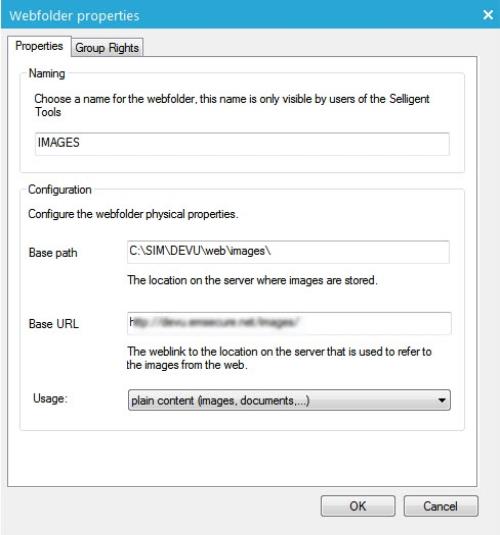
- Name: web folder name (Can be different from the one on the Web server).
- Base Path: web folder physical path on the Web server.
- Base URL: URL address from which the Web folder is accessible online.
- Usage: type of content that will be put in the Web folder. This has to do with security and rights on the webserver; plain content can only be viewed and not executed. Therefore, things like scripts and content renderers should be put in a webfolder with usage set to “dynamic content”.
Access rights can be defined to indicate which users have access to which folders.
Once the folder exists, images can be added to the folder by dropping them from local folders or server folders onto the Webfolder.