
Manage Mobile Apps
Manage your mobile apps and credentials from the Apps page. In the Sailthru platform, find the Settings menu. Mobile Apps are under the Channel option.
Settings > Channel > Mobile Apps
How it works
The Apps page is a central repository for all the apps you have connected to the Sailthru platform. From this page, you can view your connected apps and manage credentials and certificates.
Note: If you have multiple accounts, you will not see all your apps for all accounts. You will only see the apps for the current account.
Each app is listed on the page. The entry includes the App ID, SDK Key, and how it's configured: for Android, iOS, or both.

Select the Settings button for an app to open the Settings modal.
- The General tab shows your App name, App ID, and SDK Key. You can edit the App name.
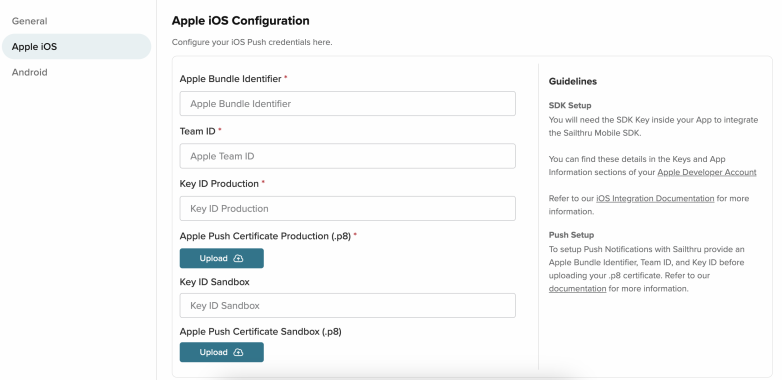
- The Apple iOS tab contains all the options needed to configure your app for iOS. Use this tab to upload a new certificate when needed.
- The Android tab contains the options needed to configure your app for Android.
Note: To create a new app within the Sailthru platform, you will need to contact {who?}. Once an app is created, you can manage the settings through the Apps page.
Manage app settings
Navigate to the Apps page to manage settings for a specific app.
- Select the Settings button for the app you wish to manage.
- In the App Settings modal, select the appropriate tab: General, Apple iOS, or Android.
- Edit the settings that need to be updated.
- Select Save Changes.
Campaign throttle for Push/In-app messages
Select the Campaign Throttle button to set a new value. There is no automatic throttle applied to Push/In-App messages. If you wish your messaging to be throttled, you need to set the rate. The minimum throttle rate is 5000 messages/minute.

