Message Frequency Capping - Early Access
For the most recent documentation that includes frequency capping by label, see the Frequency Capping documentation.
Send messages without overwhelming your audience with frequency capping. Protect your brand reputation and reduce unsubscribes with limits on how many marketing messages a subscriber can receive.
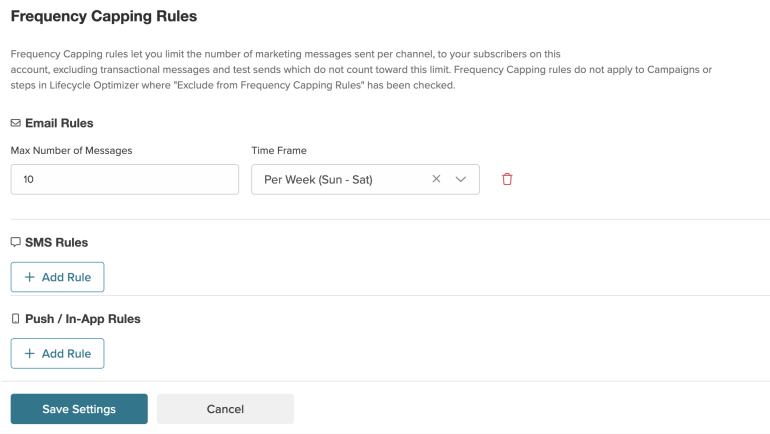
Find Frequency Capping Rules on the Business Settings page (Settings > Business)
How it works
Setting a frequency capping rule limits the number of marketing messages that can be sent to a subscriber. For example, if you limit your message sends to 5 per calendar month, a subscriber will only receive five marketing messages between the first of the month and the last day of the month.
Time-based rules, like daily or monthly rules, fall under your Sailthru by Zeta account's time zone.
The rule you set will only affect marketing messages; transactional messages like message resets or purchase receipts will be sent as usual. Test sends are also excluded in frequency capping rules.
Note: Review your Lifecycle Optimizer flows and exclude any steps you want exempted before you set a capping rule. This will ensure that your flows are not interrupted.
Rule options
There are three rule options available for each messaging channel.
Note: Time-based rules, like the Daily option, are governed by the time zone set in your account. You can find your account's time zone at the top of the Business Settings page.
Daily
Selecting this rule limits the number of marketing messages you can send to a subscriber each day. A day, under capping rules, runs from midnight to midnight based on your account's time zone.
Per week
Selecting this rule limits the number of marketing messages you can send to a subscriber each week. A week runs from 12AM on Sunday to 11:59PM on Saturday based on your account's time zone.
Per month
Selecting this rule limits the number of marketing messages you can send to a subscriber each month. A month runs from the first of the month to the last day.
Set a rule
Note: Review your Lifecycle Optimizer flows and exclude any steps you want exempted before you set a capping rule. This will ensure that your flows are not interrupted.
Navigate to your Business Settings page. Select Business from the Settings menu.
- Select Add Rule under one of the messaging channels.
- Enter the maximum number of messages a subscriber can receive during the capping time frame.
- Select the appropriate capping time frame.
- Select Save to set the rule on your account.
Exclude a message
If you have an important marketing message that you want to send outside the rules, you can exclude that message from the capping rules. It will still count against the number of messages sent, but it will go out to all subscribers.
In a campaign
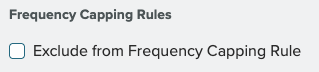
Under the Configuration section, select the checkbox to exclude a message.

SMS
Under the Schedule Message section, select the checkbox to exclude a message.
Push/In-App
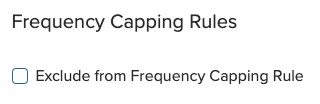
Under the Schedule Message section, select the checkbox to exclude a message.
In Lifecycle Optimizer
Select a Send Email. Send SMS, or Send Push/In-App step. In the Properties panel, select the checkbox to exclude a message.