Early Access Multiple Promotion Codes
Treat your email subscribers with multiple unique promo codes from up to three different promotions.
How Promotions Work
Upload a list or lists of your promotion codes within the Promotions interface. Once your list uploads, you'll be able to associate the promotion with your template or campaign and then call the promotion code or codes using a Zephyr statement.
Note: Promotion codes must be under 64 characters.
Create a promotion
Before you can use promotion codes in your email, you must have a list of promotion codes from your commerce system and create a promotion in the Sailthru system.
Step 1: Get your promotion codes
Download a list of promotion codes from your external commerce system.
Warning: Your promotion requires an ample surplus of codes to cover any seed or test emails that you send in addition to your planned email campaign. If any one promotion in your campaign runs out of promotion codes, it will stop sending automatically.
Notes:
-
The file must be a true .csv file or it will not upload. Some systems give you a utf-8 csv file. Make sure that your file is encoded correctly.
-
The codes must be under the column header code.
-
The codes must be under 64 characters.
-
You may upload multiple files to the same promotion.
Step 2: Add a promotion
Navigate to the Promotions screen from the Content menu (Content > Promotions)
-
Select the New Promotion button at the top of the page.
-
Select Promotion Type. We recommend selecting Multi-promo enabled even for single promotion messages.
-
Give your promotion a name. The name must be 100 characters or less.
-
Enter size of code pool.
-
The value must be between 1 and 2,000,000.
-
See Refill Reminders for more information.
-
Select the file or files you wish to upload.
-
Add text about the Offer, a Description for it, and any Terms and Conditions.
-
These are all optional fields, but you'll be able to call the text you add in Zephyr in your email.
-
These fields can contain up to 1000 characters each.
-
-
Select Get Refill Reminders on this promotion. Do not select this if you do not want to receive Refill Reminders for this promotion.
-
Select Create to save your promotion. The files you attached will be processed and the codes will be added to the Promotion.
-
This should be a quick process. If you need to check the status, you can check it on the Job Status page.
-
Refill Reminders
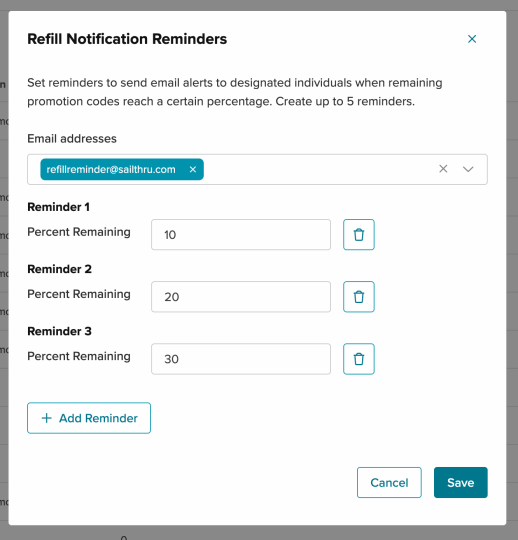
Refill Reminders on Multi-promo enabled promotions work differently than Legacy promotions. You can set multiple thresholds that when the promotion codes drop below will trigger a Refill Reminder email to be sent to designated email addresses. You can have up to 5 thresholds that apply to all Multi-promo enabled promotions that have refill reminders turned on.
Navigate to the Promotions screen from the Content menu (Content > Promotions)
-
Select the Refill Reminder button at the top of the page.
-
In the Email Address field enter an email address to receive the Refill Reminder emails and select Create.
-
Repeat this step to add multiple email addresses to receive Refill Reminder emails.
-
-
Select Add Reminder
-
Enter a value between 0-99
-
Repeat steps 3 and 4 to add multiple reminder thresholds.
-
You can have up to 5 thresholds that apply to all Multi-promo enabled promotions that have Get Refill Reminders on this promotion selected.
-
-
Select Save
Note:
Each Add Reminder value represents a percentage threshold. A Refill Reminder email will be sent as the count of available codes on a promotion drops below each threshold. The percentage is calculated against the code pool that is configured on each promotion.
For example: If the size of the code pool on a promotion is set as 2,000,000 (the maximum), and a reminder threshold of 10 is designated, once the count of available codes on the promotion drops below 200,000 (10% of 2,000,000) a Refill Reminder email will be sent to all designated email addresses.
Use multiple promotions in a template
Navigate to the Template List Page by selecting Templates from the Messaging menu. The Early Access for multiple promotion codes is only available in HTML templates.
When you're adding a promotion to your template, you'll see two options: Multi-promo enabled and Legacy. Select Multi-promo enabled no matter how many promo codes you're adding to your template.
Template set-up
Set your template to use up to three separate promotions.
-
Create a new HTML template or open an existing one.
-
If you created a new template, add the necessary content to the Basics and Code tabs.
-
Select the Advanced tab.
-
Select the Multi-promo enabled radio button.
-
Select a promotion name in each of the Promotion dropdowns. You can select up to three promotions.
-
Each promotion you add will have an index number assigned to it. Make note of which promotion goes with which index number. This is important for the code you insert into your template.
-
Add the code
Using promotions in your email messaging relies on Zephyr. Using multiple promotions in one email requires you to use an index number so the Zephyr statement can render the correct code. For more information on data and Zephyr, see the Data Basics Tutorial.
The basic Zephyr for multiple promotions:
<p>Use this code created just for you to save 25% off your next order!</p>
{promotions(0).code}
Notice the 0 in the parentheses. This is the index number of your promotion. The first promotion will always be 0, the next 1, and the last 2.
The Zephyr for multiple promotions:
<p>Use this code created just for you to save 25% off your next order!</p>
{promotions(0).code}

<p>If you spend over $100, use this code for free shipping!</p>
{promotions(1).code}

<p>30% off your order of $200 or more!</p>
{promotions(2).code}
Use multiple promotions in a campaign
Navigate to the Campaigns List Page through the Messaging menu (Messaging > Campaigns)
Messages with multiple promotion codes work differently than messages with single promotion codes.
When using multiple promotion codes, select a Multi-promo enabled template. The promotions will auto-populate for your selected template.
If your selected template is enabled for a promotion but doesn't include the Zephyr function, add it in the Design section of your campaign.