
Media Library
Manage your media files independently of the Email Composer image tile with the Media Library.
How the Media Library works
Upload and organize your own images or search for free images you can use in your messaging. The Media Library is available from the Messaging menu in the Sailthru by Zetaplatform.
Create a new folder and upload a file
Decide on a folder structure before you begin uploading media files. You can nest folders to create a more complex structure. Files must be uploaded to a specific folder.
Create custom folders to organize your images in the Media Library:
-
Navigate to your image library from the Messaging menu (Messaging > Media Library)
-
Select the Add Folder button next to the search box.

-
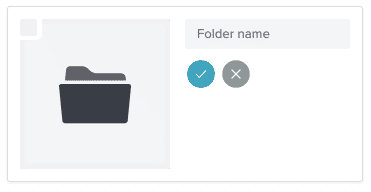
A new folder will show in the gallery. Give the folder a name and select the blue check.
-
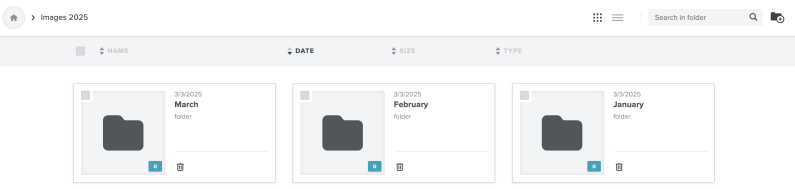
To create sub-folders, select a folder to open it and complete steps 3 and 4 again. Folders initially appear in the order in which they're created. The newest folder appears first. Select any of the header options (Name, Date, Size, or Type) to reorganize folders.
-
To upload a media file, select a folder and then select the Upload button.
-
Select the media file or files to upload from your system's file manager. As your file uploads, you'll see a progress bar before the folder reloads and shows the media file.
Note: You may upload up to 4 images at a time. -
View your folders. Each folder shows how many files it contains.
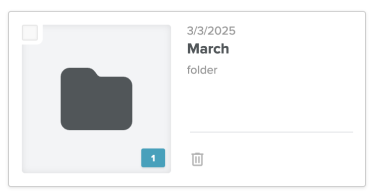
A folder can't be deleted until it's empty. You can mass delete items in a folder. Select the check mark in the top left corner of the image preview for each item you wish to delete, then select Delete All.
Drag-and-Drop Uploads
If you drag files into the Media Library via a template editor, they are placed into the default editor_images folder. These files are automatically organized into monthly subfolders (for example, editor_images/2025/August).
If you drag files directly into the Media Library UI, we recommend selecting or creating a folder first. Uploading files into the main page without folders may impact performance.
Media Library Limits
There are some limits on the Image Library:
-
15,000 max items per folder
-
5 max number of nested directories.
-
4 max concurrent uploads per user.
-
20MB max file size.
-
All image file types are allowed, as well as video, audio, office, and pdf files. While these file types can be uploaded, not all file types can be embedded in an email template.
Use a media file in a template
Since the Media Library isn't accessible in the HTML template builder, you can insert the image using a Zephyr function. After you upload an image, the image card shows in the folder with a Zephyr button. The button creates the Zephyr statement for you.
Zephyr function
After you upload an image, the image card shows in the folder with a Zephyr button. The button creates the Zephyr statement for you. Select it to copy the function to your clipboard. You can then paste it into a template.
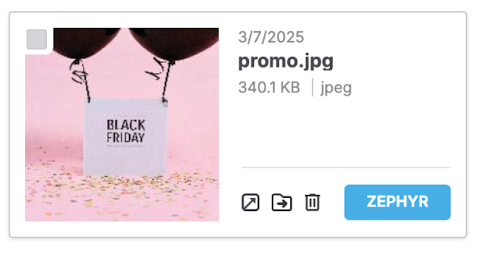
For the example image, the Zephyr would resemble the following:
{media("/April/promo.jpg")}Notes:
-
The forward slash must be included even if the image is in the root directory.
-
The Zephyr function is case sensitive. If the image file name is "gold.jpg", then it must be added that way. Using "Gold.jpg" will not work.
Use a file in an HTML template
-
Select the Zephyr button on the media file you wish to use in the media library.
-
Open an existing template or create a new one.
-
In the Code tab, use the following to insert a file:
<img src={media("/April/promo.jpg")}> -
Save your work.
Use a media file in a Visual template
-
Open an existing template or create a new one.
-
Add an HTML block to your template.
-
Add the following to insert an image:
<img src={media("/April/promo.jpg")}>
-
Save your work.
Delete a media file
To remove a media file from your Media Library, select the trash can icon on the file and confirm the deletion. It will be removed from your library, but will still be shown in any templates that were sent including the file. That way your subscribers will not see a broken image.
Uploading a duplicate file after deletion
If you delete a file and then upload another file with the same name, you'll be prompted to either replace the deleted file or keep both.
-
Replace: reuses the same name and swaps in the new image. Campaigns that have previously been sent will not be affected by the new image.
-
Keep both: the new file is renamed (for example, promo_1.jpg).
Note: Filenames remain reserved even after deletion to protect previously sent campaigns. There is no cache expiry you must choose Replace or Keep Both.
File naming in editor_images
Files uploaded via template editor drag-and-drop into the editor_images folder will have a short hash automatically added to the filename to avoid duplicate-name collisions.
For example, logo.jpg may appear as logo_ab234.jpg.
Files uploaded directly into the Media Library (not via visual editors) will continue to use the standard _1, _2, etc. naming rules for duplicate file uploads.
Delete a folder
To delete a folder, you must first delete all the items in a folder.
If you wish to delete nested folders, start with the deepest folder first, then work upward.
You can also mass delete files:
-
Select the check mark in the top left corner of each file preview, then choose Delete All.
-
To select all files on the page at once, use the checkbox at the very top left next to Name in the header.