
Configure a Print Campaign: Audience
The Audience sub-section is used to identify to whom you're sending your Campaign message. The platform offers several different options to both select and restrict your Campaign Audience.
The features and options available from the Audience sub-section are described below.
Select the Audience
The options for defining the Campaign Audience are described below:
Select the Campaign Audience
Audiences are defined using a filter, which can often (depending on the channel) be restricted through the use of other items, such as Exclusions Lists, De-duping Logic, etc.
 read more
For more information on setting up filters, see the Filters section.
For Regular One-off and Date-triggered Campaigns, the system requires you to select a Filter.
Note: If you assign an empty filter (that is, a filter that doesn't have any logic criteria within it) to a Campaign, the Campaign will deploy to all recipients in the Campaign's source table. In most cases, this isn't desired. The system will display a warning messages if the Filter is empty, but you should also always check that you've assigned the correct filter to the Campaign and check the Filter logic to make sure it's selecting the desired recipients.
For an Event-triggered Campaign, you don't have to select a filter, as the event itself defines who the recipients are; the default audience for an Event-triggered Campaign is all triggered records. Optionally, however, you can select a filter if you need to apply additional restrictions to identify and select only a sub-set of the triggered records.
For an Event-triggered Campaign, in the Advanced Options drop-down list, select Add Audience Filter. The system replaces the default All triggered records filter with a user-defined field. From this point, you can proceed with the steps described below.
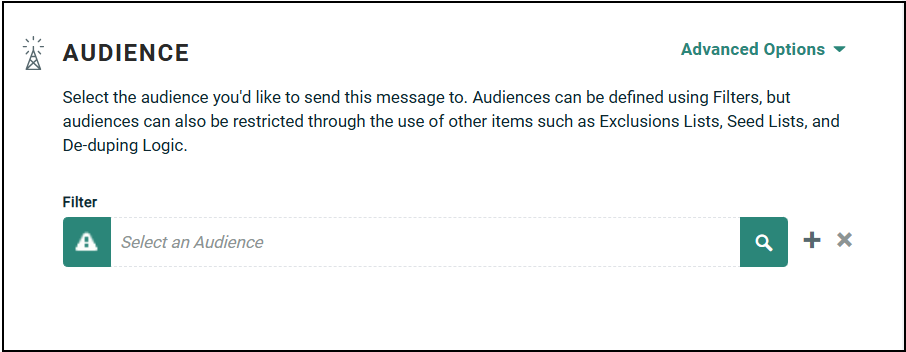
For all Campaign types:
-
Select a filter:
-
To select an existing filter, begin typing in the name of the desired filter and select the required filter from the displayed list. Or, click the browse button (magnifying glass icon). A Browse Filter dialog box is displayed, showing all the filters with the same source table as the current Campaign. Click on the required filter.
Note: If you search for and select a filter that has a different source table than the current Campaign, the system will display an error message at the top of the Campaign screen.
-
To create a new filter, click the new button (+). A Create new Filter dialog box is displayed. Enter a name and select a data source for the filter. Click Create. To define the Filter logic, click the Go to filters details button (green up-arrow icon). The system displays the Filter detail screen where you can define the filter logic. When finished click Edit > Save. To return to your Campaign, click the Campaigns tab in the Top Navigation Pane.

-
-
Optionally, to view the details of this filter, click the Go to filters details button (green up-arrow icon) to the left of the Filter field. The system opens the Filter details screen within a new tab.
-
You may be prompted to select the field you want to use to contact the Campaign's recipients. This option is displayed if your source table contains more than one address-type field (such as multiple Email type fields in an Email Campaign, or multiple Phone type fields in an SMS Text Campaign). From the drop-down menu, select the source table field that you want to use.
Add a Seed List
A Seed List is a group of one or more individuals who are designated to receive a duplicate copy of a Campaign message. When the Campaign is deployed, the system will automatically send the Campaign message to each recipient in the Seed List, regardless of whether those individuals are part of the Campaign audience.
The use of Seed Lists in a Campaign is optional.
read more
Note: Seed Lists are used only for Date-triggered and Regular One-off Campaigns. Currently, the user interface allows you to assign a Seed List to an Event-triggered Campaign, but the system will not actually send email messages to the Seed List recipients when the Event-triggered Campaign is deployed.
For most channels, Seed Lists can be built in one of two ways: either by manually entering one or more individuals, or by using a Filter to define logic that determines who should be included in the Seed List.
To use a seed list:
-
From the Advanced Options drop-down list, select Add Seed List.
A Browse Seed List dialog box is displayed, showing all Seed Lists that have the same source table as the currently selected Campaign.
-
Click on the required Seed List . The selected Seed List is added to the Campaign.
-
To view or edit the Seed List, click on the Seed List's name. To remove this Seed List from the Campaign, click Xnext to the Seed list.
-
If this Campaign is Date-triggered, you can provide additional parameters that control when the system generates and deploys messages to the Seed List recipients. The options for a Date-triggered Campaign are:
-
Off (default selection): The system will send messages to the Seed List recipients ONLY for the first time the Campaign deploys.
-
On: The system will send copies of the Campaign message to the Seed List upon each date-triggered deployment of the Campaign.
-
Daily: Enter a daily limit on how many times the Seed List can be sent copies of the Campaign message within a 24-hour period. You can enter a value between one and 99.
-
For more information on setting up Seed Lists, see the Seed Lists topic.
Use a filter as a seed list
To define a Seed List by means of a Filter:
-
From the Advanced Options drop-down list, select Use a Filter as a Seed List.
-
A Browse Filters dialog box is displayed, showing all filters that have the same source table as the currently selected Campaign.
-
-
Click on a Filter name. The system adds the Seed List as the selected filter in the Campaign.
-
To view or edit the filter, click on the Filter name. To remove this filter from the Campaign, click X next to the filter name.
-
If this Campaign is Date-triggered, you can provide additional parameters that control when the system generates and deploys messages to the Seed List recipients. The options for a Date-triggered Campaign are:
-
Off (default selection): The system will send messages to the Seed List recipients ONLY for the first time the Campaign deploys.
-
On: The system will send copies of the Campaign message to the Seed List upon each date-triggered deployment of the Campaign.
-
Daily: Enter a daily limit on how many times the Seed List can be sent copies of the Campaign message within a 24-hour period. You can enter a value between one and 99.
-
For more information on setting up Filters, see the Filters topic.
Add an Alert Group
The primary purpose of an Alert Group is to notify a select group of individuals when some triggering event has occurred. That event could be any activity recorded by the platform, such as an email click or a Web Form submission. When the event takes place, the system sends a message via Email, SMS Text, or Push Notification to the recipients included in the Alert Group.
read more
Alert Groups should be assigned to their own dedicated Event-triggered Campaign whose sole purpose is to send the alert message, and not to any live marketing Campaign. If you want to send out messages to an Alert Group, you should create a separate Event-triggered Campaign within Cheetah Digital, define the triggering event, define the content of the alert message, and then assign the Alert Group.
Note: When you assign an Alert Group to a Campaign, the recipients in that Alert Group become the de facto Audience for that Campaign, overwriting any other Audience Filter selections you may have made. For this reason, you should keep your alert Campaign separate from your marketing Campaigns.
To add an Alert Group to an Event-triggered Campaign:
-
From the Advanced Options drop-down list, select Add an Alert Group. A Browse Alert Group dialog box is displayed, showing all existing Alert Groups with the same channel as this Campaign.
-
Click on an Alert Group. Within the Audience section of the Campaign screen, the system adds a new Alert Group field.
-
To view or edit the Alert Group, click on the Group's name. To remove this Alert Group from the Campaign, click X next to the group name.
For more information on setting up Alert Groups, see the Alert Groups topic.
Restrict the Audience
The options for restricting the Campaign Audience are described below:
De-duplicate Recipients
De-duplication (or "dedupe") refers to the process of identifying and removing duplicate records from your Campaign Audience, in order to ensure that consumers don't receive unwanted multiple copies of your message. The De-Duplication Logic feature allows you to select what field you want to use for identifying duplicate records, as well as the rules for picking the winner among a set of duplicate records.
read more
The De-duplication Logic feature is conceptually similar to the One Message Per ID feature, but the De-duplication Logic feature allows you to define more complex logic, and you can dedupe on a field other than the Unique Identifier. In most cases, if your Unique Identifier consists of only one field, you should use the De-Duplication Logic feature, which offers a few more options. If your Unique Identifier consists of multiple fields, you'll need to use the One Message Per ID feature instead.
To enable the De-duplication Logic feature:
-
From the Advanced Options drop-down list, select Add Deduping Logic. Within the Audience section of the Campaign screen, the system adds a new Dedupe Logic section.
-
From the Field drop-down menu, select the field on the Campaign source table that you want to use when identifying duplicate records. The system will perform a byte-for-byte match on the values in this field to attempt to find duplicates.
-
Optionally, the Criteria field can be used to select a Filter that contains logic to pick the winner from among a set of duplicate records. For example, you could define a Filter that selects records that have click activity, or that made a purchase. To use an existing Filter, either begin typing in the Filter name, or click the search button (magnifying glass icon) to search for it. You can also create a new Filter by clicking the new button (+).
-
Optionally, the Sort by menu can be used with or without the Filter (selected above) to pick the winner from among the set of duplicate records. The system will sort the records in the duplicate set by the field you select, in the sequence you select, then pick the topmost record. For example, you could decide to pick the record with the most recent click activity, or the biggest purchase. To use this feature, from the Sort by drop-down menu, select the field on the Campaign source table on which you want to sort. Then select whether you want to sort in Ascending or Descending order.
-
For Regular One-off Campaigns, the de-duplication logic is always applied to the entire Campaign audience. For Event-triggered and Date-triggered Campaigns, an additional History check box is displayed. If you want to dedupe on just the current batch of recipients in the message queue, and not the entire Campaign history, place a check mark in the History check box.
-
If you want to remove the de-duplication logic from the Campaign, click X next to the Dedupe Logic section.
Note: If you don't define a Filter and / or Sort option to select the winner from amongst a set of duplicate records, the system will sort the duplicate set by the Primary Key ID (pk_id) field in descending order, then pick the top-most record. This default option will roughly approximate picking the most recently added record.
Define Total Number of Messages
To set a hard limit on the total number of messages sent out in this Campaign:
read more
-
From the Advanced Options drop-down list, selectAdd Total Send Limit. Within the Audience section of the Campaign screen, the system adds a new Audience Limit section.
-
In the Audience Limit section, enter a numeric value. The system will send this number of messages, then stop the Campaign.
-
If you want to remove the audience limit from the Campaign, click X next to Audience Limit section.
Send One Message per ID
Cheetah Digital allows you to limit the Campaign to send only one message to each unique recipient over the entire lifetime of the Campaign. The platform removes duplicates using the Unique Identifier. The Unique Identifier (also referred to as the Alternate Key) is used to ensure that records in your table are created and updated properly. The Unique Identifier can be based on a single field, or on a combination of more than one field.
read more
The One Message Per ID feature is typically used for triggered Campaigns, where the same individual could theoretically qualify to receive a message more than once. Using this feature, the recipient will receive only one message from the Campaign.
The One Message Per ID feature is conceptually similar to the De-Duplication Logic feature, but that feature allows you to dedupe on any one field, not just on the Unique Identifier, and to define the rules for how to pick the winner amongst a set of duplicate records. In most cases, if your Unique Identifier consists of only one field, you should use the De-Duplication Logic feature, which offers a few more options. If your Unique Identifier consists of multiple fields, you'll need to use the One Message Per ID feature instead.
To restrict the Campaign to send out only one message per unique consumer:
-
From the Advanced Options drop-down list, select Limit Messages to one per unique ID. Within the Audience section of the Campaign screen, the system adds a new Audience Limit section.
-
If you want to remove the audience limit from the Campaign, click X next to the Audience Limit section.
Add a Special Processing Step
Cheetah Digital allows you to utilize custom stored procedures. These stored procedures must be defined and configured by your Zeta support team, which makes them available for selection when setting up your Campaign.
read more
To use a custom stored procedure in your Campaign:
-
From the Advanced Options drop-down list, select Add Special Processing Steps.Within the Audience section of the Campaign screen, the system adds a new Special Processing section.
-
From the Special Processing drop-down menu, select the desired stored procedure. This drop-down list contains every custom stored procedure that has been configured for your account.
-
If you want to remove the special processing step from the Campaign, click X next to the Special Processing section.
