
Configure a SMS Text Campaign: Content
The Content section is used to enter and preview the message content, to define different format versions, and to configure the link tracking options.
The features and options available from the Content section are described below.
When you're finished with the Content section, click Next at the bottom of the screen or click the Review tab. If you need to move back to the Setup tab, click Previous or the Setup tab.
Message Details
This section enables you to select the message encoding you want to send the message in. The type of encoding will affect the final character count and number of messages sent to the customer.
-
Select the Message Type you want to send: SMS for no media and MMS for message with media.
-
From the Message Encoding drop-down list, select the encoding method for your Campaign:
-
Latin 9 (ISO)- Messages can be up to 160 characters in length, as long as all characters in the message conform to the Global System for Mobile Communications (GSM) encoding standard. If you included a non-GSM character, the platform will automatically convert your message to Unicode.
-
Unicode- Messages can be 70 characters in length.
-
-
For SMS Text Campaigns, you must select the Content Source for your message. Click an option below for more information on using a content source:
-
Optionally, if you want to set an expiry date for the responses, select Has Expiration Date check box and enter an end-date for sending keyword driven automated responses sent out by this Campaign.
Message
The Message section allows you to define the content of the SMS Text message that will be sent to your recipients.
Here you can enter and preview the SMS Text message content.
SMS: In the Message field, enter your SMS text message. The counter below the field displays the current number of characters in your message. The number of characters allowed per message depends on the encoding method: Latin 9 (ISO) supports up to 160 characters, while Unicode supports up to 70 characters. If your message exceeds these limits, it will be split into multiple messages and sent to the recipient.
Select Shorten Links to use a URL Shortener to convert URL in the message into a condensed format. This option is useful when there's a strict character limit.
Add Personalization Fields
Personalization fields are used to populate your message with customer specific values from the database. For example, in the "Dear Customer" greeting, you could replace the word "Customer" with the customer's actual first name.
 read more
The available personalization fields are displayed within the Personalization and Library Pane on the right-hand side of the screen.
The Personalization Pane appears collapsed on the right-hand side of the screen. Within this panel, the available fields are organized into different expandable / collapsible groups. For example, you'll see a section for your Campaign source table. You may see another section called Joins if your source table is joined to another table, or a section called System Fields that contains system-generated fields, or a section called Metadata Fields that contains the Metadata fields defined in your account.
You can include various Dynamic content such as Dynamic Block, Looping Block, Content Block etc., in the message from the Library folder.
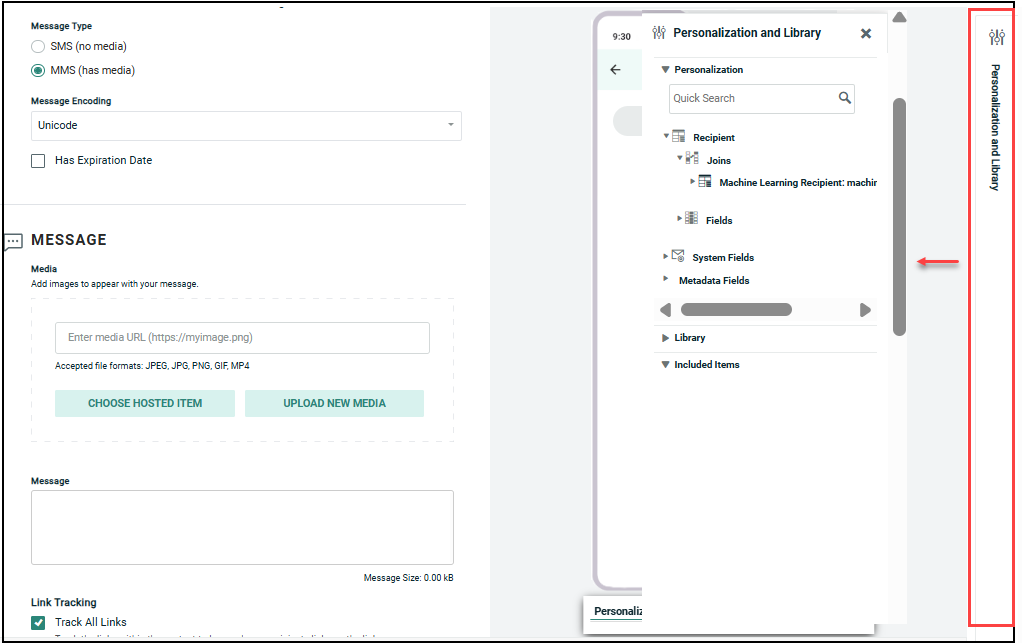
To add personalization to your message:
-
Place your cursor in the field where you want to add personalization.
-
Within the Personalization Pane, expand the desired group.
-
Double-click on the Personalization field name. Or drag the desired personalization field from the Personalization Pane, and drop it into the text field. An Insert Field Value popup dialog is displayed.
-
Optionally, enter a default value for this personalization field in the Default text box. The default value is used if their is no recorded value to personalize the message.
-
Optionally select a formatting mask from the Formatter drop-down menu. The formatting mask is used to control the appearance of the text in the personalization field. For example, you can format date fields as mm/dd/yyyy. The system includes formatting masks for currency, dates, numbers, and URLs. You can also use a formatting mask to truncate or encode the personalization field.
-
Click Ok. The system creates a new Merge Symbol for this personalization field.
Add Multimedia Messaging Service (MMS) Content
Multimedia Messaging Service (MMS) extends the functionality of core SMS text messages, by allowing you to include an image, video, or audio clip in the message, along with the text component. The total file size of the entire message, including the text component and multimedia file, can't exceed the maximum size allowed by your country's mobile carriers. Size limits typically range from 300 kilobytes to 500 kilobytes per message.
read more
Note: The use of MMS is an optional feature that must be enabled with your account, and within the Sender Profile utilized by your Campaign. Please speak with your Client Services Representative for more details on enabling MMS. MMS is available only to recipients in the United States, the United Kingdom, Australia, and Canada.
Before you can define the MMS content of your Campaign message, the Sender Profile must be configured to support MMS.
To add the MMS content to your Campaign message:
-
Select MMS option in the Message Type field. An additional Media field is displayed in the Message section.
New Media options are displayed. Also, the character counter beneath the Message field now shows the file size. An MMS message is constrained by the total file size of the entire message, rather than by the character count, as with an SMS message.
-
Cheetah Digital allows you to either upload the multimedia file that you want to include in the message, or you can link to an externally-hosted file. If you upload the file, the platform will store the file with the rest of your Hosted Items. Click an option below for more information:
Upload a New Hosted Item
To upload a new Hosted Item to use in a MMS message:
-
Click Upload New Media. The Upload Media to Hosted Item pop-up window is displayed.
-
Select the folder to upload the file, from the folder structure (Browse Hosted Items Files)on the left.
-
Click Choose file, and browse to and select the media file. The platform calculates and displays the file size of the selected media file.
Note: Supported file types for MMS are: PNG, JPG, JPEG, GIF, MP4. The maximum file size is 50 MB.
-
Click Upload. When the file is successfully uploaded, click Close.
The Media field is populated with the file path.
Use an Existing Hosted Item
To use an existing Hosted Item:
-
Click Choose Hosted Item. The Browse Hosted Item pop-up window is displayed.
-
Select the folder in the directory structure to see the list of all the contained items. Or search by tying in the file name. From the list of files displayed, click on the desired item.
-
Click Use Image.
The Media field is populated with the file path.
Use an External Asset
To use an externally hosted asset in your MMS message, in the Media field, enter the URL to the media file. The platform calculates and displays the file size accordingly.
Configure Link Tracking
Each Campaign can be configured with specific link tracking details, such as which links to track, what to call those links, and what append codes or Tags to use. The platform will parse your Campaign message content to attempt to identify links within the content.
read more
To configure Link Tracking in your Campaign:
-
If your Campaign contains an External Content Block, and if that External Content Block contains links, the platform enables tracking of those links by default. Optionally you can change this default behavior. Click Do Not Track Links. Please note that this option is displayed only if your Campaign contains an External Content Block with links.
-
Select Track All Links to enable link tracking. Or, depending on the Campaign channel, you may have the option to Track Some Links. If you select this option, you'll need to further select which format versions you want to track (HTML, Plain Text, etc.).
-
If you have multiple domains set up for your account, select a domain from the Link Tracking Domain drop-down list.
-
Select Shorten Links to use a URL Shortener to convert a URL into a condensed format. This option is mainly intended for the SMS Text channel, which has very strict character limits.
-
In tracked links, the Proxy ID parameter (pi) is ON by default and is essential to Marigold’s Machine Learning models, including STO. The option Remove Proxy ID Tracking suppresses this pi parameter and stops the campaign from contributing to all ML models and calculations. We recommend not activating this option unless absolutely necessary. This option is only for the very small amount of marketers who had trouble accommodating this parameter in their redirects.
-
Optionally, in the Append Codes field, enter the Key Value Pair for the Append Code (or optionally, multiple Append Codes). It's not necessary to enter the query string delimiter (?); the platform will add that automatically for you. If entering multiple Append Codes, be sure separate each Key Value Pair with an ampersand (&).
Note: Append Codes are an optional feature used for web tracking purposes through your own tracking system, or through third-party vendors like Omniture and Google Analytics. The code (or codes) entered in this field will be appended to each tracked link in the campaign.
-
The Links Found in Content section lists all of the links that are found within the message content, including any links used within Looping Blocks.
-
The individual links will be tracked in reports generated by the platform. Cheetah Digital's best practice is to provide "friendly" names for the links to make these reports easier to read. For example, instead of viewing a URL like "http://www.mycompany.com/homepage.aspx," a name of “Home Page” can be assigned.
In addition to improving report readability, the use of friendly names allows you to keep links distinct from each other, even if they go to the same destination URL. For example, you might have two links to your company's home page within your message content -- one within the header and one within the footer. By giving these two links different friendly names ("Home Header" and "Home Footer" for example), you can track these two links separately.
The system provides several different ways to assign a friendly name for a link:
-
Define the link and the friendly name in the Link Library
-
Define the friendly name within the Content Editor when you build the message, using one of the following methods:
-
Within HTML content, add a name attribute (data-link-name) to the anchor tag. For example:
<a data-link-name="Cheetah Digital home" href="http://www.cheetahdigital.com">Cheetah Digital Home Page</a>
-
Within either HTML or Text content, use a new URL merge tag to specify the friendly name. For example:
{@Cheetah Digital home|http://www.cheetahdigital.com@}
Note: The link name parameter can be used only in HTML or Text format versions. Also, links contained within Looping Blocks will not support the link name parameter.
-
If the friendly name has not previously been defined through the Link Library, or within the Content Editor, then the system will use a default name, such as "Link 01" followed by the URL. You can manually override this default name, and enter a new friendly name in the "Links Found in Content" list. When you launch the Campaign, the system will automatically add this link / friendly name to the Link Library.
Note: In order for the platform to recognize the link friendly name, the link name and URL (or href tag) must be located in the same content source. For example, if you have links contained within Content Blocks used within a Campaign, the Content Block would need to contain both the link name parameter and the URL or href tag.
-
-
Optionally, to assign a Tag, click the Tag field next to a link. The system displays a menu of every Tag value used within the current system. You can pick one or more of these tags, or type in a new tag and press Enter. To remove a tag, click the X icon next to the tag value.
Tags are an organizational tool that can be used to classify links into custom groups for reporting and tracking purposes. Campaign reports (see Campaign Report: Link Click Activity) will show click responses rolled up by Tag value, allowing you to analyze the combined performance of a group of links. For example, you could assign all of the links in your navigation menu with the Tag navigation. This Tag could then be used to view click activity for all links with the navigation Tag. Also, Tags can be used as Filter criteria when building an Audience for a future Campaign, so you could select all subscribers who clicked on a navigation link, for example. Link tags are a Campaign-level setting; these tags can't be defined on the Link Library screen, but instead only on the Campaign screen.
-
Click Refresh List to refresh the tracking for links added or updated in the message.
-
Optionally, to test that the URLs in your links are all valid, click Validate Links in the Tool Ribbon. The system pings each URL to see if it gets a response within an optimal amount of time. The results of this test are displayed within the Valid? column -- either Valid or Unable to Verify. If you get the Unable to Verify message, check that the text of your URL is correct, and that the target link will be working at the time of the Campaign delivery. Please note that the Validate Links feature is not available for every channel.
-
The Globally Excluded Links section lists all of the links found in the message content that have been explicitly set to Do not track through the Link Library.
Preview
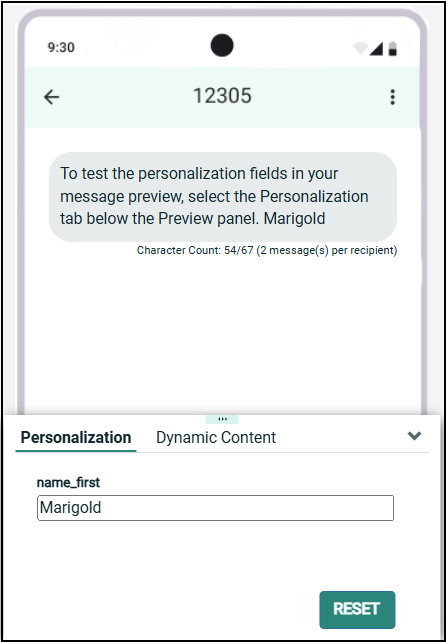
While creating your message Cheetah Digital dynamically creates your message in the mobile device preview, allowing you to see how your message might appear to your recipients.
Test Personalization Fields
To test the personalization fields in your message preview, select the Personalization tab below the Preview panel.
Enter a value for the Personalization field; the system refreshes the preview message with this value. Click Reset to remove the value.
Test Dynamic Content
To test the Dynamic Content in your message preview, select the Dynamic Content tab below the Preview panel. The system displays a simulated version of your message.
If your message contains dynamic content (such as Dynamic Blocks), the different content variations are displayed in the preview. Click the left-right arrow icon to expand this pane in order to see a list of all the dynamic content variations.
Select a content variation. The preview is refreshed to show that variation of the content.
Responses
The features related to responses are as follows:
Configure Keyword Responses
Keywords are special words or phrases that, when detected within a customer's SMS text message, can be used for two primary purposes: 1) to trigger an automated response, and / or 2) to capture customer-provided data.
read more
To add a Keyword-driven automated response to your Campaign:
-
In the Keyword Responses section, click Add Keyword Response. The SMS Keyword Responses dialog box is displayed.
-
From the Short Code drop-down list, select the Short Code to which customers will text their responses.
-
From the Keyword drop-down list, select the desired Keyword Group.
-
From the Match Phone Field drop-down list, select the Phone field on the Campaign's source table. The system will look for a match between the mobile phone number on the customer's response and the field you select here, in order to identify the customer.
-
In the Confirmation Message text field, optionally enter the confirmation message that will automatically get sent back to the customer upon receipt of one of the Keywords in the selected Keyword Group.
-
Click Save Response. The system adds a new section, SMS Keywords within the Responses section . From this new section, you can see a list of all the automated response Keyword Groups assigned to this Campaign.
-
If you need to remove a Keyword Group, click the Delete button next to the group name. If you need to edit the Keyword Group, click the Edit icon to bring up the SMS Keyword Responses dialog box.
Note: Only Keyword Groups that do NOT use Regular Expressions (and therefore are not being used for data capture purposes) are available in this drop-down menu.
Note: If you enter a message in this Confirmation Message field, AND also enter a message in the Message field, the consumer will receive BOTH messages. This may or may not be desirable, depending on your Campaign strategy. If you want to send only one message, you should enter your message in only one of these two places, both of which have their advantages. The Message field on the main Campaign screen offers more sophisticated options regarding personalization, Content Blocks, etc. The downside to using that field is that this message is slower to send since it goes through the full message deployment process. The Confirmation Message field, on the other hand, does not offer any personalization options, but it sends almost instantly.
For more information on setting up Keyword Groups, see the SMS Keywords topic.
Configure Data Capture Responses
Keywords are special words or phrases that, when detected within a customer's SMS text message, can be used for two primary purposes: 1) to trigger an automated response, and / or 2) to capture customer-provided data.
read more
If you're using Keywords to capture data (such as an email address, for example) on the customer's response:
-
In the SMS Data Capture section, click Add SMS Data Capture. The SMS Data Capture dialog box is displayed.
-
From the Short Code drop-down menu, select the Short Code to which customers will text their responses.
-
From the Keyword drop-down menu, select the desired Keyword Group.
-
From the Match Phone Field drop-down menu, select the Phone field on the Campaign's source table. The system will look for a match between the mobile phone number on the customer's response and the field you select here, in order to identify the customer.
-
From the Update Field drop-down menu, select the field in your database that the system will update with the data provided by the customer in his or her text message.
-
Click Save Response. The system adds a new section named SMS Data within the Responses section of the Campaign detail screen. From this new section, you can see a list of all data capture Keyword Groups assigned to this Campaign.
-
If you need to remove a Keyword Group, click the Delete button next to the group name. If you need to edit the Keyword Group, click the Edit icon to bring up the SMS Data Capture dialog box.
Note: Only Keyword Groups that use Regular Expressions (and therefore are intended for data capture purposes) are available in this drop-down menu.
For more information on setting up Keyword Groups, see the SMS Keywords topic.
Configure Custom Responses
The Custom Responses feature allows you to bring external response information into Cheetah Digital. For example, this information could consist of data collected from off-line channels, such as a print Campaign or a call center, or possibly from your own internal systems, or another vendor. You can import this information into Cheetah Digital, tag it with a Campaign ID, and the platform will include those responses within the response reports for that Campaign.
read more
To define how to process custom responses to your marketing Campaign:
-
In the Responses section, click Add Custom Response. The Custom Response pop-up window is displayed.
-
From the Response Table drop-down menu, select the table where you're loading custom response data.
-
From the Group By drop-down menu, select the field by which you want to group the responses.
-
From the Aggregation drop-down menu, select how you want to aggregate the responses.
-
From the Aggregate Value drop-down menu, select an aggregate value.
-
From the Time Dimension drop-down menu, select a time dimension.
-
Click Save Response. The system adds a new section named Custom within the Responses section of the Campaign detail screen. From this new section, you can see a list of all the custom response tables assigned to this Campaign.
-
If you need to remove a custom response table, click the Delete button next to the table. If you need to edit the custom response table, click the Edit button (pen icon) to bring up the Custom Response dialog box.

