
API Keys
Cheetah Digital by Zeta supports a wide range of APIs that can be used to create or edit different Asset types, to request information about Assets, to submit data to be loaded into your database, and to trigger the launch and deployment of a marketing Campaign.
Within the platform, authentication for APIs is handled by an open standard protocol called OAuth 2.0. This protocol was designed specifically for HTTP, and provides standard mechanisms to allow the platform's API users to request access to a particular service.
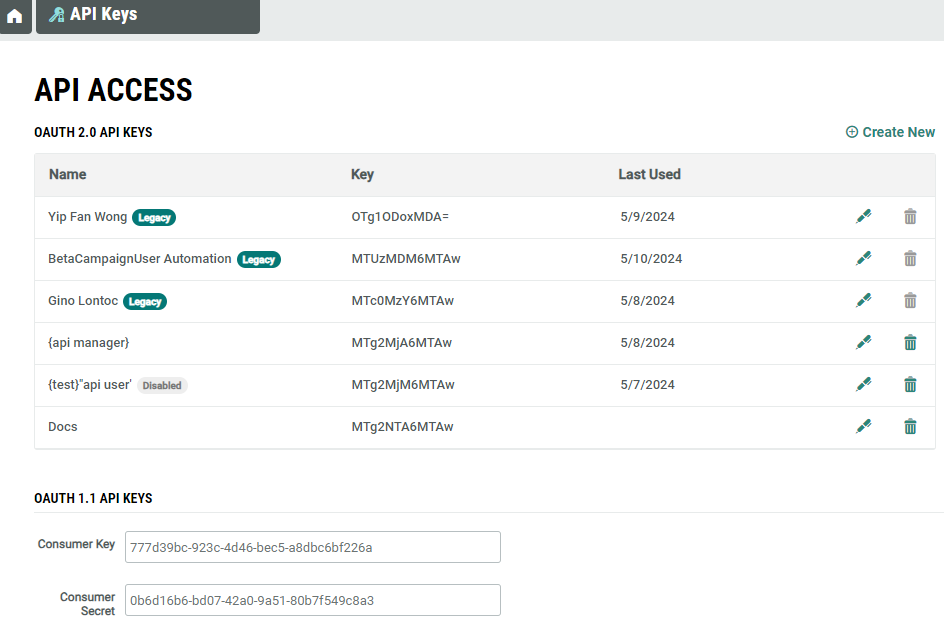
Authentication with OAuth 2.0 requires you to obtain a "Consumer Key" and a Consumer Secret. The Consumer Key is analogous to a username, and is considered public information; the Consumer Secret is analogous to a password, and is kept confidential. These API keys are purpose specific keys for each business unit, assigned to interact with specific section of Cheetah Digital by Zeta platform.
Note: The API keys tagged as Legacy are API keys that have been retained from the Legacy API Keys management system.
The Consumer Key and Consumer Secret are used to request a "token." A token is a text string that, when provided in a request message, will allow the user access to the requested service.To get a token, you must provide your credentials (the Consumer Key and Secret) directly to the authentication server via a POST request. If these credentials are valid, the server replies back with the token. With this token now in hand, you are now fully authenticated, and you can begin making API service calls to the platform.
Access
The API Keys screen is accessible by the following method:
-
From the Main menu, select Data > Management > API Keys
API Access Screen
Features
The primary purpose of the API Keys screen is informational -- you can view your Consumer Key and Consumer Secret so that you can integrate these values into your API token request message. To create, view, edit or delete the API Keys you must have administrator access or belong to the Access Group with relevant permissions to perform these management actions. For more details on Access Group, see Security Settings
Create a New API Key
To create a new API Key:
 read more
-
In the API Access screen, click Create New. The Create OAuth 2.0 API Key window is displayed.
-
Enter the following details:
- Name: Name of the API key.
- Default Email: Email to be utilized for APIs to create Alert Group, Proofing Group or Seeding List.
- Default Phone: Phone number to be utilized for APIs to create Alert Group, Proofing Group or Seeding List.
- Time Zone: Time zone to be utilized for APIs to create Campaigns.
-
In the API Permissions panel below, select the required Cheetah Digital by Zeta section you want the API Key to permit access to, in the Jump To field. The relevant items corresponding to the selection is listed.
-
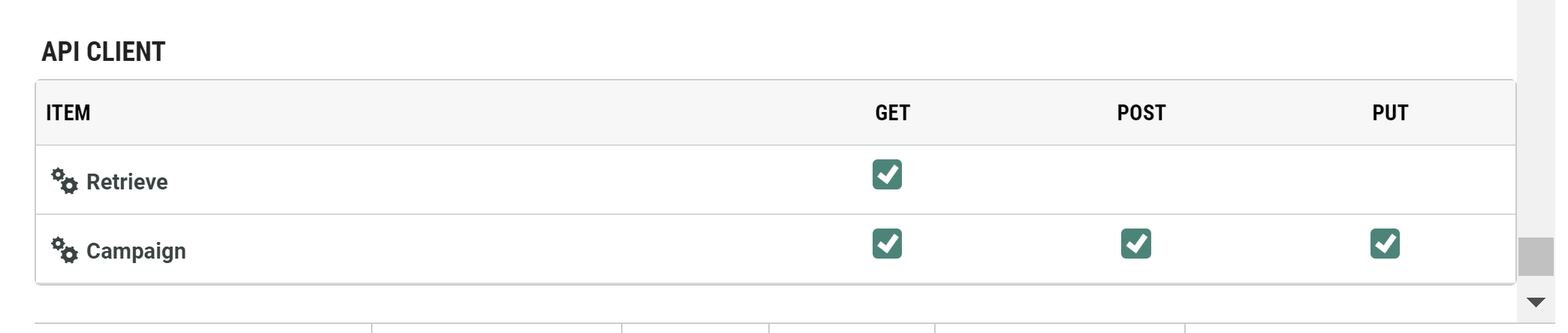
Select the default permissions for API Key. The default permissions are as follows:
- Data Integration
> API Post : Read, Create, Update
> API Access : Read, Create, Update, Delete - API Client
> Retrieve : Get
> Campaign : Get, Post, Put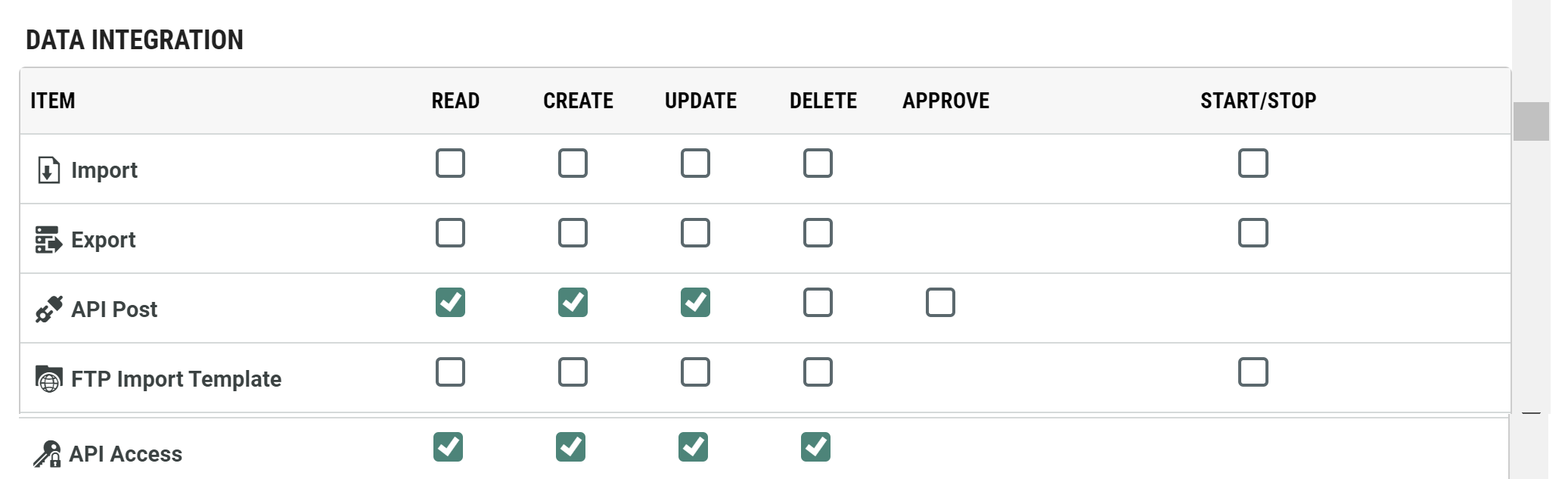
- Data Integration
-
Select the other permissions to be granted.
-
After you have set the permissions for all the required sections, click Save. The API Key is created and the API Key Edit screen is displayed containing the Consumer Key and Consumer Secret. The new API Key and its details can be viewed by other users with relevant access.
Edit API Key
Note: API Keys tagged as Legacy cannot be edited. However, you can copy the Consumer Key and Consumer Secret.
read more
API Key Edit Window
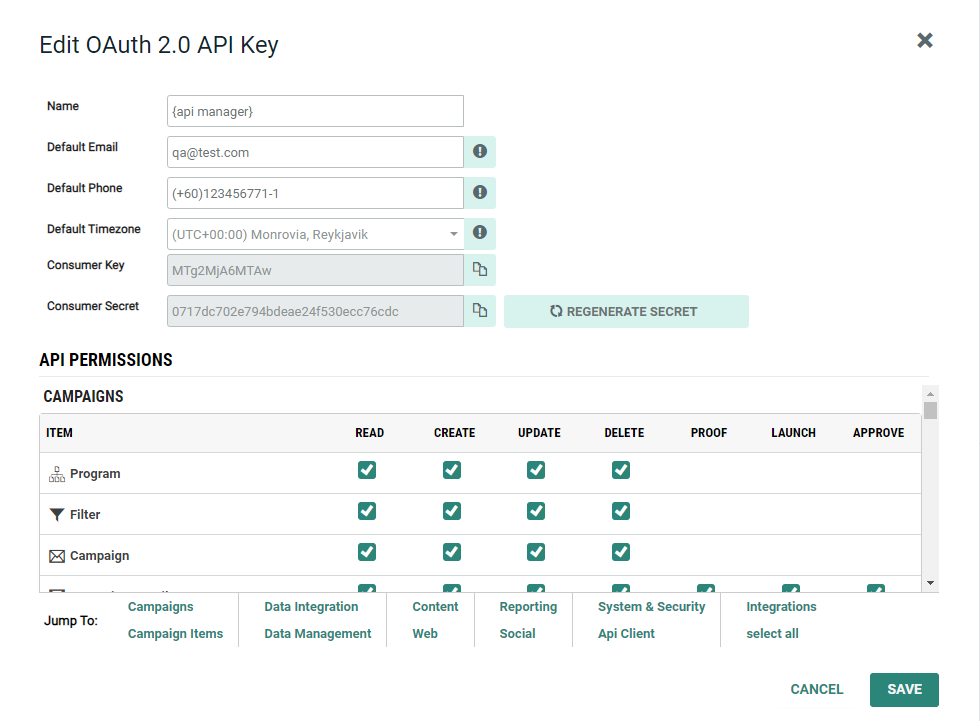
To edit an API Key:
-
In the API Access screen, click the edit icon corresponding to the API Key in the OAuth 2.0 API Key list.
-
Edit the required details and permissions. Ensure the default permissions have been assigned as described above.
-
Click Save. The API Key is created and the API Key Edit screen is displayed containing the Consumer Key and Consumer Secret.
You can view and copy the Consumer Key and Consumer Secret from this screen to request a token.
Regenerate Secret
You can reset or update your Consumer Secret, by clicking Regenrate Secret. The system generates a new Consumer Key and Consumer Secret, and displays it on the screen.
Activate Disabled API Key
The API Keys are deactivted after a number of invalid attempts. These keys are labeled as Disabled in the API Access screnn.
read more
To reactivate an API Key:
-
In the API Access screen, click the edit icon corresponding to the disabled API Key in the OAuth 2.0 API Key list.
-
Click Re-activate.
-
Click OK in the displayed confirmation message.
Delete API Key
To delete an API Key:
read more
-
In the API Access screen, click the delete icon corresponding to the API Key in the OAuth 2.0 API Key list.
-
In the displayed confirmation dialog, click Delete Item. The API Key is deleted.
Note:API Keys tagged as Legacy cannot be deleted.
