Event Stream Import Templates
Event Stream Import: Cheetah Digital offers multiple methods to import data into your marketing database. One of these methods is using the Event stream import (ESI) feature. ESI is a unique importing solution specifically designed to allow direct data ingestion from other Zeta product sources such as Loyalty, Interactive Interactive Moments, AI Analytics, or any other Zeta source generating events. Event stream import does not support importing data from sources outside of Zeta.
Data or events imported using ESI form the basis of ongoing data synchronization between Cheetah Digital and the source systems. Once imported, the data behaves like any other table—available for use in filters, triggers, and personalized campaign content.
Enabling and configuring ESI
Contact your Zeta Representative to get the Event stream import feature activated in your account. This feature also entails a specific configuration set up step which is also completed by the Zeta Representative.
Once ESI set up is complete, you will find the following assets created in your Cheetah Digital.
-
A unique Event stream import template is created for each of the Zeta source products that the data is imported from. This is accessible from Data >Event Stream Import Template.
-
An Event stream data map that is linked to the import template. Used to identify the correct table into which the data needs to be loaded, as well as the fields in that table where each column in the import file will be stored.
-
A new destination database table where you want to load your import data, including all the necessary fields and joins, as well as the unique identifier. This database table is joined to your recipient table of choice, which is defined during the initial setup process.
Event stream import template
Once the ESI feature is enabled, a unique event stream import template is created for you. One is created, for each Zeta source product that is set up to stream data into Cheetah Digital using ESI. The Event stream import templates are accessible in Cheetah Digital by selecting Data > Integration > Event Stream Import Templates.
Note: The Event stream import template setup is a one- time activity and is designed to provide easy access to view the status of streaming data.
The key features of the ESI templates include:
-
One template created per Zeta source product
-
Visibility into event consumption statistics
-
Ability to start or stop imports from specific sources
-
Configure a data map between incoming events and the destination table, and
-
Flexibility to use multiple data maps for standard imports if desired
-
Monitor the import status of the event data with the source Zeta product
-
Configure notifications for errors or inactive imports
Note: Once the data is imported it can be used by the marketers as any other Cheetah Digital database table.
How Event stream import template works
The Event stream import templates screen is accessible from the Main menu by selecting Data > Integration > Event Stream Import Templates. Click the desired ESI template from the left-hand menu and the workspace is populated with the selected template details. The templates are named based on the Zeta source product, such as Loyalty Profile Stream Template for Loyalty, Web Engagement Template for Interactive Interactive Moments.
The Event stream import template is configured with the default options and ready to import data from the desired Zeta source application.
Optionally you can customize the import process by adding additional Event stream data maps and configuring the import process notifications.
Start or stop the import
Use the Start Event Stream Import button in the Edit tool bar, to start the import process. You can stop the import process at any time using the Stop Event Stream Import button.
Event stream summary
Once the import process has started, the following information is available to monitor the import status.
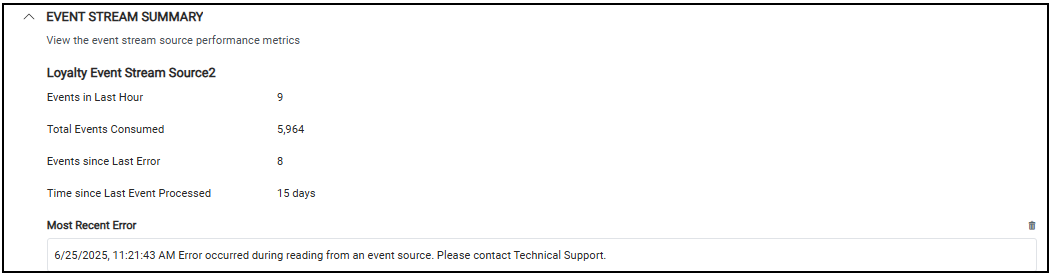
The Event stream summary section provides key metrics on data import, including details on events received, processed, and consumed. It also displays information about any recent errors that occurred during the import. You can check whether events are still being imported after an error and take appropriate action as needed.
Handling and Response to Errors
Most errors posted are self-correcting and do not stop the streaming of data. These errors are posted mostly for reference.
You can easily manually check to see if the error posted has impacted the stream by checking the "events since last error" .
-
If this metric is 0, then the error has impacted streaming
-
If this metric has a value of 1 or more, then the error self-corrected and the streaming was not impacted.
The best practice is to set up notifications that can automatically notify designated individuals if the streaming has stopped or if errors of have posted repeatedly, implying that the error has still not self-corrected. Refer Notifications section.
Adding additional Event stream data maps (optional)
The Events to Import section is used to link Event stream data maps, which map imported events to the Cheetah Digital database tables. When the Event stream import template feature is activated, a default Event stream data map is automatically created and linked to the import template. However, you can add additional data maps if needed—for example, when data must be mapped to multiple unrelated tables. Each linked map receives the full event payload and triggers a separate import.
-
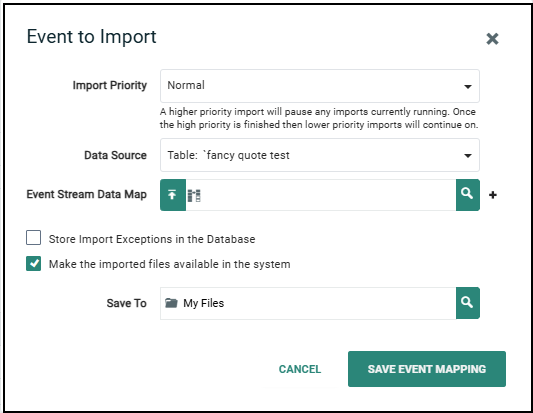
Click Add New Event Stream Data Map button. The Event to Import popup window is displayed.
-
From the Import Priority drop-down menu, select the appropriate priority for this import -- Urgent, High, or Normal (the default is Normal). The Priority you select determines the order in which your imports will be handled. When the system initiates an import with a higher priority than an in-progress import, the higher priority file moves to the next in line, waits for the in-process import to finish, then begins processing. If your imports have the same priority, they will be processed in the order in which they were added (older imports first).
Note: You can't adjust the priority of an in-progress import. The import priority you select in this dialog box will be applied to this template from this point forward, and not to any in-progress imports.
-
From the Data Source drop down menu, select the table in your database where the import event is to be loaded.
-
In the Event Stream Data Map field, either begin typing in the data map name, or click the browse button
 to browse and select. You can also create a new data map by clicking the new button
  . See Event Stream Data Maps for more details.
 -
Optionally, if you want to view the details of the data map after selecting it, click
 . The system displays the Data Maps screen. When finished, click the Import Template tab in the Top Navigation Pane to return to the Import Template screen.
 -
Select Store Import Exceptions in the Database checkbox to save any import exceptions created during the import process.
-
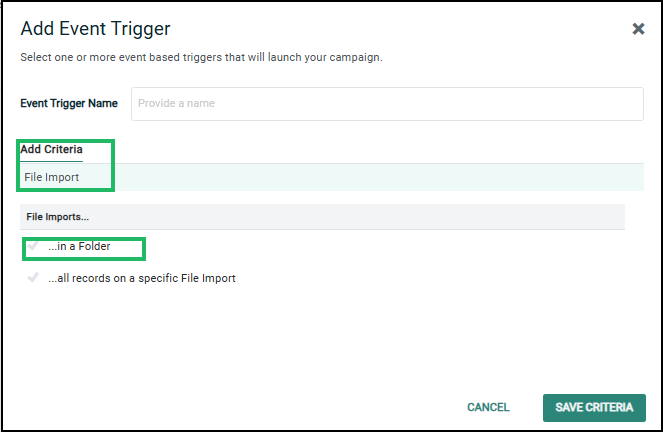
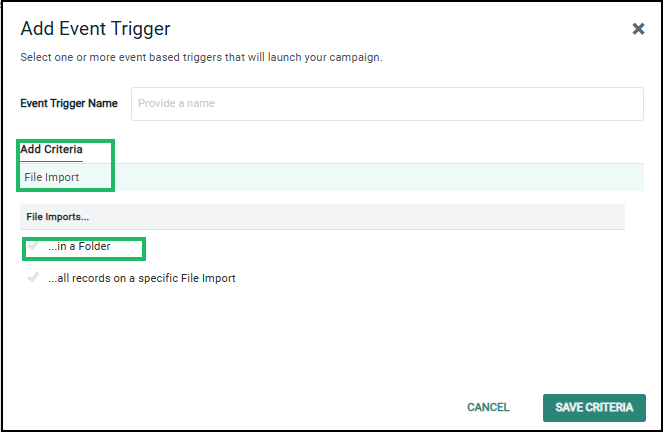
Select Make the imported files available in the system checkbox to save the import data to a folder which can then be used to take actions in a Campaign, such as an Event trigger in a folder.
-
Click Save Event Mapping button. The new Event stream data map is created and linked to the import template.
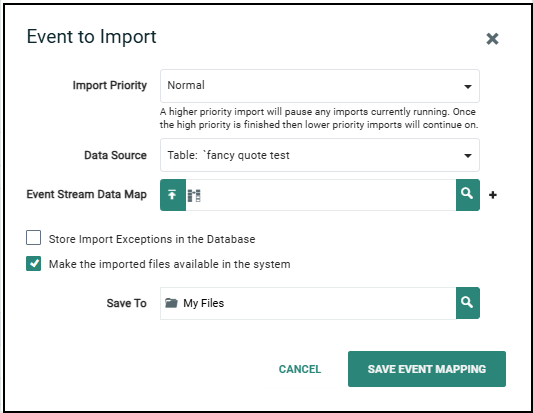
To change the default Event stream data map settings, Click  corresponding to the data map and modify the options as described above.
Notifications (optional)
In the Notifications section, you can define conditions to send an email to specific users, notifying them that the template may require investigation due to a potential issue. A notification is sent only once after the template has previously processed an event successfully.
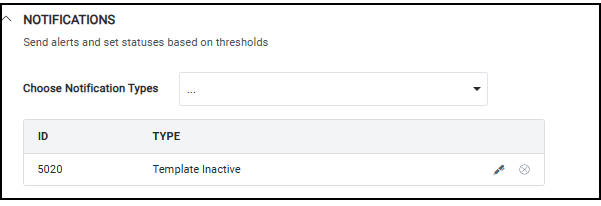
 read more
-
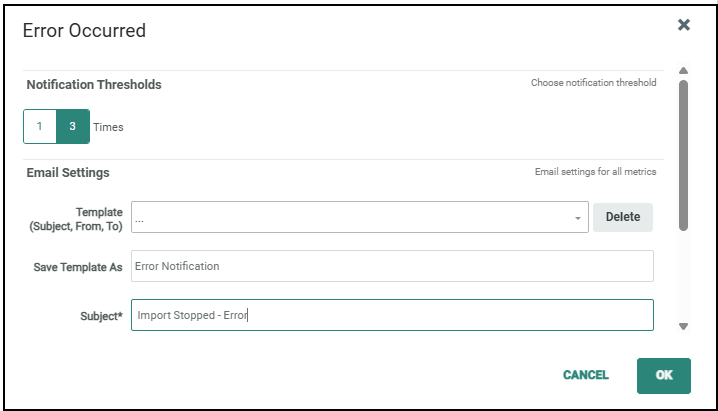
In the Choose Notification Type drop-down menu, select the desired notification type. The Notification Settings pop-up window is displayed.
-
In the Notification Thresholds section, enter the desired threshold settings that will trigger alert notifications, based on the selected notification type. The cause of inactivity or errors may vary—ranging from network, source, or other system issues. Configure the thresholds according to the expected activity of the template to avoid unnecessary notifications.
-
For Error Occurred type, specify the number of error occurrences that will trigger a notification.
-
For Template Inactive type, specify the duration of inactivity (i.e., when no events have been processed) that will trigger a notification.
-
-
Email notification settings can optionally be saved as a template, which allows you to reuse those settings. In the Email Settings sections, you can either select an existing email notification template, or create a new template.
-
Existing Template: Selected the desired template from the Template drop down menu.
Note: If you want to delete an existing template, select it from the Template drop-down menu, then click Delete.
-
New Template: Enter the email subject line, from email address, and recipient email address (or multiple addresses). Enter a short message for the email notification. Optionally, if you want to save these email notifications settings, enter a name for the template in the Save Template As field.
-
-
Click OK. the system adds the email notification to the Selected Notifications list.
To view or edit the notification details, click
, the Notification Settings pop-up window is displayed. To delete a notification, click  .
. -
Repeat the above steps as needed to define the additional email notifications. Each selected metric is handled separately, and will generate its own email notification message.
-
In the tool ribbon, click Edit> Save.
Import Details
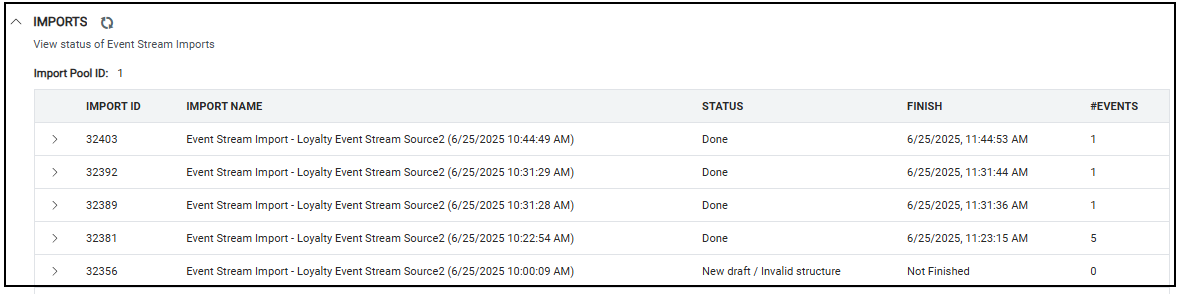
The Imports section lists the status of each individual import showing Import ID, status, time stamp and the number of events in that process.