
Personalized Send Time helps you optimize message send time to the best hour of the day for each person.
Personalized Send Time uses machine learning (ML) models based on recipient engagement to determine the optimal delivery time for each recipient. Using Personalized Send Time helps you to optimize send time to the best hour of the day for each person in your audience, which should help to improve opens, clicks, and overall engagement.
Note: Personalized (AI) Send Time is an optional feature that must be enabled in your account. Please speak with your Zeta Representative for more details.
You can also watch this video which explains this feature.
How does Personalized Send Time work?
Personalized Send Time finds the best hour to email each person based on their email opens and clicks. For example, if a person tends to open and/or click at a particular time each morning, their optimized send time will be just before that observed best time. This leaves time for the email to arrive in their inbox right when they are most likely to engage.
Personalized Send Time finds the best hour by using Machine-Learning (ML) models. These models are fully-managed and automatically scheduled to run weekly, as part of the Zeta ML service. All the technical details of loading the data and administering the models are managed "under the hood", freeing you up to focus on the big picture.
Send Time Optimization (STO) hour
Each person has an STO Hour, which is their best hour of the day to send them an email. Each person is different, so one person might typically engage with your emails at 6am, while another prefers 11pm. This is recalculated each week, to stay current as behavior changes.
Popular STO hours
Popular STO Hours are the most common STO Hours across all your recipients. For example, most brands show spikes in engagement at time ranges of the day. Popular STO Hours are used when an STO Hour cannot be determined for a specific person. People without enough opens or clicks will be assigned an STO Hour from one of the Popular STO Hours. This is reassigned each week, so eventually an email will reach the inbox at the right time.
Popular STO Hours may also be used for day part sends if a person's STO Hour falls outside the selected day part send time.
Day part STO hours
Note: This is an optional feature within Personalized (AI) Send Time. Contact your Zeta Representative to have this feature enabled for you.
Day part STO Hours split the day into two periods using a 24-hour clock: STO AM and STO PM:
- STO AM hours run from 01:00 to 12:00
- STO PM hours run from 13:00 to 24:00
Each person has an STO AM hour and an STO PM hour. These are similar to the STO Hour, but apply to their respective day part instead of the full 24 hours. In most cases, a person's STO Hour is also used for either their STO AM or STO PM hour. The other hour is assigned from one of the Popular STO Hours.
This allows you to use Personalized Send Time within a part of the day. You can choose STO AM if you want to send in the morning, or STO PM for the afternoon/ evening. Or, you can send one campaign with STO AM and a second with STO PM.
The day parts are configurable, for example, you could limit them to your business hours or typical sending window. Contact your Zeta Representative to have this changed for you. Changes to the day-parts will take effect on the next weekly Personalized Send Time scoring run.
ML control group
Personalized Send Time maintains a control group, made up of a random selection of your recipients. The control group allows you to measure Personalized Send Time results against a base group of people who receive their messages at the default time. The ML Control Group is "static", meaning someone selected for the control group will stay in there, so that results can be compared over time.
Using Personalized Send Time
Cheetah Digital provides Personalized Send Time for Regular One-off and Date-triggered Email Campaigns.
Personalized Send Time is available on the Review tab of the campaign, in your Send Time Optimization options.
-
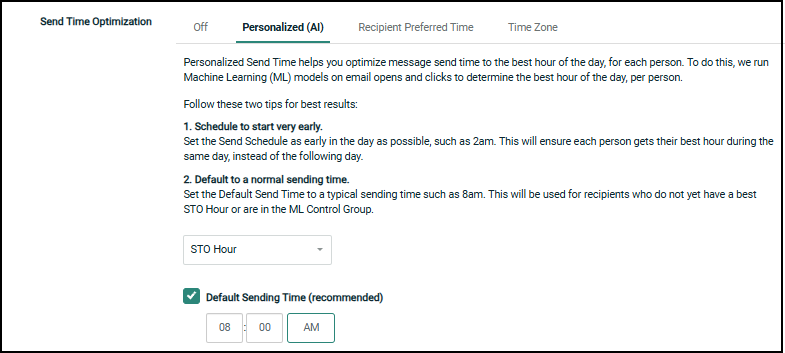
In the Review tab of your campaign, select the Personalized (AI) tab to enable Send Time Optimization.
-
From the drop-down menu, select STO Hour to send at the best hour of the day for each recipient.
-
Set a Default Sending Time. Recipients will receive your campaign at the default time if their STO Hour is empty. This includes the ML Control Group.
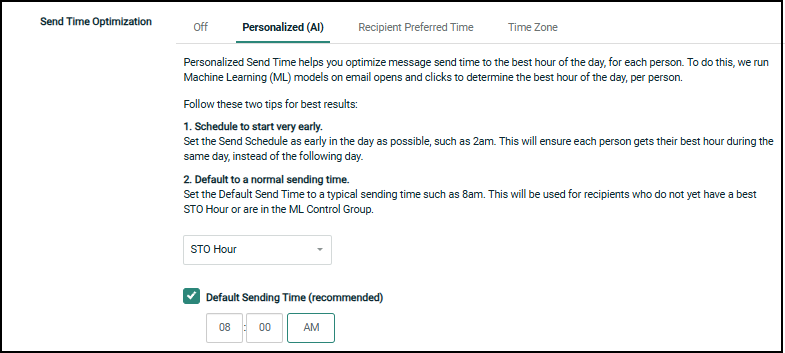
Note: The drop-down and Default Sending Time may be pre-selected for you by default, but it is the Personalized (AI) tab selection that enables / disables Personalized Send Time.
Set Personalized Send Time for a Day part
Note: This feature must be turned on for you; please contact your Zeta Representative for assistance.
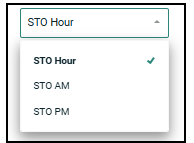
When this feature is enabled, two additional choices will appear in the drop-down: STO AM and STO PM.
Personalized Send Time runs on a 24-hour clock, generally selecting the best hour out of all 24 to send your messaging. You can also select a day part, which covers either the morning hours (01:00 to 12:00) or the afternoon and evening hours (13:00 to 24:00).
You can send all messages in one day part, or you can schedule two different sends of the same email – one for STO AM and one for STO PM.
To set a send for a day part:
-
In the Review tab of your campaign, select the Personalized (AI) tab to enable Send Time Optimization.
-
Select STO AM or STO PM from the STO Hour drop-down menu.
-
Set a Default Sending Time. Recipients will receive your campaign at the default time if their STO Hour is empty. This includes the ML Control Group.
A/B testing
If desired, you can test the effectiveness of Personalized Send Time with an A/B test as follows:
- Run two versions of the same campaign, sending one with Personalized Send Time and one without.
- The audiences should be a random sample A/B split from the main audience.
- Compare the engagement metrics for each campaign to see which performed better.
Squeezing Mechanism for STO Hours
Send Time Optimization (STO) is used in conjunction with the Queue Schedule / Send Schedule options.
If a recipient's STO hour falls outside the Sending Window, the system will adjust by squeezing these messages within 2 hours before or after the window.
For example, with a Sending Window from 9:00 AM to 5:30 PM:
-
Recipients with STO times of 7:00 AM, 8:00 AM, and 9:00 AM will be sent the message at 9:00 AM.
-
Recipients with STO times of 5:00 PM, 6:00 PM, and 7:00 PM will sent the message at 5 PM.
Send Schedule Chart
The Send schedule chart, displayed in Personalized (AI) tab, shows the campaign’s send schedule and STO setting. The chart illustrates the STO sending behavior based on the campaign schedule configuration, helping you understand how messages are sent to optimize engagement and improve overall campaign performance.
The scheduling chart is only supported for “scheduled campaigns” that have a defined “Start On” time. For recurring mailings, the chart reflects only the recurrence schedule and does not include the first and last occurrences, which may have specific start and end times. For example, if a campaign is set to recur every Monday at 10:00 AM, the chart will show the recurring schedule for Mondays. However, if the first mailing was scheduled to start on January 1st at 9:00 AM, and the last mailing is set to end on March 31st at 5:00 PM, these specific start and end times will not be reflected in the chart. Only the recurring Mondays at 10:00 AM will be shown.
For a one-time campaign, if the campaign’s “Start On” time falls within the “Send Only Between” window, some mailings may be sent during the next sending window. For example, if a campaign is scheduled to “Start On” at 8 AM but has a “Send Only Between” window defined as 7 AM to 7.30 PM, STO will use 7 AM for its calculations, including 6 AM and 5 AM as part of the adjusted times leading up to 7 AM.
However, because the campaign is scheduled to begin sending only at 8 AM, audiences with STO times of 5 AM, 6 AM, and 7 AM will not receive the mailing at 8 AM. Instead, they will receive it at 7 AM. the next day.
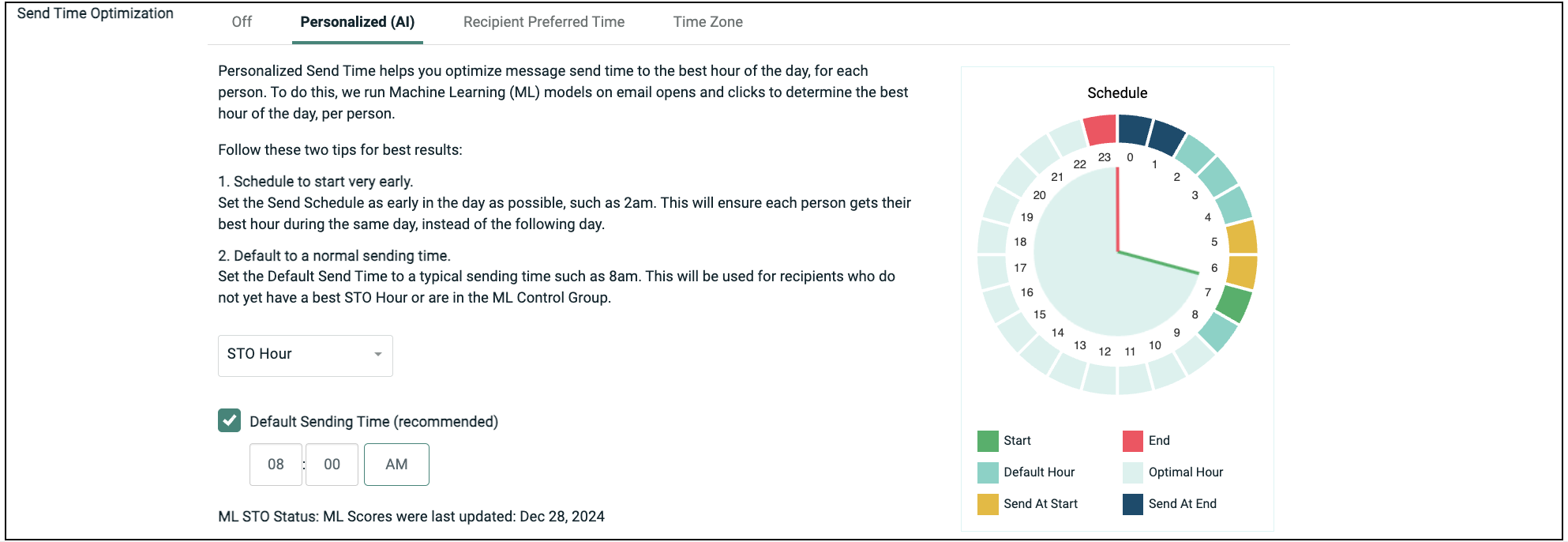
The chart shows the following details:
Start: This is the beginning of the sending window.
End: This refers to the “End Send” hour of the sending window.
Default Hour: Users with STO hours highlighted in this color will be sent the mailing at the Default Sending Hour.
Optimal Hours: Users with STO hours highlighted in this color will be sent the mailing at their designated STO time.
Send at Start: Users with STO hours highlighted in this color will be sent the mailing exactly at the Start Send Time.
Send at End: Users with STO hours highlighted in this color will be sent the mailing at the Stop Send Hour.
Personalized Send Time tips
Schedule to start early
Set the Send Schedule as early in the day as possible, such as 1am or 2am.
- If the campaign is scheduled to send after a person's Personalized (AI) best hour, they will receive the message at their best hour on the following day.
- Schedule your campaign to send as early in the day as possible. This will ensure each person gets their best hour on the correct day.
Default to a normal sending time
Set the Default Sending Time to a typical sending time such as 8am. Recipients will receive your campaign at the default time if their STO Hour is empty. This includes the ML Control Group.
- The ML scores are generated weekly for each email address in your recipient table.
- If you need to send a campaign with newly imported recipients then be sure to set a Default Sending Time in case those recipient email addresses are new and haven't yet been scored.
- The Default Sending Time is also used for people in the ML Control Group, since they do not have an STO Hour.
Sending Window and Default Send Time for STO Hours:
If a recipient's Send Time Optimization (STO) hour falls outside the Sending Window and Squeezing Hours, the system will use the default send time.
For example, with a Sending Window from 9:00 AM to 5:30 PM, and Default Send Time at 1 PM:
-
Recipients with STO times of 12 AM - 6 AM will be sent the message at the default Send Time at 1 PM.
-
Recipients with STO times of 8 PM - 11PM will be sent the message at the default Send Time at 1 PM.
When defining the End Time for the Sending Window, use half-hour increments rather than whole hours.
Multiple campaigns per day
If you use Personalized Send Time for multiple campaigns per day, they will be sent at the same time. This is because the STO Hour has a single value per person.
- If you are sending two campaigns, you can use the optional day-parts for STO AM and STO PM so the two campaigns send at different times. (Be sure to set a different Default Sending Time for each campaign.)
- Note that the STO Hour will probably match either STO AM or STO PM, so that does not provide a third time slot.
Campaign Audit: Projected STO Send per Hour
The Campaign Audit result provides the ability to view the STO projection send per hour before launching a campaign, in the STO tab of the Statistics History section.
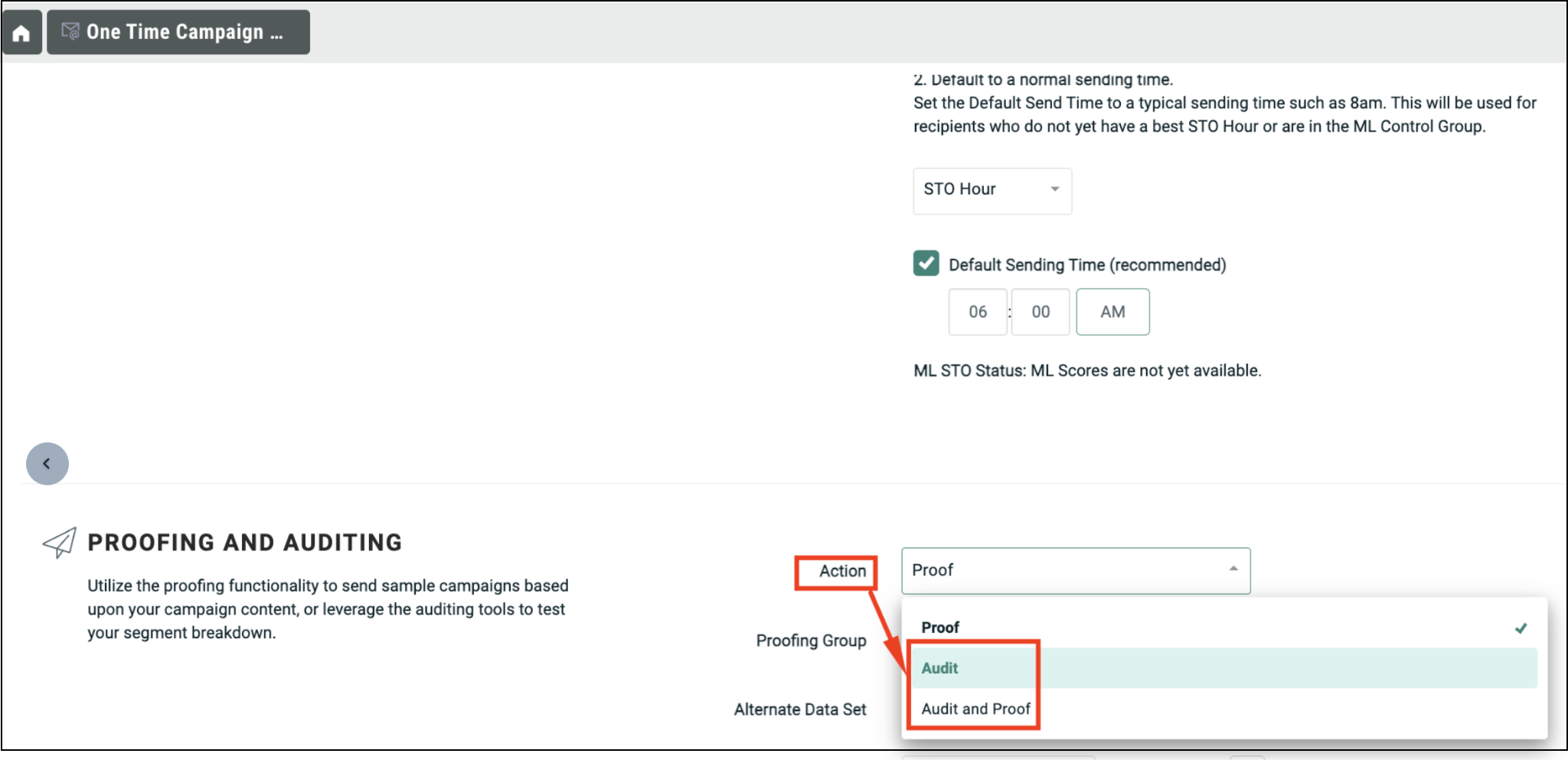
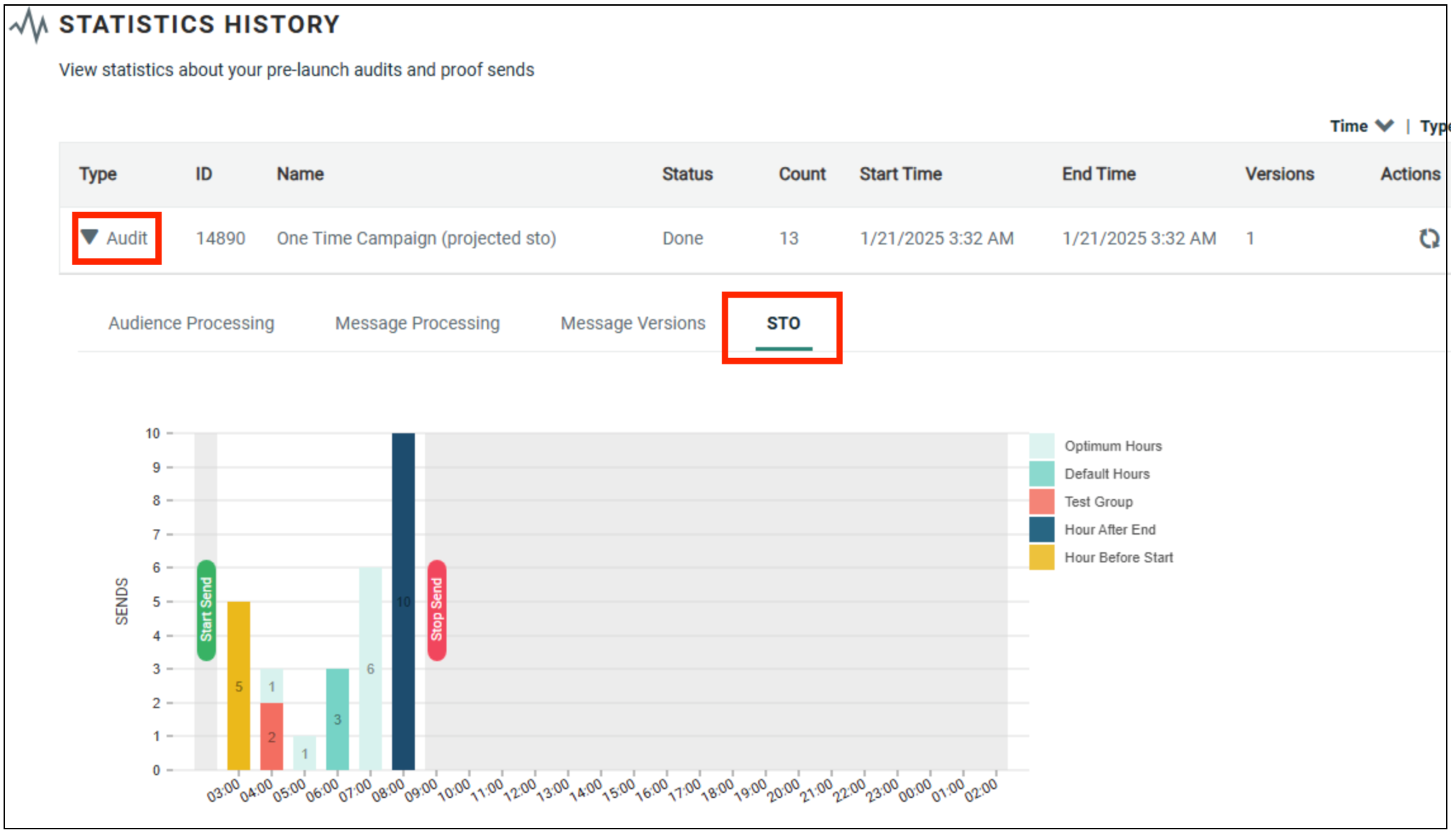
This tab provides insight to view the STO projected distribution of messages send per hour before launching a campaign, for Email Campaigns with STO settings. It helps to anticipate email volume distribution over time, ensuring a smooth and even spread of messages rather than a sudden surge that could overwhelm mail servers. It allows marketers to verify whether STO-selected send times align with expected peak engagement hours and enables adjustments if needed to maximize open rates and conversions.
The first bar shows the count of users that will be sent the mails at the start of the send window. This group includes both users with STO time set as the start send time and those with STO time set 2 hours before the start time.
The last bar shows the count of users who will be sent the mails at the end of the send window. This group includes both users with STO time set as the end send time and those with STO time set 2 hours after the scheduled end time.
Note: This is only available for non-split-cell, one-time, and date-triggered email campaigns.
