
How to manage custom fonts for Content Designer
Why use web fonts?
A creative font is ideal for brands that want to visually go big. On the other hand, more conservative brands may want to stick to traditional, formal fonts. A common reason to use the Custom Fonts feature is to stay on-brand with fonts that match or closely match your brand’s look in images and other mediums. Using a font that matches your brand rather than putting text into an image makes your email more accessible. If your branding requires a font that is not normally installed on typical operating systems or devices, consider using web fonts. Adding web fonts to Cheetah Digital is easy.
What are web safe fonts and web fonts?
Web safe fonts
Web safe fonts are what you’re likely to be using in your emails right now. This includes fonts such as:
-
Arial
-
Verdana
-
Georgia
-
Times New Roman
-
Courier
These are all considered web safe fonts that can be used for live text in email. They’re the default fonts that are found on different computers, devices, and operating systems. They exist on almost all devices.
Web fonts
Web fonts are typically not found on multiple operating systems and devices. They’re specifically designed and licensed for use on websites. Web fonts allow for more creativity for the designer, as they aren’t limited to choosing a font that comes pre-installed on a computer.
Email client support for web fonts
The right font not only makes your emails easy on the eyes, but it also can convey a range of emotions, and using fonts correctly is essential to an effective email marketing campaign. However, it’s important to know that not all email clients offer universal support for web fonts.
Generally, the following email clients have good support for web fonts:
-
iOS Mail
-
Apple Mail
-
Android (default mail client, not Gmail app)
-
Outlook 2000
-
Outlook.com app
-
Thunderbird
Web font support depends on the email client and how the web font is embedded in the email.
Where web fonts are not supported, there are fallback fonts that will be seen instead. In most cases, the fallback fonts will be Helvetica, Arial, or a generic sans serif font, given they are the default fonts of the most popular email clients as we mentioned above.
Each email client also has a preferred or default font which users would see instead of your chosen web font. The three most popular desktop email clients have the following defaults:
-
Apple Mail = Helvetica
-
Gmail = Arial
-
Microsoft Outlook = Calibri
So instead of seeing your slick Montserrat font, Gmail users would see Arial.
Email clients that do not support web fonts
There are two popular email clients missing from the list.
Gmail does not support Web fonts, including Google fonts. However, Gmail supports a small selection of web fonts (Google Sans and Roboto).
Outlook 2007/2010/2013/2016 is not compatible with any custom or web fonts. It only supports traditional web-safe fonts. Sometimes other fonts may display if they are physically installed on the computer. Use the font stack to define which font the design should fall back to.
Public font links
Before adding a custom font, you need the public link to the font. This section covers finding the public font link in Google Fonts and in Adobe Typescript, since those two are the most commonly used.
Google fonts (free)
From https://fonts.google.com/, search for and select the font you'd like to use.
.png)
Click on Get Font.
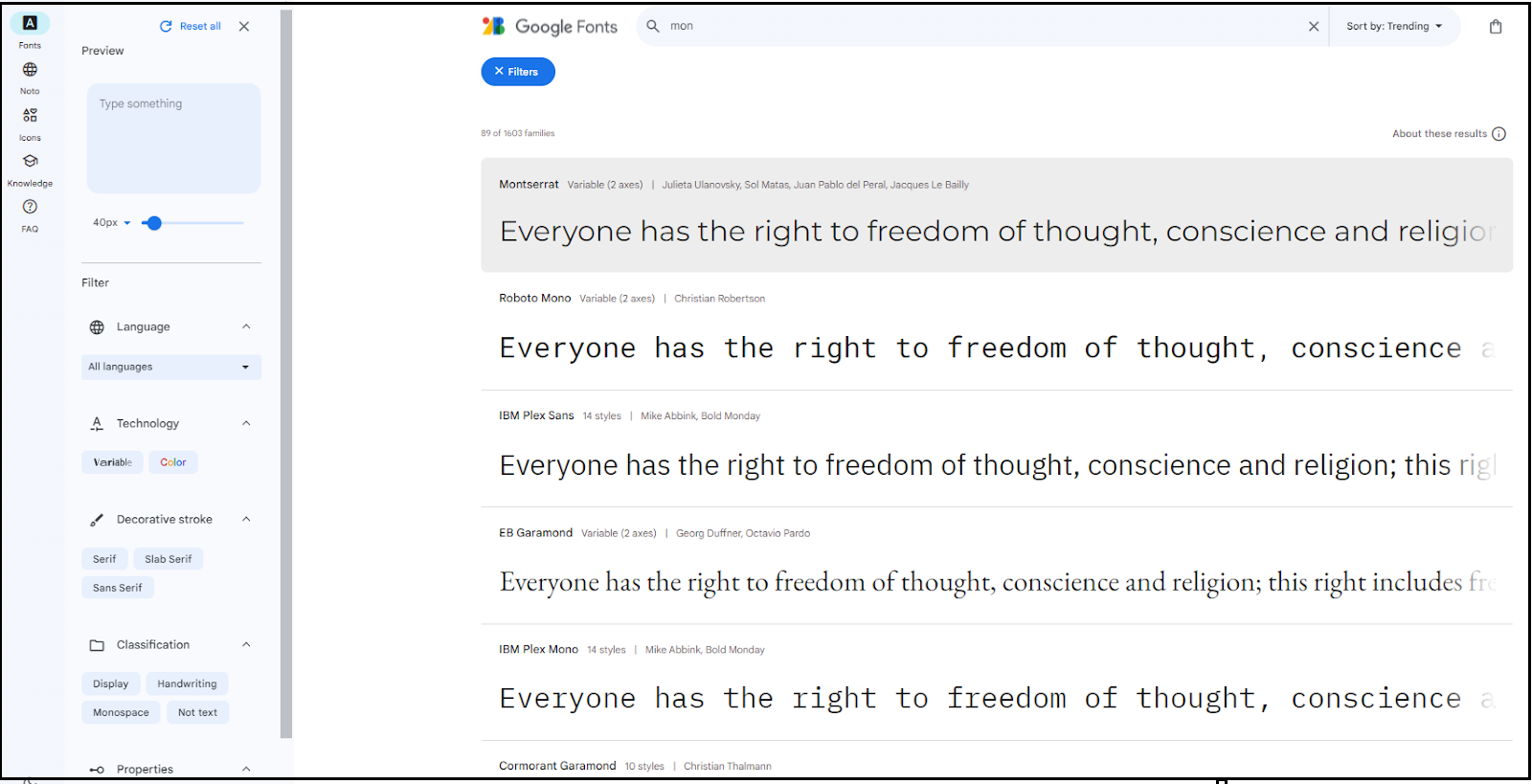
Click on <> Get Embed Code.
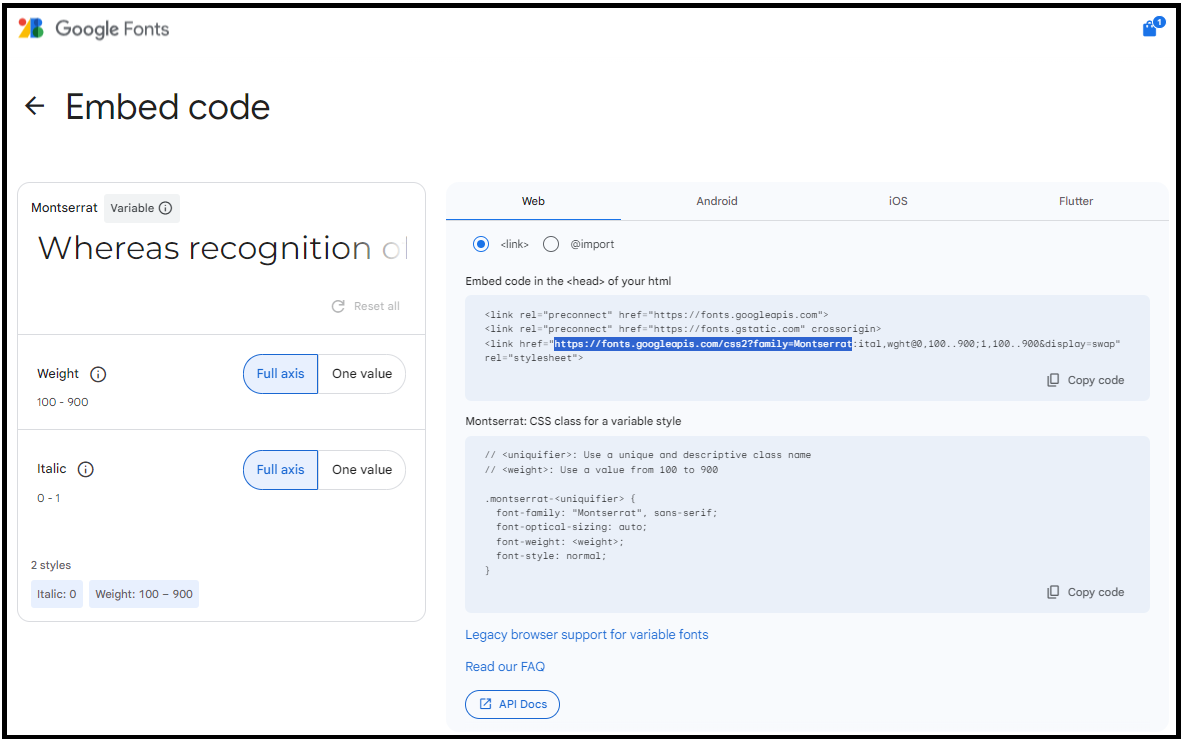
Highlight the URL for the CSS file.

https://fonts.googleapis.com/css2?family=Montserrat
You can also use the URL from https to swap:
https://fonts.googleapis.com/css2?family=Montserrat:ital,wght@0,100..900;1,100..900&display=swap
Typekit (not free)
Using new Typekit fonts
-
While searching for a font, click the </> icon on the font you'd like to use.
-
Add the font to an existing project or create a new one.
-
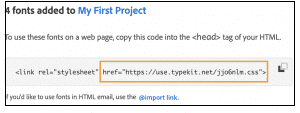
Copy the URL inside the href field to grab the CSS file.
.
Using Typekit fonts from an existing project
-
Go to Web Projects and find the list of fonts you'd like to use.
-
Copy the URL inside the href field for the project to grab the CSS file.
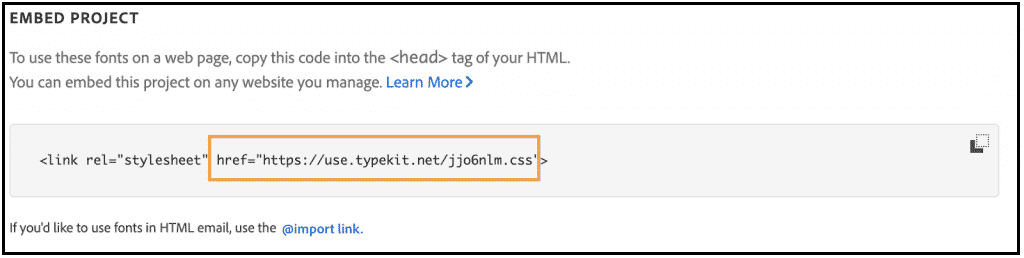
More Sources of Web Fonts
Other paid for services are also available. Below is a list of web font services which house web fonts licensed for use in email. (More on licenses below.)
-
MyFonts
-
Commercial
-
FontSpring
-
Typotheque
-
Process Type Foundry
-
Production Type
-
YouWorkForThem
-
Village
-
FontShop
Licensing
A license is required to legally use a web font online. As web fonts have been used on websites for a few years, licensing is already in place that covers use on websites and even mobile apps. However, licensing for use in email isn’t quite as widespread. This is because the use of web fonts in email is often seen as redistributing the font. And for many web font services, this goes against their EULA (End User License Agreement).
Most licenses for use of web fonts in email are based on the number of monthly opens. This is something to consider if you’re using a paid for web font in your emails.
Adding a custom font to Cheetah Digital Content Designer
From an email Campaign, go to Settings > Custom Fonts.
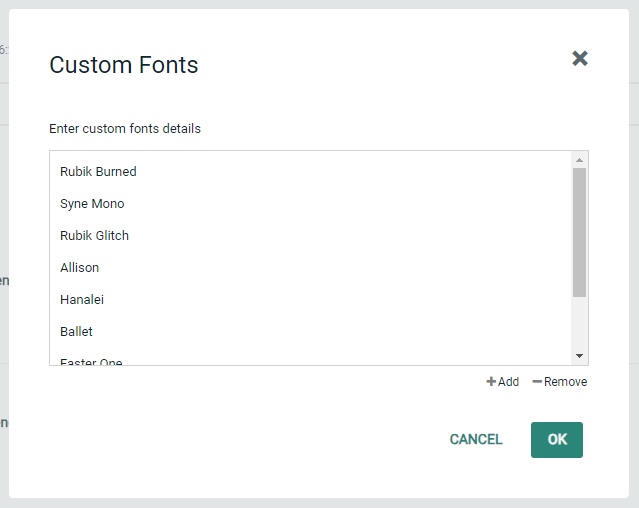
You can add a custom font by clicking on + Add.

Font display name
This is the font name that will be displayed in Content Designer. It usually matches the font name, but you can customize this in any way you would like.
Font CSS URL
The address of the CSS document used to embed the font files and the CSS rules that apply them. For example, this is a Montserrat stylesheet generated by Google Fonts: https://fonts.googleapis.com/css2?family=Montserrat
Or, you can also use the URL from https to swap:
https://fonts.googleapis.com/css2?family=Montserrat:ital,wght@0,100..900;1,100..900&display=swap
This URL must be delivered on the HTTPS protocol, with a valid SSL certificate. Also, Policy CORS must be enabled in the host to deliver the font files.
Use a dedicated CSS sheet. If the CSS contains additional styles, it can cause problems in Content Designer.
Google Fonts already provides web fonts that work in Content Designer and most email clients. See below for more about how to easily use Google fonts with Content Designer.
Font and its fallback
One at a time, type or paste the name of the font, click Enter on your keyboard, and then type the names of the fallback fonts, clicking Enter on your keyboard after each one. Click OK when you are finished.
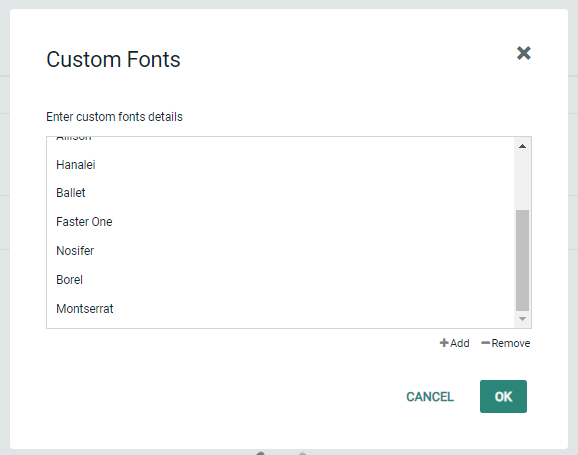
Your new font will appear at the bottom of the Custom Fonts list. Click OK to close the custom font manager.
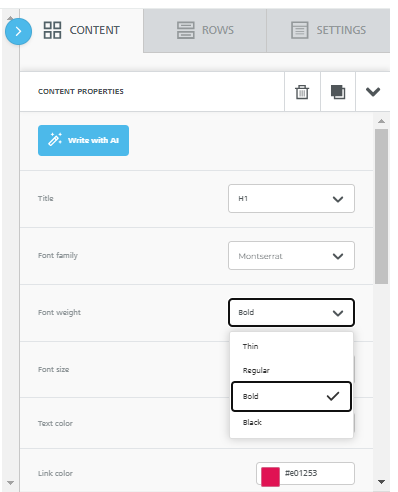
Your new font will also appear in the font selector in Content Designer, along with its available weights.
Notes
-
Please note that Content Designer only supports standard font weights (100-950).
-
Always test your web fonts
-
Different email clients will render a web font very differently from one another.
-
Careful selection of a font should be considered, as some typefaces that are not as well designed as they should be can render poorly in certain email clients. Testing your emails is a good way to avoid that and might influence the selection of one font over another.
-
If you test your fonts and find they don’t work, consider changing to a web safe font or design an image with the specialized font you want to use.
Web font and font variation support
Web fonts and font weights that are not regular (400) or bold (700) may not be supported by some email clients. Even if a custom font does appear in the template, it can be stripped when it is rendered in your subscriber's inbox by the email client. Here's a quick overview of web font compatibility for some of the most popular email clients:
| Desktop Clients | Email client Compatible? |
|---|---|
| Apple Mail | Yes |
| Thunderbird | Yes |
| Microsoft Outlook for Mac (2011, 2016) | Yes |
| Microsoft Outlook for Windows (2007-2016) | Yes |
| Web Clients | Email client Compatible? |
|---|---|
| Gmail | No |
| Outlook.com | No |
| Office 365 | No |
| Yahoo | No |
| Mobile Clients | Email client Compatible? |
|---|---|
| Gmail (iOS & Android) | No |
| iOS Mail (iPhone & iPad) | Yes |
| Outlook (iOS & Android) | Yes |
| Samsung Mail | Yes |
| Yahoo (iOS) | Yes |
| Yahoo (Android) | No |
* Gmail supports Open Sans and Roboto.
Errors
While adding a custom font, you may see an error message. These are the most common errors you may see:
CORS issue
An error occurred while retrieving resources. For further information, details can be viewed in your browser's console. Please contact your IT team to resolve this issue. A CORS issue occurs when the link you provide isn't a public font link.
Incorrect Link
The URL provided is not supported. Please provide a URL to a CSS file. The link provided doesn't point to a CSS file. Find the public CSS link for your font.
Duplicate font family
Duplicate font families are not supported. Please select a different font family.
Some fonts failed
Some fonts could not be retrieved from the URL provided. Please review the files provided in the URL. Some of the fonts didn't load properly. You'll see the ones that did load in the dropdown.
Duplicate display name
A font with this name already exists. Please use a different name. Enter a different name into the Name field.
Name length
The font name added to the Name field must be between 1-50 characters long.
