
Advanced Expression Builder - Cheat Sheet
The Journeys Expression Builder is a powerful tool designed to enhance your journey creation and management processes. For more information on how to use expressions, and on using our basic editor, please use our Expression Builder guide.
The advanced editor allows you to build more complex conditions whilst maintaining clarity and precision. This guide will provide more detail on the possibilities that are available in the advanced expression builder and how to achieve them.
To enable the advanced editor, toggle the Auto Formatting setting to Disabled.
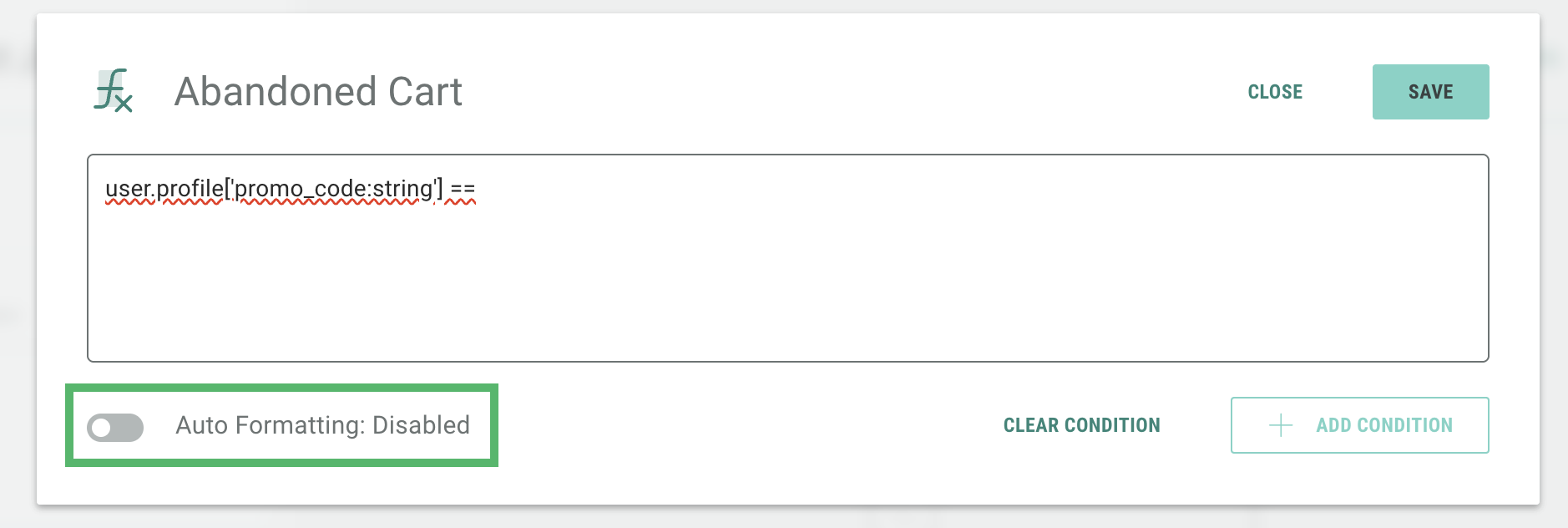
The expression builder will use Spring Expression Language (SpEL). When auto-formatting is disabled, there is no option to select from prompts and you will be required to create and validate your entire expression.
Building an expression
An expression is created using a combination of the following components:
-
Condition attribute: this defines the specific data that you are checking for and can be string, number, or boolean data types e.g., someone’s age or their order total
-
Comparison operator: these are used to compare values i.e. equals, greater than
-
Compound operator: these allow you to combine multiple conditions (AND/OR)
-
Parenthesis operator: used to group expressions and control the condition hierarchy
-
Value: a variable you can choose to compare against
Operator types
There are several operators that can be used when building an expression. You can use these to build your condition logic.
| Type | Operators | Purpose |
|---|---|---|
| Arithmetic | +, -, *, /, %, ^ | Math |
| Relational | ==, !=, >, <, <=, >= (or eq, ne, etc. | Comparisons |
| Logical | and, or, not, &&, || | |
| Conditional | ?: | Ternary (if/else) |
| Property access | obj. prop or obj['property'] | Get fields |
| Array access | array[0] | Get indexed item |
| Collection methods | array.size(), .contains(...), etc | Work with arrays/lists |
Below, we further have outlined examples of how you can use each operator type with your data.
Arithmetic
These operators are used for performing mathematical equations within your expressions such as addition, subtraction, multiplication, or division.
You could use them for calculating cart totals, converting values, or applying discounts.
Note: Arithmetic operators are only supported in our advanced editor and will not be available when using the auto-format feature.
| Expression type | Example - Advanced | Example - Auto-format | Description |
|---|---|---|---|
| Number | event['sl_abandoned_cart']['cart_lines'] * event['sl_abandoned_cart']['cart_value'] == 2500 | n/a - arithmetic operators are not supported in auto-format mode | Multiplies the number of items in the cart by the cart value per item and checks if the total is equal to 2500 |
| String | |||
| Boolean | |||
| Date-time | #minutes(now, execution.start) + 15 | Adds 15 minutes to when activity started |
Relational
Relational operators are used to compare values and will return a Boolean result (true/false). You can use these to build conditions such as “is the user older than 18” or “have they spent more than £100”.
You’ll often use these in Start and Decision steps to specify who will join each Journey and the path they will move through.
| Expression type | Example - Advanced | Example - Auto-format | Description |
|---|---|---|---|
| Number | user.profile['age:number'] >= 45 | 
|
User is aged 45 or older |
| String | user.profile['country:string'] == 'USA' | 
|
Only users in the USA |
| Boolean | user.profile['mobile_phone:string'] == "TRUE" | 
|
Only users that have a mobile phone contact |
| Date-time | user.profile['dob:date-time'] > "2025-08-15T12:15:00Z" | 
|
User's DOB is after 15th August 2025 |
Logical
These operators are used for combining multiple conditions. Use OR (||) if there are several values you will accept, or AND (&&) if you need all conditions to be met.
For example, you could use logical operators to find users that are from the United Kingdom OR Europe, or perhaps someone who is considered a VIP AND has opted into email comms.
| Expression type | Example - Advanced | Example - Auto-format | Description |
|---|---|---|---|
| Number | user.profile['age'] > 30 && user.profile['age'] < 60 | 
|
Users aged between 30 and 60 |
| String | user.profile['gender'] == 'female' || user.profile['gender'] == 'non-binary' | 
|
Users identifying as either female OR non-binary |
| Boolean | user.profile['opt_in_email'] == true and user.profile['vip_status'] == true | 
|
Users that have opted in to email comms and also have VIP status |
| Date-time | #minutes(execution.end, now) > 10 && #days(now, journeyStart) <= 30 | n/a - number of days logic is not supported in auto-format mode | Activity ended more than 10 minutes ago but less than 30 days ago |
Conditional
Conditional operators complete an if-then-else function, where the expression will return one value if a condition is true, and another if it is false.
Note: You can also combine these with other conditions for more advanced use cases.
These are most commonly used in the Update Profile steps and could be used to provide different discounts depending on a customer’s total spend, or to update a user’s profile based on their loyalty, for example.
| Expression type | Example - Advanced | Example - Auto-format | Description |
|---|---|---|---|
| Number | event['purchase_total'] >= 500 ? 25 : 15 | n/a - conditional operators are not supported in auto-format mode | Update profile based on purchase total |
| String | user.profile['home_country'] == 'FR' ? 'fr' : 'en' | If home country is France, set language as French, otherwise English | |
| Boolean | user.profile['ml_score'] >= 80 ? true : false | If their “ml score” is greater or equal to 80, set as true. Anything less than 80, set as false. | |
| Date-time | #days(now, user.profile['signup_date']) > 365 ? 'loyal' : 'new' | If their signup date was more than 365 days ago then mark them as “loyal”, if not mark as “new” |
Regex
Regex stands for Regular Expression matcher and is used to verify whether a string matches a specific pattern
There are several different components that can be used within Regex expressions, as detailed below:
| Metacharacter | Description |
|---|---|
| //d | Matches any single digit (equivalent to [0-9]) |
| //D | Matches any non-digit character |
| [a-z] | Matches any lowercase letter from a to z |
| [A-Za-z] | Matches any letter from a to z, both upper- and lowercase |
| . | Matches any single character (except a newline) |
| + Quantifier | Matches zero or more occurrences |
| ^ Anchor | Matches the start of the string |
| $ Anchor | Matches the end of the string |
Regex expressions have many use cases which allow you to define your audience based on specific attributes.
| Expression type | Example - Advanced | Example - Auto-format | Description |
|---|---|---|---|
| Number | ((user.profile['customer_id:string']) ?: '')matches'.+(40|41|42|43|44|45|46|47|48|49)$' | n/a - regex operators are not supported in auto-format mode | Checks if the customer ID ends in the digits specified |
| String | user.profile['email:string'].matches('.*@gmail.com') | Only @gmail.com email addresses | |
| Boolean | (user.profile['typeCode:string'] ?: '').matches('^[A-Z]{2}[0-9]{2}') | Check the product typeCode matches the format, which is two capital letters followed by two digits in this example: GD34 | |
| Date-time | user.profile['dob:string'].matches('\\d{4}-\\d{2}-\\d{2}') | Check the date of birth matches the format |
Array access and property access
Array Access allows you to reference a specific item within a list using its index, most often used with order-sensitive data.
Note: Arrays are zero-indexed, meaning the first item is at index 0, the second is at index 2, and so on.
Property Access allows you to retrieve a specific field or attribute from your table of data. While this is not commonly used alone, it is often used alongside the other functions such as Array Access, which we will outline below. The Property Access field will be highlighted orange, while the Array Access will be highlighted green.
| Expression type | Example - Advanced | Example - Auto-format | Description |
|---|---|---|---|
| Number | event['cart_items'][0]['price'] > 50 | n/a -these operators are not supported in auto-format mode | Checking to see if the first item in the cart is worth more than £50 |
| String | user.profile[‘’] == 'vip' | If the first segment the user is a part of is “VIP” | |
| Boolean | |||
| Date-time | #days(now, execution.steps[execution.executedSteps[0]].start) > 3 | If the start step happened more than 3 days ago |
Variables
Below we have defined the variables that are supported within our Expression Builder, as well as some examples of how you can use them:
| Type | Prefix | Examples |
|---|---|---|
| execution (the workflow process) | execution. | execution.start, execution.steps['enter_node'].start |
| user (profile) | user. | user.profile['age'], user.segments.contains(...) |
| event (e.g. cart data) | event. | activity['sl_abandoned_cart']['cart_lines'] |
| passthrough (external input) | passthrough. | passthrough.key1 |
| passthrough.key1 | now | #minutes(now, execution.start) |
| journeyStart (timestamp) | journeyStart | Same as above |
Built-in functions
The following are mostly used for expressions that are reliant on the date or time.
Note: Make sure to prefix them with a # in your expression.
| Function | Description | Example |
|---|---|---|
| #days(date1, date2) | Days between two timestamps | #days(now, execution.start) |
| #minutes(...) | Minutes between | #minutes(execution.end, now) |
| #hours(...), #weeks(...) | Self-explanatory | #hours(start, end) |
Advanced examples and use cases
The following examples are designed for more advanced users but are included to demonstrate what the Journeys Expression Builder is capable of.
I want to update a user’s profile based on their current attributes so that I can send more targeted Campaigns
Using the Update profile step that is available, you can utilize the advanced expression builder to define the attributes you wish to look for and update the user’s profile accordingly.
For example, if you wish to check a customer’s age and update their profile to indicate this, you could use the following expression;
user.profile['column1:string'] == (user.profile['age:number'] > 18 ? 'v1' : 'v2')-
Change column1 to the name of the column you wish to update within your table
-
Change age to the name of the column within your table that contains the user’s age (or the attribute you wish to check for)
-
Define the age or range you are checking from (in our example, we are checking for > 18)
-
In our expression, the profiles will be updated to v1 or v2, depending on their age, but you can change this to whatever you wish to see in their profile.
I want my audience to only include those with a specific area code so that I can tailor my Campaigns based on location.
A great way of sending targeted campaigns would be to separate your audience based on the area codes, which can often be inferred from the area codes associated with their phone number (e.g. +1, +44…)
To filter your audience based on the area code, you could use the following code:
user.profile['mobile.string'].startsWith('+44)`-
Change 'mobile' to the name of the column within your table that contains your customer’s phone number
-
We have specified the prefix for the whole of the UK (+44), however you can change this to whichever area code you like, e.g. 310 for Los Angeles numbers, or 020 for London landlines.
-
If you wish to use this example for something that requires a text value, you can use startsWithIgnoreCase to ensure that the results are not case-sensitive
I would like to check which customers have a mobile phone number available to be able to send targeted SMS Campaigns
You can split your audience based on those that have a mobile number available and those that do not, simply by checking for a mobile number within their details. This will allow you to send out Campaigns based on the options you have available.
To check whether a customer has a mobile number on file, use the code below:
user.profile['mobile:string'] != ''-
Change 'mobile' to the name of the column within your table that contains your customer’s phone number
How can I check and filter for the status ID of the customers to ensure more accurate reporting?
You can use the Sender Profile Status ID field, which is provided by Cheetah Digital, to filter out any customers that have bounced, opted-out, or have been banned. Pair it with the ps_sms_opt_out_status attribute to ensure that your Campaigns are only being sent to active customers.
This will provide a more accurate view of those that are moving through the Journey and receiving your Campaigns.
Using the following code within a Decision step will remove any customers that have a status ID of greater than 1000 and/or have unsubscribed, and will only allow those who return “false” to continue through the Journey:
user.profile['mobile_sp10_status_id:number'] >= 1000 || user.profile['ps_sms_opt_out_status:string'] == 'Y'-
“Sp10” refers to the Sender Profile; you will need to adjust this to target a specific Sender Profile based on those you have available and who you would like to include within the Journey
How can I set the current date on an attribute, so that I can use this information in future steps?
You may want to set the current date on an attribute so that you can use this data within other steps. Alternatively, using this code will save the date-time to your table in Cheetah which will allow you to use the data in other Journeys, too.
Use an Update Profile step to set the time at which the customer reached a particular step, such as when they received a Campaign, or when they last made a purchase.
Simply place the Update Profile step after the point at which you wish to set the current date, and use the following expression:
T(java.time.LocalDateTime).now(T(java.time.ZoneId).of("America/New_York")).format(T(java.time.format.DateTimeFormatter).ofPattern('yyyy-MM-dd HH:mm:ss'))-
Set the time zone by using the code T(java.time.ZoneId).of("America/New_York") within the now() brackets
-
Change America/New_York to the time zone of your choosing
-
If no time zone is set, Journeys will default to UTC
-
If you do not wish to set a time zone, you can leave this blank i.e. now()
-
-
Change the date/time to your preferred format by adjusting the relevant code 'yyyy-MM-dd HH:mm:ss'
I want to compare a date-time field stored within the Cheetah Digital database against the current date-time, taking into account formats and time zones.
In Journeys, a Decision step can only query on Events that are referenced within either the Start or Update Journey steps. Therefore, comparing a date-time field stored within Cheetah Digital with the current date-time is useful if you wish to query something other than that which triggers your Journey.
Note: This use case is reliant on the data fields you have available within Cheetah Digital; to be able to reference a data point, it must be present within a table in Cheetah Digital. If you wish to use data from a different Journey, you will need to use the previous use case we have outlined to save a date-time field for the attribute in question.
The expression below will compare the time passed between two date-time fields and, if the defined number of hours have passed, the condition will return “true” and the audience member will move to the next step.
user.profile['ps_abandoncart_lastpurchasedat:date-time'] == NULL
OR user.profile['ps_abandoncart_lastpurchasedat:date-time'] == ''
OR #hours(
#date(
(
user.profile['ps_abandoncart_lastpurchasedat:date-time'] != NULL && user.profile['ps_abandoncart_lastpurchasedat:date-time'] != ''
? (
(
user.profile['ps_abandoncart_lastpurchasedat:date-time'] matches '^[0-9]{4}-[0-9]{2}-[0-9]{2} [0-9]{2}:[0-9]{2}:[0-9]{2}\\.[0-9]{3}$'
)
? T(java.time.LocalDateTime).parse(
user.profile['ps_abandoncart_lastpurchasedat:date-time'],
T(java.time.format.DateTimeFormatter).ofPattern("yyyy-MM-dd HH:mm:ss.SSS")
)
: (
(
user.profile['ps_abandoncart_lastpurchasedat:date-time'] matches '^[0-9]{4}-[0-9]{2}-[0-9]{2} [0-9]{2}:[0-9]{2}:[0-9]{2}$'
)
? T(java.time.LocalDateTime).parse(
user.profile['ps_abandoncart_lastpurchasedat:date-time'],
T(java.time.format.DateTimeFormatter).ofPattern("yyyy-MM-dd HH:mm:ss")
)
: (
(
user.profile['ps_abandoncart_lastpurchasedat:date-time'] matches '^[0-9]{4}-[0-9]{2}-[0-9]{2}T[0-9]{2}:[0-9]{2}:[0-9]{2}Z$'
)
? T(java.time.Instant)
.parse(user.profile['ps_abandoncart_lastpurchasedat:date-time'])
.atZone(T(java.time.ZoneId).of("UTC"))
.toLocalDateTime()
: (
(
user.profile['ps_abandoncart_lastpurchasedat:date-time'] matches '^[0-9]{1,2}/[0-9]{1,2}/[0-9]{4} [0-9]{1,2}:[0-9]{2}:[0-9]{2} [AP]M$'
)
? T(java.time.LocalDateTime).parse(
user.profile['ps_abandoncart_lastpurchasedat:date-time'],
T(java.time.format.DateTimeFormatter).ofPattern("M/d/yyyy h:mm:ss a")
)
: T(java.time.LocalDateTime).parse(
user.profile['ps_abandoncart_lastpurchasedat:date-time'],
T(java.time.format.DateTimeFormatter).ofPattern("MM/dd/yyyy hh:mm:ss a")
)
)
)
)
)
.atZone(T(java.time.ZoneId).of("America/New_York"))
.withZoneSameInstant(T(java.time.ZoneId).of("UTC"))
.format(T(java.time.format.DateTimeFormatter).ofPattern("yyyy-MM-dd'T'HH:mm:ss'Z'"))
: new java.util.Date()
)
),
new java.util.Date()
) >= 1
-
Replace ps_abandoncart_lastpurchasedat:date-time with the name of the attribute you wish to compare; make sure you update every instance of this attribute throughout the expression
-
It will compare the dates available, checking against the following formats:
-
yyyy-MM-dd HH:mm:ss.SSS
-
yyyy-MM-dd HH:mm:ss
-
yyyy-MM-dd'T'HH:mm:ss'Z' (UTC ISO-8601)
-
M/d/yyyy h:mm:ss a (e.g. 1/5/2026 3:15:00 PM)
-
MM/dd/yyyy hh:mm:ss a (e.g. 01/05/2026 03:15:00 PM)
-
-
Replace .atZone(T(java.time.ZoneId).of("America/New_York")) with the time zone your date-time fields are shown in. All date-time fields will be converted to UTC to allow them to be compared
-
At the end of the expression change >= 1 to define the preferred number of hours you wish to check for, e.g. for 24 hours or more, use >= 24
