Working With Images
In this article, the different options are explained when working with images in Experiences.
As example, we're adding a background image to an Experience. When no background image is set yet, or when an existing one has been removed, you can select a background image or upload a new one.
Upload new image
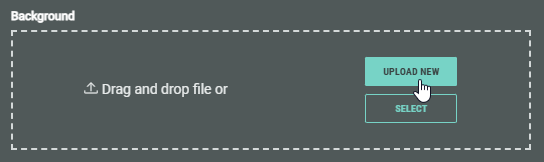
Click the Upload New button to show a dialog in which you can select an image file to upload (in one of these formats: .png, .jpeg, .jpg, .gif).
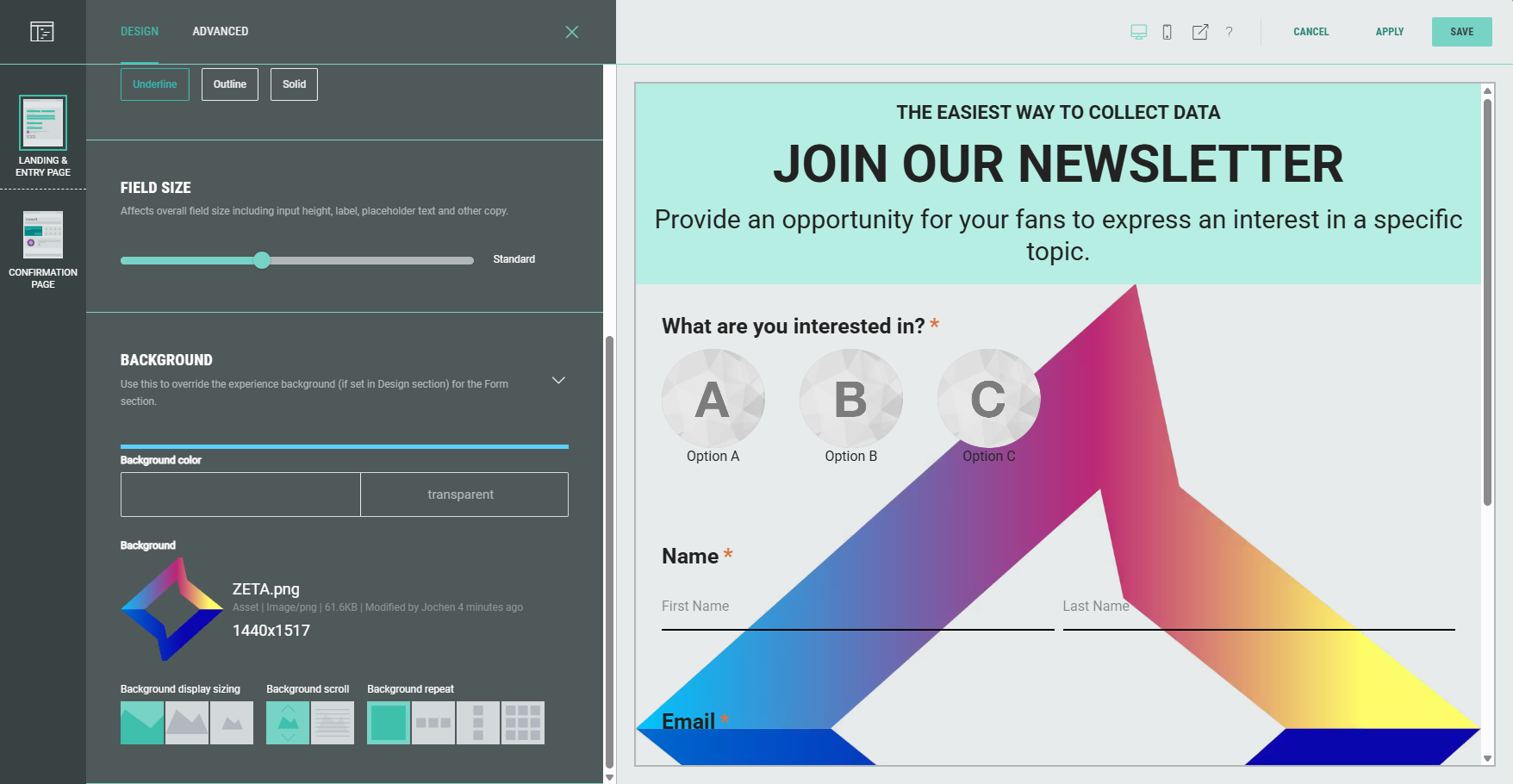
Once uploaded, you can see the background image with its details in the Design settings on the left, and the applied image shown in the background of the Experience preview on the right.
Note: Background image settings are explained in this article.
Select existing image
Click the Select button to select an existing image.
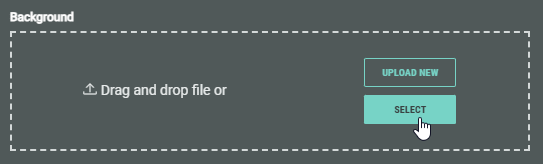
A pop-up is then shown with the following 3 tabs:
Library
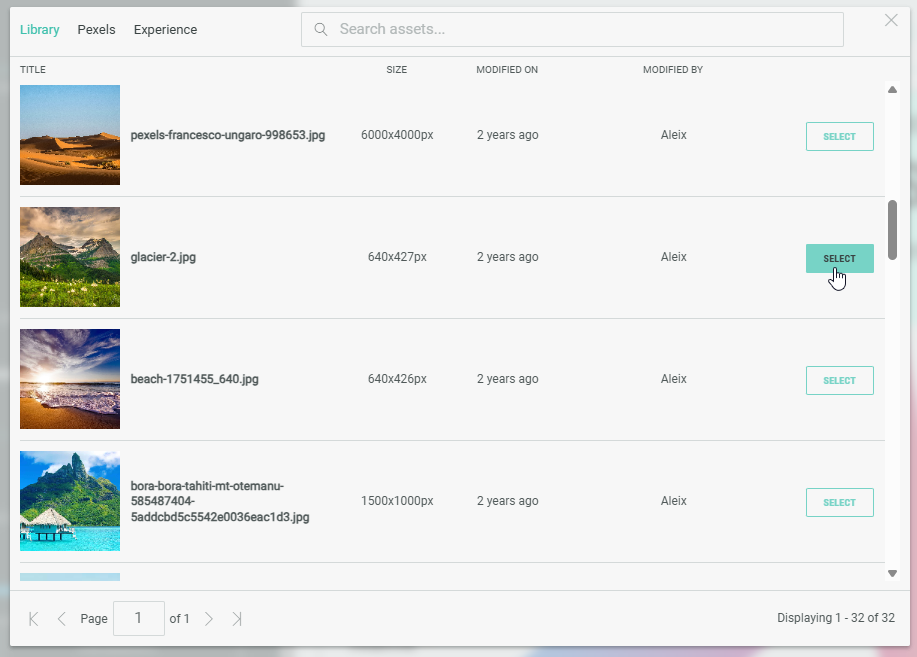
The Library shows all assets available in your Grow content library.
Click Select to apply an image as background image.
Note: These assets are maintained from the Folder icon > Assets menu at the top-right of Grow, and can be used in any Experience.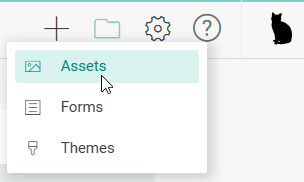
Pexels
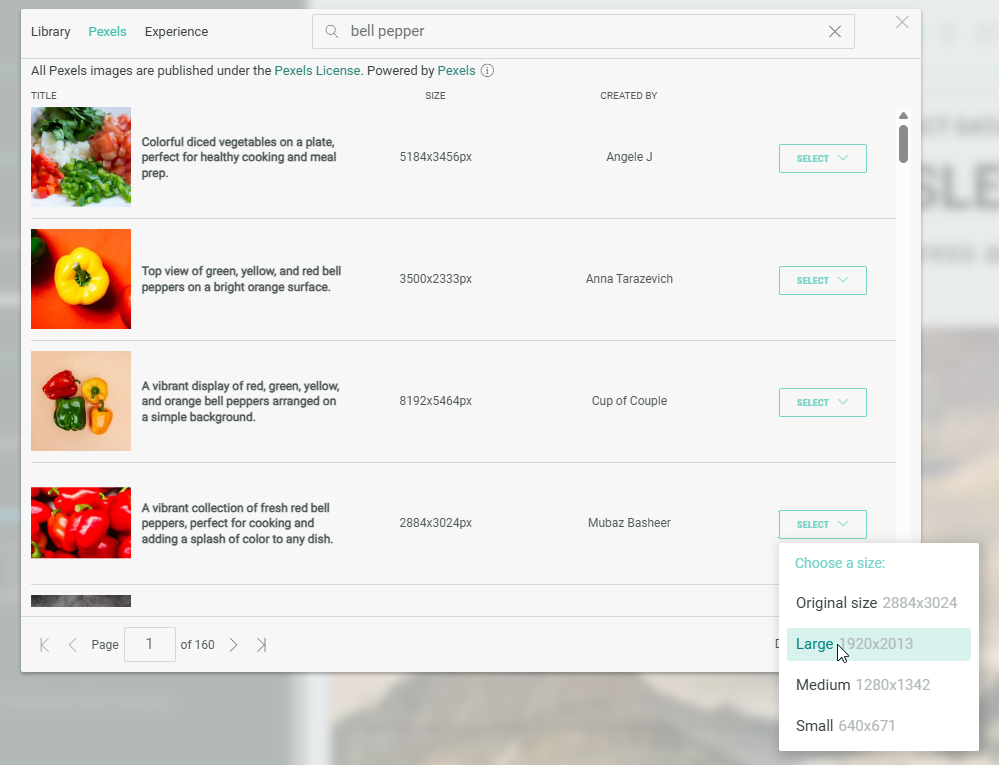
Search for any desired image in the Pexels library.
Click Select and choose a size to apply an image as background image.
Note: All Pexel images are published under the Pexels License.
Our partnership with Pexels gives you access to over 3 million photos, images and videos.
They are free to use in your Grow Experiences with no additional licensing required.
Experience
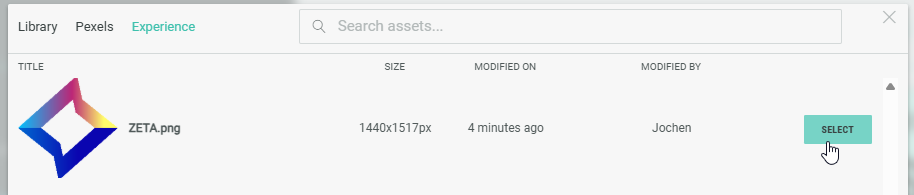
On the Experience tab, images are available that were uploaded in the asset library of this Experience. They can only be used within this specific Experience.
Click Select to apply an image as background image.
Use video instead of image
For certain modules (such as the Headline module), you can use a video instead of an image.
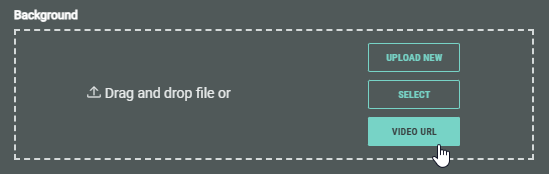
To do so, click the Video URL button.
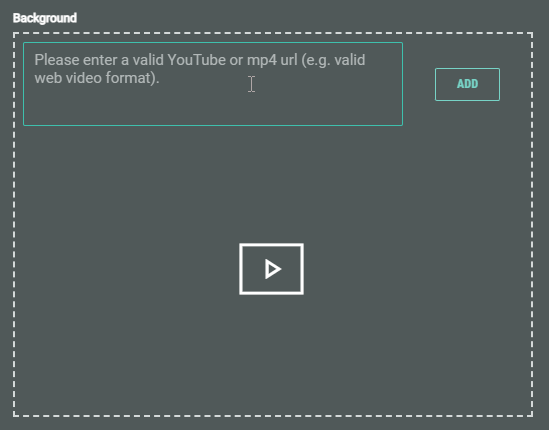
Enter a valid Youtube or MP4 URL in the field.
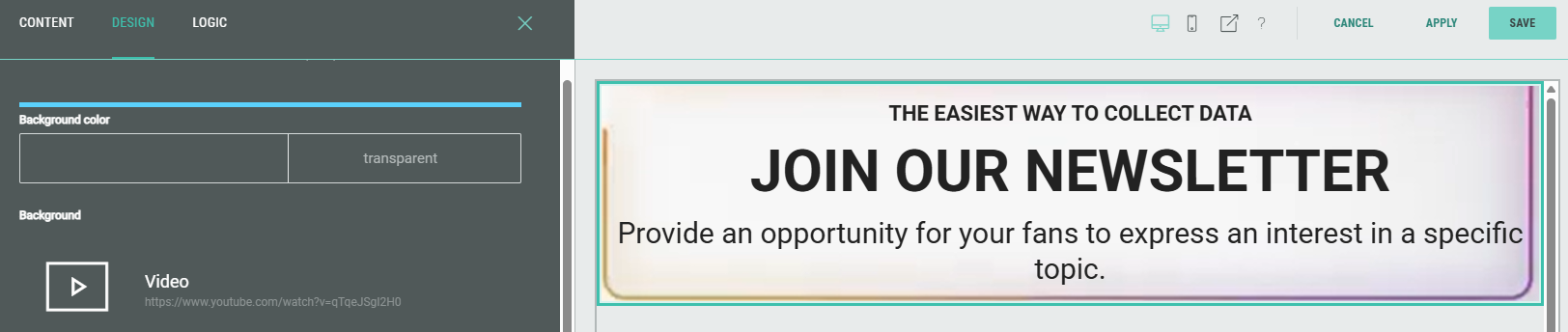
Example: When using a video instead of an image as background, it will start to play in the background.
(You can see it playing in the preview on the right.)
Replace existing image
When an image is set, you can replace it with a different image, remove it to start from scratch, and preview the full size image in a pop-up.