
How to: Implement Cookies
Cookie consent management is the process by which customers obtain consent from their users to store information about them for later use. It's an important tool for you to track user preferences, behaviors, and to enable personalized content for your users
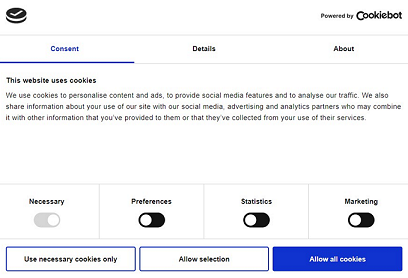
Cookie settings can be set directly in your account settings. For new customers, this will be set up for you through onboarding; the following steps would apply to existing customers who would need to update their cookie settings.
Your cookie consent solution can be set in account settings for "set and forget", but we also have the option to edit them at the Experience-level for users who require this additional flexibility. An example would be a publisher who is running a campaign for an advertiser; the advertiser’s cookie settings may be different than that of the publisher.
How to set cookie preferences for all Experiences
Navigate to Account Settings > Privacy & Data > Cookie Consent Management.
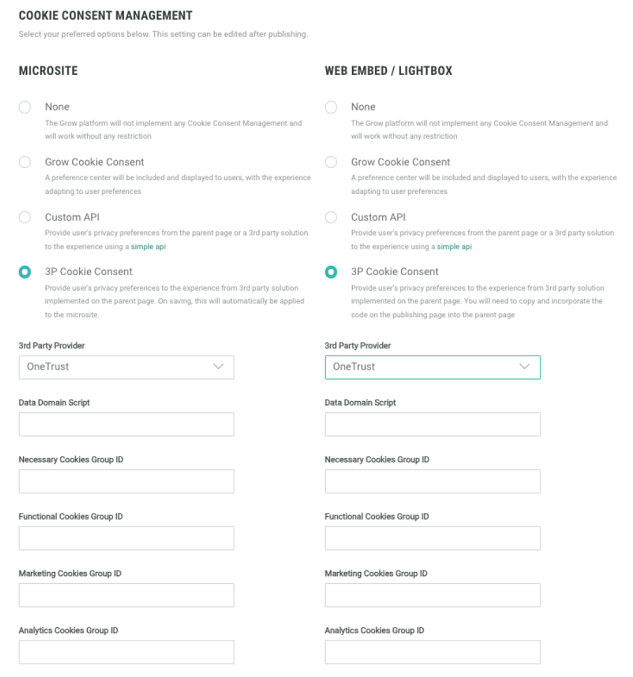
Important: Please ensure to update the following settings below for either Microsite or the Web Embed/Lightbox options, whichever applies to your Experience. For the Microsite, when you save the third party cookie consent settings, they will automatically be applied to the microsite; for the web embed/lightbox option, you will need to copy and incorporate the code on the publishing page onto the parent page to ensure the settings are applied.
1. If you don’t require cookie consent compliance, you can set the cookie consent to None. An example might be if you are promoting an Experience to a country that doesn’t have data protection and privacy legislation in place.
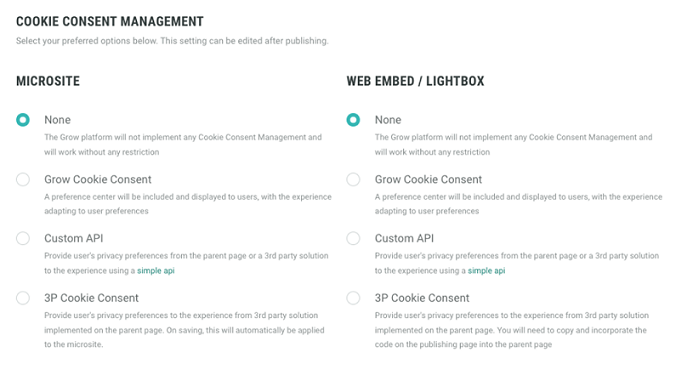
2. If you do not have a provider, but this is still of importance to your business, you can use Grow's default option: Grow Cookie Consent.
3. More advanced users who are using their own privacy management solutions can use a Custom API:
4. You can also use a third party solution. We have integrations with Cookiebot, OneTrust, and TrustArc.
Configure a cookie banner using a third-party consent management platform
If you use Cookiebot, OneTrust or TrustArc for consumers to choose their cookie preferences on your website, you can enable a seamless interaction for your consumers so Grow Experiences honor the cookie preferences already set, using the steps outlined below.
Cookiebot
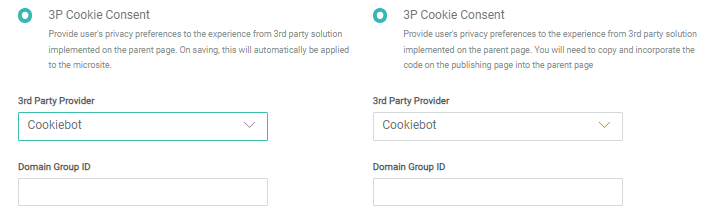
In the console, select Cookiebot from the 3rd Party Provider drop-down.
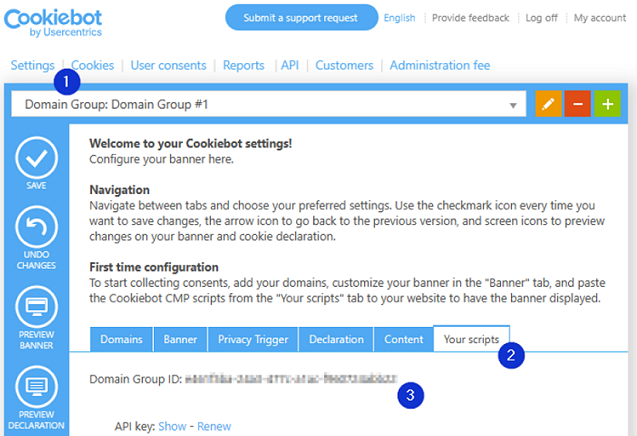
To find your CBID (Cookiebot Identifier) on the Cookiebot site:
1. Navigate to Settings and select the domain group you want to find the ID for.
2. Select the Your scripts tab.
3. In the marketing console, copy the Domain Group ID into the corresponding field. Please ensure you include the full ID string when copy/pasting.
Note: Please refer here to learn more about Cookiebot implementation.
4. Click Update at the bottom of the page in the marketing console to save your chosen settings.
OneTrust
Data Domain Script
To find and configure your data domain script:
1. Log into OneTrust.
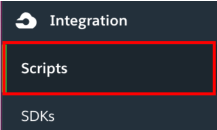
2. Navigate to Scripts.
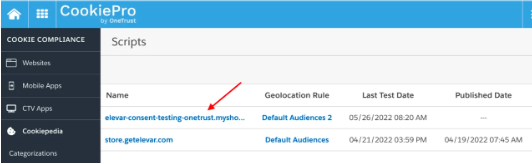
3. Select your Desired Domain.
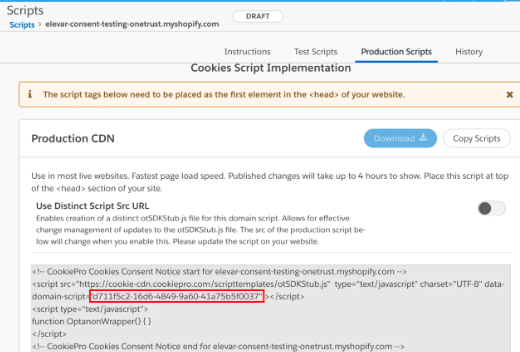
4. Select the Production Scripts tab.

5. Your Data Domain Script & SRC URL will be located in the Production CDN Script.
Cookie Groups IDs
In One Trust, groups of cookies are identified using an alphanumeric group ID. If you integrate your banner script with a tag manager application, you will need to use the group IDs to set up your tag manager. You can create a custom ID for each group of cookies or use the IDs assigned by default.
In the marketing console, select OneTrust from the 3rd Party Provider drop-down.
To find the ID for a group of cookies on the OneTrust site:
1. On the Cookie Consent menu, select Categorizations.
2. Go to the Categories tab.
3. Each group of cookies is listed, showing the ID assigned to the group:
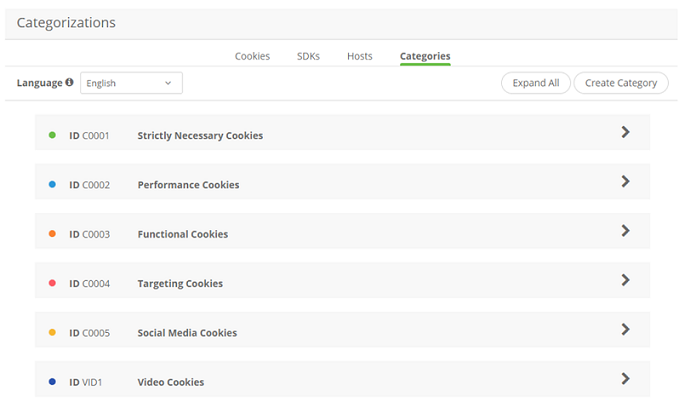
4. Back in your account settings, add your IDs into the respective drop-down for each cookie type: necessary, functional, marketing, or analytics.
Note: Please refer here to learn more about OneTrust implementation.
5. Click Update at the bottom of the page to save your chosen settings.
TrustArc
In the console, select TrustArc from the 3rd Party Provider drop-down.
.png)
To find your TrustArc Script URL on the TrustArc site:
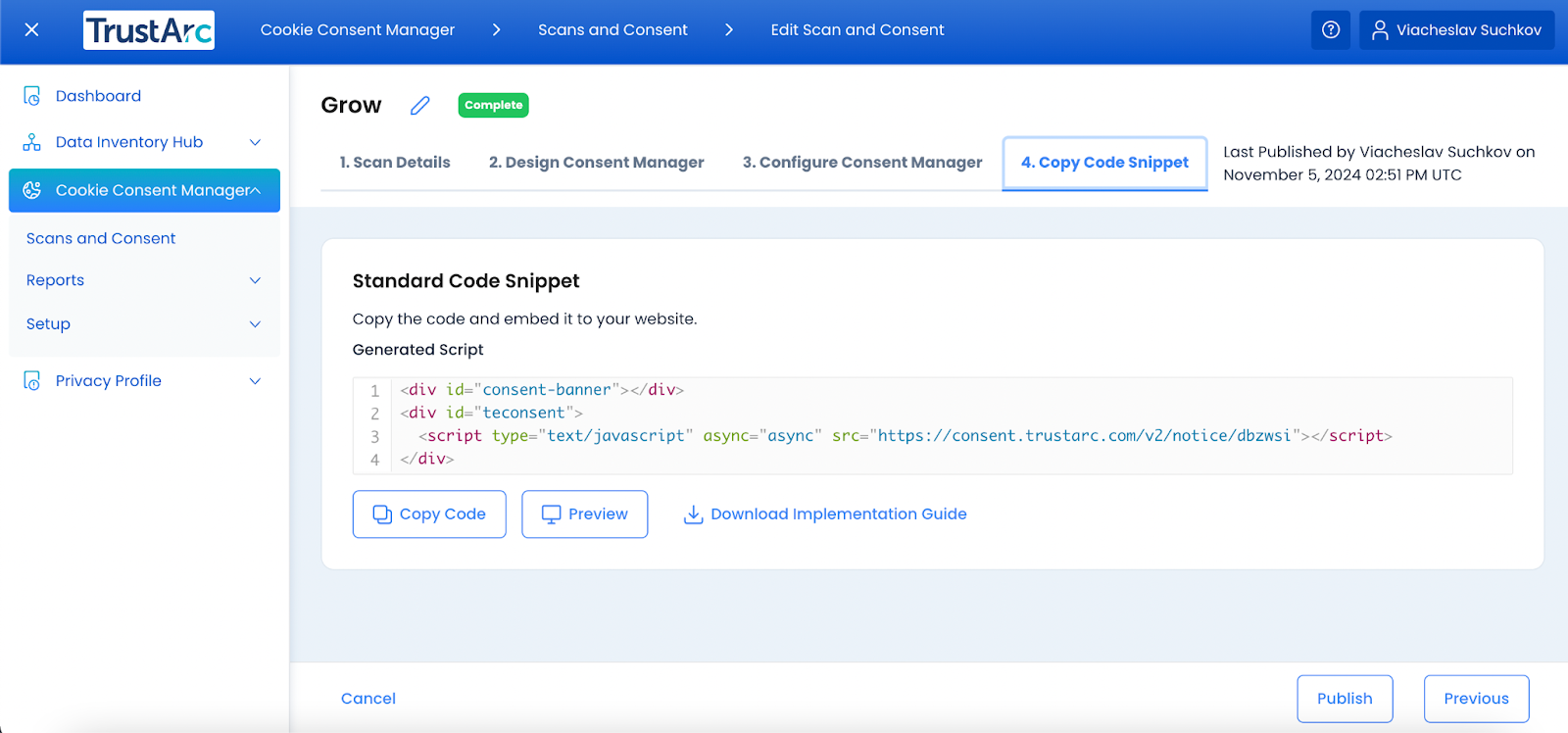
1. Navigate to Cookie Consent Manager > Scans and Consent and select the relevant domain you want to find the TrustArc Script URL for.
2. Select the Copy Code Snippet tab.
3. Copy the URL as highlighted below and paste into the TrustArc Script URL field.
For the advanced plan.

To find your order number for each TrustArc cookie category:
1. Navigate to Cookie Consent Manager > Scans and Consent and select the relevant domain you want to find the cookie order numbers for.
2. Scroll down to the Discovered Trackers section.
3. In the Grow console, copy the Cookie Order Numbers into the corresponding fields in the same order they are displayed (disregard the numbers shown in the screenshot). For example: Required = 1, Functional = 2, Marketing = 3, and Analytics = 4.
.png)
How to customize cookie consent at the Experience level
We have retained the ability to update cookie consent options for customers who may be building an Experience for a third-party brand. A use case might be a publisher who is running a competition for one of their advertisers. They would need to be able to update specific settings for that brand without displaying their own cookie settings.
1. Navigate to your Experience and click on the Publish tab.
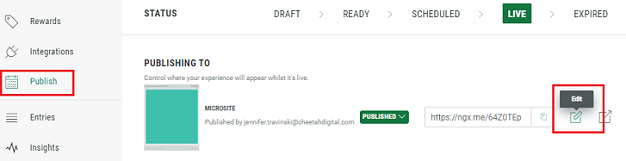
2. Click on the Edit icon.
3. Click on the Cookie Consent tab. Here you can customize your settings for that particular brand's Experience while retaining your individual cookie settings separately.
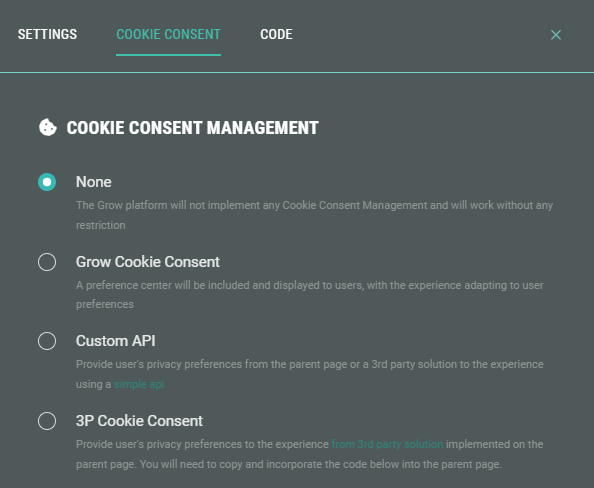
- None — The Grow platform will not implement any Cookie Consent Management and will work without any restriction.
- Grow Cookie Consent — A preference center will be included and displayed to participants, with the Experience adapting to participant's preferences.
- Custom API — Provide participant's privacy preferences from the parent page or a 3rd party solution to the Experience using a simple API.
- 3P Cookie Consent — Provide participant's privacy preferences to the Experience from a 3rd party solution implemented on the parent page. You will need to copy and incorporate the code below into the parent page.
