
How to: Select Winners Using Winner Management
Use built-in winner management to select winners and avoid downloading the full entrants export and dealing with personal data transfers. Our Winner Management has been built with data compliance in mind.
The platform can now help you select winners in several ways, get their contact details and handle situations such as unresponsive winners or the need for a redraw. It also keeps a full audit history of the selection process so you can see the actions taken and review the process.
You can also watch this video which explains the steps to take.
Considerations
- At present you can only draw up to 50 winners each time.
- When you draw some winners, we also pick some reserve winners. When you invalidate and re-pick a winner, the reserve winner is used, should you run out of reserve winners by invalidating and re-picking too often you will receive an error "no reserve winners remaining", if this occurs you will need to draw a new set of winners to compensate for the invalidated ones.
Selecting Winners
- If you have sufficient user permissions (Winner Management), click on Winners in the left menu in your Experience:
- On the Winners screen, click Select winners.
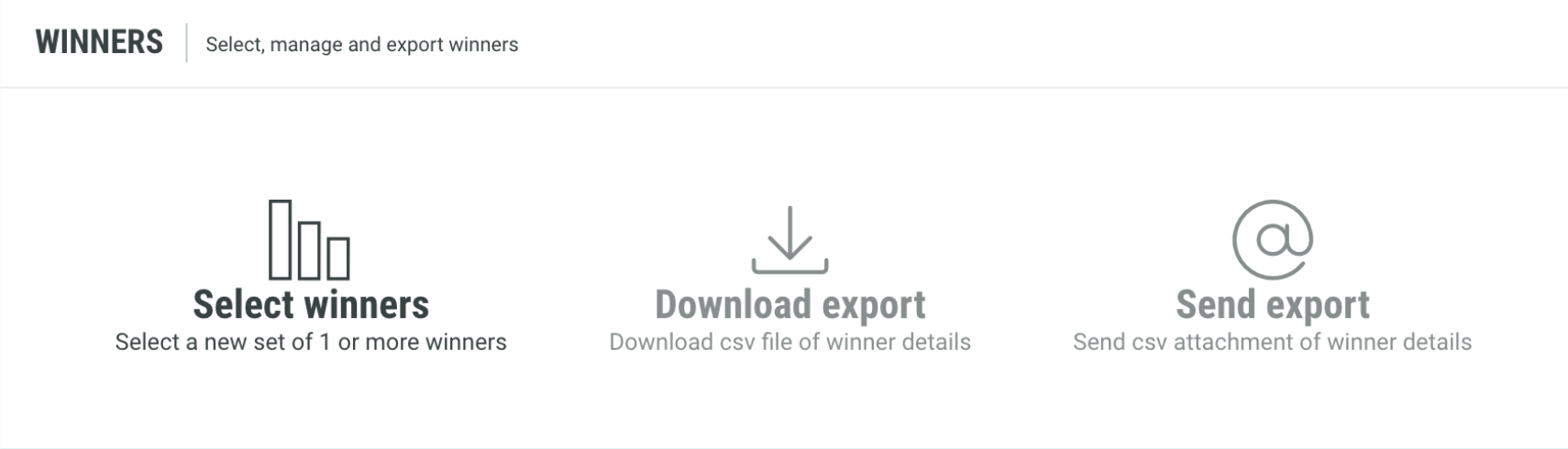
- Select winners, and download or email contact information to your fulfilment person or provider.
Selection Method: The winner selection wizard will appear and you'll be asked how you'd like to select winners. You can choose between Quick Pick and Random for all campaign types. Contests will also give you an option to select entries based on Top Votes and Judges Selection.- Quick Pick will allow you to select a defined number of winners at random.
- Random will allow you to select a winner at random in a specific timeframe and based on pre-defined conditions such as a minimum number of votes, quiz score, judges rating, source(1) and you can also choose to pick winner only from the pool of entrants that have answered your challenge question correctly.
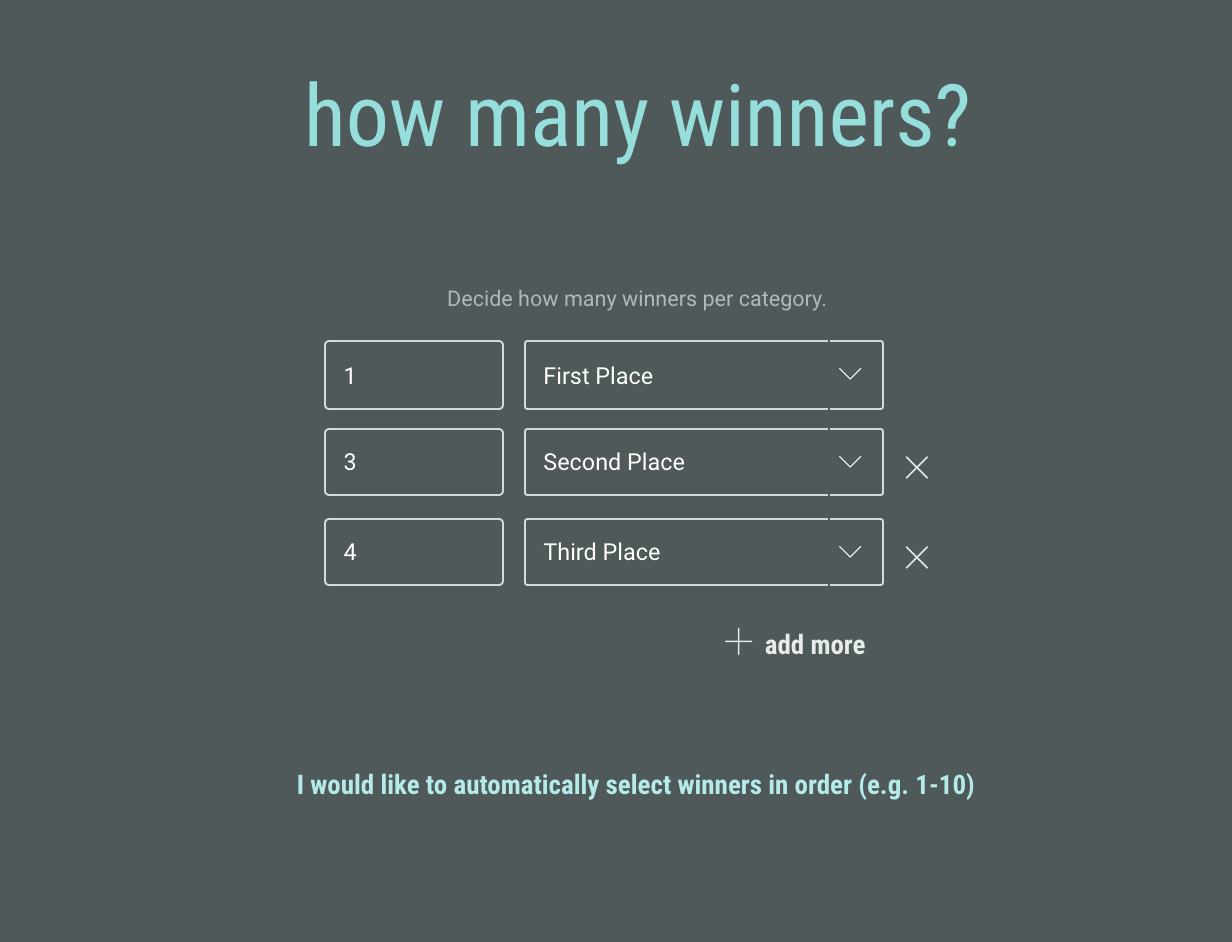
- Winner Categories: Next, you will be asked to decide how many winners you want to select in different categories. You can define any combination of winners including standard winners, ranked positions (first, second, third, and so on), or runners-up.
- Review: All that's left is to double-check the settings and run the selection.
The Selection Process
When the selection process is run, the system will pick winners and record this draw in the audit log. Any published entries will be updated to set their public winner status. In contests, this will be displayed in the entries gallery when the contest moves into the Winner Announcement phase.
Note: If there aren't enough users to fill your winner positions, as many as possible are selected after which you can take corrective action.
Reserve Users
Whenever winners are selected, also a number of reserve users are selected, in case you need to change winners later. The reserve list is ordered so that it's clear who's next in line. By selecting reserve users at the time of the draw, it's ensured that any winner conditions are met by the reservists at the time of the draw and they do not benefit from additional votes, etc. that may happen after the fact.
Reviewing Winners
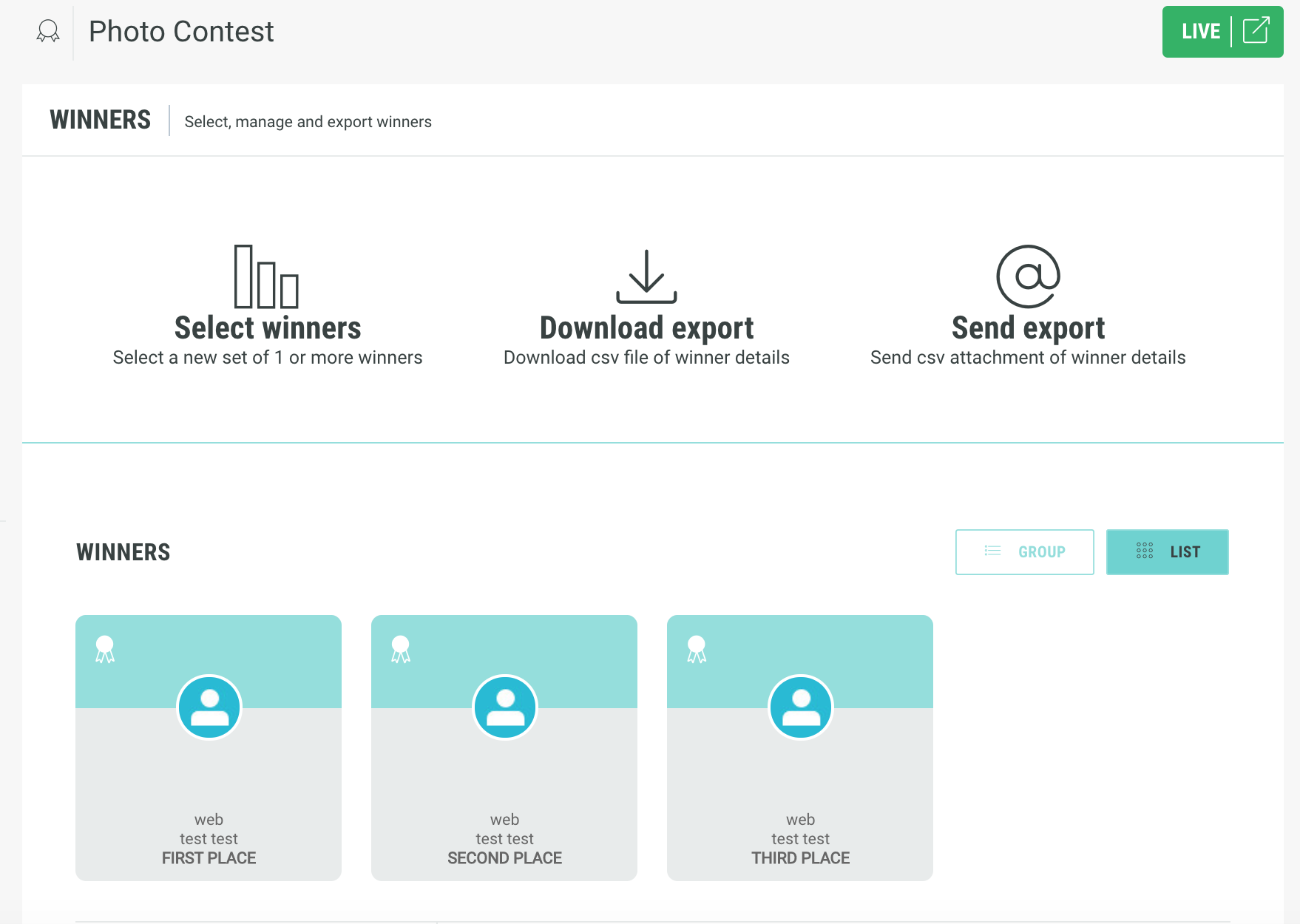
After the draw, you'll see the selected winners on the Winners page. You can choose to see all winners or group them into the draws they were selected in. In the remainder of this article, we'll use the group view on the winner page so you can see the individual draws within the campaign and access all draw options.
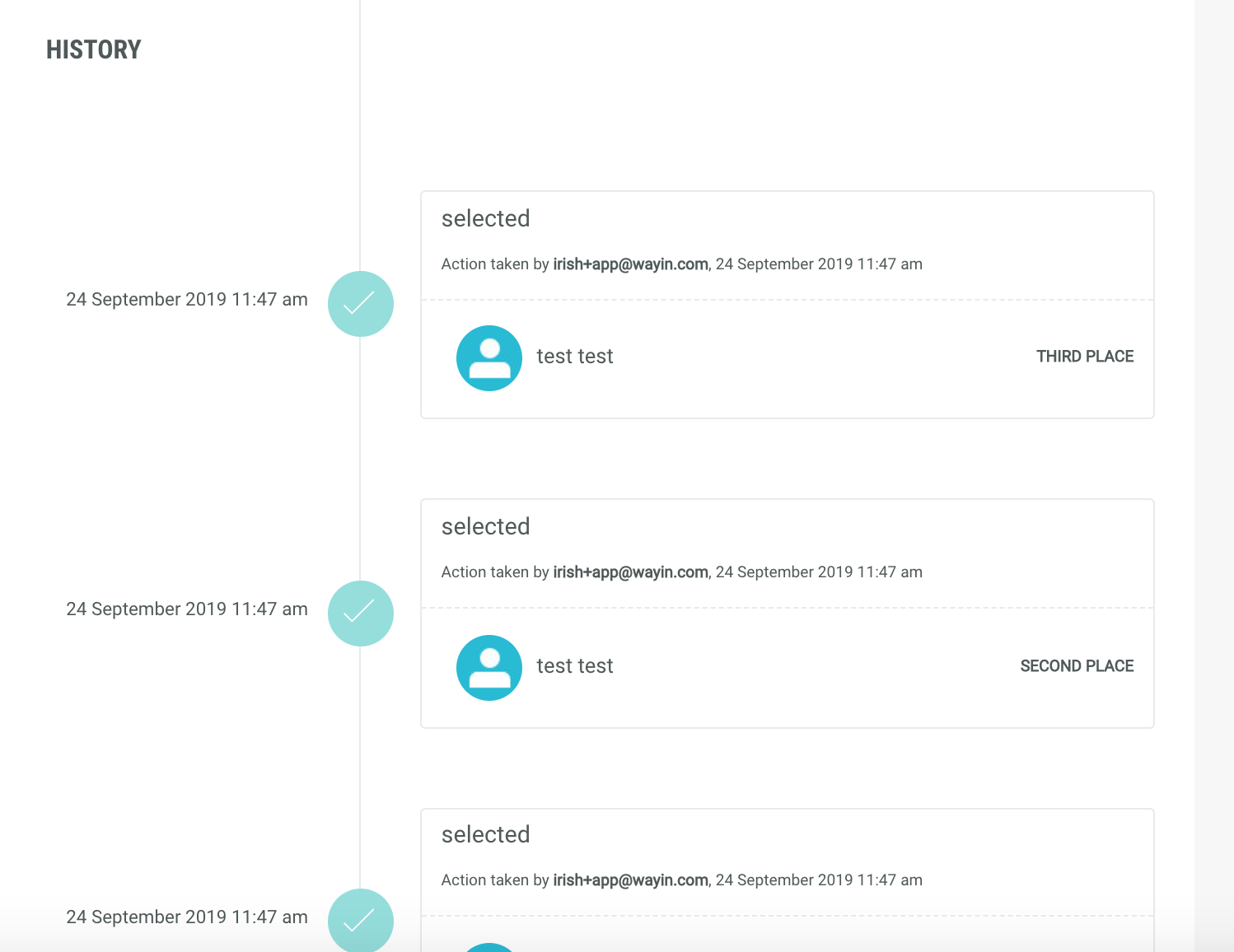
You'll also see the draw appear in the audit log:
From here, you can export the winners' contact details using the Download Export or Send Export options, shown at the top of the winner page. For many, this will be the end of the winner selection process.
Handling Draw Issues
Let's continue with our example. We've been unable to successfully contact our finalist, Sean. You will need to invalidate and re-pick a winner.
Re-picking
This can be done simply with the following...
- Invalidate Winner: Hover over the winner and click Invalidate.
- Re-pick Winner: Next, we can either restore the winner or re-pick another winner from the reserve list. Let's re-pick.
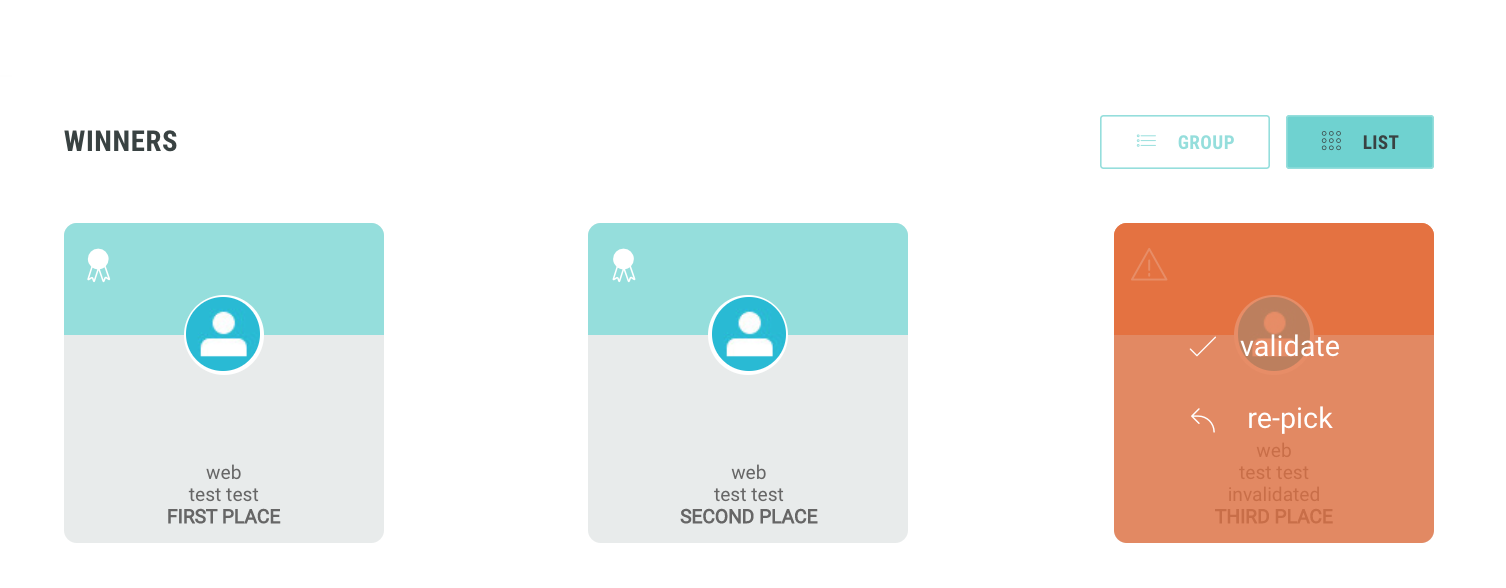
- Review: And we're done! All of the actions above are, of course, recorded in the audit log. You can continue using the above process until the reserve list is empty. Once that happens, we'll let you know and you'll need to run another draw.
What else?
Why not try out some other options?
- Different selection methods: Choose a different selection method in the Winner Selection Wizard. Depending on your campaign type, you can choose between Quick Pick (a simplified random pick), Random (shown above), Top Votes (selecting entries with the most votes), and Judge's Selection (choosing from entries where an internal judge's decision has been recorded).
- Multiple Draws: Run as many draws as you like. This can be useful when playing with winner management, when you want to select winners on a rolling basis (daily, weekly, etc.) or when you need to redraw winners due to an external change in the terms and conditions, entrants, etc.
Try It Now: Test out winner management on any quiz, competition or contest. Selecting winners in a contest will mark any published entries with their winner status, so it is recommended to use test contests, quizzes or competitions.
At what stage can I select a winner?
There is no restriction on when you can pick a winner, this can be before publishing (if the scenario where you wish to run tests), during the Experience or after the Experience has expired.
What system is used to chose a winner (from my selected criteria)?
A random integer (generated using a pseudo-random number generator system) is picked between 1 and n, where ‘n’ is the number of entries that meet the selected winner criteria. This random number correlates directly to an entry and is selected as a winner.
(1)Example to showcase how the source value can be used for Winner Management:
- Multiple promotions have been set up, each with their own source value : day1, day2, day3, ..., up to day7.
- Experience entrants click on a detailed promotion in for example an Advent Calendar, and fill in their email address and other info on the Details Page that appears after.
- Each entry is registered in the Experience Entries section.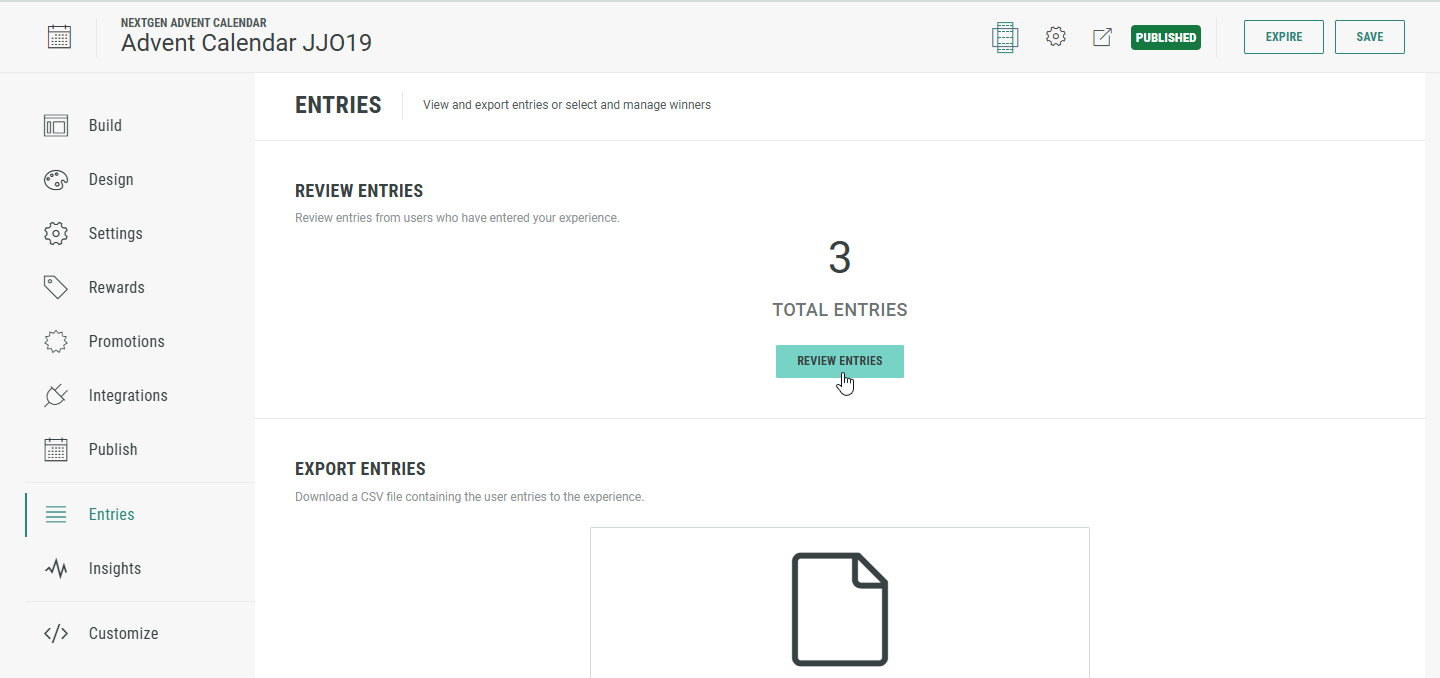
- When you review an entry, you can see the source value, linked to the chosen promotion.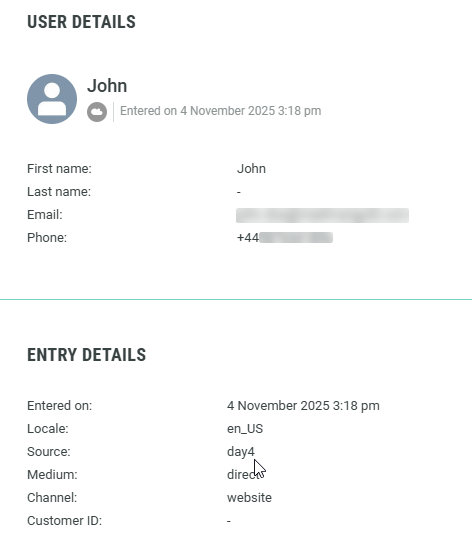
- Click on Select winners to go to the Winner Management.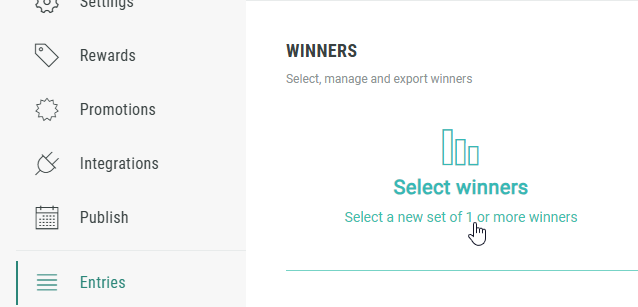
- Select Random winners.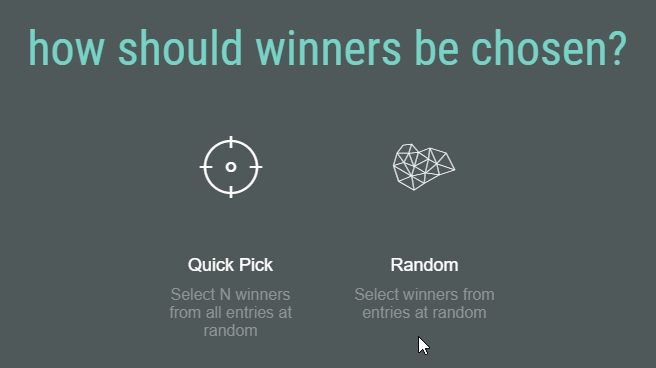
- Determine the number of winners (per category).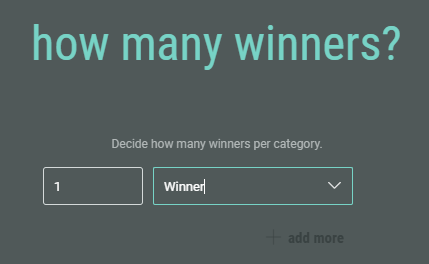
- Choose a time frame.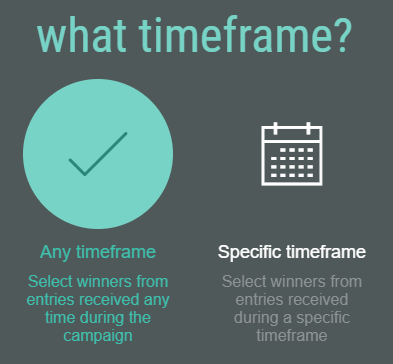
- Then select Conditions apply, and make a selection for must have source equal to.
(Only the sources linked to promotions with at least one entry are shown.)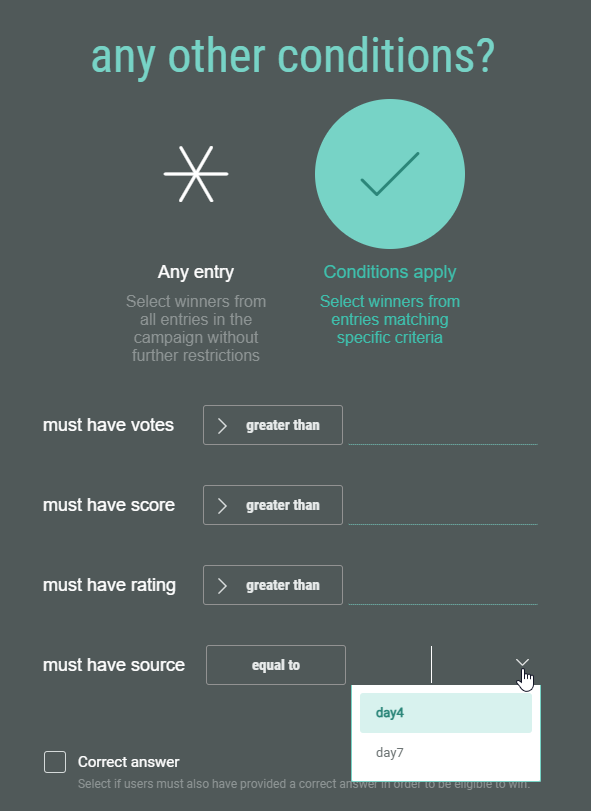
Additionally, you can check the Correct answer box, if Experience entrants must also have provided a correct answer in order to be eligible to win. (e.g. If the Experience contains a Quiz).
