
Insights
This article covers the Insights section of the platform.
Insights help you understand the key metrics and performance indicators of your Experiences over a selected time period.
Grow offers global insights on all of your Experiences as well as more detailed Experience-level insights.
This topic explains both of those.
Global insights
Note: Insights are available from 10 minutes to an hour after Experience interactions occurred.
To access the global insights, you can either:
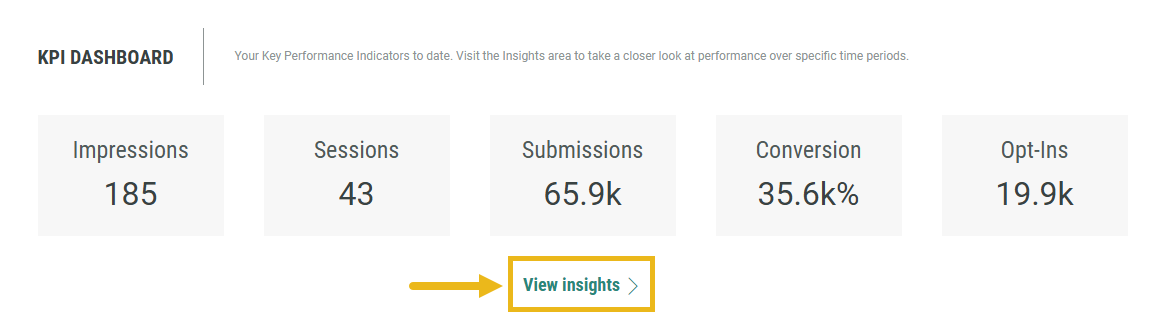
- click View insights in the KPI Dashboard summary on the Dashboard tab.
- click the Insights tab in the main navigation bar.

The Insights screen is then presented.
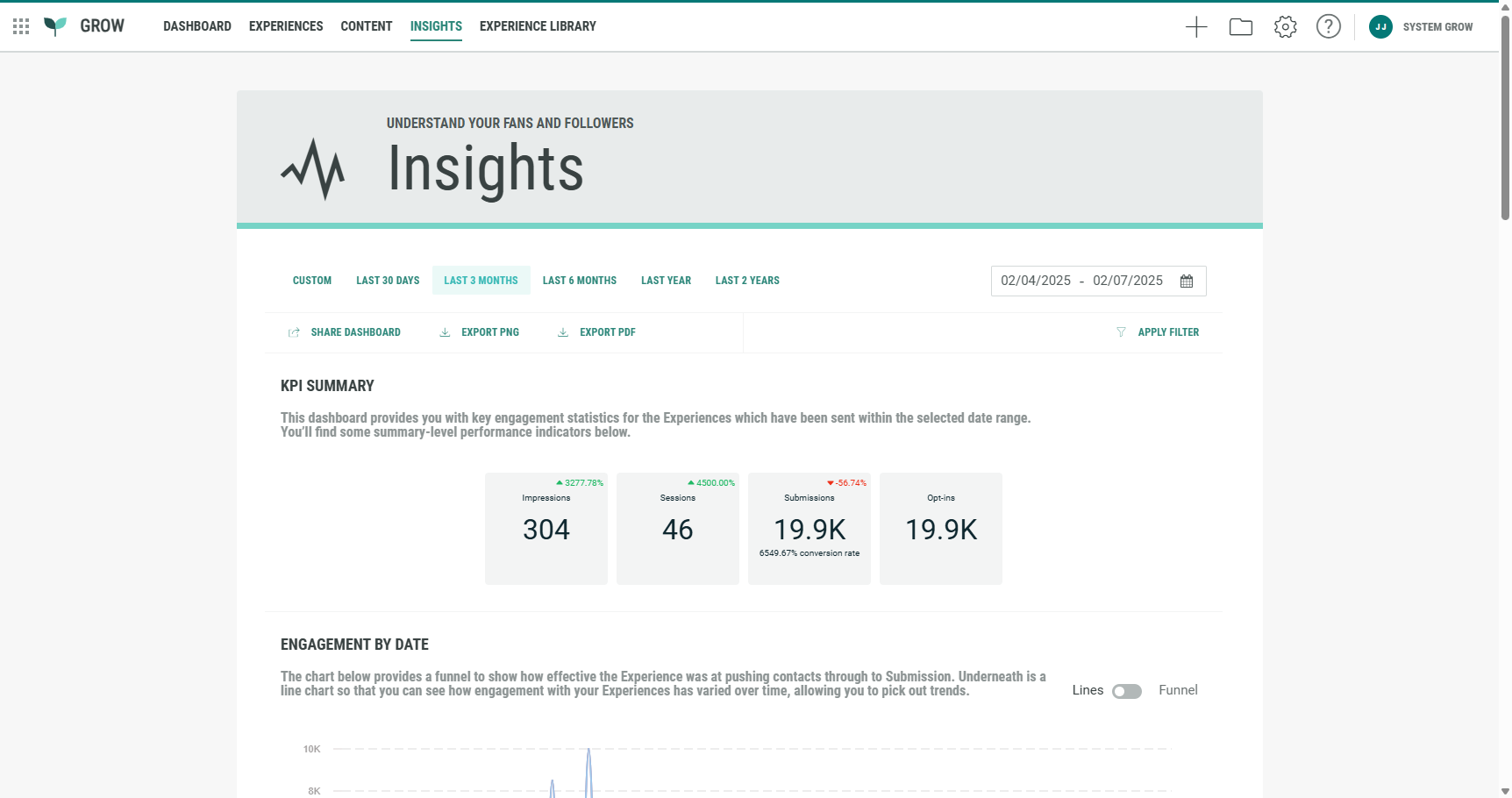
It contains the following sections:
- Date range selection
- KPI summary
- Engagement by date
- Conversions by date
- Cumulative engagement over time
- Access report
- Detailed Experience performance
Date range selection
At the top, select the date range for which you want to see insights on.
The selection applies to all insights on the page.

You can set one of the following date ranges: Custom, Last 30 days, Last 3 months, Last 6 months, Last year, Last 2 years.
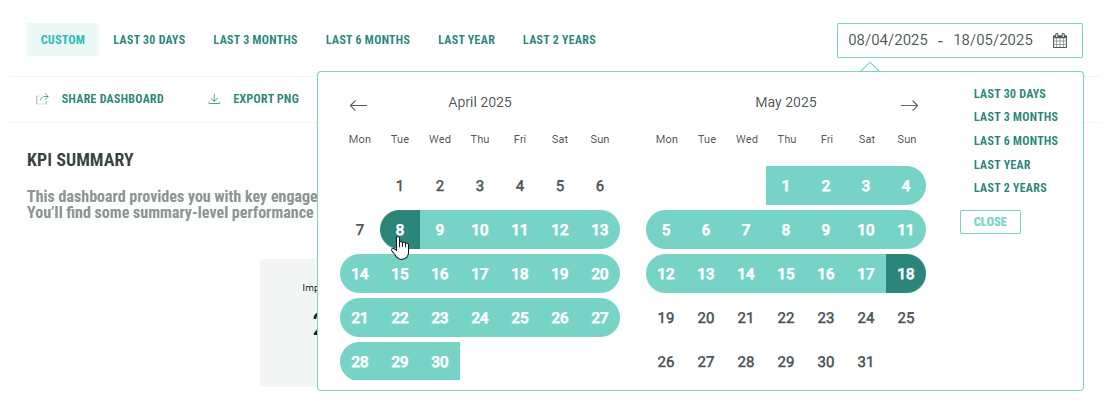
- Custom is applicable when you manually select start and end dates from the date picker.
- Start date — Click on the start (left) date. Click on an arrow to navigate between months and click on the desired date. The start date shown gets updated with your selection.
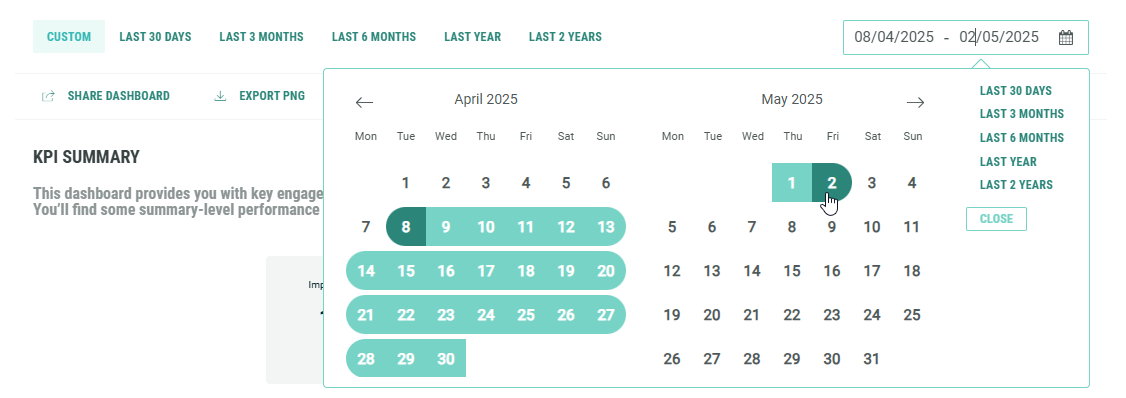
- End date — Click on the end (right) date. Click on an arrow to navigate between months and click on the desired date. The end date shown gets updated with your selection.
- Start date — Click on the start (left) date. Click on an arrow to navigate between months and click on the desired date. The start date shown gets updated with your selection.
- All other options are fixed date ranges.
Regardless of which date range you select—for example, the last 3 months or the last 2 years—fixed date ranges are always based on today's date.
Note:
For the last 30 days date range, an actual count is performed 30 days back from today's date.
It does not mean month to date, as it depends on the number of days in the applicable month(s).
For example: If today it's March 1st 2025, then the last 30 days date range goes back to January 31st.
Action bar

Under the date range selection, there's a a bar with the following actions:
-
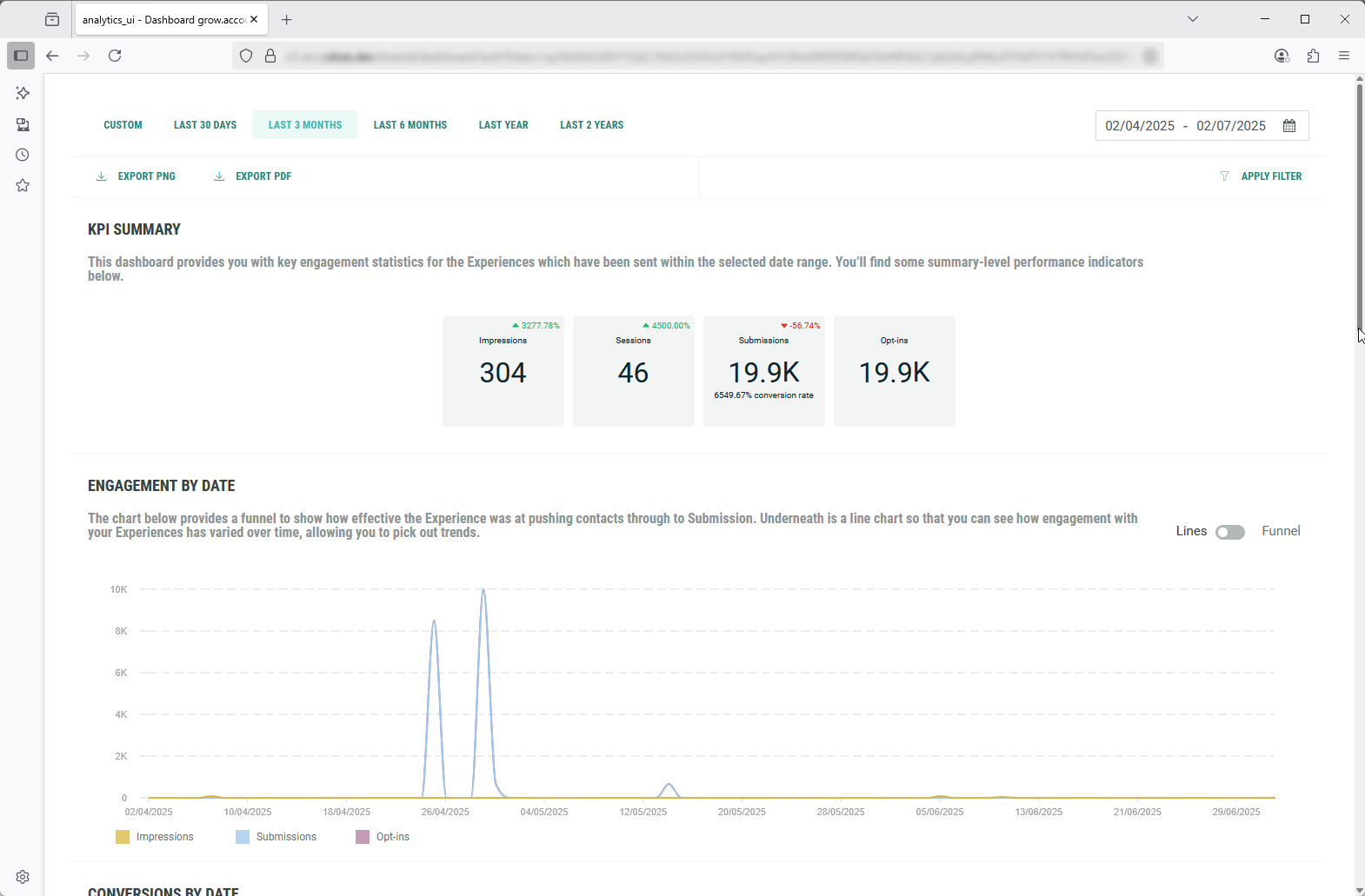
Share Dashboard — Clicking this option shows a pop-up in which you can copy the link to the Insights dashboard (with applied filters) to your clipboard. Note that the link has an expiration date, which you can change if desired.

The link can then be shared with others.
When they open it, they will only see the Insights dashboard, without any of the Grow UI navigation and header elements.
Example:
-
Export PNG — Clicking this option downloads the complete Insights dashboard (with applied filters) as a PNG image file onto your local computer.
-
Export PDF — Clicking this option downloads the complete Insights dashboard (with applied filters) as a PDF document onto your local computer.
-
Apply Filter — Clicking Apply Filter shows a pop-up in which you can set one or more filters.
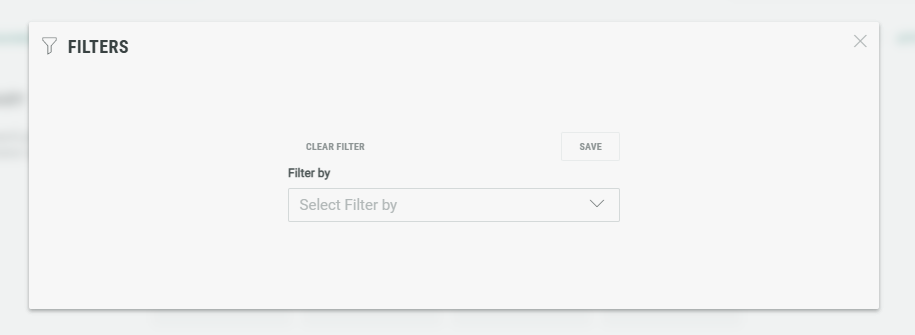
You can filter by browser, device type, Experience name, Operating System, source.
When selecting one or multiple of these filters in the Filter by field, an additional field is shown for each selected filter.
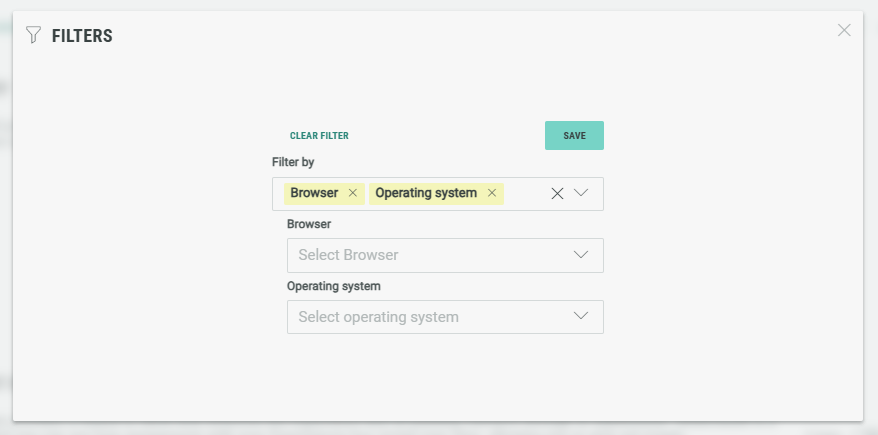
The following selections can then be made in the filter-specific fields (again, one or multiple can be selected per field):
- Browser: Others, Chrome, Unknown.
- Device type: Desktop, Unknown.
- Experience name: A list of all available Experiences in your Grow account.
- Operating System: Windows, Others, Unknown.
- Source: This depends on the used source parameters. (Also see the Source analysis section below).
Example: I only want to see Insights for 2 specific Experience names, and only for when participants accessed those through a Chrome browser on a desktop device, and when they contained a source parameter equal to web.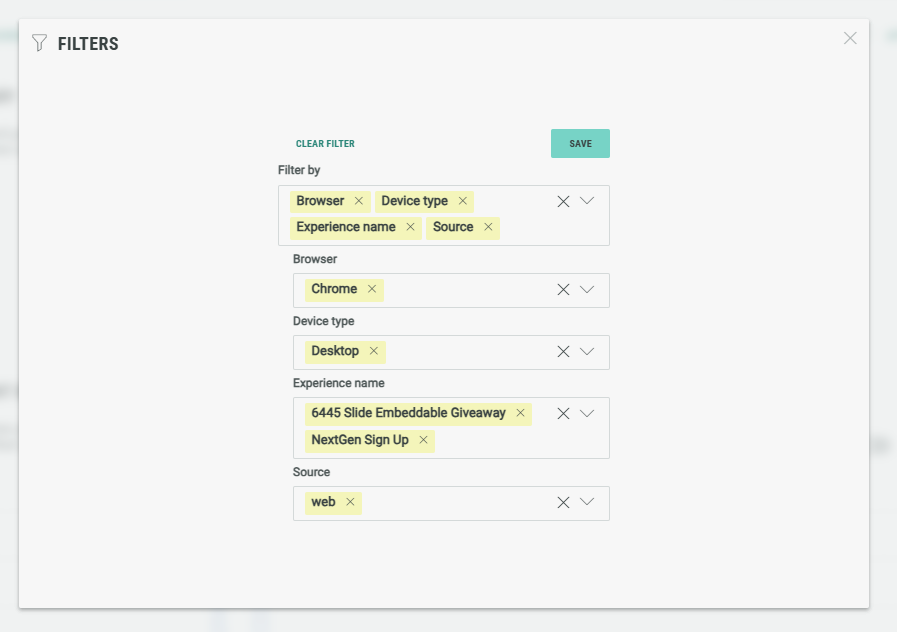
Click the Save button at the top-right to apply the filters.
The pop-up is then closed and the Insights are updated with your filters applied.
You can click on the cross icon at the top-right of each selected filter to remove them.
If you want to remove all filters at once, click the Clear Filter button at the top-left of the pop-up.
KPI summary
The KPI summary provides key engagement statistics for the Experiences which have been sent within the selected date range.
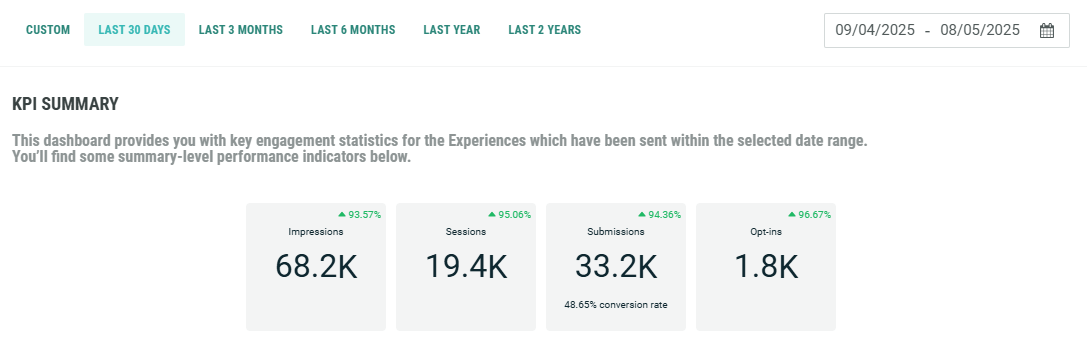
The following Key Performance Indicators are shown:
- Impressions — The number of times the Experience has been fully loaded on-screen.
- Sessions — The number of registered sessions. A session is registered when an engagement occurs. This might be a button click, populating a text field, or scrolling to the next question.
- Submissions — The number of forms that are completed (= filled in all required fields) and submitted by entrants.
- Opt-ins — The total number of entries where the entrant consented to one or more opt-ins.
Each KPI shows the value in the middle.

Submissions additionally show the conversion rate at the bottom.
The conversion rate is the number of submissions (=completed forms) divided by the number of impressions (=Experience entries on-screen).
For all KPIs, depending on the active date range, at the top-right an evolution rate may be shown.
This rate is the evolution of the KPI compared to the previous period (of the same range).
Note:
Positive and negative rates may be visible, depending on the evolution per KPI.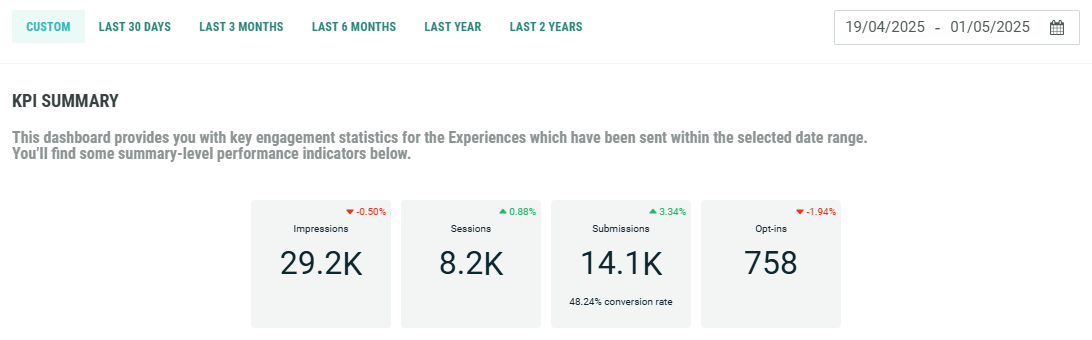
No evolution rate is shown for KPIs when there's not sufficient data to compare with.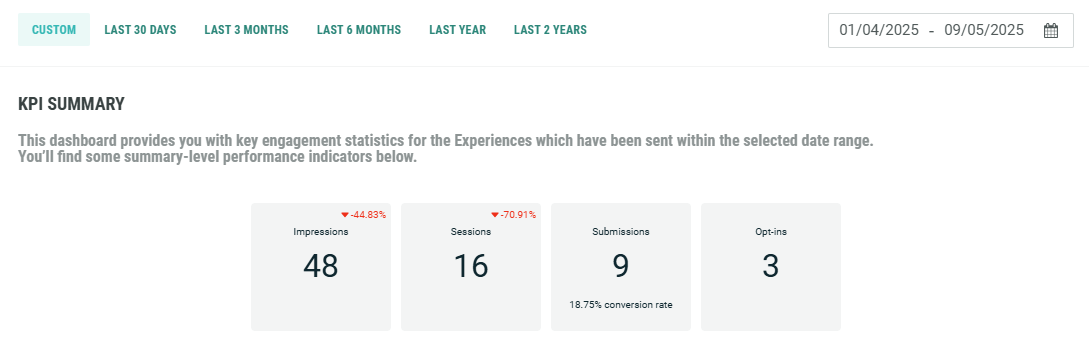
Example:
When the date range last 30 days is selected, and the evolution rate of submissions shows a positive evolution of +87.30%, this means that compared to the 30 days before, submissions (=completed forms) are increased by 87.30%.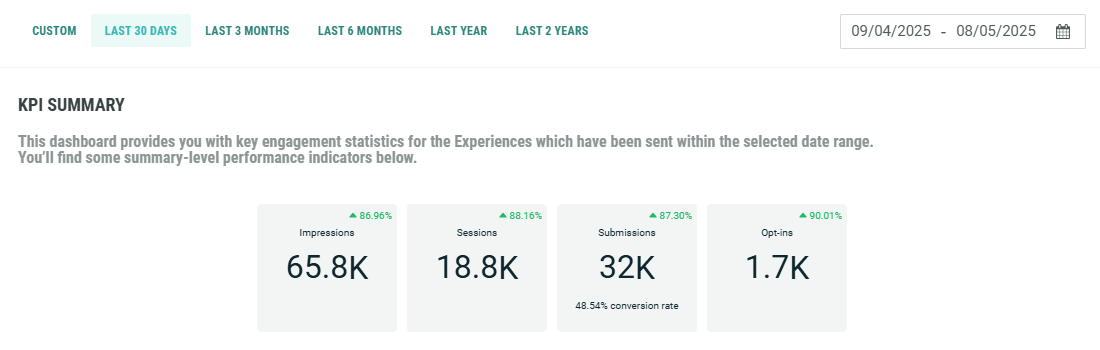
Engagement by date
Engagement by date shows how effective the Experience was at pushing participants through to submission (=submitted the form).
There are two ways to view the engagement by date: Lines or Funnel.
Use the toggle at the top-right to switch between these views.
|
|
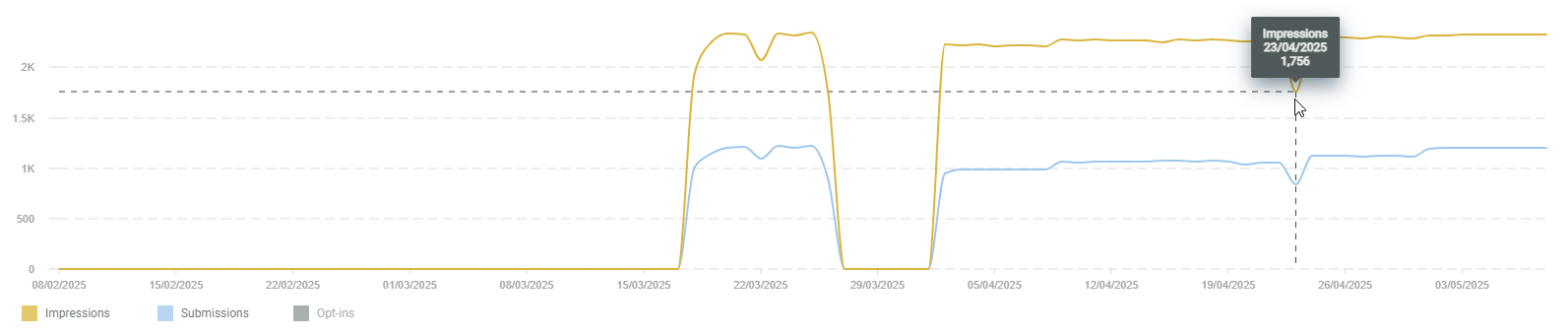
- Lines — The line chart visualizes how engagement with your Experiences has varied over time, allowing you to pick out trends.
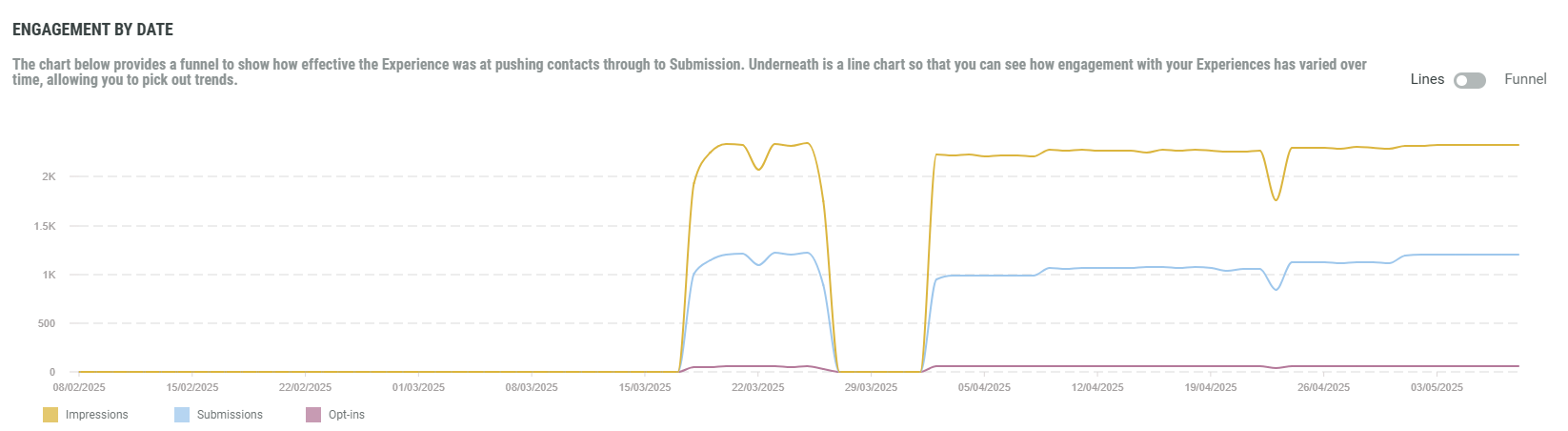
The Lines chart shows the following KPIs: impressions, submissions and opt-ins.
You can view/hide any of these in the chart, by clicking on the corresponding filters underneath.
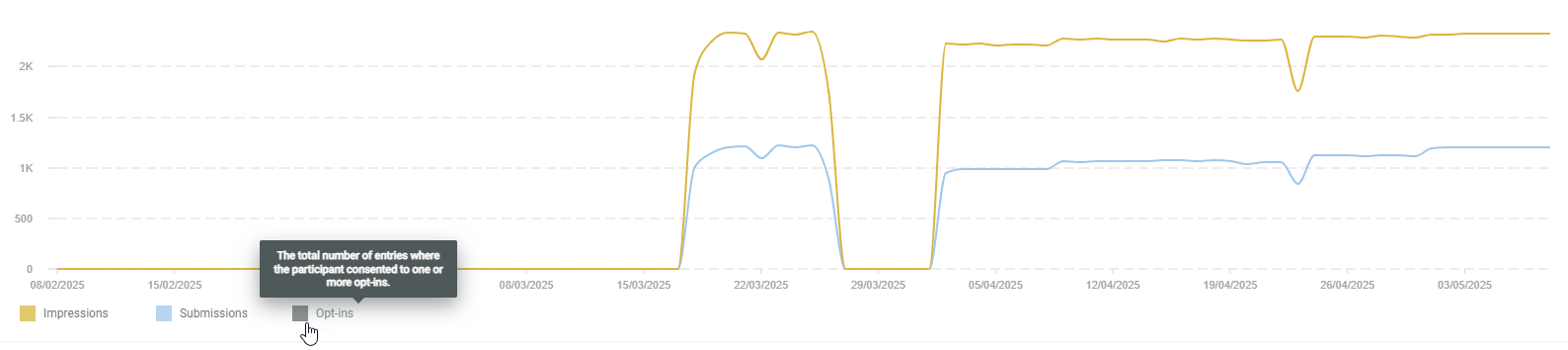
Hovering with the mouse cursor over a chart shows info in a tooltip about the KPI type, and its value (vertical axis) for the specific date (horizontal axis).
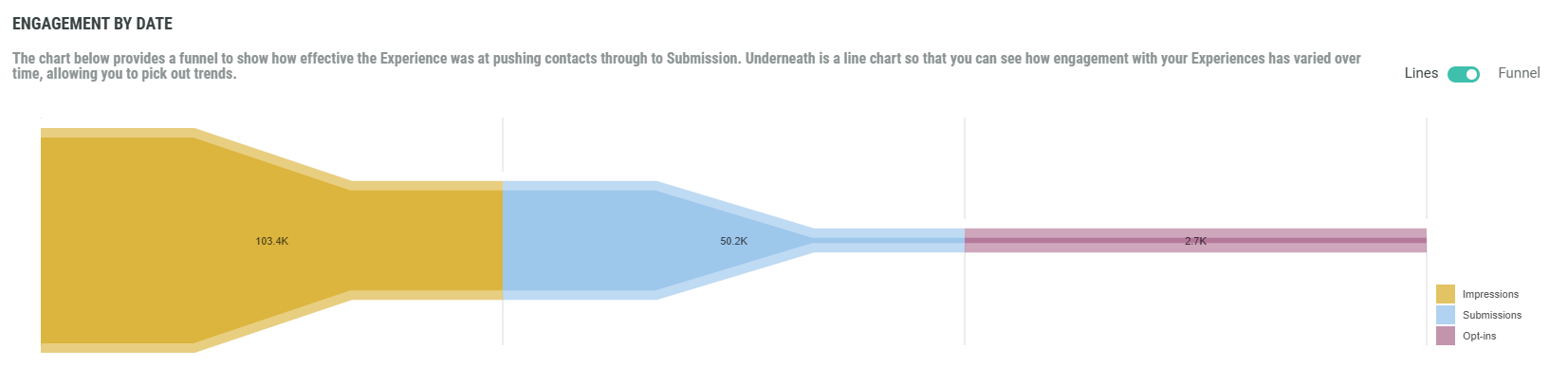
- Funnel — The funnel view shows the totals per KPI within the selected date range. It's in the form of a conversion path, starting with impressions (participants entering the Experiences), moving into submissions (forms completed by participants), and ending with opt-ins (entries where the participant consented to one or more opt-ins).
This view allows you to identify where drop-offs occur. It breaks down the journey into sequential stages, allowing teams to measure how many participants complete each step and where they abandon the process.
Conversions by date
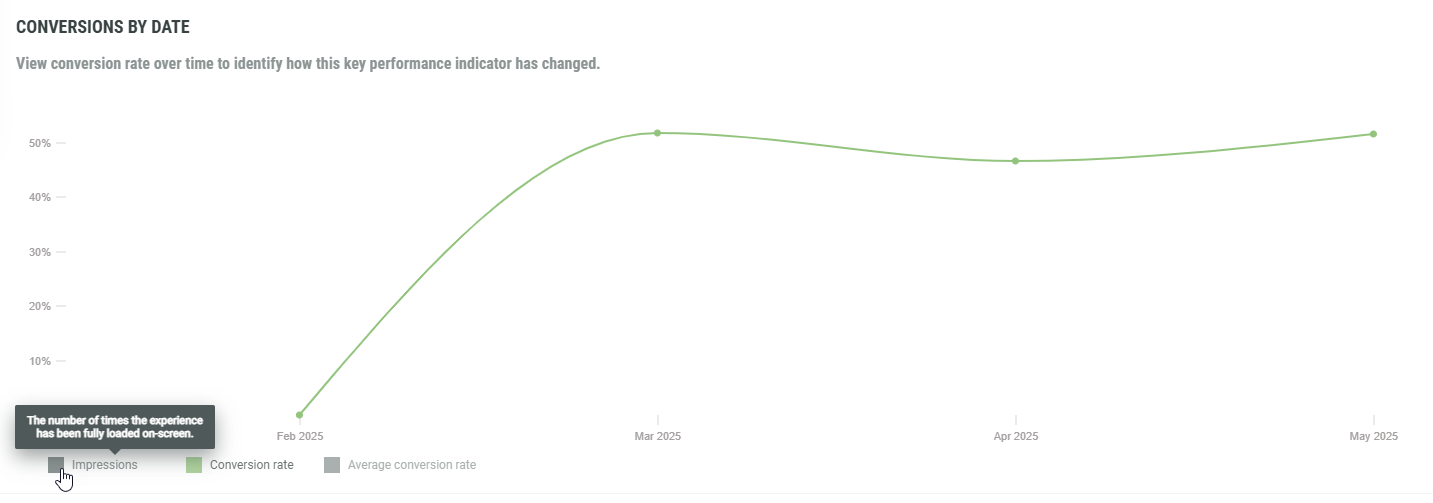
This chart gives a view on conversion rate over time to identify how this KPI has changed.
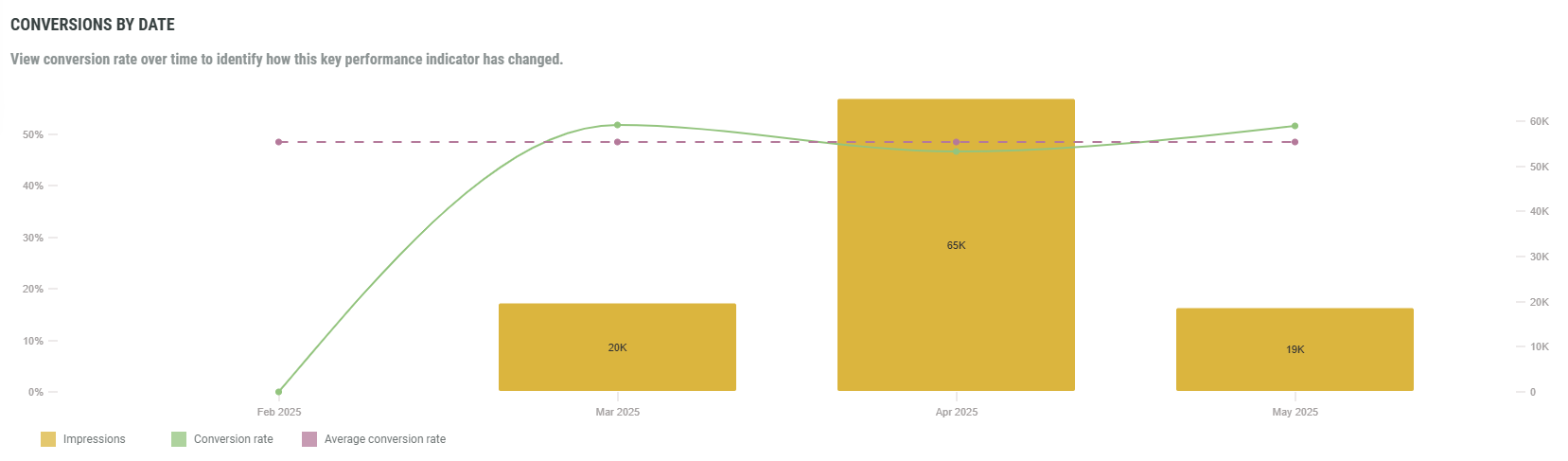
- Impressions — Bar charts, showing the number of times the Experience has been fully loaded on-screen.
These are per month for all date ranges, except for the last 2 years for which these are per year instead. - Conversion rate — Line chart with the proportion of impressions that resulted in submissions (= forms completed) over time.
- Average conversion rate — The average conversion rate across the selected date range, shown as a horizontal dashed line.
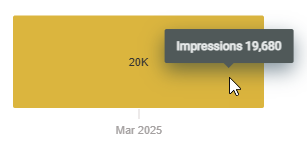
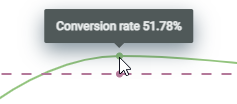
Hovering with the mouse cursor over a bar chart or a dot on any of the line charts, shows info in a tooltip about the KPI, and its value or percentage (vertical axis) for the specific month or year (horizontal axis).
|
|
You can view/hide any of the charts, by toggling the corresponding filters.
Cumulative engagement over time
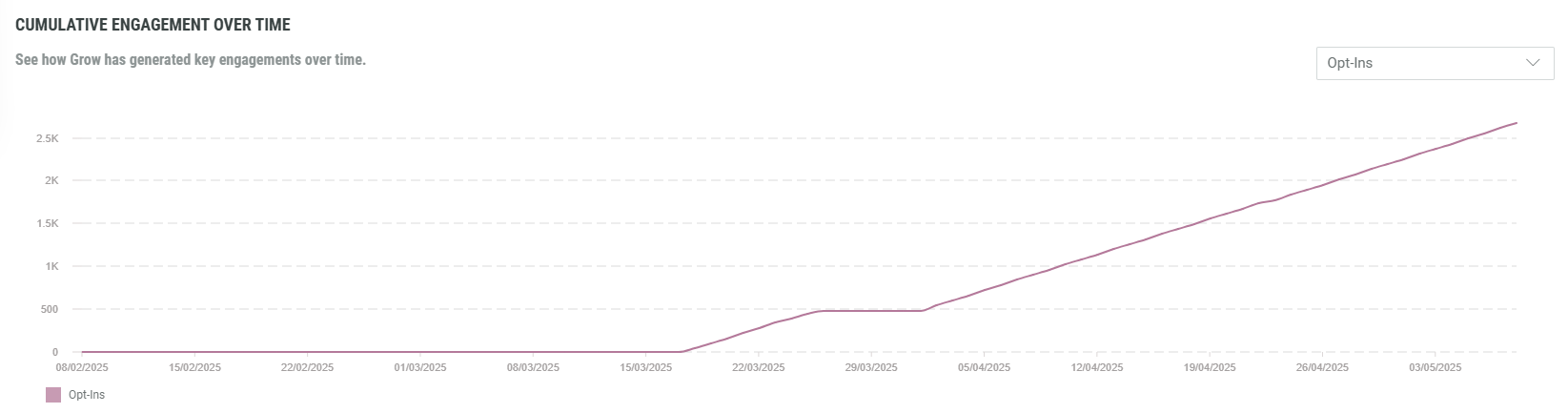
See how Grow has generated key engagements over time, presented in a line chart by KPI.
The values are cumulative, meaning each data point includes all previous engagement. As a result, this chart only shows stagnating or upward trends.
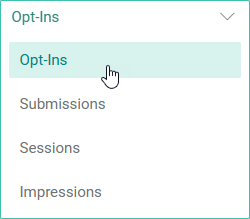
You can select a KPI from the drop-down at the top-right. (The KPIs are explained above)
The line chart automatically updates to your KPI selection.
The horizontal axis shows the dates, depending on the selected date range at the top, and what fits on your screen.
Example:
- Opt-ins for the last 3 months.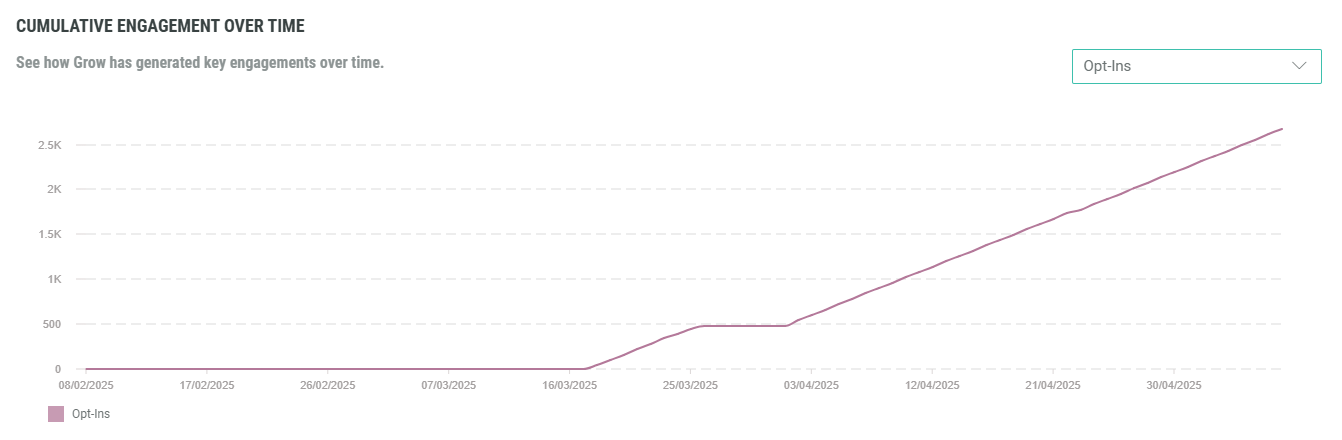
- Opt-ins for the last 3 months, shown on a smaller screen. (less dates are shown, with a bigger gap in between the dates)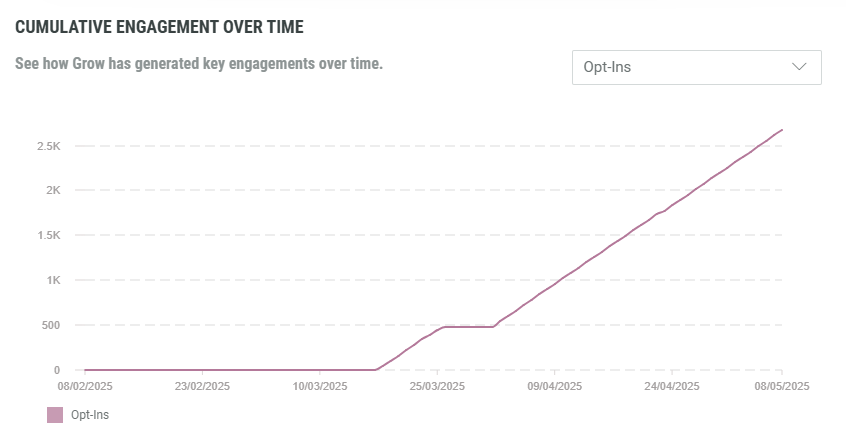
- Submissions for the last 2 years.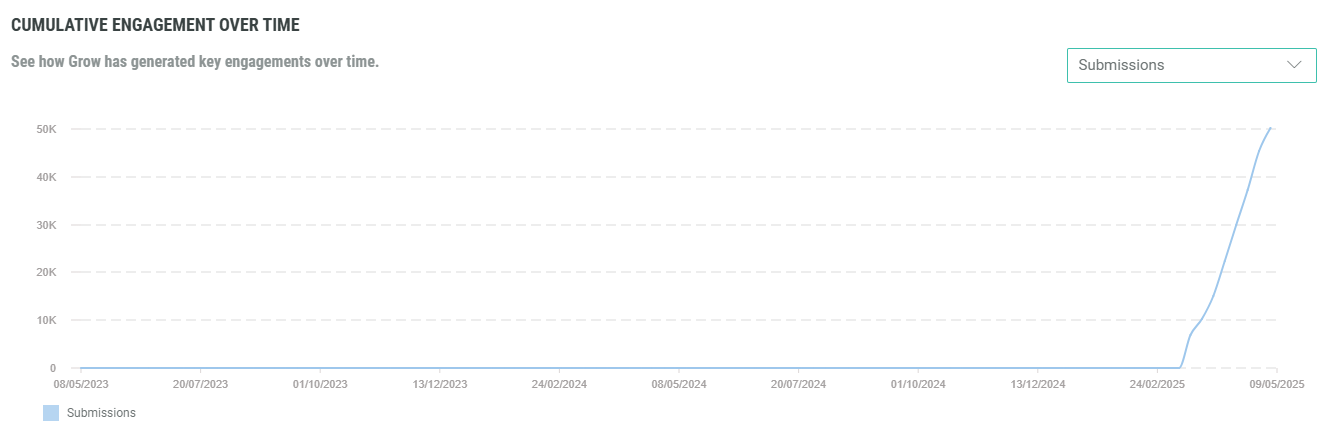
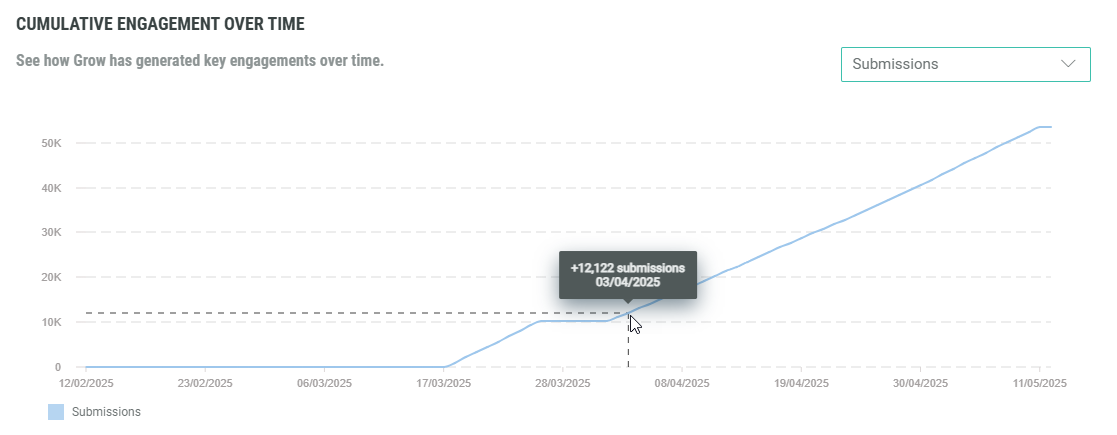
Hovering with the mouse cursor over the line chart shows info in a tooltip about the KPI and its value (vertical axis) for the specific date (horizontal axis).
Access report
The access report shows how engagement activities for your Experiences are spread across different devices, operating systems or browsers.
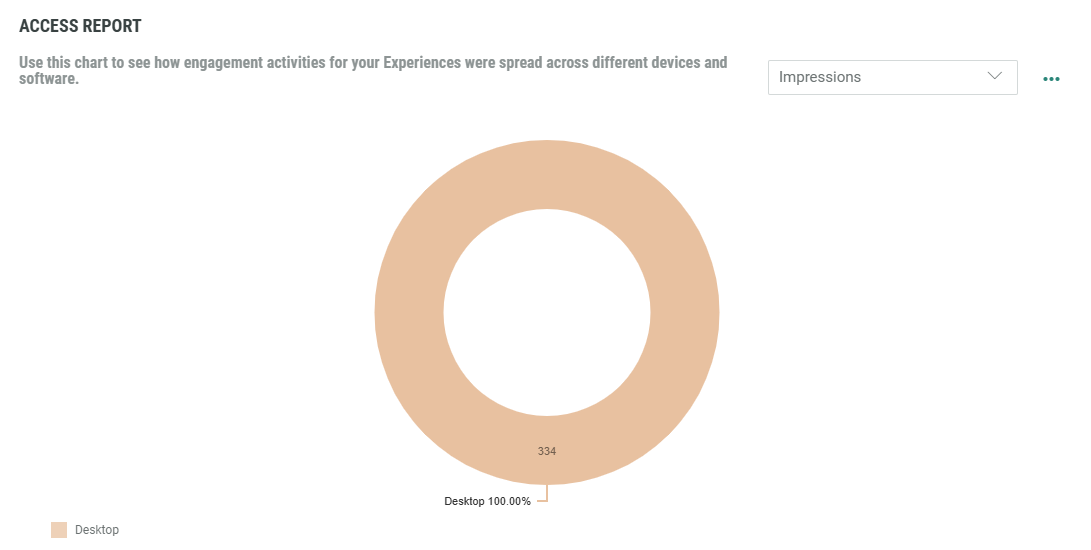
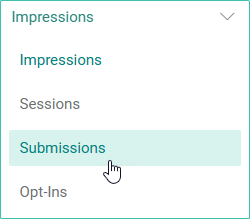
At the top-right, you can select a KPI from the drop-down. (The KPIs are explained above)
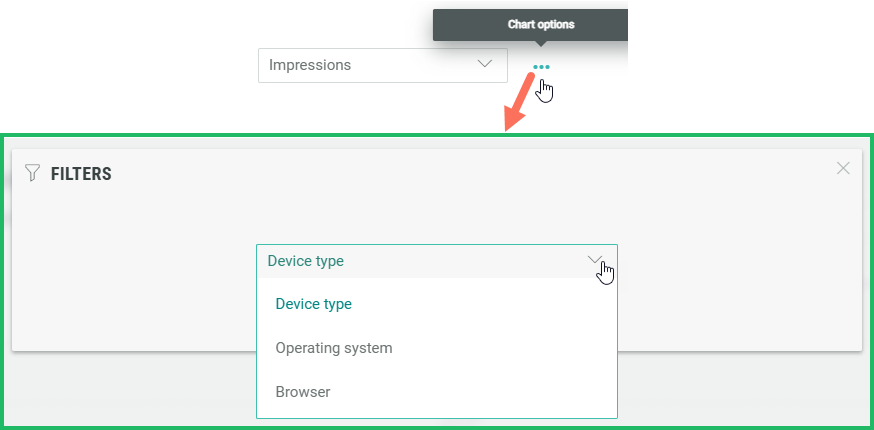
Next to the drop-down, you can click on the 3 dots to filter the data on device type, operating system or browser.
The pie chart automatically updates to your selections.
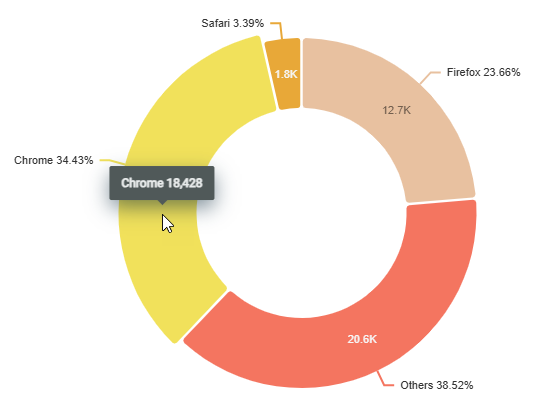
Example:
Submission is selected as KPI and browser is selected as filter.
For the selected date range at the top, the pie chart shows values and percentages per browser.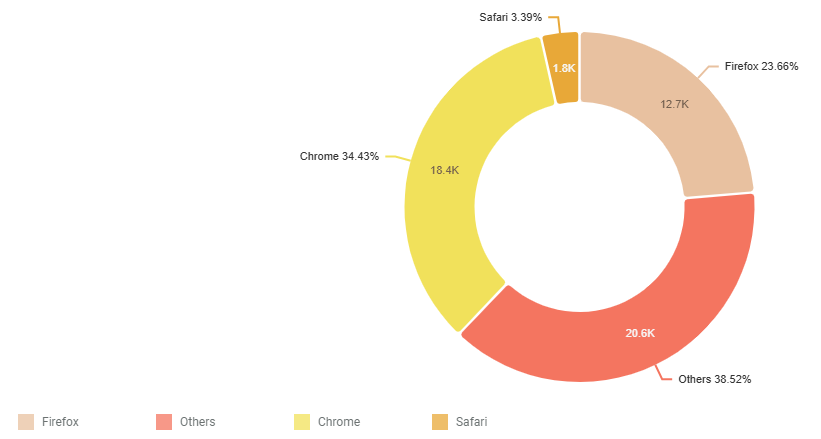
Hovering with the mouse cursor over a piece of the pie chart shows a tooltip with the browser and exact KPI value.
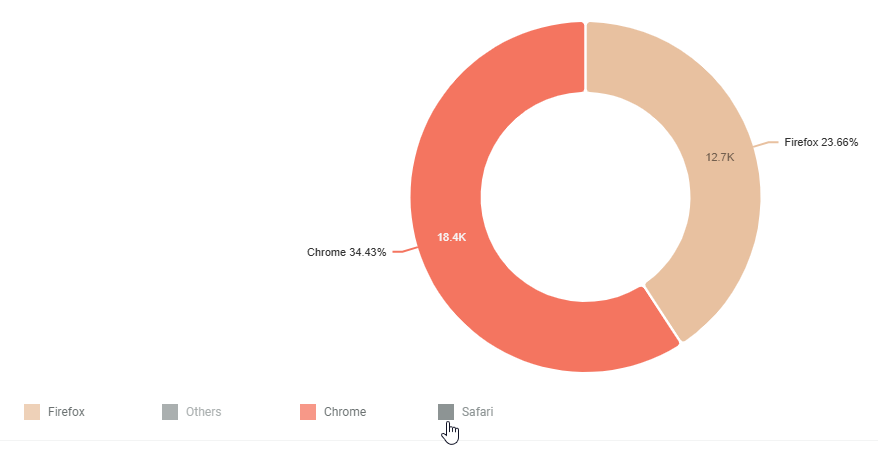
You can view/hide any of the pie chart pieces, by toggling the corresponding filters.
Detailed Experience performance
A table view allows you to view and compare the performance of Experiences for the selected date range.
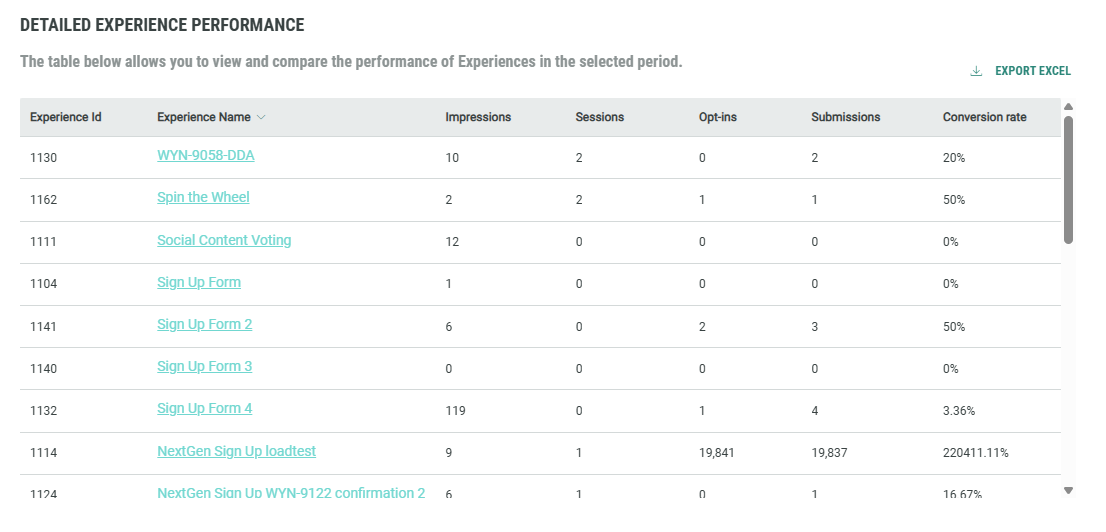
Per row there's one Experience.
Per Experience, the following values are available (in columns):
- Experience ID — The unique identifier of the Experience.
- Experience Name — The name of the Experience.
- Impressions — The number of times the Experience has been fully loaded on-screen.
- Sessions — The number of registered sessions. A session is registered when an engagement occurs. This might be a button click, populating a text field, or scrolling to the next question.
- Opt-ins — The number of entries where the entrant consented to one or more opt-ins.
- Submissions — The number of forms that are completed and submitted by entrants.
- Conversion rate — The percentage of impressions that resulted in submissions (= forms completed).
You can click on an Experience name to navigate to the insights specific to that Experience.
The table can display a maximum of 100 rows. You can scroll through them using the vertical scroll bar on the right.
When more than 100 rows are available, pagination is available at the bottom to navigate and view the rows on different pages.

You can sort the table by clicking on any of the arrows that appear in the column headers when hovering over them.
Clicking multiple times on the same one, toggles between ascending and descending sorting.
Example:
- Sort on the number of impressions in ascending order.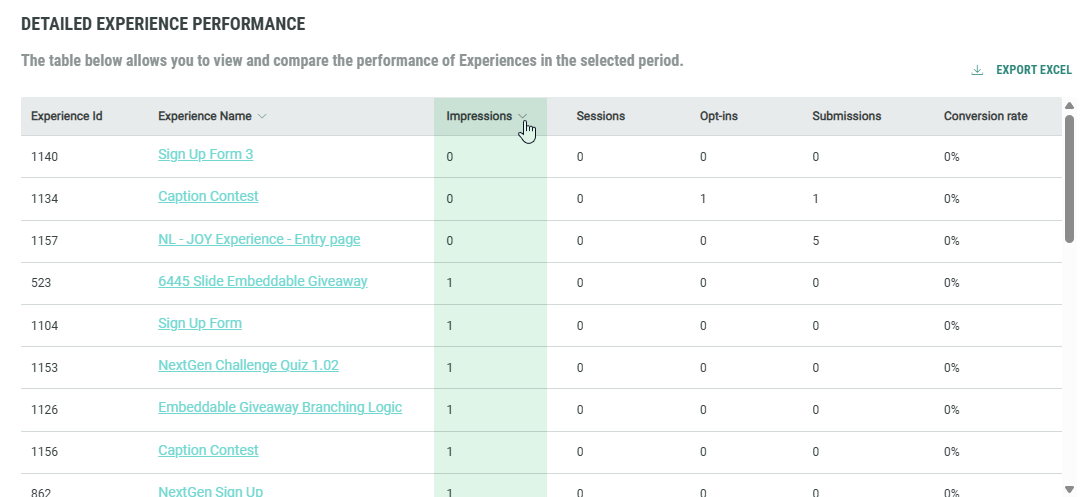
- Sort on the number of opt-ins in descending order.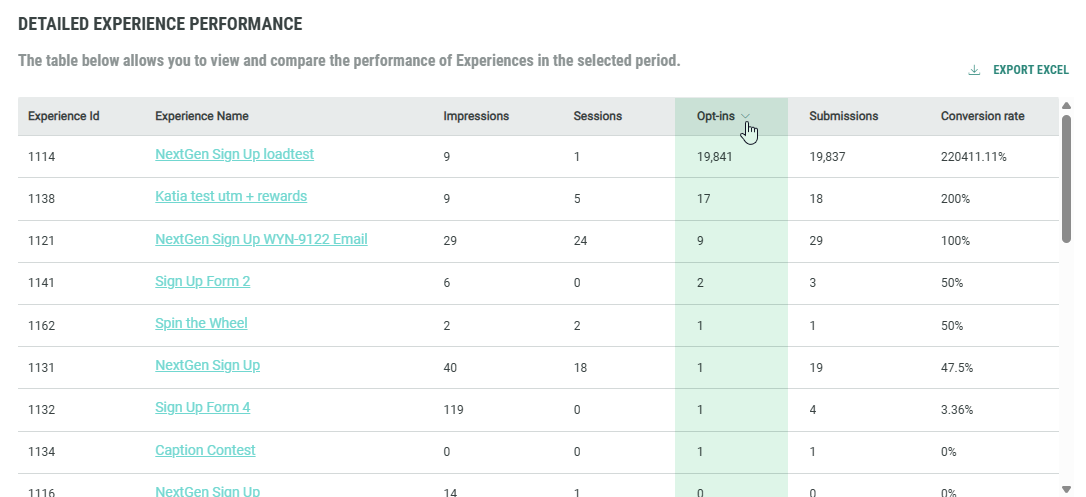
At the top-right, there's a link to export the table to a .CSV file onto your local computer.
Experience-level insights
Insights on individual Experiences can be accessed:
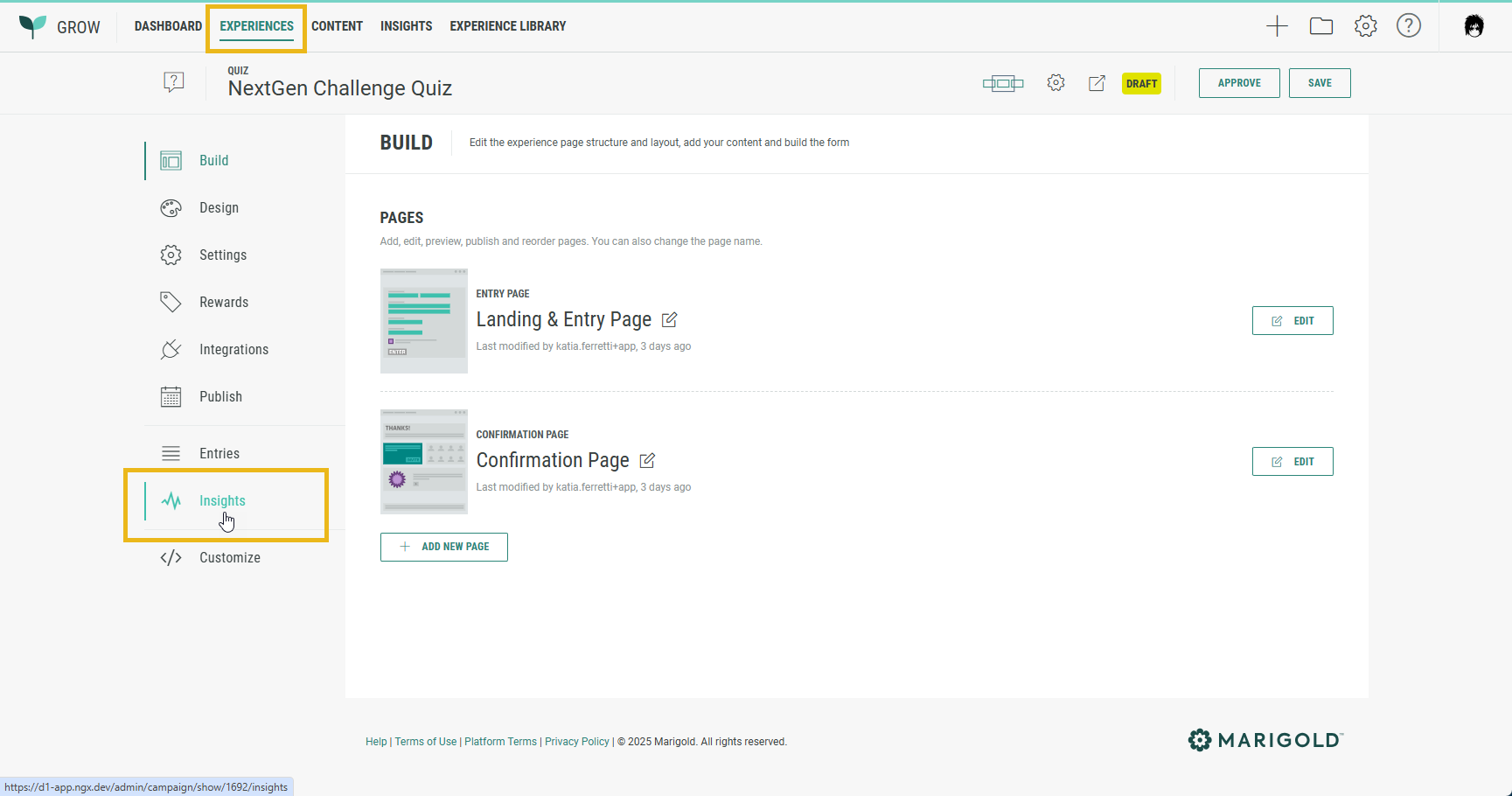
- by navigating to Experiences in the top navigation, selecting an Experience and clicking on Insights in the left-hand side navigation of that Experience.
- by navigating to Insights in the top navigation, and clicking on the Experience name in the Detailed Experience Performance grid.
Experience-level insights provide the following tabs:
Overview
The Overview tab provides comparable insights as the global insights explained above, but instead of giving a view on all Experiences, it's specific to the selected Experience.
The following sections are identical as for the global insights:
Besides the ones mentioned above, there are two additional sections that only apply to Experience-level insights:
- Source analysis — Only displays if you've included a source parameter. Details are explained below.
- Cumulative rewards granted — Only displays if you're using Rewards. Details are explained below.
Source analysis
See how engagement varies across different sources.
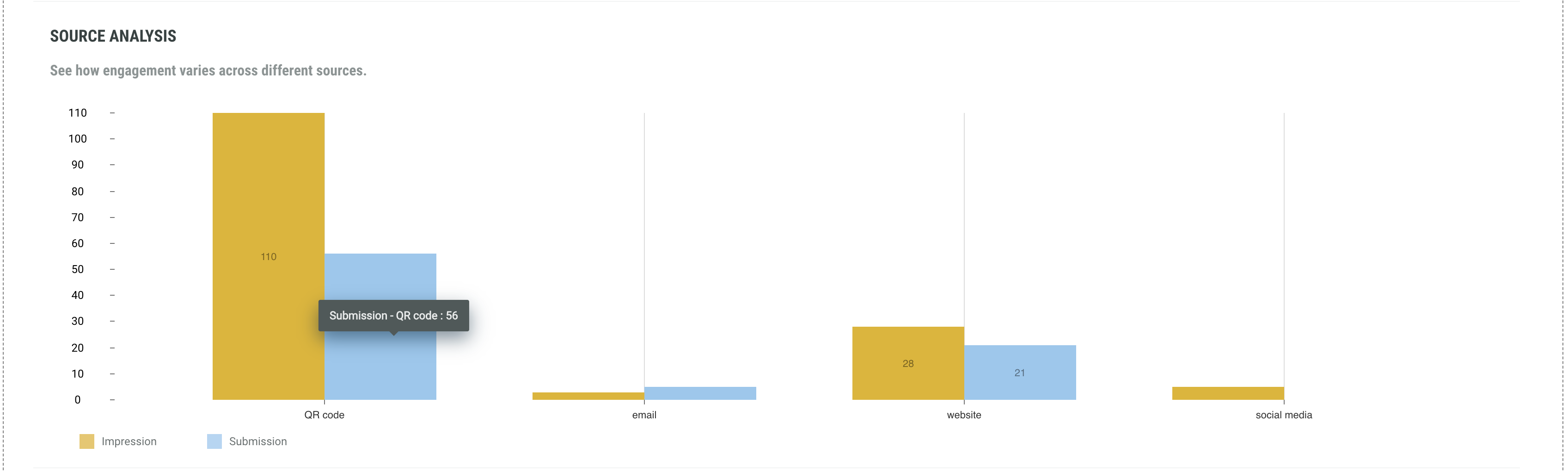
These insights are user-defined. Data will only be available when a source parameter is included.
Please consult the Attribution (Tracking) help topic to learn more about this subject.
Example: https://example.com/page?source=social%20media
The bar charts show the number of impressions and submissions per source.
Cumulative rewards granted
A Reward is an incentive offered to customers for participating in a Grow Experience, with the ultimate goal of learning something new about that customer or driving engagement with your brand. Rewards, like prizes, offers, or coupons, can be provided in real-time and have been shown to boost overall engagement. They can be structured as everyone wins or with set odds with consolation rewards as an option. Inclusion of a reward in your experience will boost participation.
Note: Find more info on Rewards here.
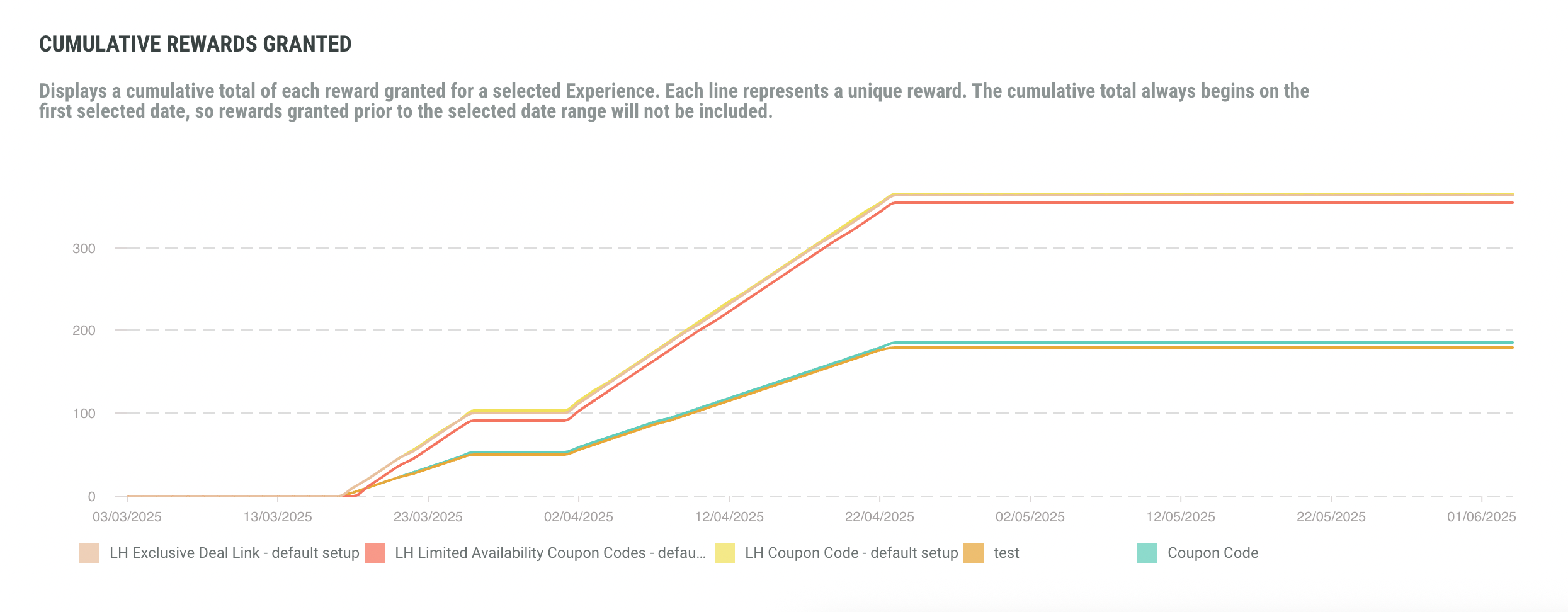
This chart displays the cumulative total of each reward granted for the selected Experience.
Each line (and each filter at the bottom) represents a unique reward.
The lines show the total count of each reward granted prior to the date range and how that total changed over the selected period.
Note: For Macro (legacy) Experiences, the Overview tab is called Activity instead.
Performance
The Performance tab provides breakdowns per page and per slide.
Note:
The following chart colors are being used:
- Green for the Landing & Entry page and slides.
- Red for any Content pages and slides.
- Grey for the drop-off rates (pages and slides).
Performance per page
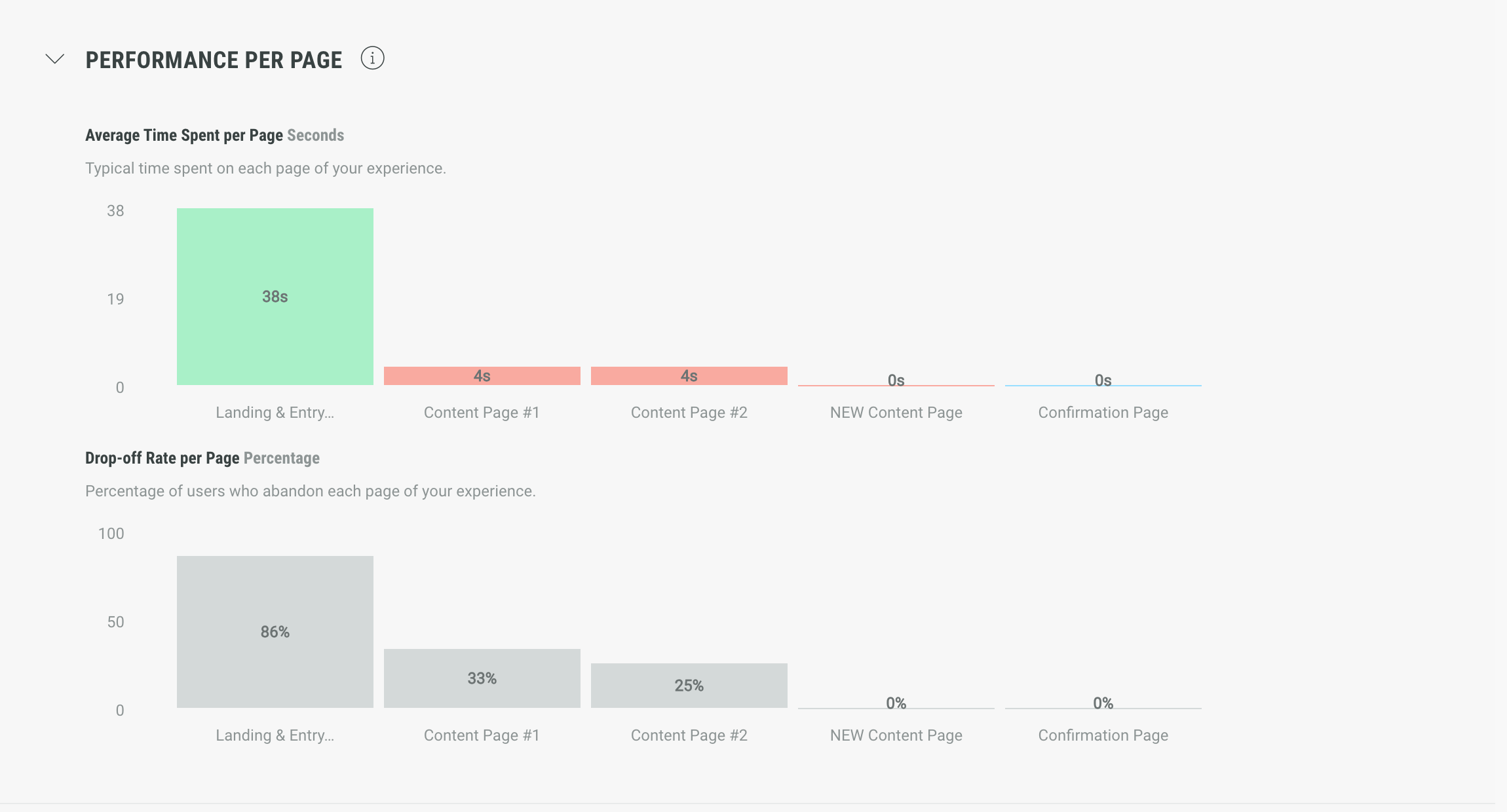
Performance per page offers charts with insights for your pages:
-
Average time spent per page — The average time spent on each page of your Experience.
Example: The Landing & Entry Page has an average of 38 seconds, while the next pages only have an average between 0 and 4 seconds.
-
Drop-off rate per page — The percentage of users who abandon each page of your Experience.
Example: The abandon rate on your Landing & Entry Page is 86% (which means 86 percent of users accessing the Landing & Entry Page, abandon it), while the abandon rate on page 2 is 33%, on page 3 it's 25%, and other pages after have a drop-off rate of 0%.
As the Landing & Entry Page has a high drop-off rate, this could mean that you need to improve the page in your Experience, so that participants are less likely to drop off.
Note: The drop-off rate of the Confirmation Page is always 100% when at least 1 participant completed the Experience, or 0% when no one has completed the Experience yet.
Performance per slide
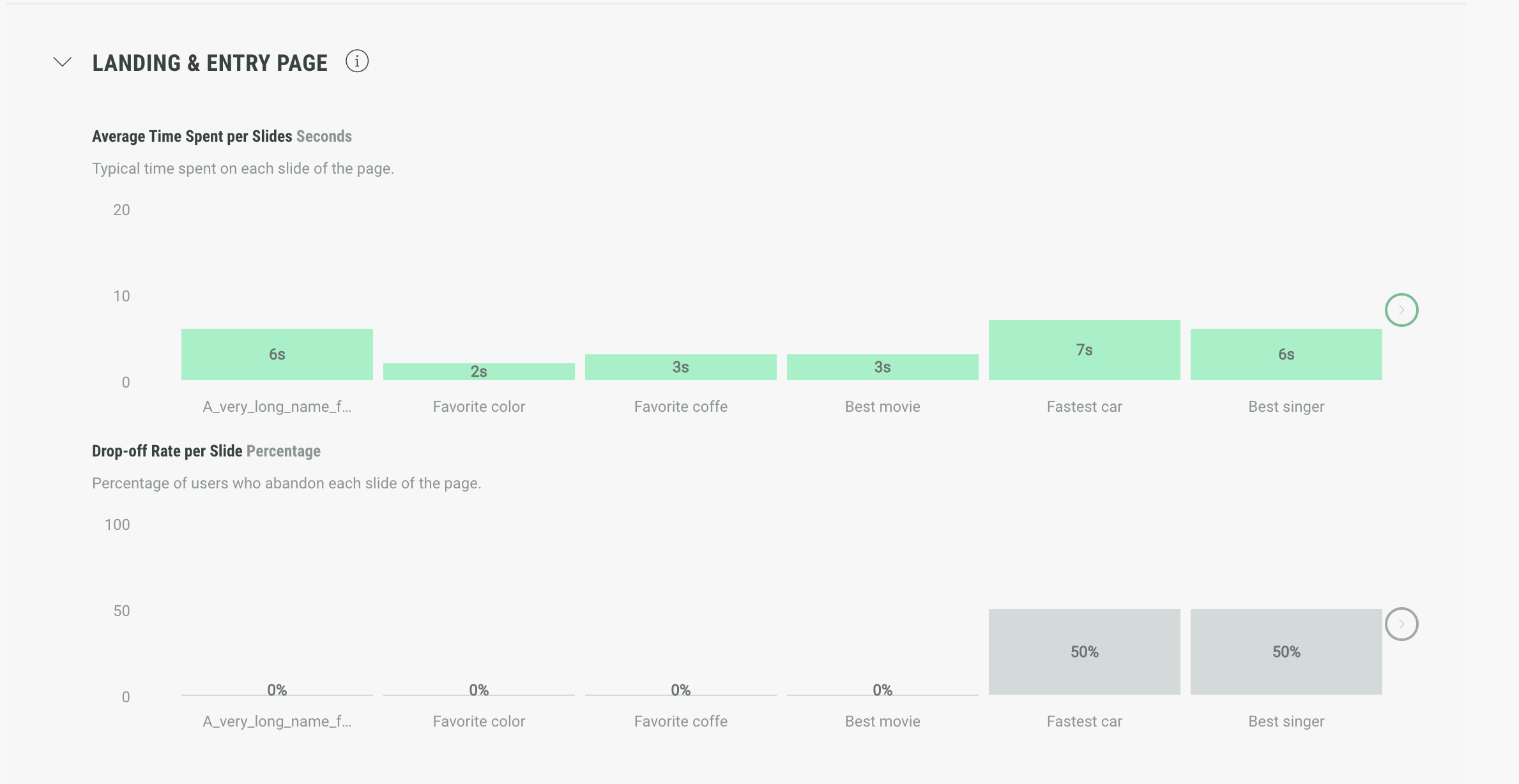
The Performance per slide section offers charts with specific performance insights for each slide used per page.
Note: Each page has its dedicated section that can be expanded/collapsed to see the performance per slide for that page.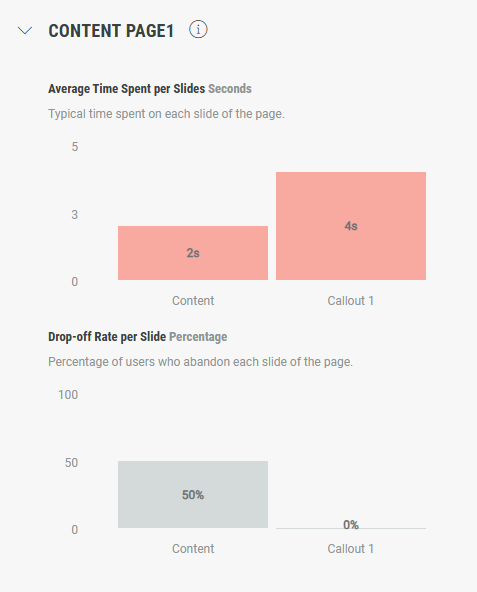
- Average time spent per slide — The average time spent on each slide of the page.
Example: Slide 1 has an average time of 2 seconds, slide 2 has an avg time of 4 seconds, and so on.
-
Drop-off rate per slide — The percentage of users who abandon each slide of the page.
Example: The abandon rate on slide 1 is 50% (which means 50 percent of users accessing slide 1, abandon it), slide 2 has an abandon rate of 0%, etc.
Note: If there are more pages and/or slides than can fit on the screen, a horizontal scrollbar appears, allowing you to scroll through them. You can also navigate using the left and right arrows.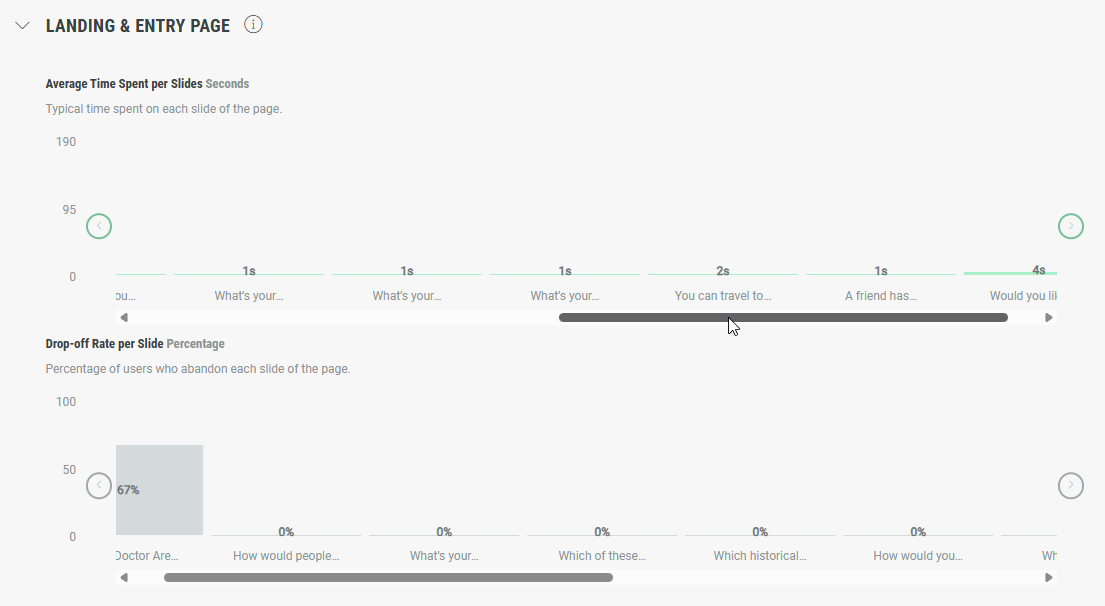
The combination of the values in each performance breakdown offers a strong view on how the pages and slides in your Experience perform.
For example, if 67% of users accessing the Landing & Entry Page, abandon that page, and the drop-off rate on slide 2 of the Landing & Entry Page is very high, you know that slide 2 needs to be improved in the Experience to keep the participants engaged.
Real-time
The Real-time tab provides live insights about the Experience.
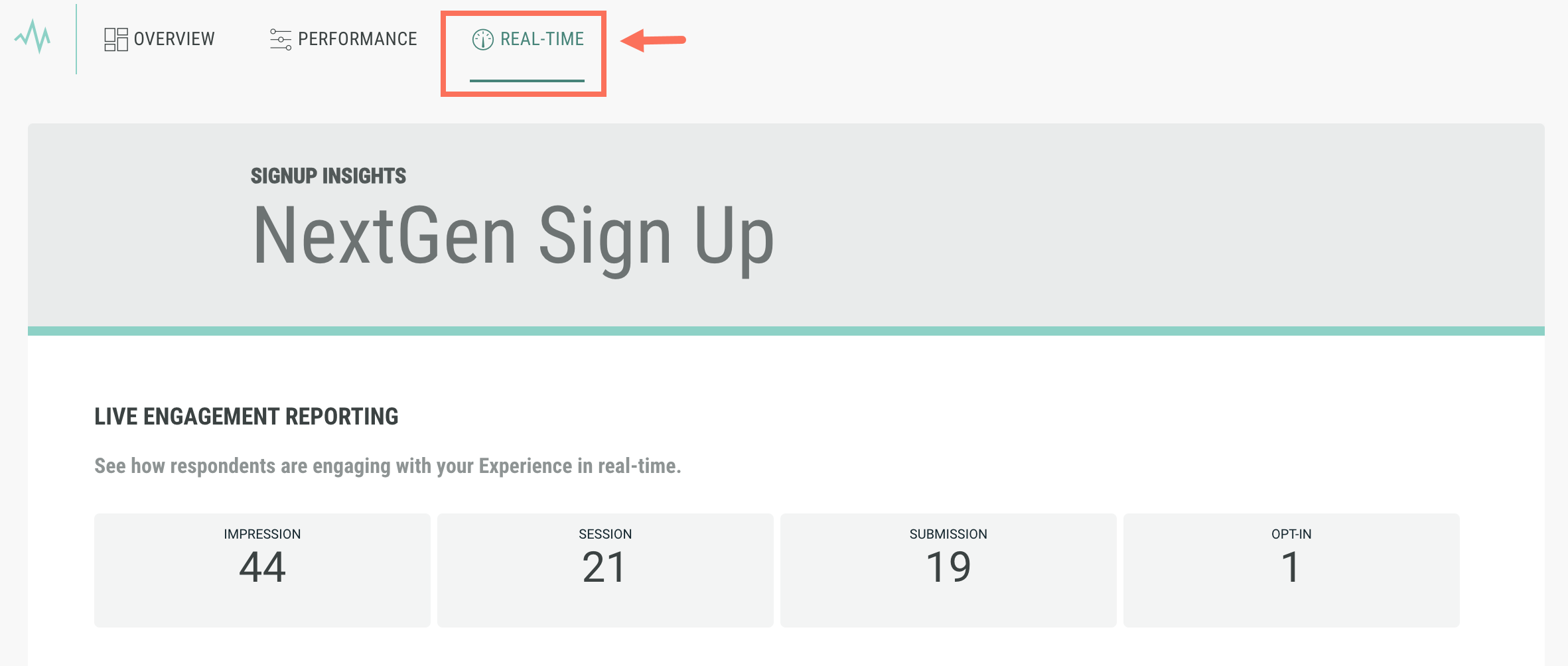
Example: These live insights show a total of 5 impressions and 3 submissions.
At the time we checked the live insights (16:03), we saw 1 impression (marked by the blue spike) followed shortly by 1 submission (the green spike).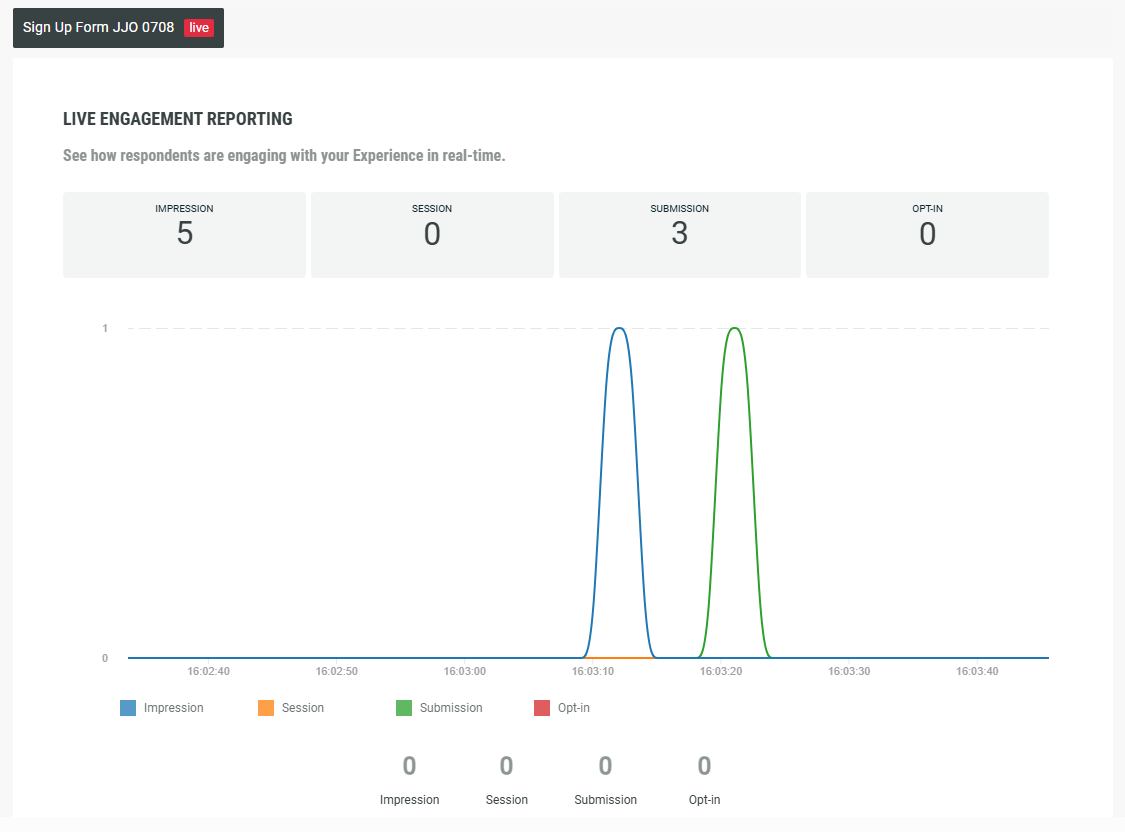
These real-time insights show an animated live chart, that continuously displays the current time.
The video below showcases the real-time insights after viewing the Experience and submitting the Experience form. The exact moments when the impression and submission events took place are visible with the spikes in the chart.
The filters underneath the live chart can be enabled/disabled to show/hide certain events.

