Policy & Rules Module
The Policy & Rules module allows you to add a statement containing links to URLs for Terms & Conditions and Privacy Policy, as well as specific Rules.
- On the Settings tab, add a Policy Statement text, then highlight specific text and click on the relevant button to make it a link of type Privacy, Terms or Rules.
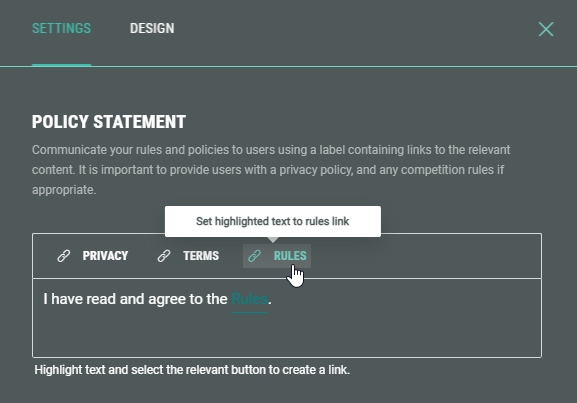
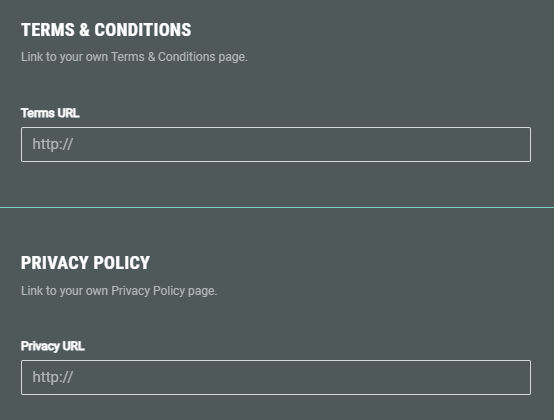
- Then underneath, you can define the Terms URL and Privacy URL.
If you configured text in the policy statement above as (one of) these types, the Experience entrants will be directed to the applicable URL when clicking the link.
- For Rules, you have different options to choose from:
- URL — Enter a URL in the Rules URL field at the bottom. If you configured text in the policy statement above as type Rules, the Experience entrants will be directed to the Rules URL when clicking that link.
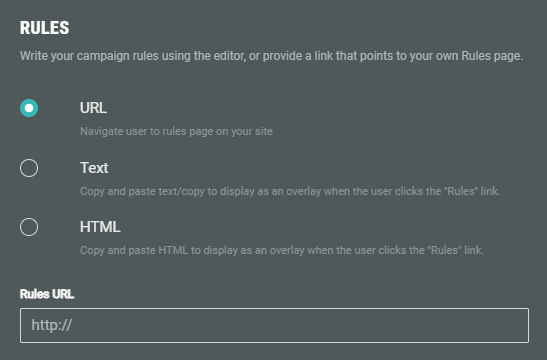
- Text — Type some text in the field. When the Experience entrant clicks the Rules link, an overlay will be shown containing this text.
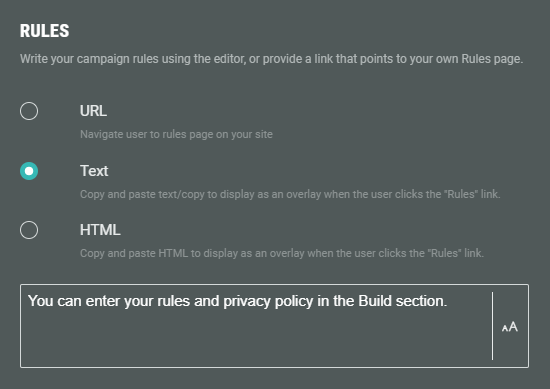
- HTML — Add text within HTML tags in the field. When the Experience entrant clicks the Rules link, an overlay will be shown containing the formatted text.
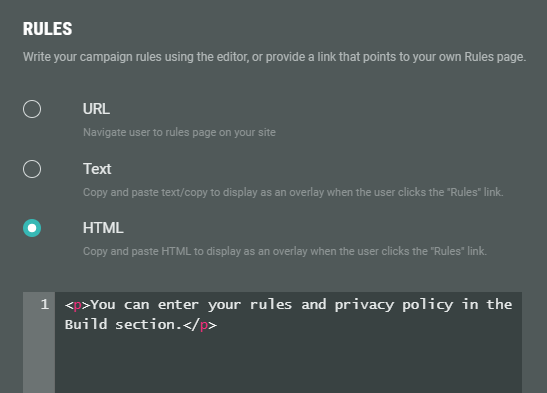
Note: You can style individual elements within the Rules HTML section.
Example of Rules HTML including styles:
<h1 style="font-size: 28pt;
    color: #2c3e50;
    padding-bottom: 15px;
    margin-top: 20px;">Rules</h1>

<br />

<h2 style="font-size: 22pt;
    color: #2c3e50;
    border-bottom: 1px solid #ccc;
    padding-bottom: 5px;
    margin-top: 40px;">1. Information We Collect</h2>

<p style="font-size: 16pt;
    padding-left: 20px;
    margin-bottom: 15px;">
Personal identifiers (e.g., name, email address, phone number)<br />
Device and usage data (e.g., IP address, browser type, access times)<br />
Optional user-submitted content (e.g., profile information, comments)
</p>
Note: If you want to apply the same style to multiple HTML elements, instead of defining the style multiple times within the Rules HTML section, it's advised to add the CSS once in the Experience through Customize > Custom CSS using classes, and then apply those classes to the HTML in the Rules HTML section.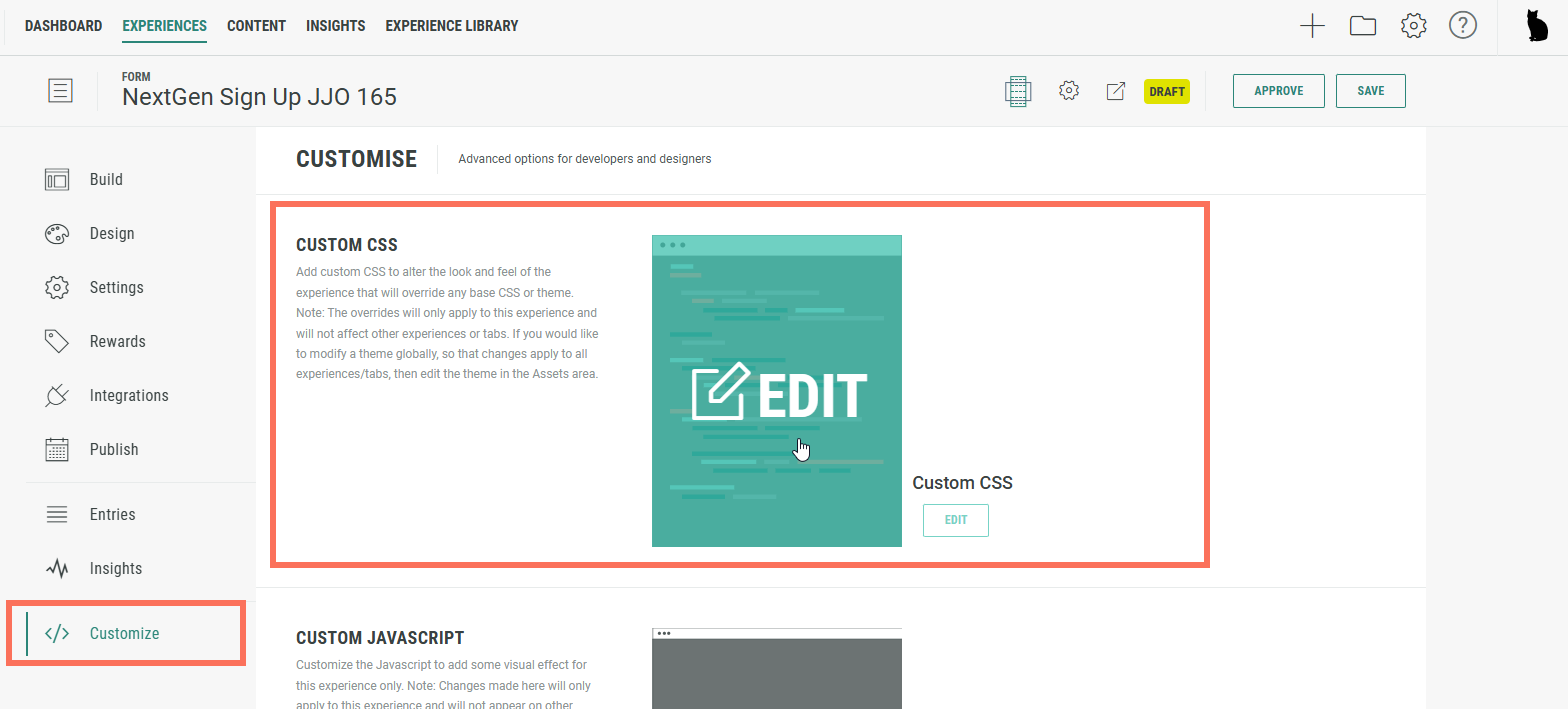
Example of Custom CSS:
.policy-section {
    font-family: Arial, sans-serif;
    line-height: 1.6;
    margin: 40px;
    background-color: #f9f9f9;
    color: #333;
    border: 3px solid #efefef;
    border-radius: 8px;
    box-shadow: 0 0 8px rgba(0,0,0,0.05);
    padding-left: 25px;
}

.policy-header1 {
    font-size: 28pt !important;
    color: #2c3e50;
    padding-bottom: 15px;
    margin-top: 20px;
}

.policy-header2 {
    font-size: 22pt !important;
    color: #2c3e50;
    border-bottom: 1px solid #ccc;
    padding-bottom: 5px;
    margin-top: 40px;
}

.policy-listitem {
    font-size: 16pt !important;
    padding-left: 20px;
    margin-bottom: 15px;
}Example of Rules HTML using classes defined in the Custom CSS:
<section class="policy-section">
    <h1 class="policy-header1">Rules</h1>
    <br />
    <h2 class="policy-header2">1. Information We Collect</h2>
    <ul>
      <li class="policy-listitem">Personal identifiers (e.g., name, email address, phone number)</li>
      <li class="policy-listitem">Device and usage data (e.g., IP address, browser type, access times)</li>
      <li class="policy-listitem">Optional user-submitted content (e.g., profile information, comments)</li>
    </ul>
    <h2 class="policy-header2">2. How We Use Your Information</h2>
    <ul>
      <li class="policy-listitem">Provide and maintain our services</li>
      <li class="policy-listitem">Improve user experience and website functionality</li>
      <li class="policy-listitem">Communicate with you about updates, features, or promotional offers</li>
      <li class="policy-listitem">Ensure security and prevent fraud</li>
    </ul>
    <h2 class="policy-header2">3. Sharing Your Information</h2>
    <ul>
      <li class="policy-listitem">We do <strong>not</strong> sell your data. However, we may share it with trusted third-party providers for purposes like:</li>
      <li class="policy-listitem">Hosting and infrastructure services</li>
      <li class="policy-listitem">Payment processing</li>
      <li class="policy-listitem">Analytics and performance monitoring</li>
    </ul>
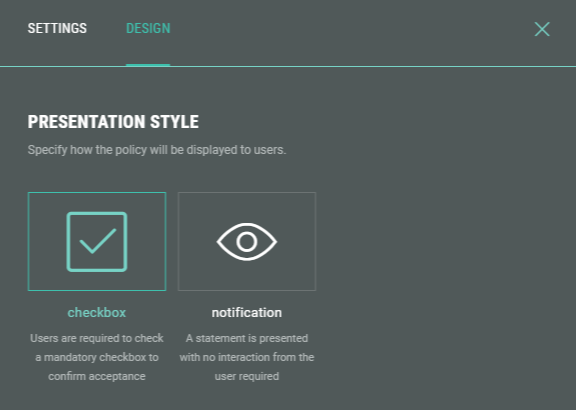
</section>- On the Design tab you select the policy's presentation style.
This can be either:
- a checkbox, which requires entrants to check to confirm they have read the policy, terms, and/or rules.
- a notification, which doesn't require entrant confirmation.
Example:
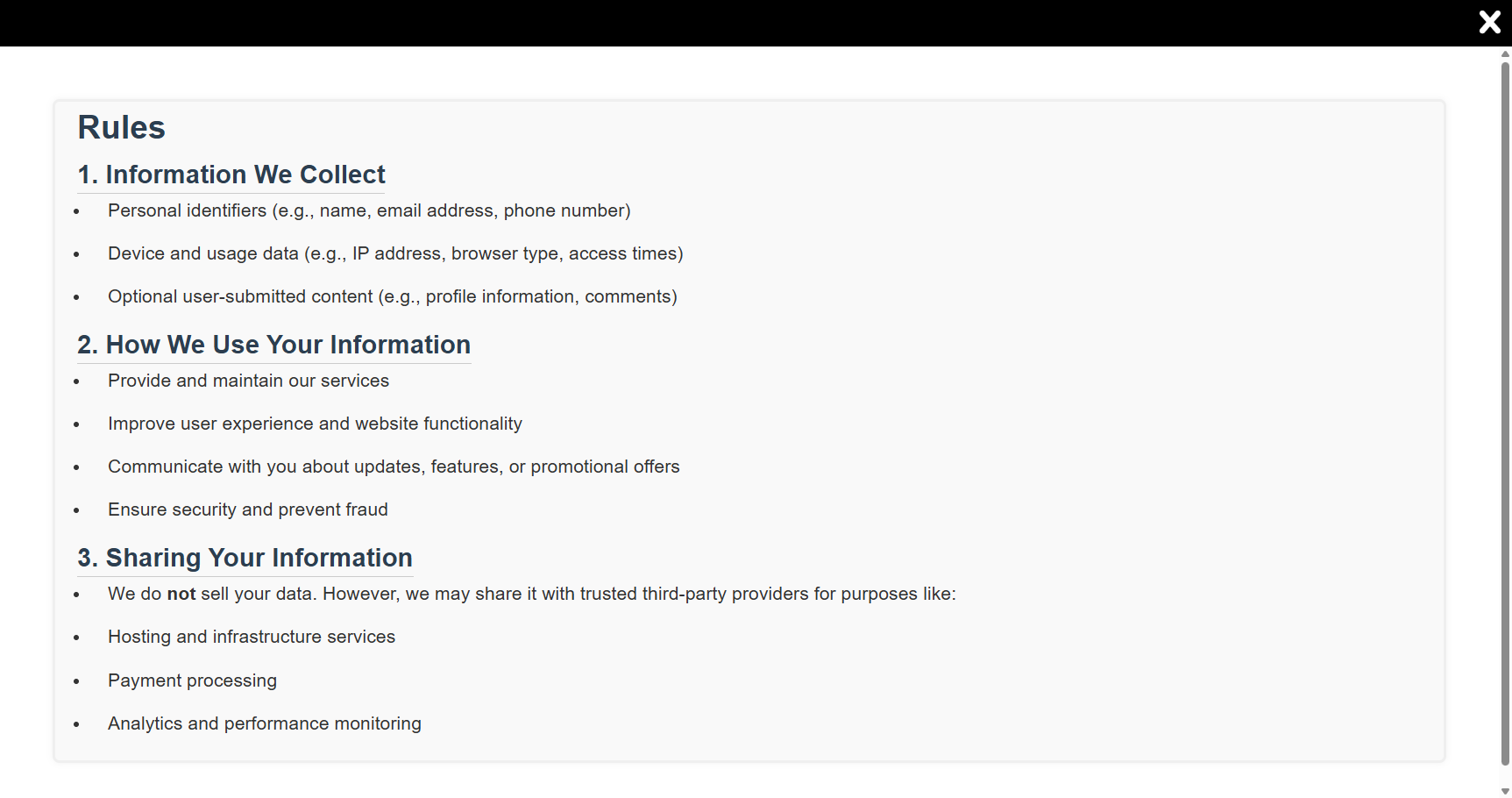
Our Form Experience contains a Privacy Policy statement and Rules in styled HTML format. We use a checkbox to present the Policy & Rules, so that the entrant needs to confirm having read them.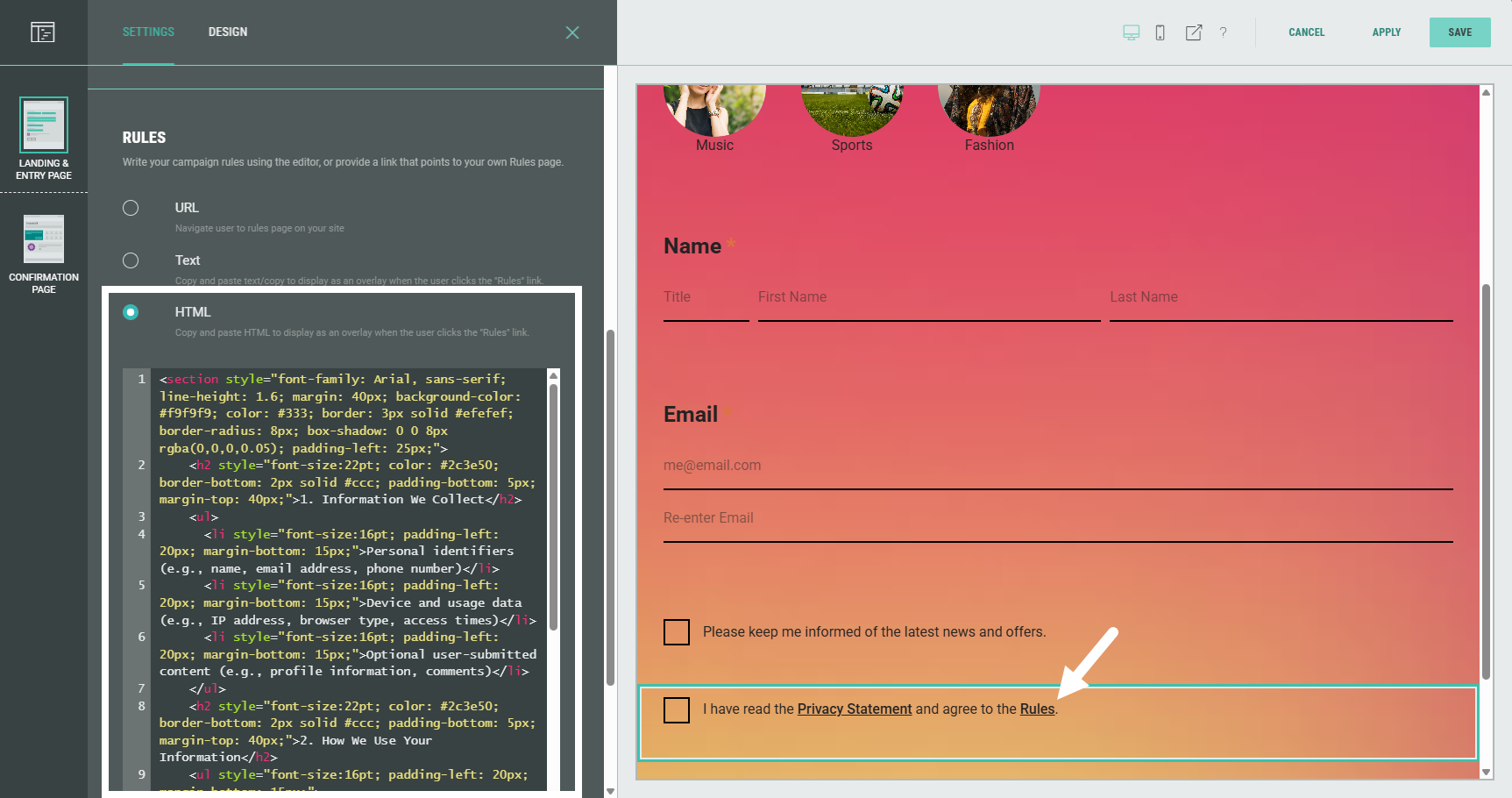
When entering the Form Experience, the participant can click on the Rules link. 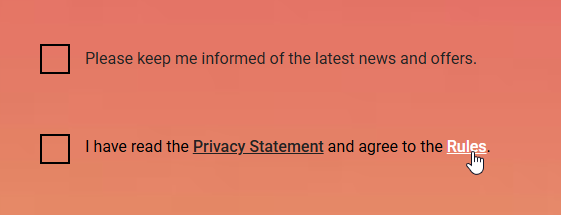
The styled HTML Rules text is shown in an overlay (which can be closed through the X icon at the top-right).