
Edit a User's Profile
A user’s Zeta Login User Profile contains important information about their Zeta account, including their name, email address, image, and so forth. Organization Administrators can change a user’s profile information in order to make sure it’s accurate and up-to-date.
Note: This feature is available for Organization Administrators.
To edit a user’s profile:
-
Log into the Zeta Login User Workspace.
-
Click your profile icon in the top-right corner of the screen. The Profile Info pop-up window is displayed.
-
Within the Profile Info pop-up window, click Zeta Login Administration. This will take you to the Zeta Login Administration environment, with the Users tab selected by default.
-
Search for the desired user (see View All Users for more information on the search options).
-
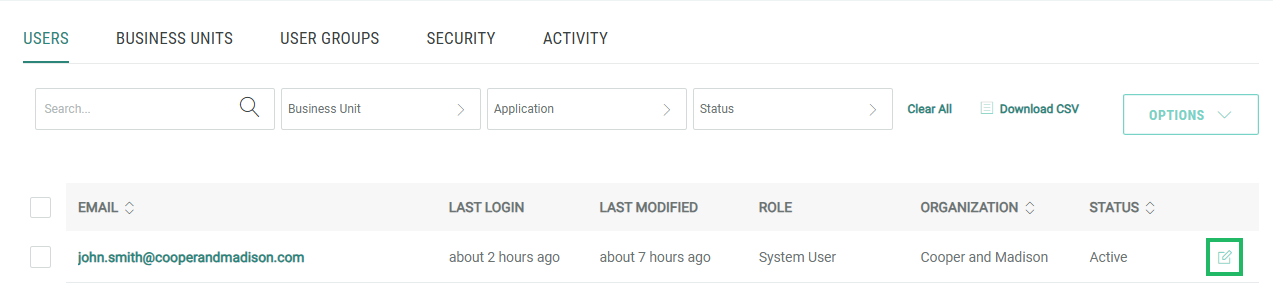
Next to the desired user, click the Edit icon. The User Workspace for the selected user is displayed, with the Profile tab selected by default.
-
Make any necessary changes to the user’s profile information. Click Save.
-
Optionally select another User Workspace tab:
-
User Groups: View the User Groups to which this user belongs (View User Groups for more information), or remove a user from one or more User Groups (see Remove a User from a User Group for more information).
-
App Access: View the Business Units and applications this user can access, or modify their access (see Modify User Access for more information). From this tab, you can also add or remove this user as a Business Unit Administrator (see Add or Remove Business Unit Administrator Role for more information).
-
Org Access: View the Organizations this user can access, or add or remove this user as an Organization Administrator (see Add or Remove Organization Administrator Role for more information).
-
Activity: View the activity log for this user.
-
