
Suspend or Unsuspend a User
Only users with a status of Active are able to log into Zeta applications. The platform allows Organization Administrators to suspend user accounts, which sets their status to Suspended, and prevents them from logging in. Suspended user accounts can later be un-suspended, which sets their status back to Active.
Note: This feature is available for Organization Administrators.
The platform will automatically suspend a user account after 60 days of inactivity. The platform sends a warning email to the user seven days before their account is scheduled to be suspended, then again one day prior to the suspension.
In order to maintain security, to limit data retention, and to protect the privacy of Zeta’s users, the platform will automatically deactivate a user account 120 days after the account is suspended.
After ten failed login attempts, the platform will lock an account, preventing any further login attempts. The steps to unlock an account are the same as described below for unsuspending an account.
Note: If your account is suspended due to inactivity, or locked due to too many failed login attempts, please reach out to your Organization Administrator or to your Zeta team for assistance.
Suspend a User
The platform provides two methods of suspending a user account:
-
From the user’s Profile tab in the User Workspace.
-
From the Users tab in the Administration environment. This method allows you to suspend one or more users simultaneously.
Profile Tab
To suspend a user account from the user’s Profile tab in the User Workspace:
-
Log into the Zeta Login User Workspace.
-
Click your profile icon in the top-right corner of the screen. The Profile Info pop-up window is displayed.
-
Within the Profile Info pop-up window, click Zeta Login Administration. This will take you to the Zeta Login Administration environment, with the Users tab selected by default.
-
Search for the desired user (see View All Users for more information on the search options).
-
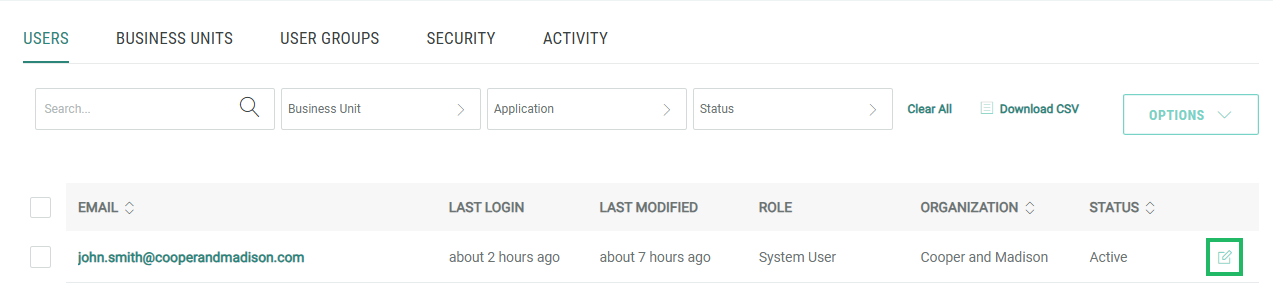
Next to the desired user, click the Edit icon. The User Workspace for the selected user is displayed, with the Profile tab selected by default.
-
Select Options > Suspend. A confirmation dialog box is displayed; click Yes.
Users Tab
To suspend one or more user accounts from the Users tab in the Administration environment:
-
Log into the Zeta Login User Workspace.
-
Click your profile icon in the top-right corner of the screen. The Profile Info pop-up window is displayed.
-
Within the Profile Info pop-up window, click Zeta Login Administration. This will take you to the Zeta Login Administration environment, with the Users tab selected by default.
-
Search for the desired user (see View All Users for more information on the search options).
-
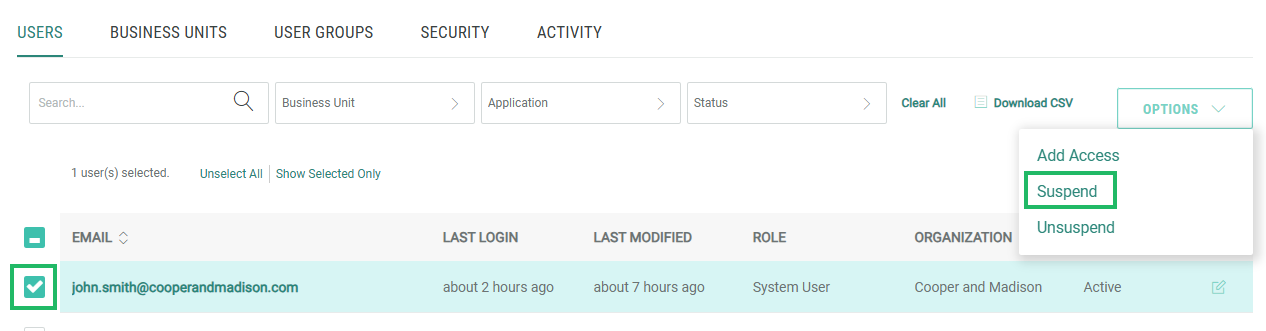
Check one or more users.
-
Select Options > Suspend. A confirmation dialog box is displayed; click Yes.
-
A success message is displayed; click OK.
Unsuspend a User
The platform provides two methods of unsuspending (or unlocking) a user account:
-
From the user’s Profile tab in the User Workspace.
-
From the Users tab in the Administration environment. This method allows you to unsuspend one or more users simultaneously.
Profile Tab
To unsuspend a user account from the user’s Profile tab in the User Workspace:
-
Log into the Zeta Login User Workspace.
-
Click your profile icon in the top-right corner of the screen. The Profile Info pop-up window is displayed.
-
Within the Profile Info pop-up window, click Zeta Login Administration. This will take you to the Zeta Login Administration environment, with the Users tab selected by default.
-
Search for the desired user (see View All Users for more information on the search options).
-
Next to the desired user, click the Edit icon. The User Workspace for the selected user is displayed, with the Profile tab selected by default.
-
Select Options > Unsuspend. A confirmation dialog box is displayed; click Yes.
After unsuspending a user account, the platform sends the user an email message, informing them that their account has been unsuspended.
User Tab
To unsuspend one or more user accounts from the Users tab in the Administration environment:
-
Log into the Zeta Login User Workspace.
-
Click your profile icon in the top-right corner of the screen. The Profile Info pop-up window is displayed.
-
Within the Profile Info pop-up window, click Zeta Login Administration. This will take you to the Zeta Login Administration environment, with the Users tab selected by default.
-
Search for the desired user (see View All Users for more information on the search options).
-
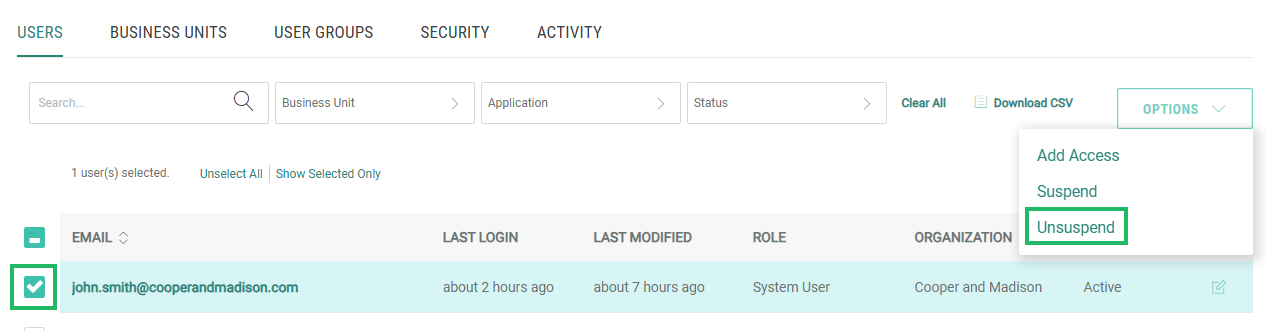
Check one or more users.
-
Select Options > Unsuspend. A confirmation dialog box is displayed; click Yes.
-
A success message is displayed; click OK.
After unsuspending a user account, the platform sends the user an email message, informing them that their account has been unsuspended.
