
View Activity Log
The Zeta platform maintains a historical log of all user actions taken within the Zeta Login User Workspace, such as logging in / out, switching Business Units, and updating a password. The log is useful for troubleshooting issues related to platform access. Business Administrators are able to view activity for all users within the Business Units they administer; Organization Administrators can view activity for all users across the Organization.
Note: This feature is available for Business Administrators and Organization Administrators.
To view the activity log:
-
Log into the Zeta Login User Workspace.
-
Click your profile icon in the top-right corner of the screen. The Profile Info pop-up window is displayed.
-
Within the Profile Info pop-up window, click Zeta Login Administration. This will take you to the Zeta Login Administration environment, with the Users tab selected by default.
-
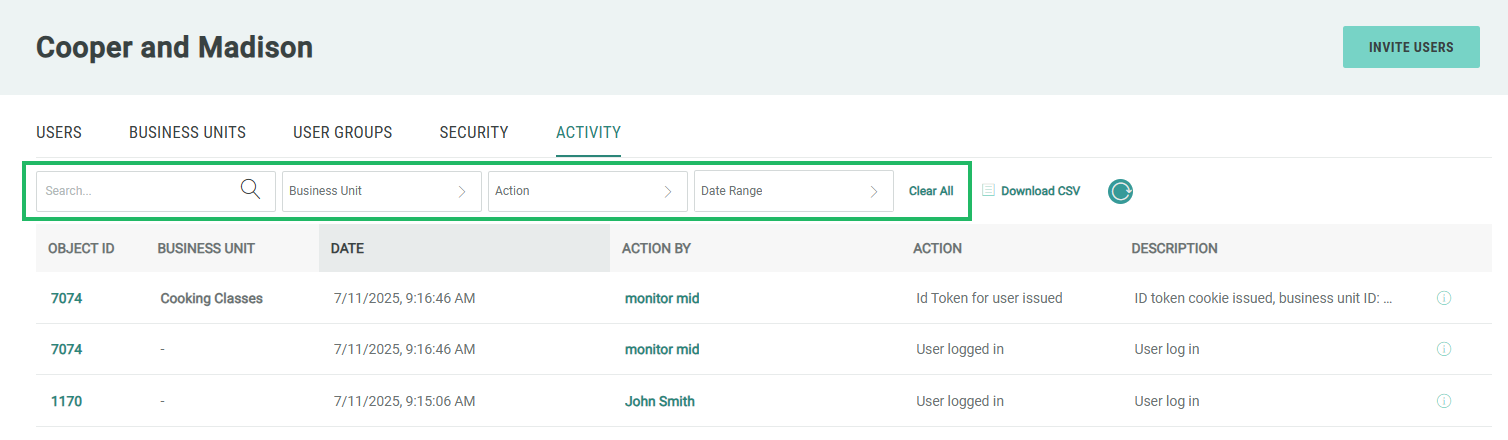
Select the Activity tab. This tab displays a chronological list of all actions, with the most recent action at the top.
-
Optionally filter the activity log:
-
To show activity from a specific user, enter all or part of the user’s email address in the Search field.
-
To show activity from a specific Business Unit, check one or more items in the Business Unit drop-down menu.
-
To show specific action types, check one or more items in the Action drop-down menu.
-
To show actions within a date range, select the start date and end date.
-
-
Optionally, to view additional detail, click the Information icon next to an action.
-
To refresh the activity log, click the Refresh icon.
-
For Organization Administrators only --to download the activity log into a .csv file, click Download CSV.
