Migration to Marigold ID
New Marigold clients will automatically be onboarded using the Marigold ID. Existing clients who were onboarded prior to the rollout of the Marigold ID should consider migrating. Marigold ID has modern security features, such as enhanced password strength checking, adaptive Multi-Factor Authentication (MFA), SAML integration, and simplified provisioning of users to Marigold products. In addition, the Marigold ID acts as a foundational component for the next generation of Marigold products and services; going forward, many new features (such as Journeys or Engage+’s Performance Dashboard) will require Marigold ID to be enabled.
Note: The Marigold ID is utilized only to enable users to log into Marigold’s applications. The migration to Marigold ID has no impact on other services or connections, including API endpoints or SFTP servers.
Organization Requirements
Before your Marigold team can migrate your users to the Marigold ID, please verify the following requirements:
-
If your organization has a corporate VPN, please ensure the following URLs are accessible within your corporate VPN’s security architecture. To check your access, log in to your corporate VPN and click the links below:
-
You must be able to receive emails from Marigold ID. To check your access, click the link below. Enter your email address in the form, and click Send Email to verify if Marigold is able to send you email messages. Please note that you will not actually receive an email message from this test; the platform simply checks to see if it can send you email messages.
If your email address fails this validation test, please work with your IT team to have the following email address and sending domain allowlisted:
-
From Address: no-reply@engageplatform.com
-
Sending Domain: cid-mx.engageplatform
-
If your organization currently connects to Marigold through SSO, you will need to go through a separate SAML SSO integration process. Please reach out to your Marigold team for assistance.
User Upgrade Process
Once your organization has successfully migrated to Marigold ID, individual users can activate their own Marigold IDs.
You can follow the steps in our Setting up Marigold ID guide to get started.
Once you successfully migrate to the Marigold ID, and you have created your user profile, you will be required to access Marigold applications with the Marigold ID at the following URL:
You can access your permitted applications through the app switcher within the User Workspace (see Switch Marigold Applications for more information).
Troubleshooting
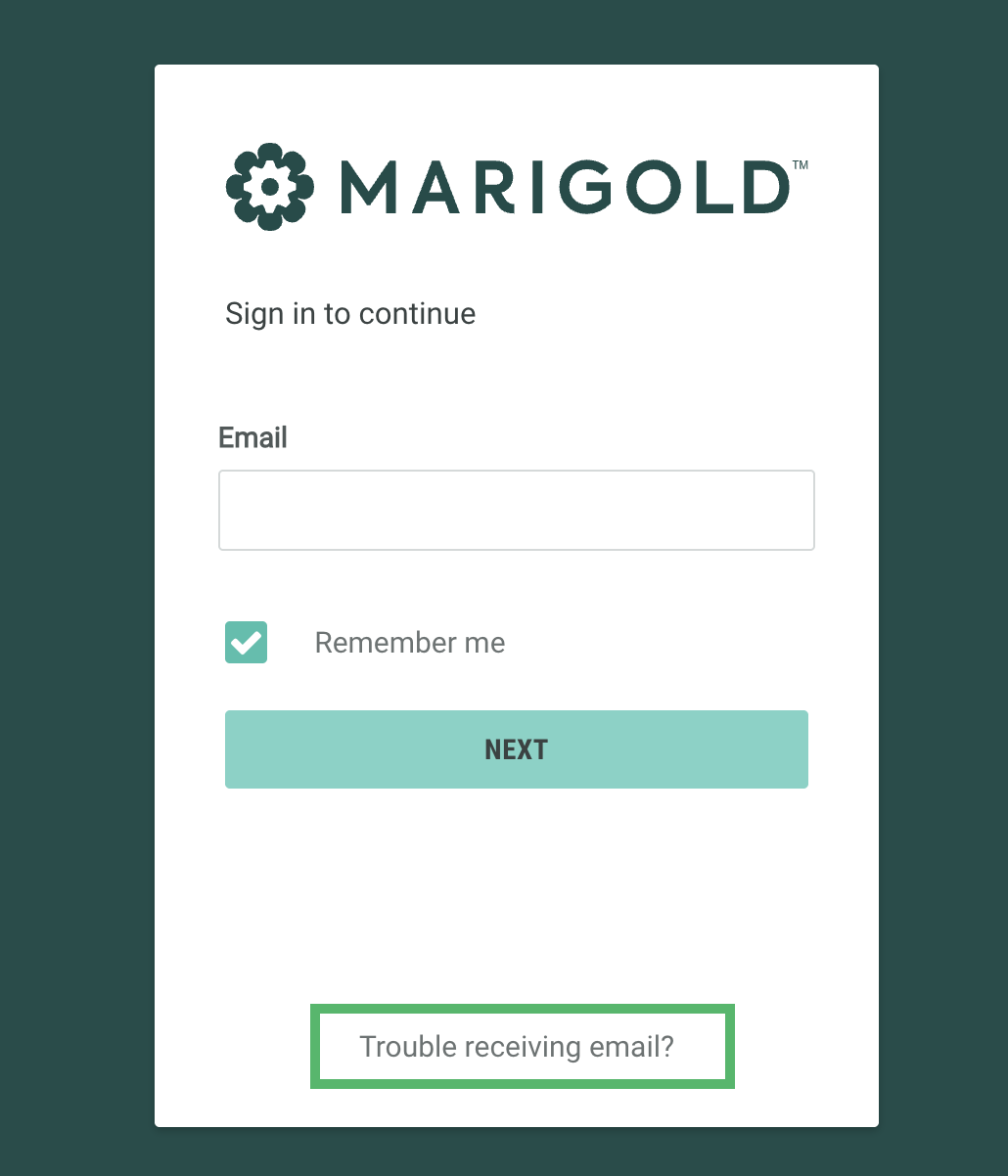
If you are having trouble logging in, or the welcome email has expired, click Trouble receiving email? on the login page.
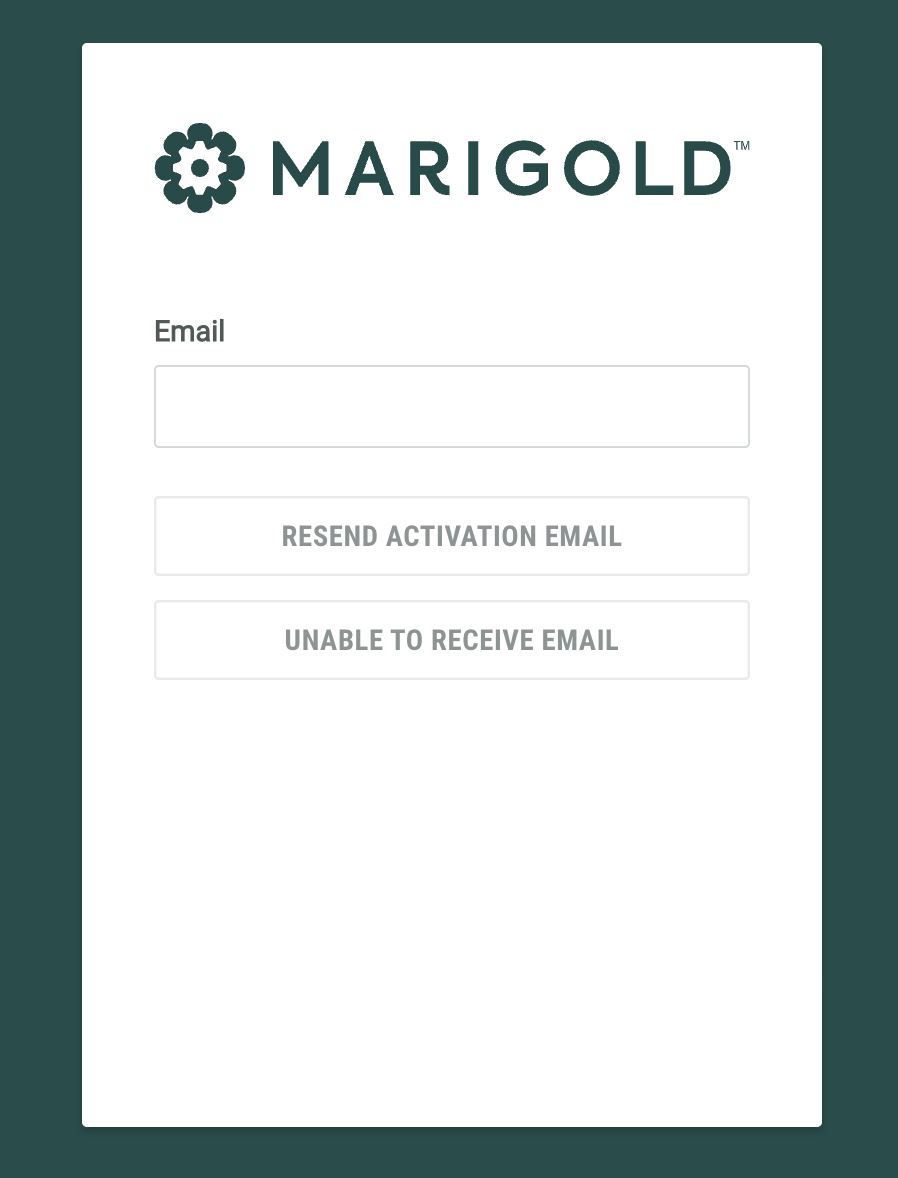
Enter your email address and click Resend Activation Email to receive a new welcome email.
If you are a new user and not receiving the emails, click Unable to Receive Email to send a one time code to login and set up your account.