
Set Up Multi-Factor Authentication
Zeta Login requires the use of Multi-Factor Authentication (MFA) for non-SSO users. MFA is a security measure that requires users to verify their identity using two or more distinct methods before being allowed to log in. You will be required to enter your email address / password, and also enter a one-time password (OTP) generated from Zeta Login and sent to your email address.
Optionally you can enable the mobile authentication option, and use an OTP generated from an authentication app (such as Google Authenticator) on your mobile phone.
Note: This feature is available for all roles.
To enable Multi-Factor Authentication with an authentication app:
-
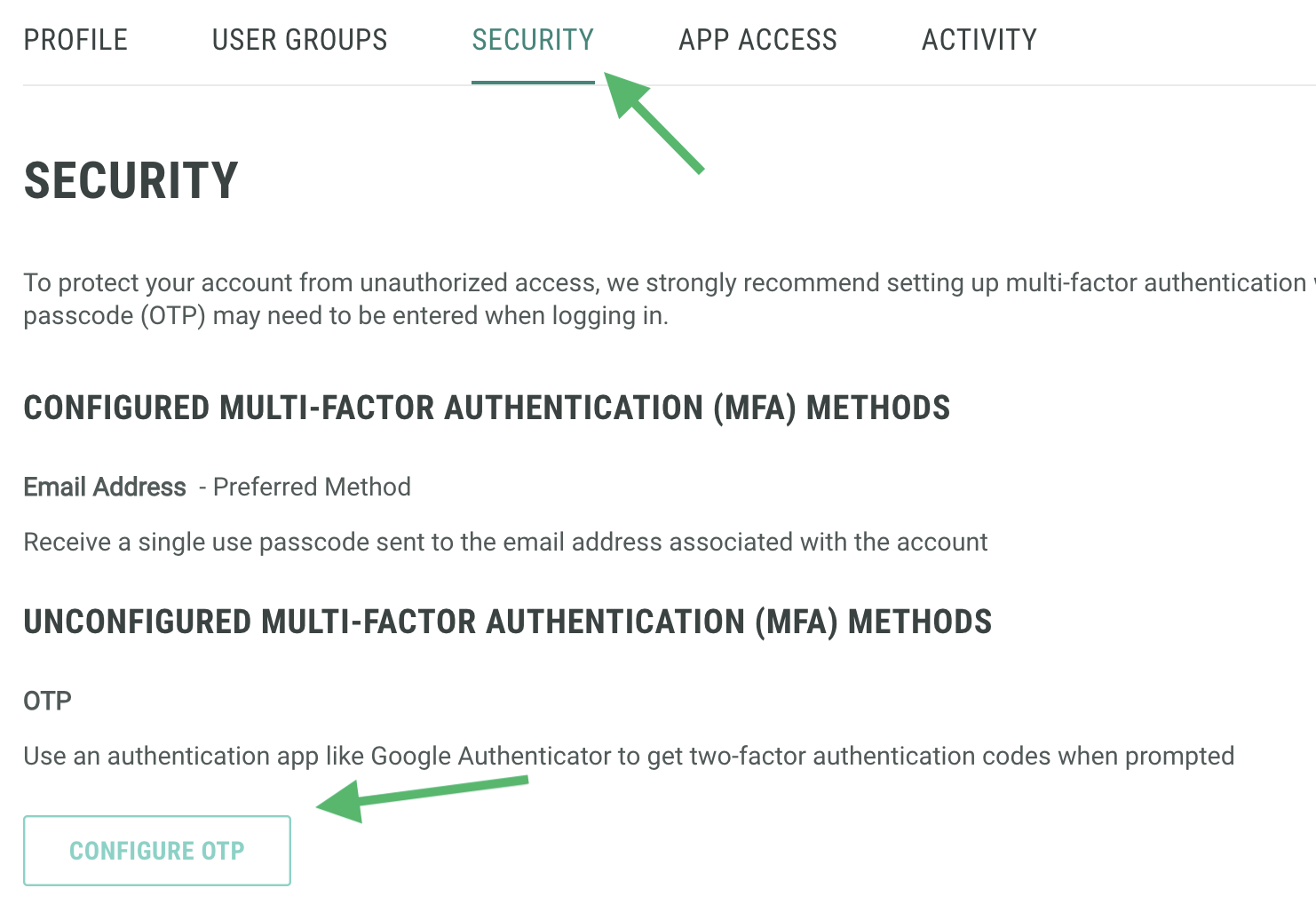
Log into the Zeta Login User Workspace. The Profile tab is selected by default.
-
Select the Security tab.
-
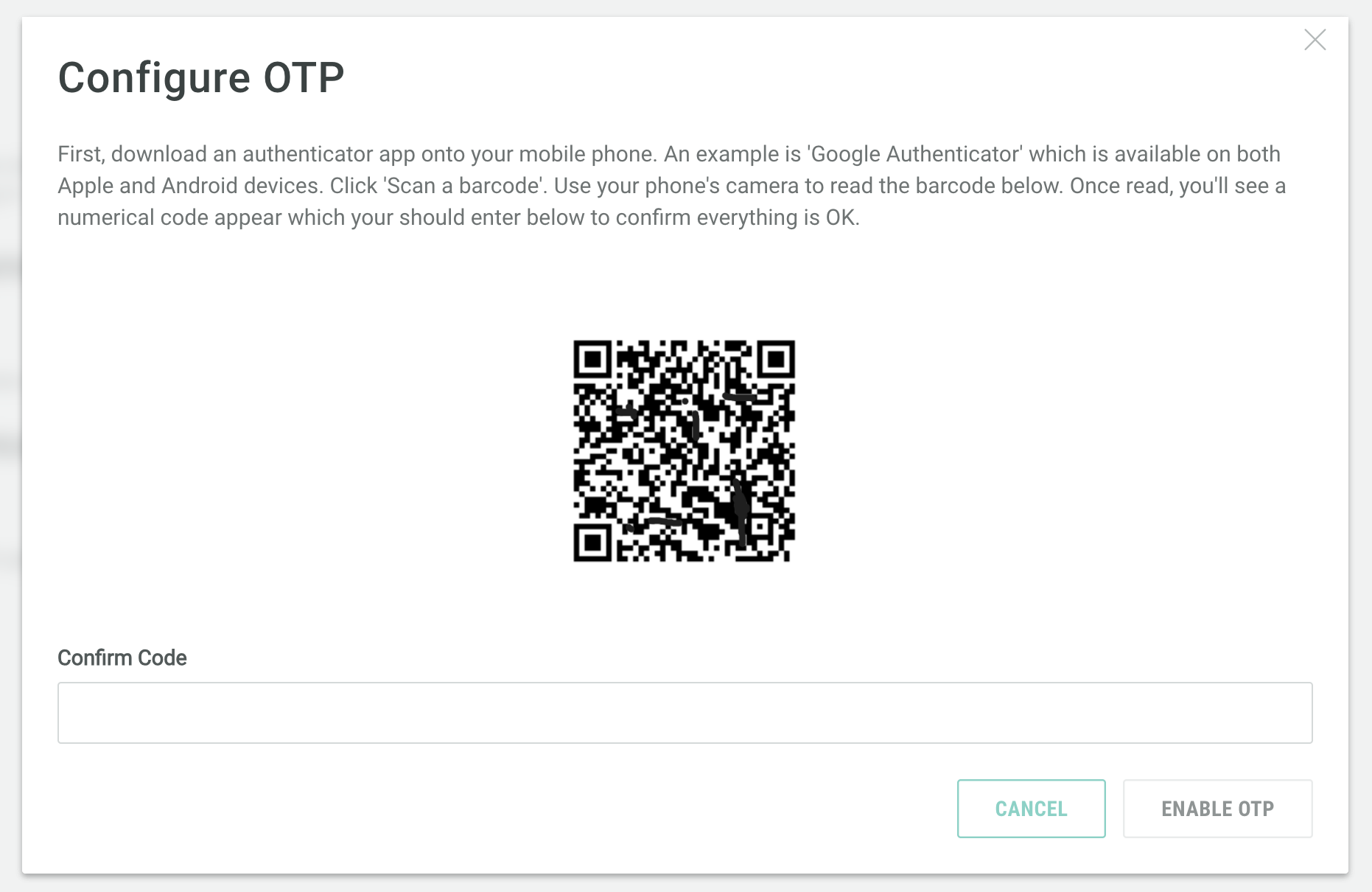
Click Configure OTP. The Configure OTP pop-up window is displayed.
-
Download an authenticator app, such as Google Authenticator, onto your mobile phone.
-
Within the authenticator app on your phone, click Scan a QR Code.
-
Use your phone's camera to scan the barcode in the Configure OTP pop-up window. Once the QR code is read, an authentication code will appear in the app.
-
Within the Configure OTP pop-up window, enter the authentication code in the Confirm Code field.
-
Click Enable OTP.
Note: If you lose or misplace the device with your Zeta Login MFA on it, please report the incident to your Zeta Global team.
