New features in Grow
August 5, 2025
Version 25.17
Please note that all new release notes and new/updated help topics are written in the context of NextGen Experiences.
New Experience entry control option : Total number
BACKGROUND:
Before, in the entry control criteria of your Experience settings, it wasn't possible to define a time-independent maximum number of entries per participant.
SOLUTION:
Now, an additional option is available in the entry control criteria of your Experience settings, called Total, to set the total number of entries for each participant.
What this looks like in Grow:
- Create a new Experience or select an existing one.
- Select the Settings tab in the left navigation of your Experience screen.
- In the Entry Control criteria, select the Total option.
- Enter the maximum number of entries for each participant.
Example: If you want participants to enter and submit your Experience up to 3 times, select Total and enter 3 as the maximum value below.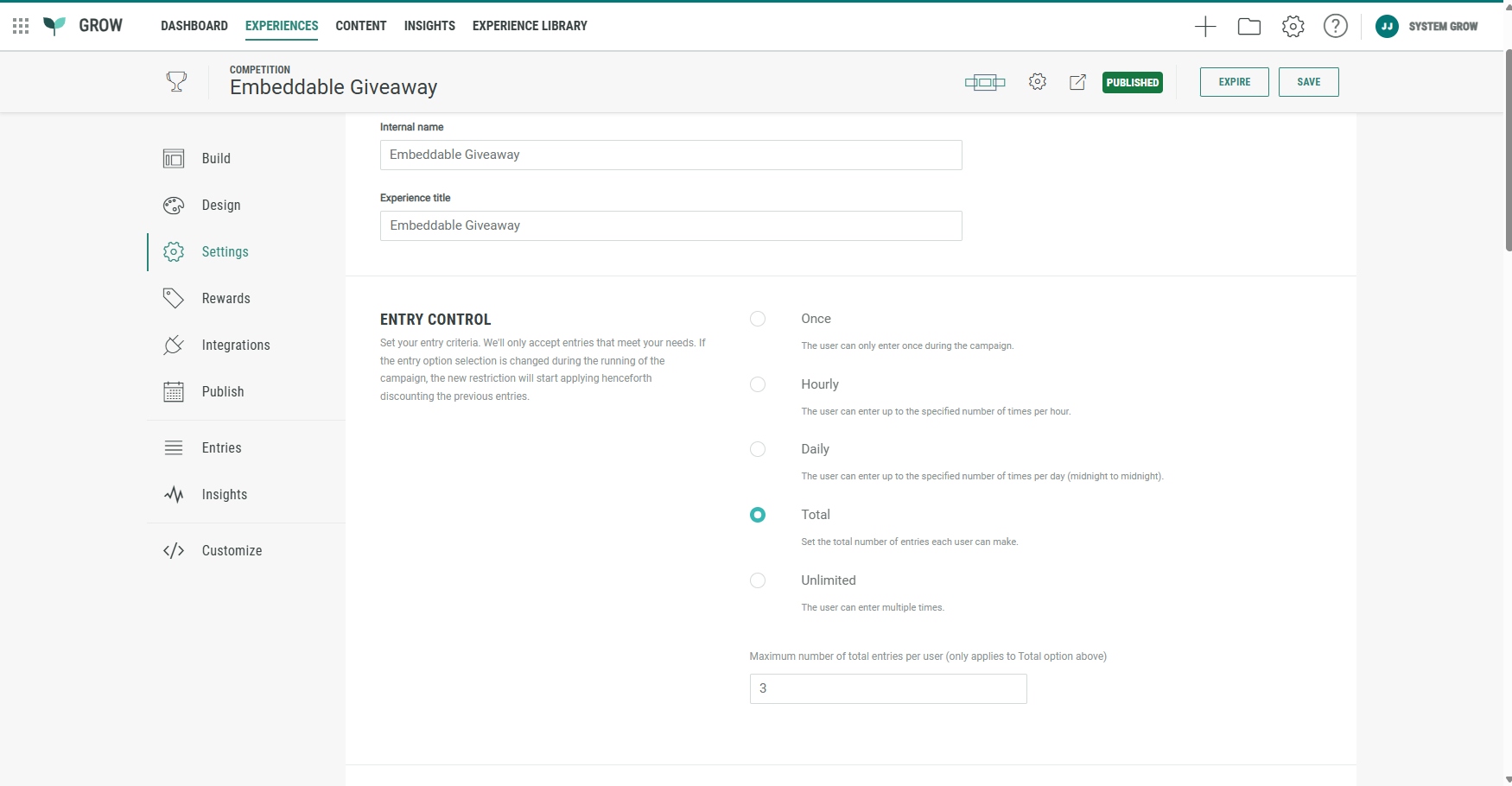
Note: The entry control criteria and maximum entries setting only apply when the Experience is submitted. This means participants who start but don't complete the Experience (e.g., if they drop off before submitting) won’t have their attempt counted toward these limits.
More details on the entry control criteria and other Experience settings can be found here.
Lightbox Experience settings : Size & Position improvements
BACKGROUND:
Previously, when configuring the size of a lightbox Experience, users had to select numeric values. This made it unclear what constituted a small, medium, or large size. Additionally, there was no option to control the lightbox’s position on the screen.
SOLUTION:
Now, setting the size of a lightbox Experience is more intuitive, with predefined options for small, medium, large, and full screen. Users can also choose the position of the lightbox on the screen—except when using the full screen option.
What this looks like in Grow:
Note: This only applies to Experiences that have been published as a Lightbox.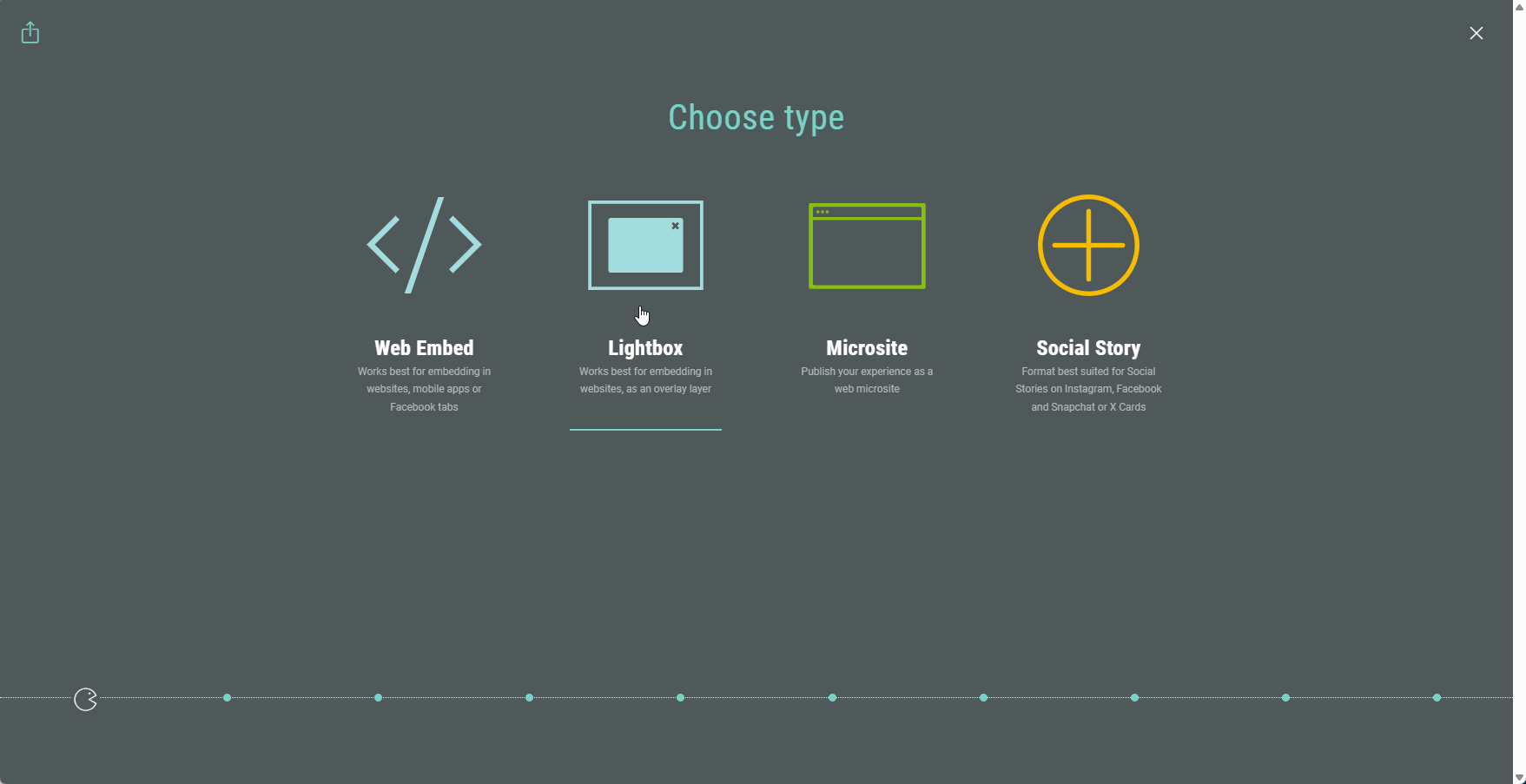
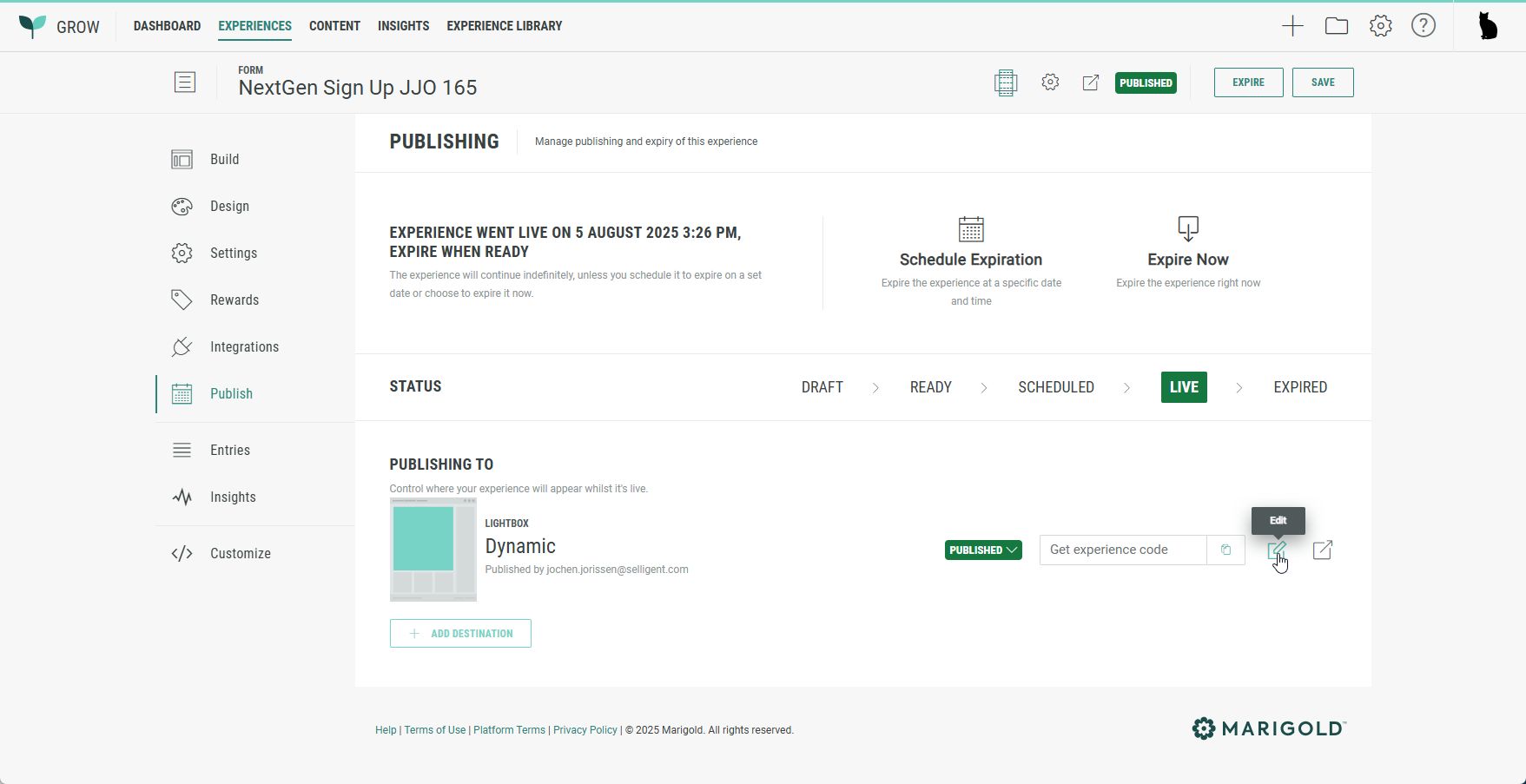
- You can edit a published Lightbox Experience.
- In the Settings, the size can now be set to Small, Medium, Large or Full Screen.
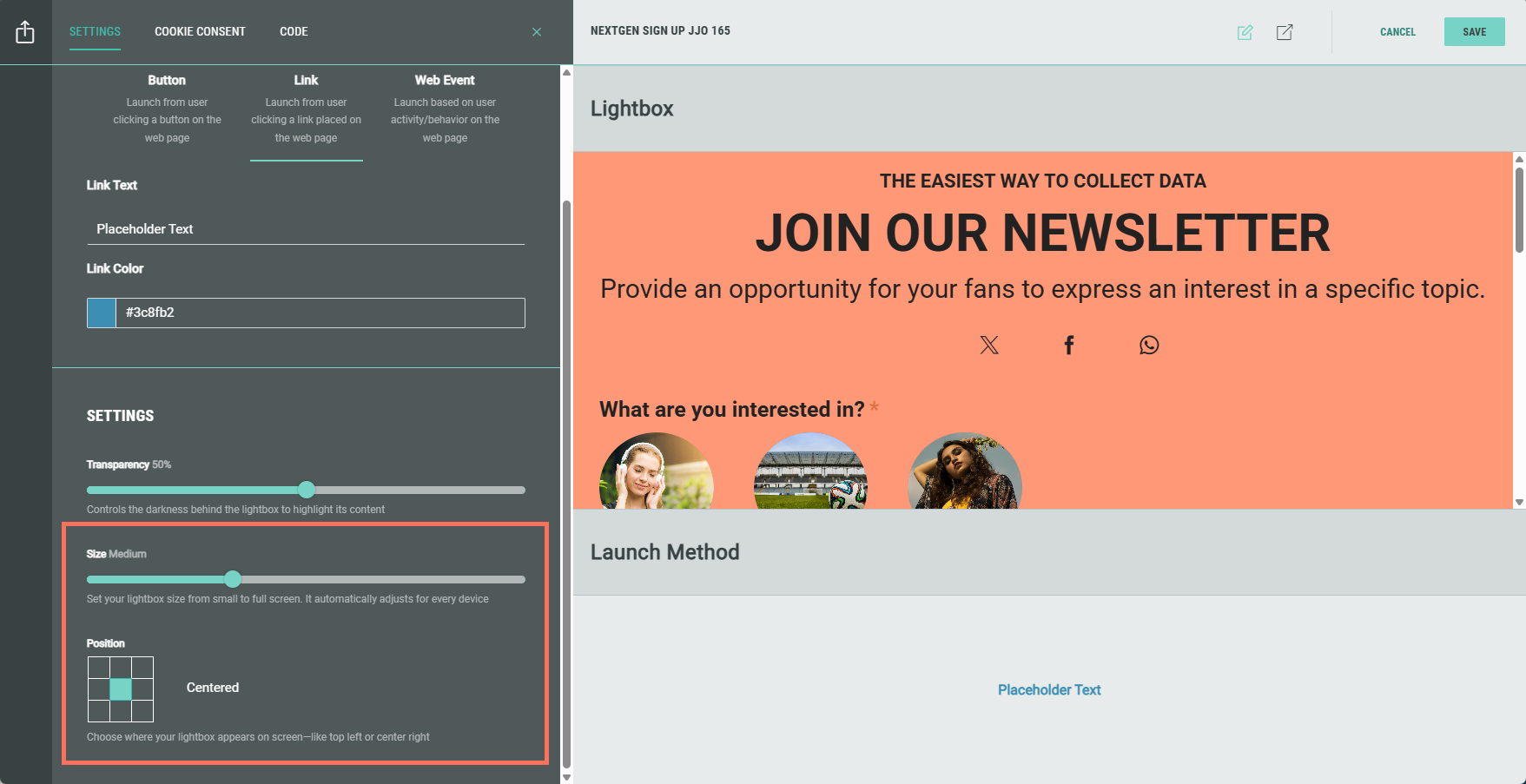
- When the size is set to any value except for Full Screen, there's an additional Position option to choose where your lightbox appears on the screen, going from top-left to bottom-right and anything in between. Just click on any of the squares within the grid to define its position.