Grow Platform Status
The status page provides you with regular updates regarding the status of the Grow platform in the event of a major system incident in your region.
In this article we explain the information you see and how to subscribe to the Grow notification system to receive regular updates on the platform status, which we highly recommend to all users.
Click here to view the Grow Platform status page.
How to subscribe for updates
You can choose site-wide or incident-specific notifications to keep up to date with the information you need.
-
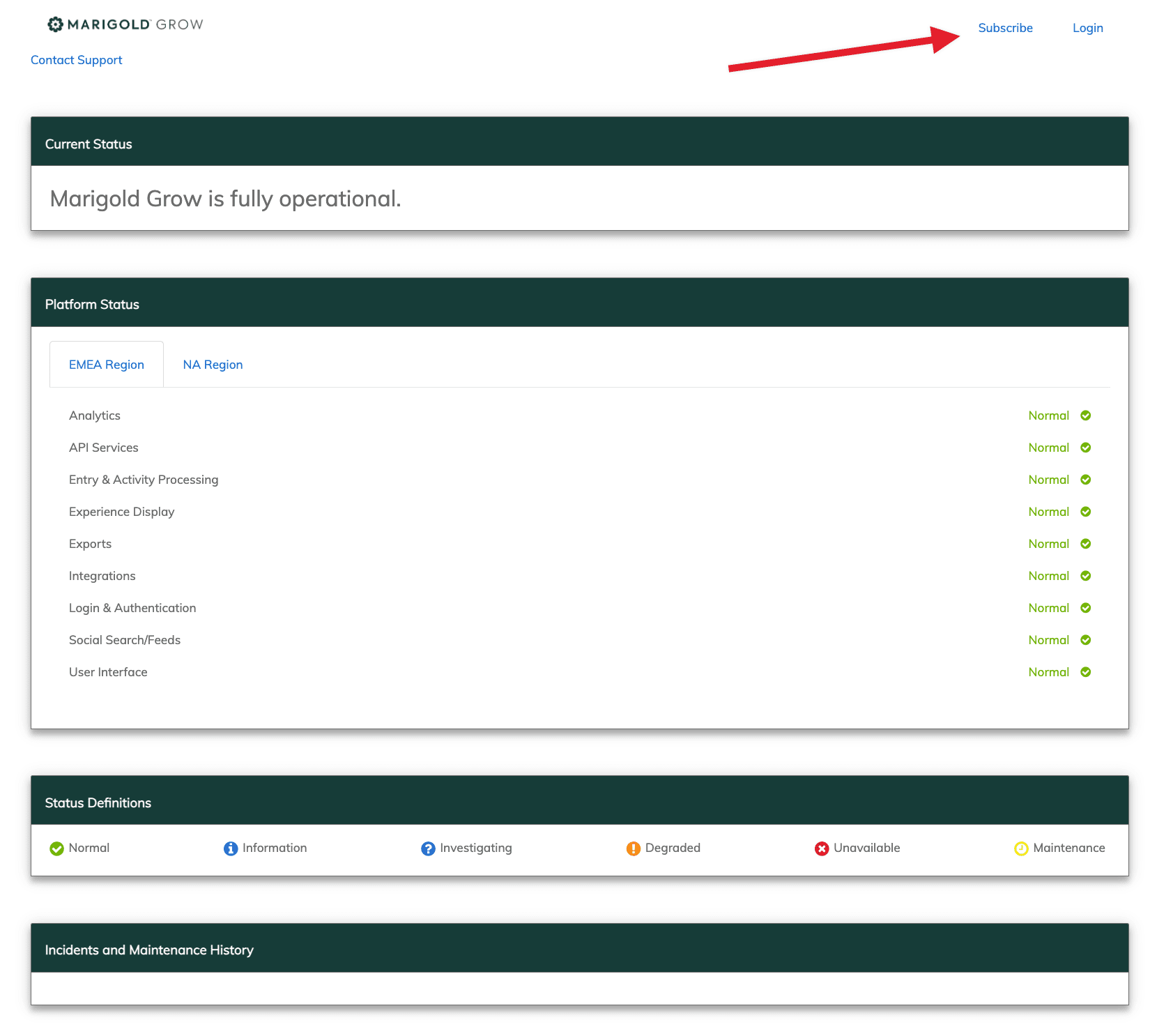
In the top right of your screen click Subscribe.
-
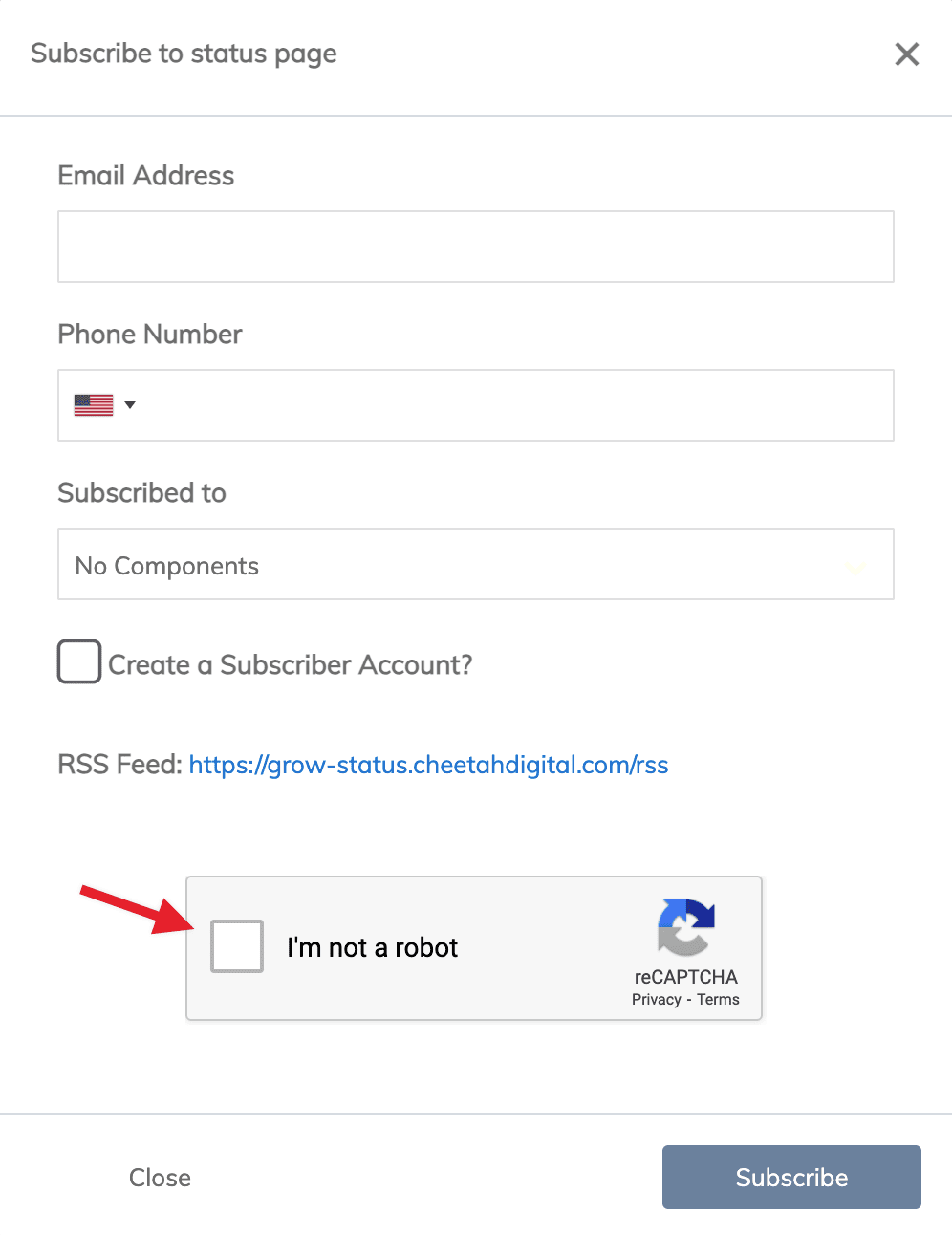
A pop-up appears where you fill in your contact details. You can choose email, phone number, or both.
The system verifies if you have entered a valid email address. When you have selected the country for your phone number, leave off the zero.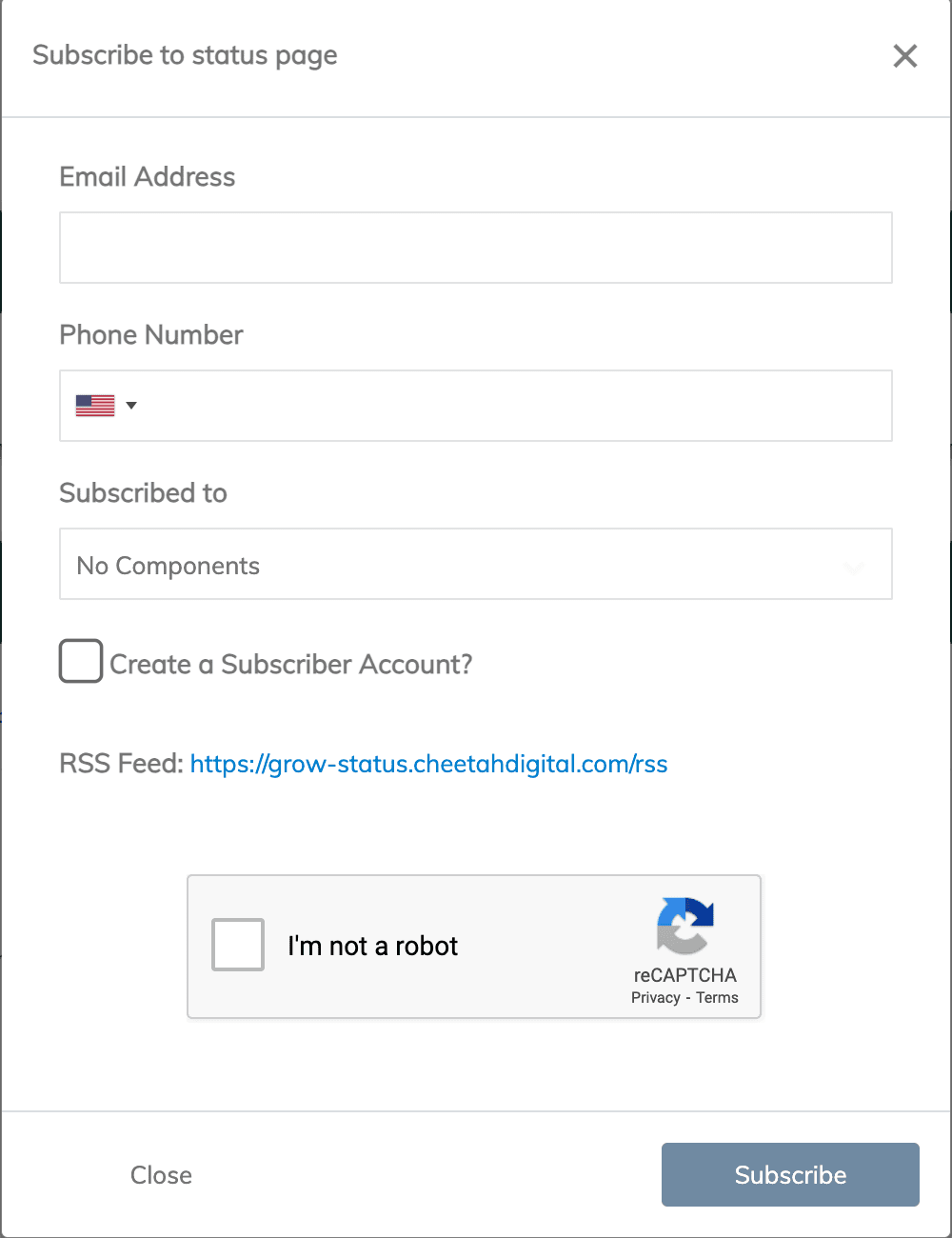
-
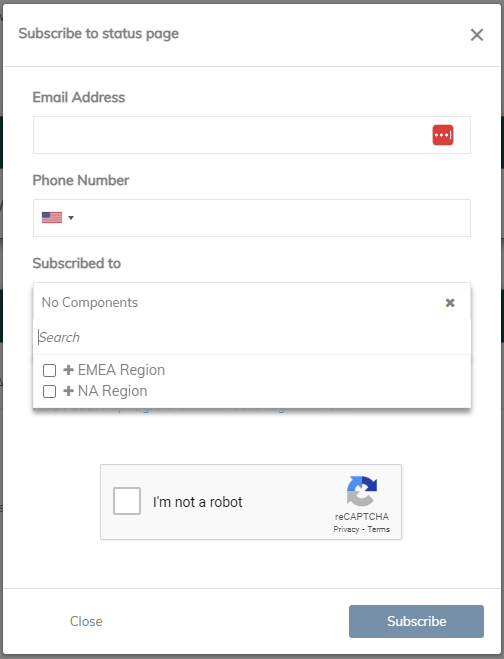
In the next input box you can choose the Components you want to subscribe to. These are simply the regions: EMEA and NA. You can choose 1 or both regions as required.
-
Check the box Create a subscriber account to register you in the system as a subscriber, to save your selections and to give you easy access to update your subscriptions in the future.
If you forget to check the box, don't worry, you will still get a message to validate your email and you will receive the updates you've subscribed to.
If an RSS link appears below the checkbox, you can ignore it as it isn't activated yet.
-
Finally tick the Captcha box to show you're not a bot and hit Subscribe.
-
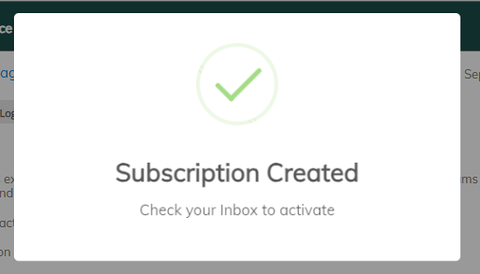
A message appears to advise you to check your inbox.
-
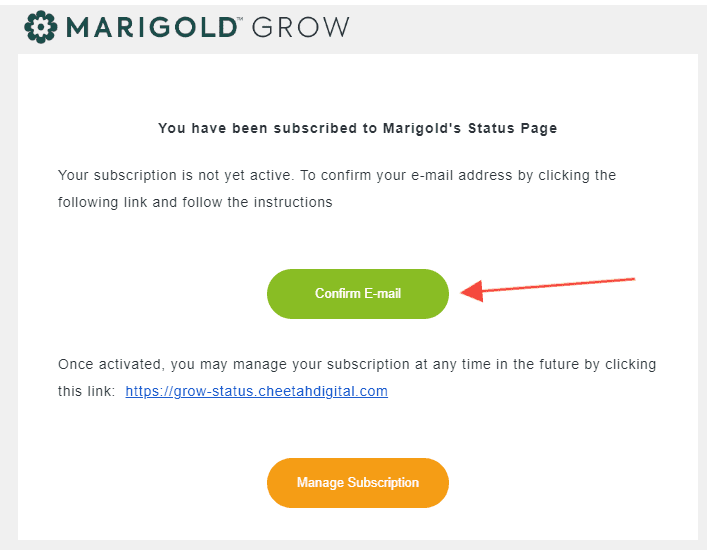
You will find a message entitled Activate your Zeta status page subscription with the message content as follows:
-
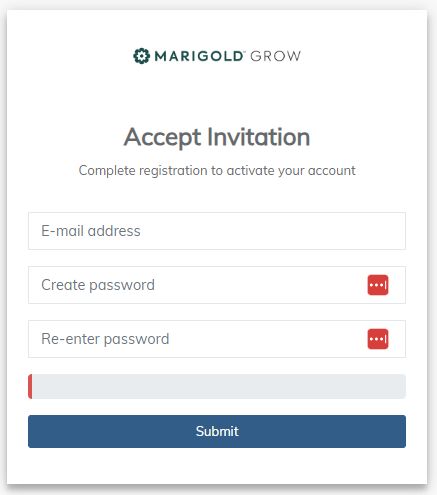
Once you click the green button to confirm your email, a pop-up appears where you can enter your email address and create a password.
-
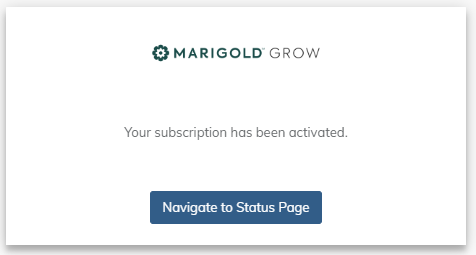
You get a confirmation pop-up to complete the process, from which you can navigate to the status page.
-
Now that your account has been created, you can log in and manage your profile and subscriptions:
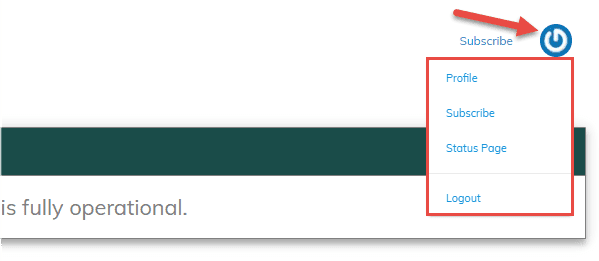
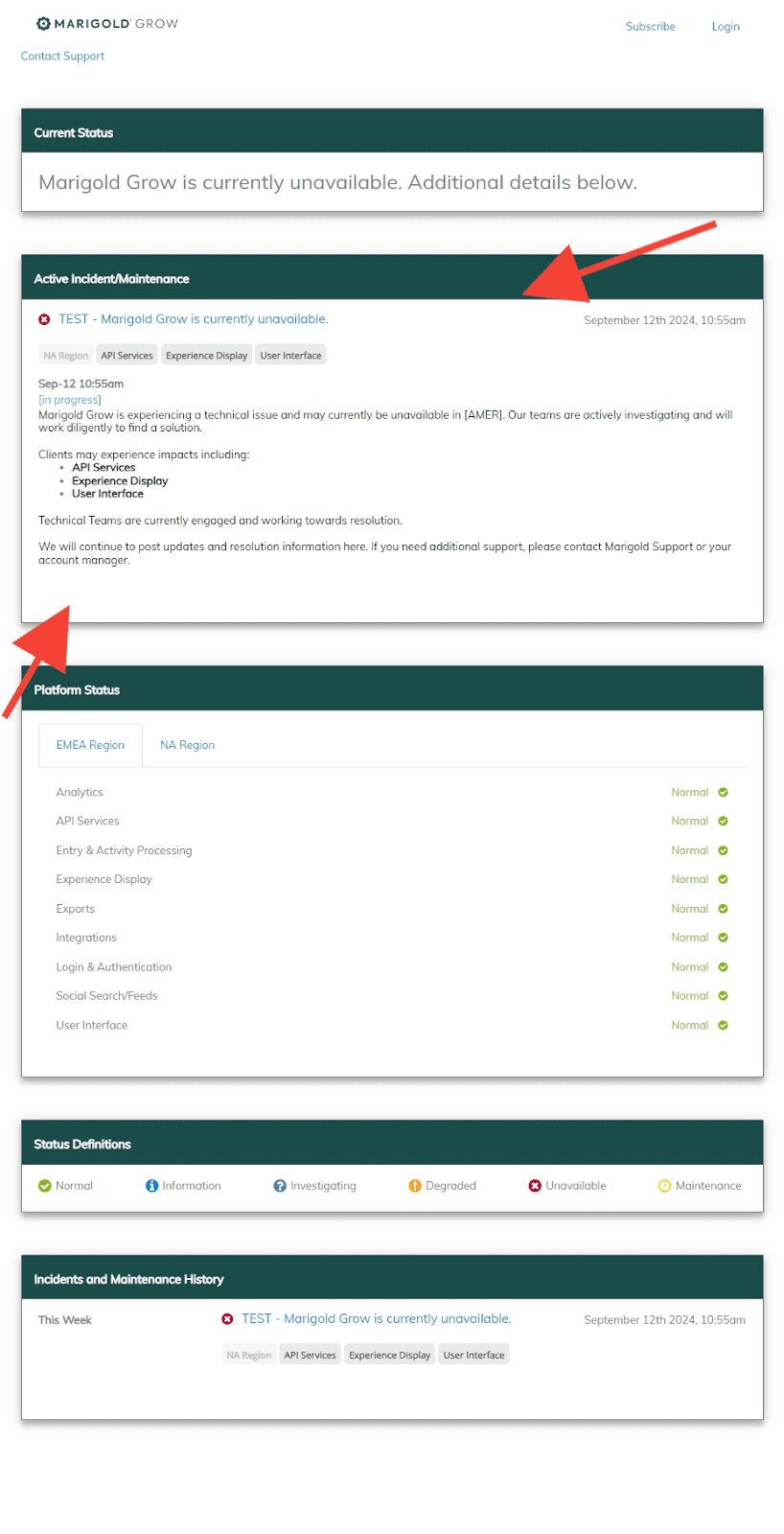
Note: Alternatively you can subscribe to a live incident by clicking on the hyperlink, which is the blue text at the top left of the Active Incident/Maintenance panel.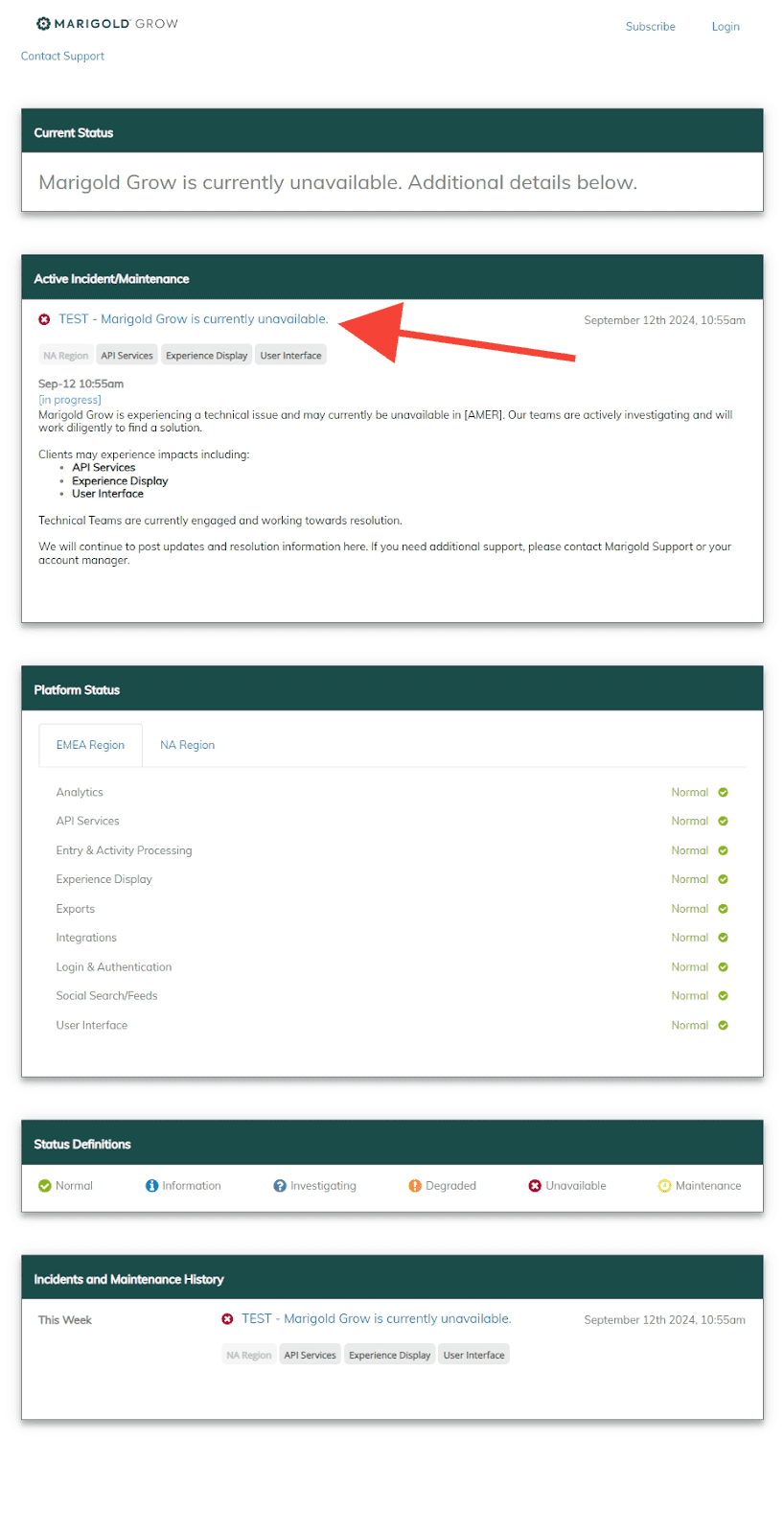
Once inside the incident, click the Subscribe to incident button at the bottom.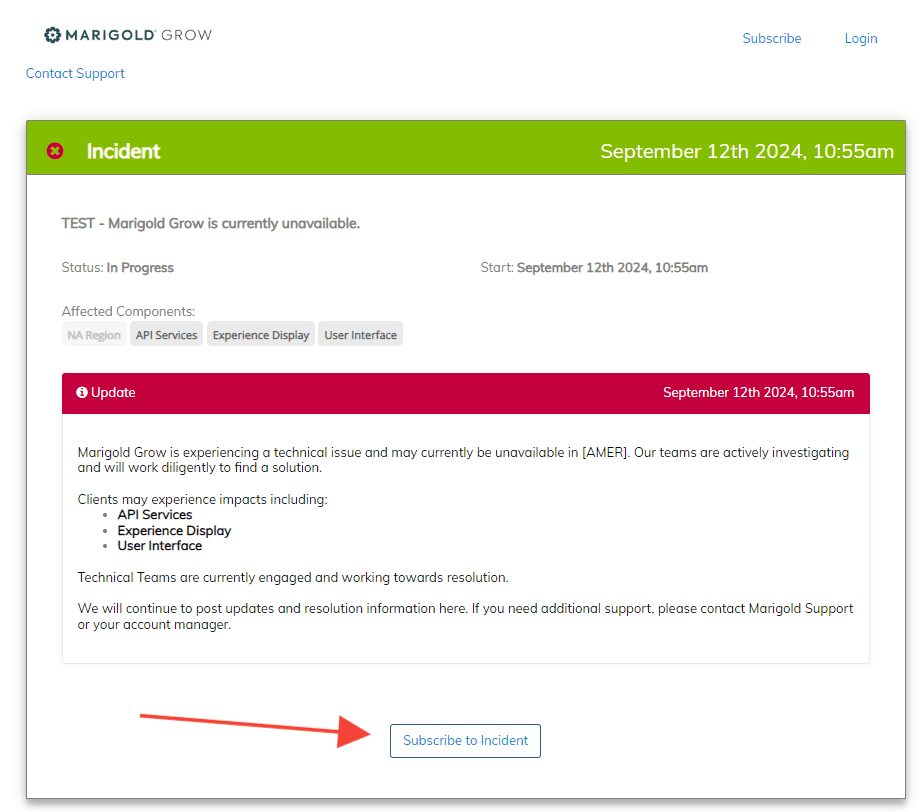
Platform status information
When you navigate to the status page via this link, you get to see the following screen:
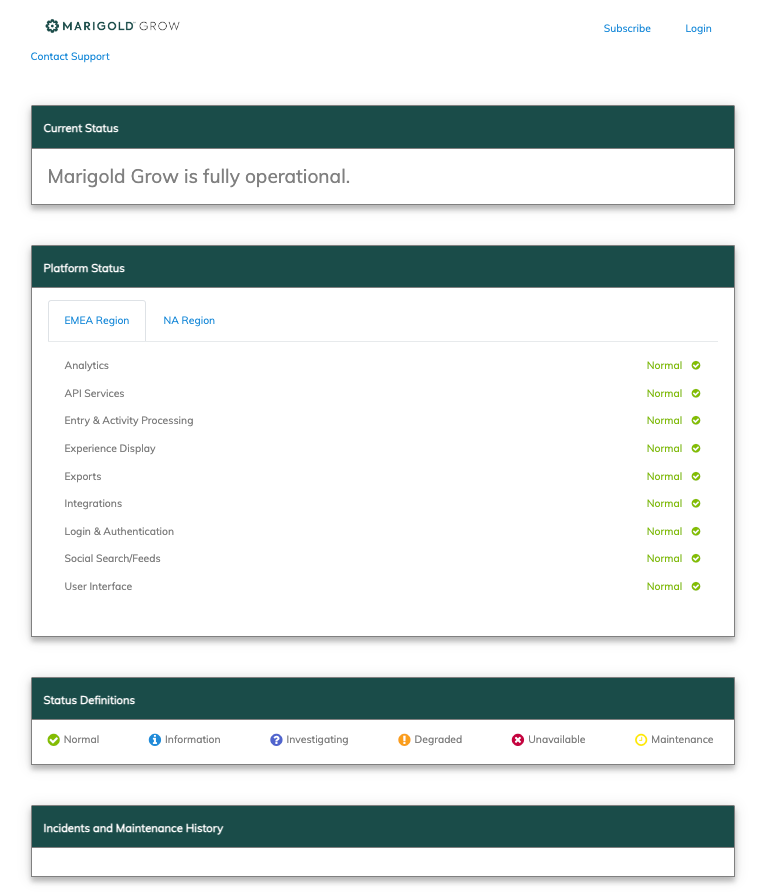
The overall current status is shown at the top followed by details of any current active incident or maintenance.
Otherwise the next item is the list of services and their current status.
Below the list of services is the status definitions and finally at the bottom is the incidents and maintenance history which covers any current incident and those from the past 30 days.
If there is a current active incident or maintenance, this appears above the list of services as follows:
Notifications
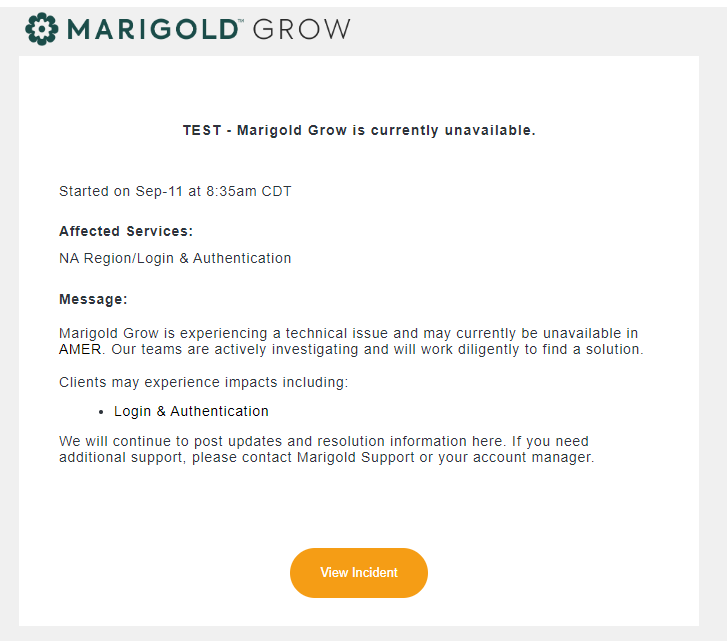
Notifications can be sent to your email, to your phone, or both.
Here is an example of an email notification:
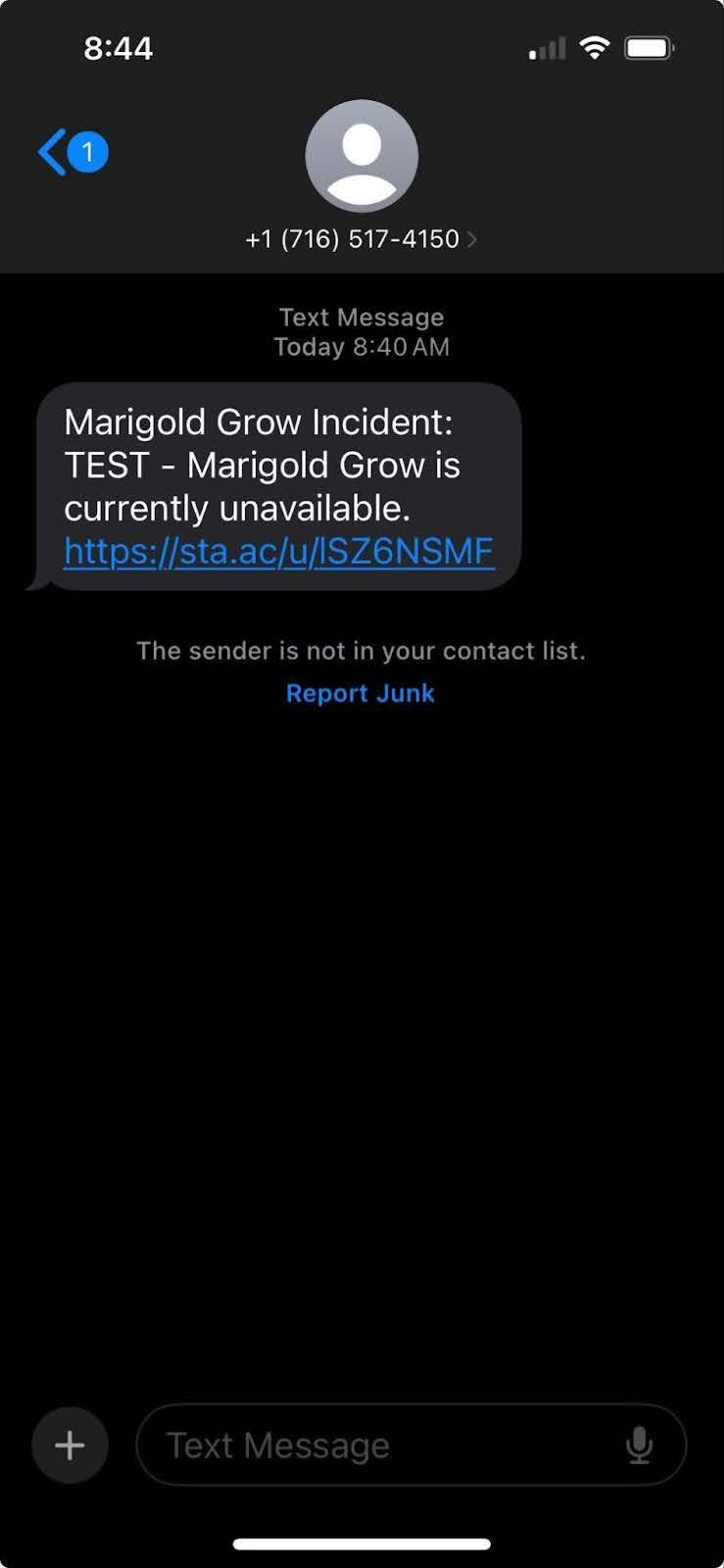
Here is an example of an SMS notification: