
Manually Execute a Badge Member Export
Exports can be scheduled to execute at a specific date and time, or on a recurring basis. You can also manually execute an export.
To manually execute an export of Badge Members:
-
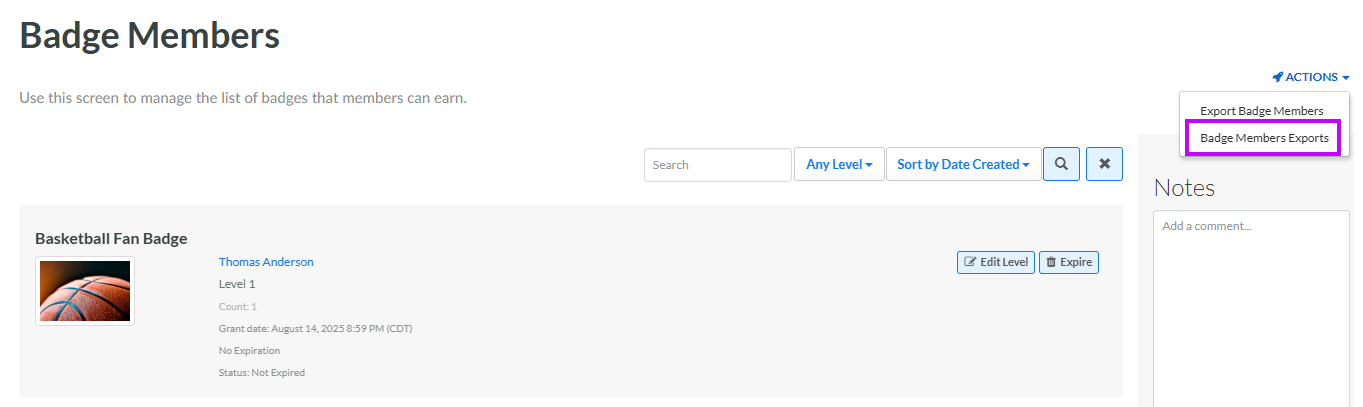
Select Rewards from the top navigation bar, then select Badges > Badge Members from the side navigation menu. The Badge Members screen is displayed.
-
From the Actions drop-down menu, select Badge Members Exports. The Badge Members Export Definitions pop-up window is displayed and populated with a list of all existing Badge Member Exports.
-
From the Action column of the desired export, click the Execute icon. A confirmation dialog box is displayed; click Confirm.
-
A success message is displayed. When the export is complete, you can download it (see Download a Badge Member Export for more information).
