
Working with Layouts
Member-facing content in Loyalty is managed through the use of Layouts. A Layout represents a specific context in which content is displayed to a Member, such as a website, mobile device, or email message, for example. A Layout defines the size and shape of the content, as well as the formatting and visual appearance of its interface elements, such as text fields, buttons, and images.
Layouts are defined as part of a Template Set. A Template Set is an HTML document that controls what layouts, styles, and content elements are available to the marketer when they are creating content for an asset.
For more information on Template Sets, please see Getting Started with Template Sets.
All the Layouts in a Template Set are displayed on the Content Editor screen. From this screen, you can configure the various design elements – such as text, images, and call to action buttons – that comprise a Layout.
To work with a Layout, you must first navigate to the Content Editor for the desired asset:
-
Navigate to the Details screen for the desired asset. For example, if you need to define the content for a specific Offer, you would navigate to the Offers screen, then search for and select the desired Offer to view the Offer Details screen.
-
From the Details screen of the desired asset, select the Display tab.
-
Click Edit. The Content Editor is displayed in a separate browser tab or window.
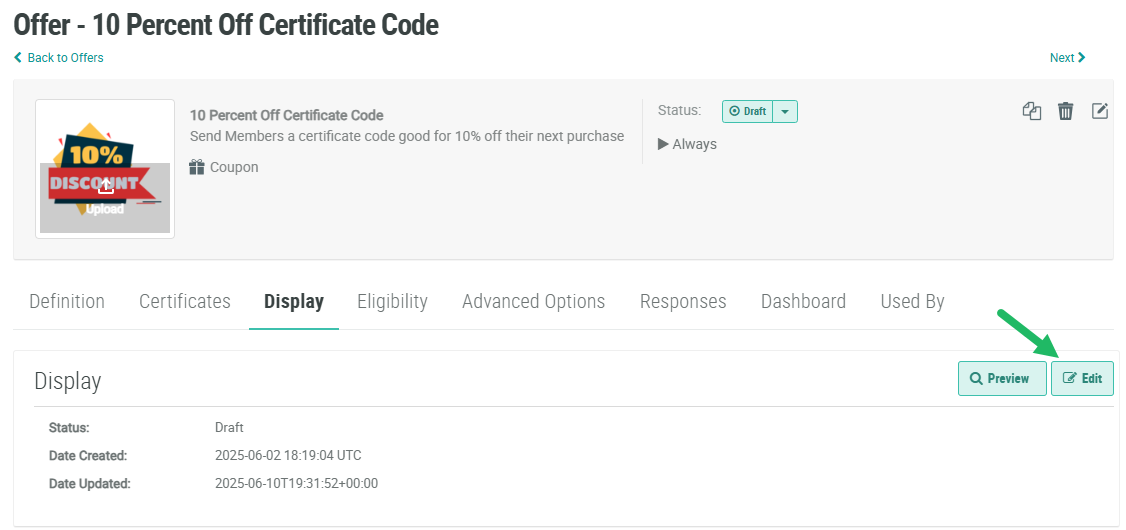
Before you begin editing Layouts:
-
An asset type (such as an Offer or Reward) can optionally have more than one Template Set defined for it. Make sure you are working with the desired Template Set for the selected asset. See Select a Template Set for more information.
-
Optionally, disable any unneeded Layouts. See Enable or Disable Layouts for more information.
-
Optionally use Master Content to enter content that is repeated across multiple Layouts. Using Master Content is more efficient than editing each Layout individually. See
-
If the localization feature is enabled in your Loyalty account, select the tab at the top of the screen for the desired locale.
Select a Template
A Layout can be designed with multiple variations (referred to as Templates), which provide the marketer with options when using that Layout. As with Layouts, the Templates are configured as part of the Template Set. If a Layout has been configured with multiple Templates, a Template selection option is displayed beneath the Layout. To select a Template:
-
Beneath the desired Layout on the Content Editor screen, click the Templates icon. The platform displays a sub-menu of available Templates, along with left- and right-arrows.
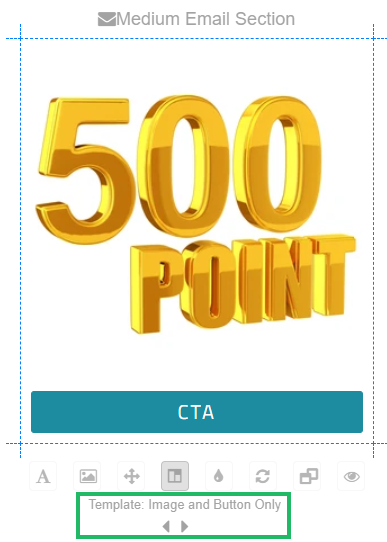
-
Click the left- or right-arrow to navigate through the available Templates. The platform updates the Layout display automatically
Reconnect a Layout to Master Content
Master Content allows you to populate a design element (such as a text field or image), and then “push” that information down to all the Layouts in the Template Set that use that same design element (see Working with Master Content for more information).
If you manually edit a design element within a specific Layout, the platform “unlinks” that Layout from the Master Content for that modified element. For example, let’s say you edit the Header directly within the Medium Email Section Layout. You then make a change to the Header field within the Master Content. The platform will not push down the Header value from the Master Content to the Medium Email Section Layout because that element has been unlinked.
If a Layout has been unlinked from Master Content, you can instruct the platform to reconnect the Layout to the Master Content:
-
Beneath the desired Layout on the Content Editor screen, click the Refresh icon. The platform re-populates this Layout with the content pushed down from the Master Content.
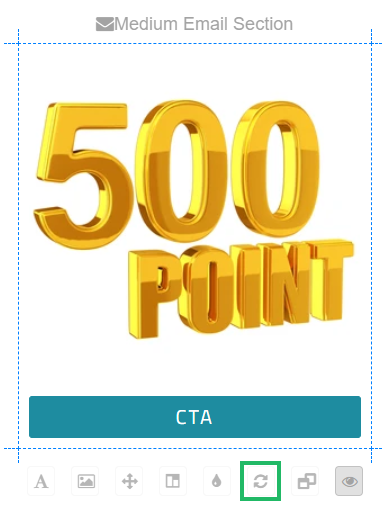
Edit a Layout
From the Content Designer, you can edit the various design elements within a Layout. See the below Help Center articles for details on working with specific types of design elements.
