
Working with Master Content
The Content Editor supports the use of Master Content. Master Content allows you to populate a design element (such as a text field or image), and then “push” that information down to all the Layouts in the Template Set that use that same design element. If your Layouts share similar content, you can use Master Content to automatically populate multiple Layouts at once, rather than editing each Layout individually.
Master Content encompasses the following design elements:
-
Message Subject
-
Header
-
Subheader
-
Primary Image
-
Body
-
Details
-
Button Label (Call to Action)
If you manually edit a design element within a specific Layout, the platform “unlinks” that Layout from the Master Content for that modified element. For example, let’s say you edit the Header directly within the Medium Email Section Layout. You then make a change to the Header field within the Master Content. The platform will not push down the Header value from the Master Content to the Medium Email Section Layout because that element has been unlinked.
You can optionally force the platform to push down content, even in the scenario where a Layout’s design element has been “unlinked” from the Master Content. See Manually Populate Layouts below for more information.
Note: If a Layout has been unlinked from Master Content, you can instruct the platform to revert that Layout back to using the Master Content. See Working with Layouts for more information.
Edit Master Content
To work with Master Content, you must first navigate to the Content Editor for the desired asset.
-
Navigate to the Details screen for the desired asset. For example, if you need to define the content for a specific Offer, you would navigate to the Offers screen, then search for and select the desired Offer to view the Offer Details screen.
-
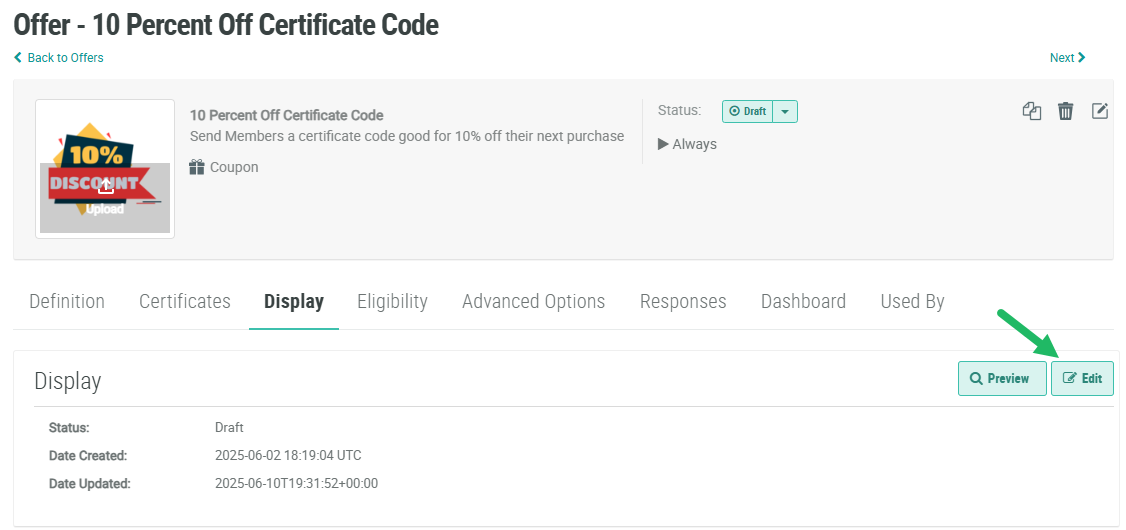
From the Details screen of the desired asset, select the Display tab.
-
Click Edit. The Content Editor is displayed in a separate browser tab or window.
Master Content appears in the Content Editor in the top-left corner of the screen. Please note that you can’t disable Master Content like you can individual Layouts; Master Content is always displayed.
From the Content Designer, you can edit the various design elements within Master Content. See the below Help Center articles for details on working with specific types of design elements.
Manually Populate Layouts
As described above, if you manually edit a design element within a specific Layout, the platform “unlinks” that Layout from the Master Content for that modified element. Any future edits made to that design element within the Master Content will not get pushed down to that Layout. You can optionally override this scenario, and force the platform to push down Master Content changes to an design element in an unlinked Layout.
-
Make the desired changes to a design element within the Master Content.
-
In the tool bar beneath the Master Content, click the Push Down icon.

Revert to Default Master Content
If you made changes to the Master Content, and want to revert back to the Template Set default:
-
In the tool bar beneath the Master Content, click the Revert icon.

-
A confirmation dialog box is displayed; click Confirm.
