
View Export Job History
The platform maintains a log of every Export Definition job execution. To view the job history for an Export Definition:
-
Select Admin from the top navigation bar, then select Integrations > Exports from the side navigation menu. The Exports screen is displayed.
-
On the Exports screen, search for the desired Export Definition (see
-
Click the name of the desired Export Definition. The Export Definition Details screen is displayed.
-
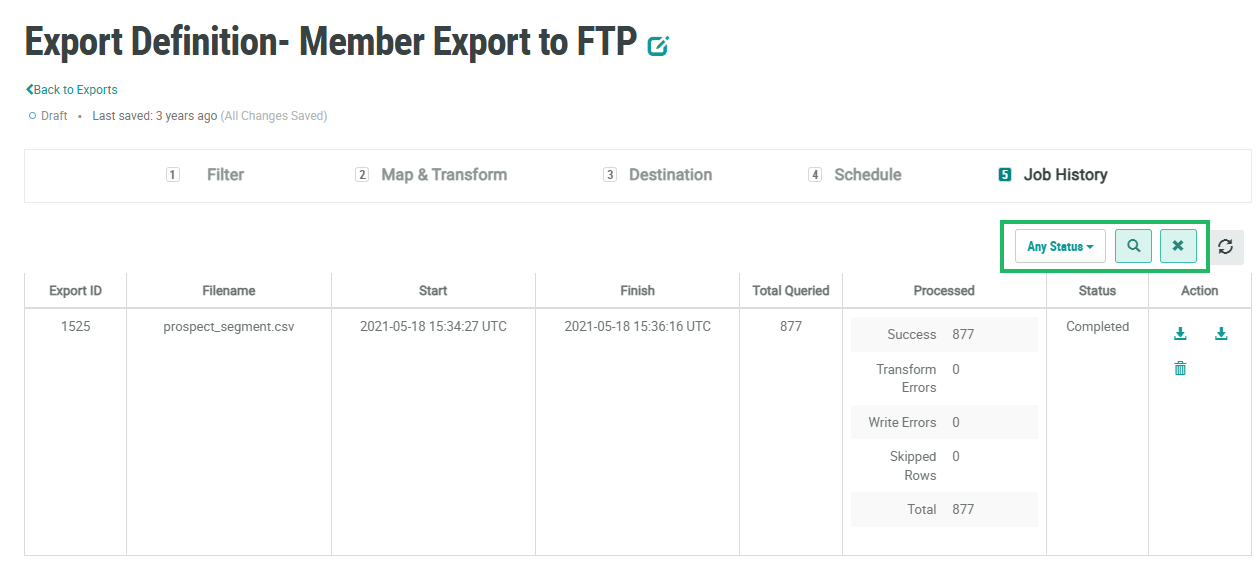
At the top of the Export Definition Details screen, click Job History. This screen displays all past export jobs. For each job, the screen shows the name of the export file, the start and end date / times, the total record quantity of the export, a breakdown of the export process (number of successes, errors, and skipped rows), and the current job status.
-
Optionally, to filter the jobs displayed on the screen, select a job status from the Job Status drop-down menu: Pending, Queued, Running, Completed, or Errored. The default is: Any Status. Click the Search button.
-
Optionally, to remove all search criteria and revert to the default criteria, click the Clear icon.
From the Job History screen, you can delete a job. See
From the Job History screen, you can also download a file containing the job logs. See
