
Create a Member Function
To create a Member Function:
-
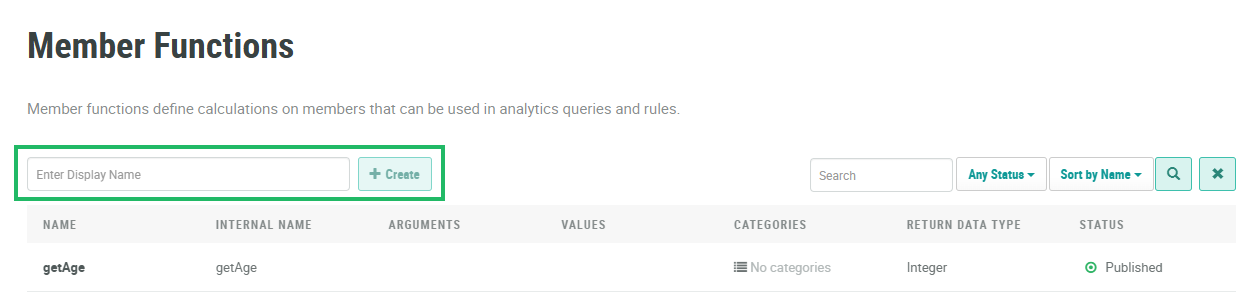
Select Program from the top navigation bar, then select Member Functions from the side navigation menu. The Member Functions screen is displayed.
-
In the Display Name field, enter the name of the new Member Function. The name can contain only letters, numbers, and underscores.
-
Click Create. The Edit Member Function pop-up window is displayed.
-
The Display Name field is populated with the value you entered above; optionally edit this value.
-
The Internal Name is automatically populated based on the Display Name value. This field is not editable by default. To edit the Internal Name, check Edit Internal Name. A confirmation dialog box is displayed; click Ok. Edit the Internal Name value.
-
Optionally, in the Description field, enter a description of this item.
-
Optionally, in the Categories field, enter a Category name.
-
Click Save. The Member Function Details screen is displayed.
The Member Function Details screen is split into two main sections: Arguments and Definitions.
Create Arguments
An Argument is a value that gets passed to the Member Function. The use of Arguments in a Member Function is optional.
To create an Argument:
-
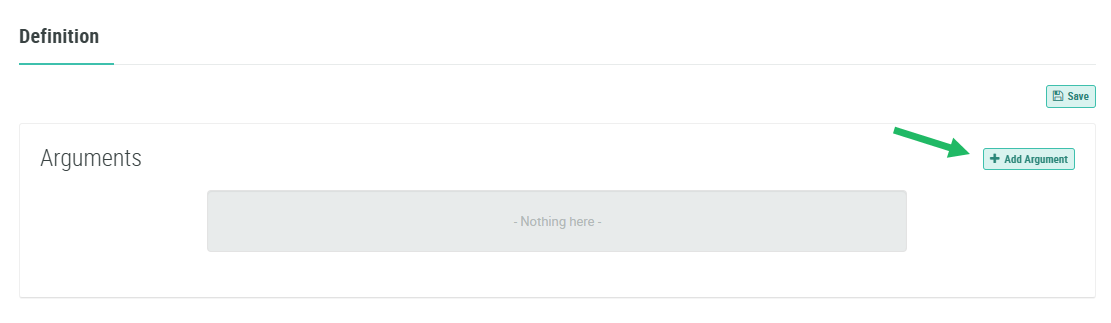
Within the Arguments section, Click Add Argument.
-
In the Enter Argument Name field, enter a name for the Argument.
-
From the drop-down menu, select the Data Type of the Argument.
-
Click Save.
-
Repeat the above steps as needed to define additional Arguments.
-
Optionally, to delete an Argument, click the Delete icon next to it.
-
Optionally, to edit the properties of an existing Argument, change its name or Data Type as needed, then click Save.
Create Definition
To create the Member Function definition:
-
From the Return Data Type drop-down menu, select the Data Type of the value returned by the Member Function.
-
In the code editor, enter your Groovy expression.
-
Click Save.
Validate the Expression
The platform allows you to validate the expression by testing it against Argument values (if applicable) and a selected Member. To validate the expression:
-
Click Evaluate. The Evaluate Expression pop-up window is displayed.
-
If your Member Function has Arguments defined, enter or select the desired values to use to validate the expression.
-
From the Member drop-down menu, search for and select the desired Member to use to validate the expression.
-
Click Evaluate. The system displays the validation results.
-
Optionally repeat the above steps as needed using different Argument values and / or different Members. When finished, click Close.
To make your new Member Function available for use in your account, you must first publish it (see Publish a Member Function for details), and then deploy metadata (see Deploy Metadata for details).
