
Create a Batch Action - Merge Member Profiles
The Loyalty platform allows you to merge two Member Profiles into a single Profile. This feature is useful if, for example, you learn that an individual has accidentally created two membership accounts, perhaps using different email addresses. The platform supports a wide range of configuration settings that control what Profile information gets merged. For more information on these settings, please see the Merge Member Profile Guide.
The platform utilizes the following terminology to distinguish between the two Profiles being merged:
-
Source Profile: After the merge is complete, this Profile will be deactivated.
-
Target Profile: After the merge is complete, this Profile will remain active, and will contain the fully merged information from both Profiles.
Note: Merging Profiles is irrevocable; you can’t revert or undo a Profile merge. In addition, after the merge is complete, you can’t “reverse” a merge to flip the Source and Target. Be sure you carefully select which Profile is to be the Target, and which is to be the Source.
The Batch Actions screen lets you execute multiple Member Profile merges by importing a comma-separated values (CSV) file that contains a header row and the following two columns:
-
member_id: The Member ID for the Target Profile
-
source_member_id: The Member ID for the Source Profile.
To create a Batch Action for merging Member Profiles:
-
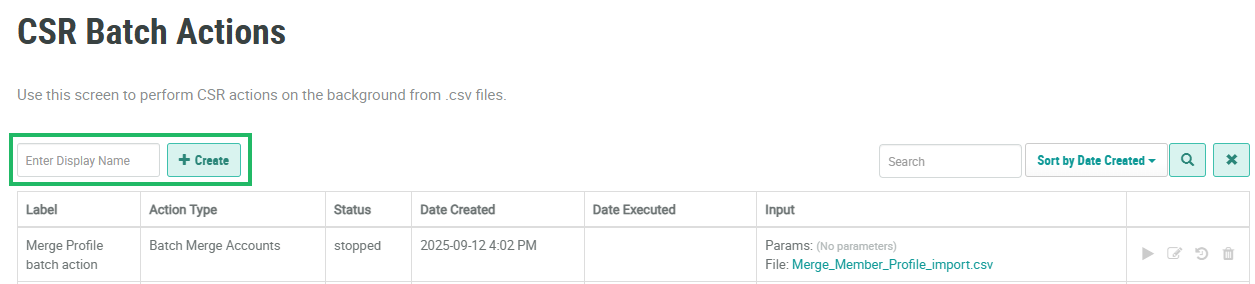
Select Members from the top navigation bar, then select CSR > Batch Actions from the side navigation menu. The Batch Actions screen is displayed.
-
In the Enter Display Name field, enter a name for the new Batch Action.
-
Click Create. The Edit CSR Batch Actions pop-up window is displayed.
-
The Display Name field is populated with the name you entered above. Optionally edit this name.
-
Optionally, in the Description field, enter a description of this Batch Action.
-
From the Action Type drop-down menu, select Batch Merge Actions.
-
Next to Input File, click Choose File. Browse to the CSV file on your local PC and click Open.
-
Click Save.
For more information on how to execute the Batch Action, please see Execute a Batch Action.
