
Accept a Punch Card
Punch Cards in Loyalty Essentials provide a digital representation of physical punch cards, allowing Members to complete a series of required actions in order to earn a prize. Each of these required actions serves as a “punch” on the digital Punch Card.
From the Member Profile screen, you can manually issue a Punch Card to a Member. This feature is valid only for Punch Cards that have a Start Type of On Acceptance.
To issue a Punch Card to a Member:
-
Select Members from the top navigation bar, then select CSR > People from the side navigation menu. The People screen is displayed.
-
On the People screen, search for and select the desired Member (see
-
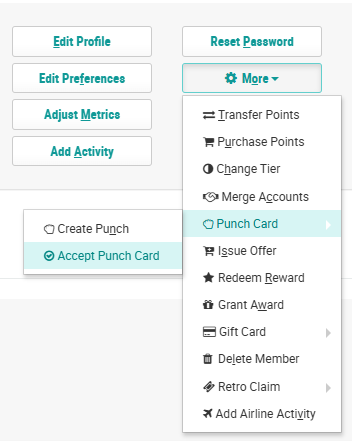
Within the header section of the screen, click More > Punch Card > Accept Punch Card. The Accept a Punch Card for a Member pop-up window is displayed.
-
From the Punch Card Type drop-down menu, select the desired Punch Card.
-
Click Submit.
