
Add Fight Activity
For clients in the airline industry, the Member Profile screen allows Customer Service Representatives to manually add a new Flight Activity for a Member. When added manually in this manner, the Flight information is validated and enters into an approval workflow where it must be reviewed and approved on the Flights Approval screen. Once the Flight information is approved, the platform creates the Flight Activity record associated with the selected Member.
Note: This feature is used to create a brand new Flight Activity and assign it to the current Member. If instead you need to associate an existing Flight Activity (with no known Member) with this Member, please use the Retro Claim a Flight feature.
To manually add a Flight to a Member Profile:
-
Select Members from the top navigation bar, then select CSR > People from the side navigation menu. The People screen is displayed.
-
On the People screen, search for and select the desired Member (see
-
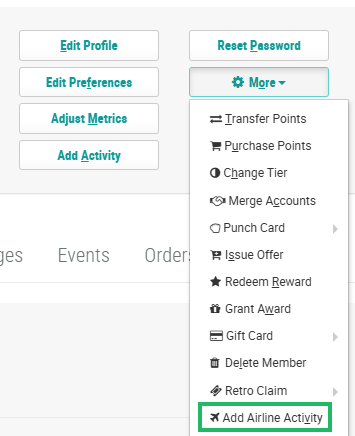
Within the header section of the screen, click More > Add Airline Activity. The Add Flight Activity pop-up window is displayed.
-
In the Flight Information section, enter the following information about the Flight:
-
In the Flight Date field, enter the flight date.
-
In the Partner field, enter the two-character International Air Transport Association (IATA) code for your airline.
-
Optionally, in the Flight Number field, enter the four-digit flight number.
-
Optionally, in the PNR field, enter the five-character Passenger Name Record code.
-
From the Flight Segment drop-down menu, search for and select the desired Flight Segment.
-
-
In the Booking Information section, enter the following information about the flight booking:
-
The First Name and Last Name fields are populated with the name of the selected Member, and are disabled from editing.
-
Optionally, in the Booking Date field, enter the date the Member booked the flight.
-
In the Ticket Number field, enter the ticket number.
-
Optionally, from the Booking Class Code drop-down menu, search for and select a Booking Class code.
-
Check Web Booking if the flight was booked online.
-
Check Canceled Flight if the flight was canceled.
-
-
Click Save. The Flight information is validated, and will appear on the Flights Approval screen for review and approval. Once the Flight is approved, it will get added to the Member's Profile as a Flight Activity, and can be viewed on the Activities tab and the Flights tab.
