
Purchase Metrics
From the Member Profile screen, Customer Service Representatives can execute a "purchase" of Metrics on behalf of a Member, by having the Member spend a quantity of one type of Metric in exchange for a quantity of a different Metric.
The details of the purchase itself are managed through the use of a Metric type Reward. When you execute the Metric purchase from the Member Profile screen, the platform redeems the selected Reward. This Reward must already be created and published. Please see Configure a Reward - Metric for more information.
Within the Metric Reward, you can define the following requirements that govern the purchase process:
-
The Metric type and quantity that the Member must spend.
-
The Metric type and quantity that the Member gains.
Note: The quantity spent and the quantity purchased don't have to match. For example, "spend 50 Points to gain 100 Miles."
To execute a Metric purchase for a Member:
-
Select Members from the top navigation bar, then select CSR > People from the side navigation menu. The People screen is displayed.
-
On the People screen, search for and select the desired Member (see
-
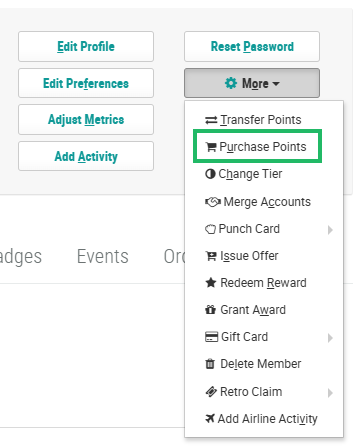
Within the header section of the screen, click More > Purchase Points. The Purchase Points for a Member pop-up window is displayed.
-
From the Purchase Type drop-down menu, select the desired Metric type Reward. The platform displays the details of the selected Reward, including the quantity and Metric type that the Member is purchasing, and their current balance of that Metric.
-
Optionally, in the Internal Note field, enter a note describing why you are making the Metric purchase.
-
Click Submit.
