Retro Claim an Order
For clients in the restaurant or retail industries, the Member Profile screen allows Customer Service Representatives to retroactively associate an anonymous Order with a Member. This process is referred to as a "retro claim," and allows the Member to correctly receive any Metrics that they should have earned from that Order.
Note: Retro claims must take place within thirty days of the Order Date.
To retroactively claim an Order for a Member:
-
Select Members from the top navigation bar, then select CSR > People from the side navigation menu. The People screen is displayed.
-
On the People screen, search for and select the desired Member (see
-
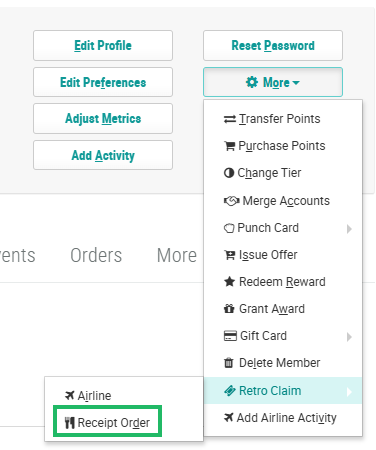
Within the header section of the screen, click More > Retro Claim > Receipt Order. The Retro Claim Wizard pop-up window is displayed.
-
In the Transaction ID field, enter the Order's Transaction ID.
-
In the Store field, enter the Order's Store ID.
-
In the Date field, enter the Order Date.
-
Click the Search icon. The platform searches for a matching Order. If the platform was unable to find a matching Order, a red X icon is displayed. Check that you entered the search criteria correctly and retry the search. If the platform was able to find a matching Order, a green check mark is displayed.
-
Click Verify. A summary of the Order is displayed. If the Order is not correct, click Previous and re-enter the search criteria. If the Order is correct, click Submit Claim.