
Tab Overview - Badges
Badges are a type of Reward, allowing you to recognize and incentivize your Members. Members can earn and view Badges, and share them with friends and other Members. See Getting Started with Badges for more information.
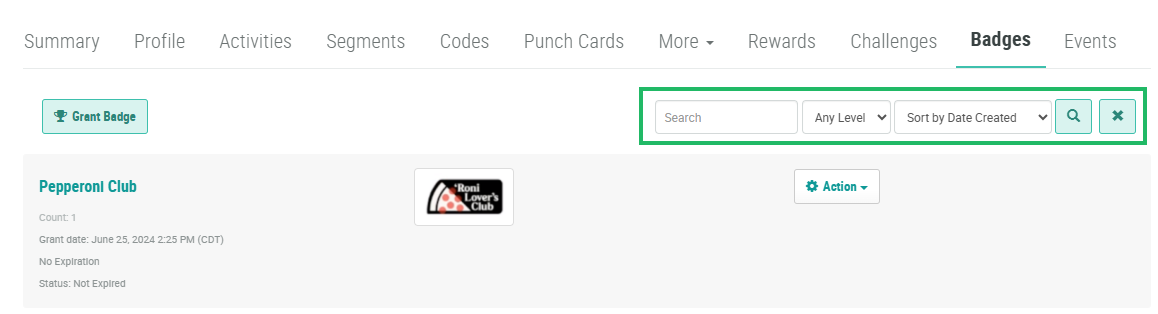
The Badges tab of the Member Profile screen displays a list of Badges that this Member has earned. From this tab, you can search for a Badge based on its name, as well as by its level (if applicable).
To search for a Badge:
-
Select Members from the top navigation bar, then select CSR > People from the side navigation menu. The People screen is displayed.
-
On the People screen, search for and select the desired Member (see
-
Select the Badges tab.
-
Optionally, in the Search field, enter the desired text string.
-
Optionally, from the Level drop-down menu, select a Badge level (Badge levels apply only to Status type Badges). The default setting is Any Level.
-
Click the Search icon. The screen is refreshed to show only the Badges that meet your search criteria. If you entered multiple search criteria, the Badge must meet ALL criteria.
-
To sort the search results, select the desired sort order from the Sort By drop-down menu. The default sort order is by: Created Date.
-
Optionally, to remove all search criteria and revert to the default criteria, click the Clear icon.
From this tab, you can post a Badge to a News Feed. For details on this process, please see Post a Badge to a News Feed.
From this tab, you can also manually expire a Badge. For details on this process, please see Expire a Badge.
From this tab, you can also manually grant a new Badge to the selected Member. For details on this process, please see Grant a Badge.
From this tab, you can also manually change the Badge level (Status type Badges only). For details on this process, see Change a Badge Level.
