
Create a Beacon
Loyalty allows you to create new Beacons.
Note: You can also import Beacons using the Standard Import feature. See Import Beacons for more information.
To create a Beacon:
-
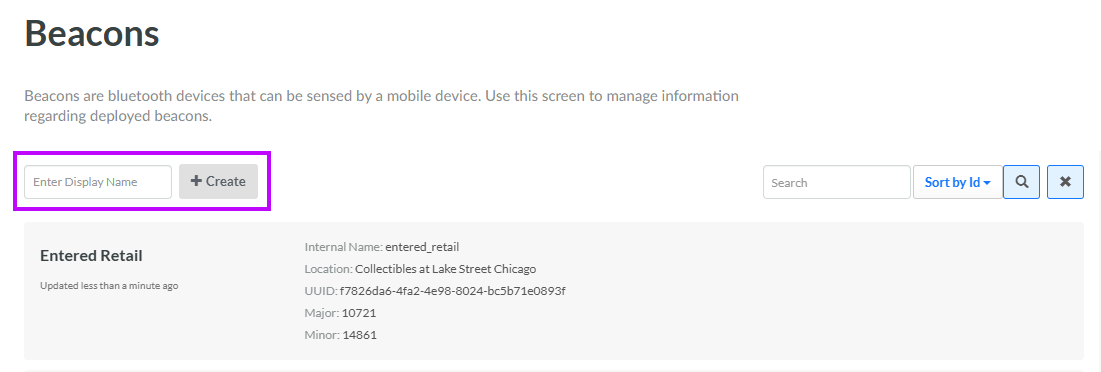
Select Admin from the top navigation bar, then select Locations > Beacons from the side navigation menu. The Beacons screen is displayed.
-
In the Display Name field, enter a name for the new Beacon.
-
Click Create. The Update New Beacon pop-up window is displayed.
-
The Display Name field is populated with the value you entered above; optionally edit this value.
-
The Internal Name is automatically populated based on the Display Name value. This field is not editable by default. To edit the Internal Name, check Edit Internal Name. A confirmation dialog box is displayed; click Ok. Edit the Internal Name value.
-
In the UUID field, enter the Universally Unique ID (UUID) value for this Beacon. This 36-character alphanumeric value is used to distinguish the beacon devices in your network from other beacons in networks you don't control.
-
In the Major field, enter the Major value for this Beacon. This integer value is typically used to identify a group of Beacons, such as all Beacons in a city, or all Beacons in a store, for example.
-
In the Minor field, enter the Minor value for this Beacon. This integer value is typically used to identify a single beacon device from within the larger Major group.
-
Click Save.
