
Delete a Punch Card
To keep your Loyalty instance uncluttered, the best practice recommendation is to delete unneeded or test Punch Cards. The deletion process is permanent and irrevocable; you can’t later restore a deleted Punch Card.
When you delete a Punch Card, the platform also permanently deletes all associated Punch Card Responses and historical activity, which will impact any reporting that tracks Punch Card Response counts. If a Member started a Punch Card prior to it being deleted, their Punch Card Response will also be deleted, so the Member will be unable to complete any additional punches.
You can delete a Punch Card from either the Punch Cards screen, or from the Punch Card Details screen.
To delete a Punch Card from the Punch Cards screen:
-
Select Campaigns from the top navigation bar, then select Punch Cards > Punch Cards from the side navigation menu. The Punch Cards screen is displayed.
-
Search for the desired Punch Card (see
-
Next to the desired Punch Card, click the Delete icon. A confirmation dialog box is displayed; click Confirm.
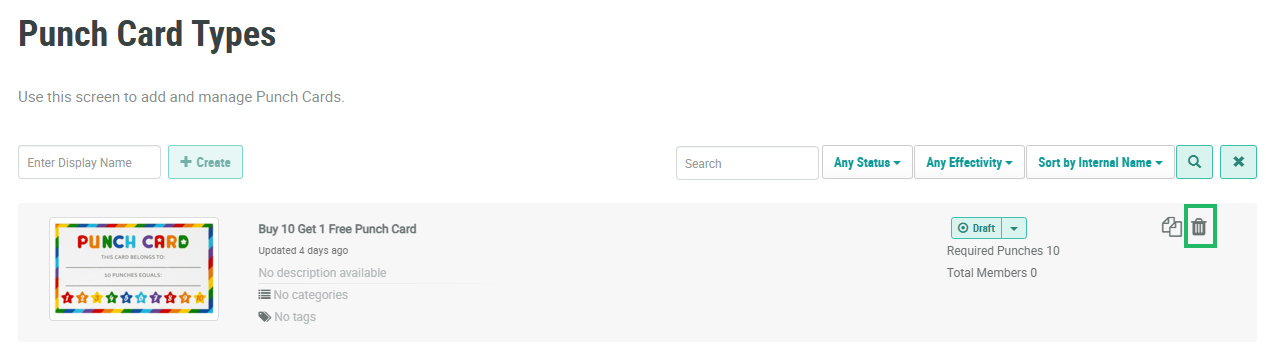
To delete a Punch Card from the Punch Card Details screen:
-
Select Campaigns from the top navigation bar, then select Punch Cards > Punch Cards from the side navigation menu. The Punch Cards screen is displayed.
-
Search for and select the desired Punch Card (see
-
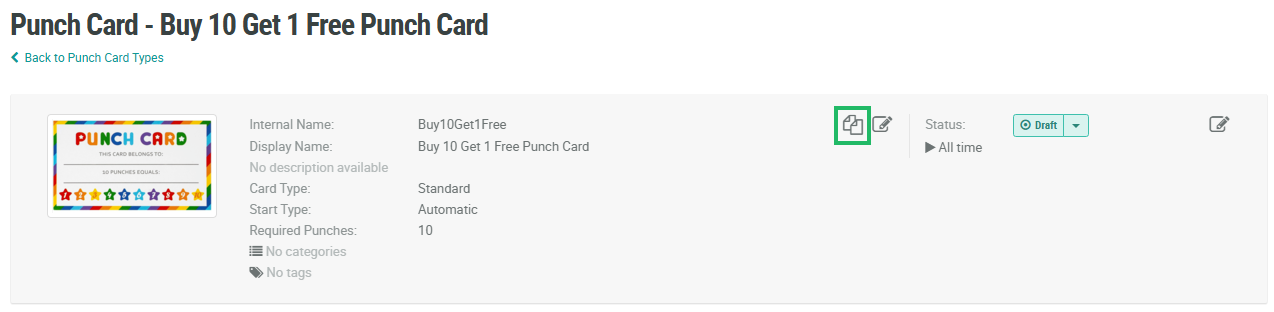
Within the header area, click the Edit icon. The Edit Punch Card Type pop-up window is displayed.
-
Click Delete. A confirmation dialog box is displayed; click Confirm.
