Approve or Reject a Redemption
Redemptions can optionally move through an approval workflow. The possible approval status values are:
-
Submitted: The Member has redeemed the Reward, and the platform has created the Redemption, but it has not yet been reviewed.
-
Approved: The Redemption has been approved.
-
Rejected: The Redemption has been manually rejected and the Member is ineligible to receive the prize associated with the Reward.
-
Returned: The Redemption has been rejected, but the Member has the opportunity to again redeem the Reward.
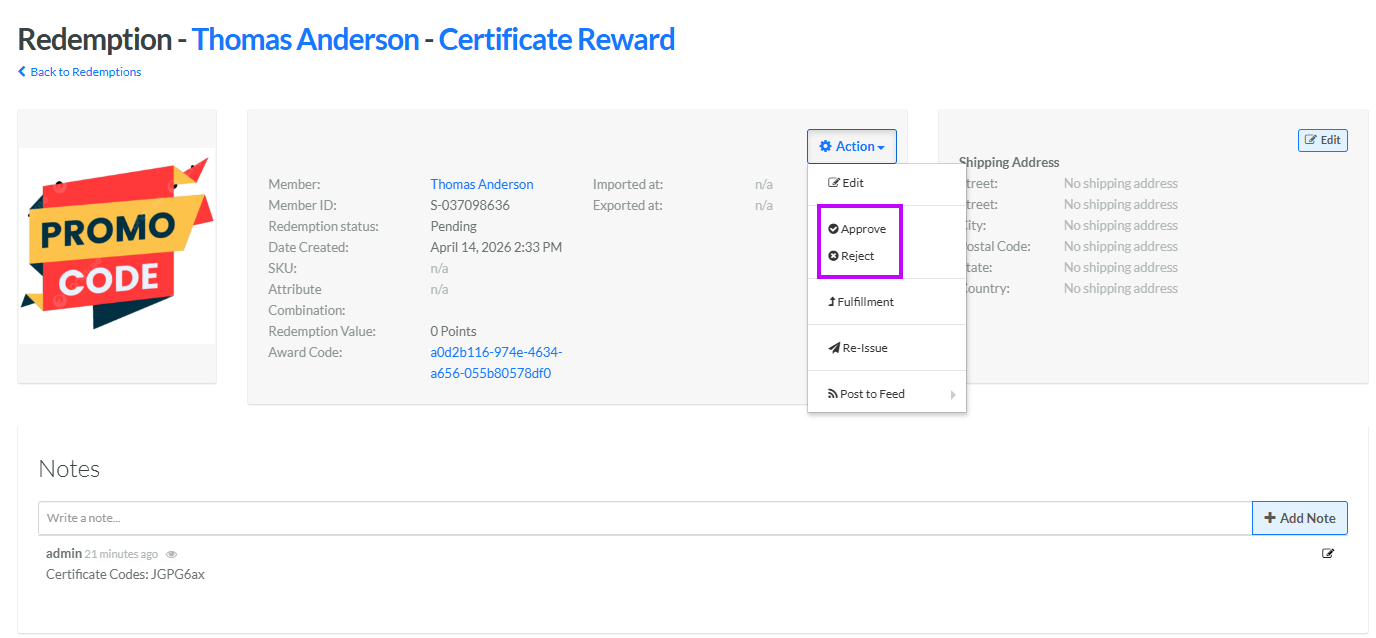
If a Redemption's approval status is still Submitted, you can manually approve or reject the Redemption from either the Redemptions screen, or from the Redemption Details screen.
Approve or Reject a Redemption from the Redemptions Screen
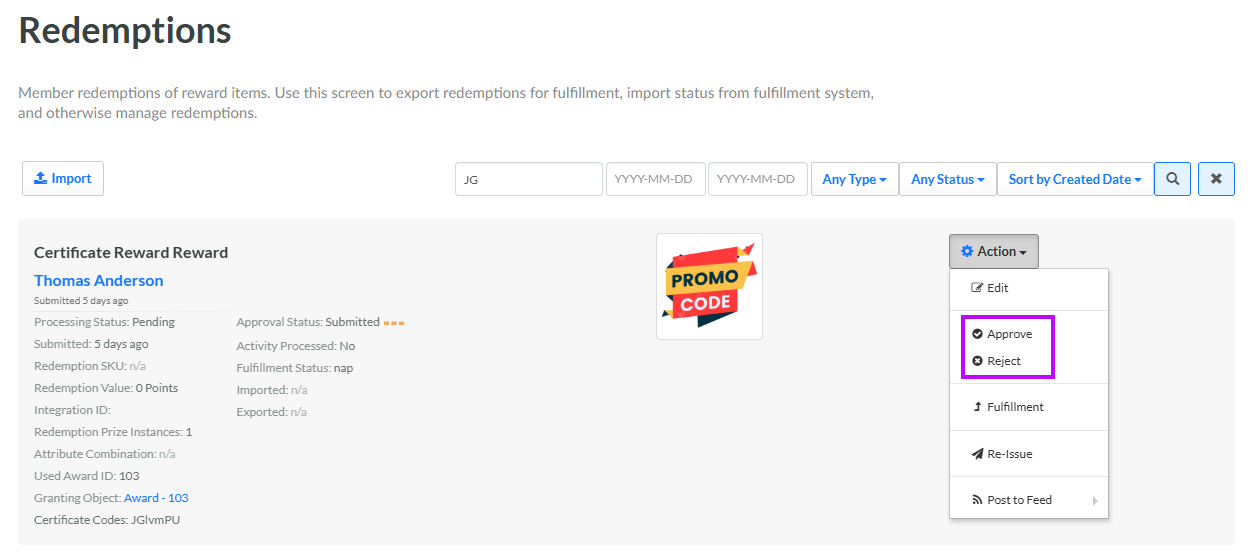
To approve or reject a Redemption from the Redemptions screen:
-
Select Rewards from the top navigation bar, then select Rewards > Redemptions from the side navigation menu. The Redemptions screen is displayed.
-
Search for the desired Redemption (see Search for a Redemption for more information on the available search options).
-
Next to the desired Redemption, from the Action drop-down menu, select either:
-
Approve: The Redemption approval status changes to Approved.
-
Reject: The Reject Form pop-up window is displayed. Optionally, in the Comment to Member field, enter an explanation for why the Redemption was rejected. Optionally, in the Ask to Re-Enter field, enter the details of how the Member can again redeem the Reward. Click Save. The Redemption approval status changes to Rejected.
-
Approve or Reject a Redemption from the Redemption Details Screen
To approve or reject a Redemption from the Redemption Details screen:
-
Select Rewards from the top navigation bar, then select Rewards > Redemptions from the side navigation menu. The Redemptions screen is displayed.
-
Search for the desired Redemption (see Search for a Redemption for more information on the available search options) and click its Reward name. The Redemption Details screen is displayed.
-
Next to the desired Redemption, from the Action drop-down menu, select either:
-
Approve: The Redemption approval status changes to Approved.
-
Reject: The Reject Form pop-up window is displayed. Optionally, in the Comment to Member field, enter an explanation for why the Redemption was rejected. Optionally, in the Ask to Re-Enter field, enter the details of how the Member can again redeem the Reward. Click Save. The Redemption approval status changes to Rejected.
-