
Change Redemption Status
A Redemption can optionally go through the following life cycle if you want your loyalty program to track the processing status of the Reward once redeemed by the Member. This life cycle requires additional integration to automate, as external systems are responsible for updating this status, not the Loyalty platform.
-
Pending: The Member has spent the necessary Metrics to redeem the Reward. Pending is the initial status for all new Redemptions.
-
Processing: This status is used as part of an optional Reward status flow, typically intended for use when shipping physical items. Processing indicates that the item has not yet shipped.
-
Completed: This status is used as part of an optional Reward status flow, typically intended for use when shipping physical items. Completed indicates that the product has been shipped.
-
Canceled: The Redemption has been canceled.
The platform allows you to manually change a Redemption's processing status from either the Redemptions screen, or from the Redemption Details screen.
Note: You can’t set a Redemption status back to an “earlier” status in the life cycle. For example, once a Redemption has moved to Completed, you can’t set its status back to Pending.
Change Redemption Status from the Redemptions Screen
To manually change the status of a Redemption from the Redemptions screen:
-
Select Rewards from the top navigation bar, then select Rewards > Redemptions from the side navigation menu. The Redemptions screen is displayed.
-
Search for the desired Redemption (see Search for a Redemption for more information on the available search options).
-
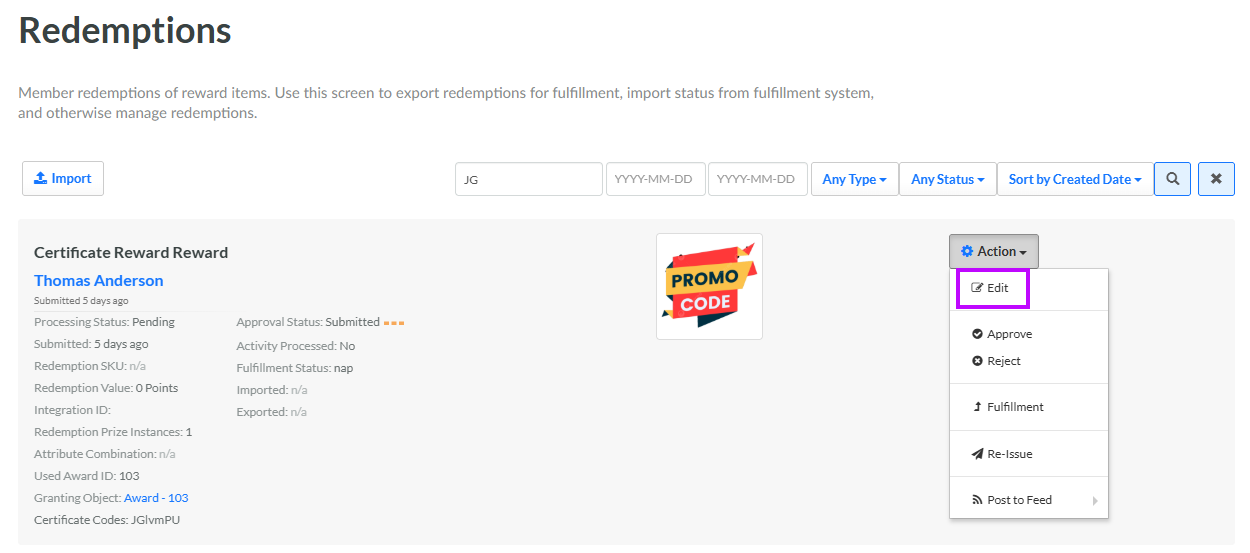
Next to the desired Redemption, from the Action drop-down menu, select Edit. The Update Processing Status pop-up window is displayed.
-
From the Processing Status drop-down menu, select the desired status.
-
Click Save.
Change Redemption Status from the Redemption Details Screen
To manually change the status of a Redemption from the Redemption Details screen:
-
Select Rewards from the top navigation bar, then select Rewards > Redemptions from the side navigation menu. The Redemptions screen is displayed.
-
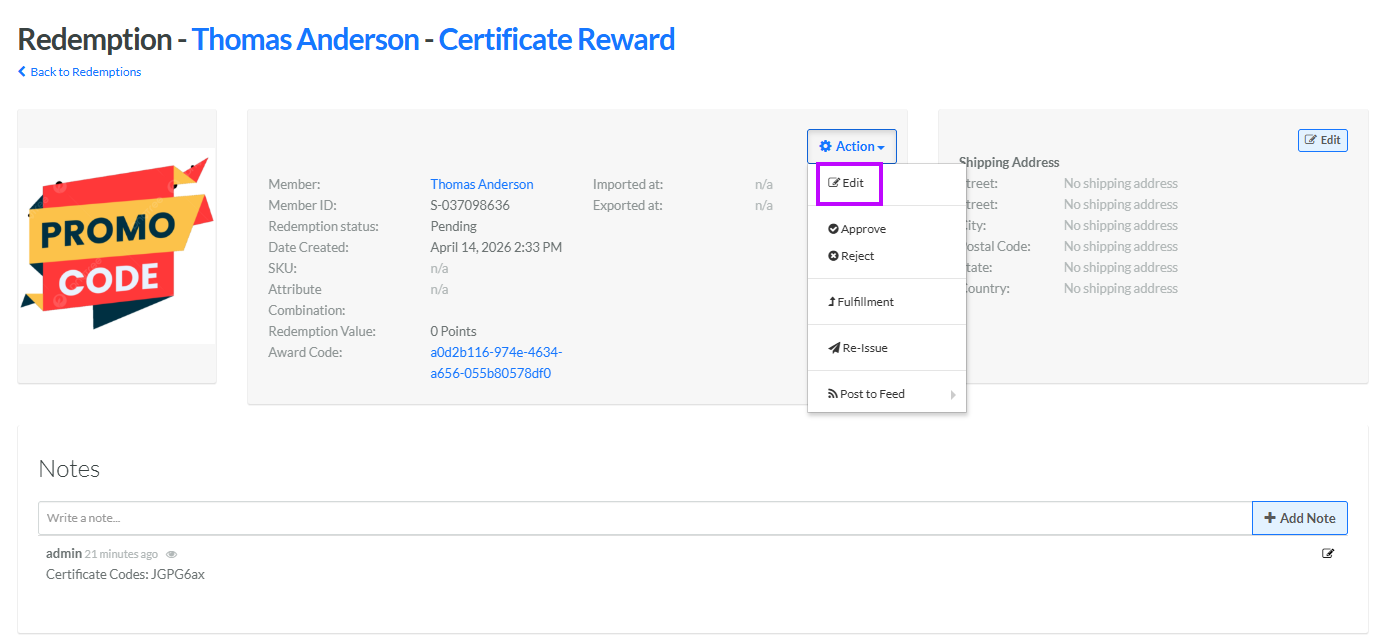
Search for the desired Redemption (see Search for a Redemption for more information on the available search options) and click its Reward name. The Redemption Details screen is displayed.
-
From the Action drop-down menu, select Edit. The Update Processing Status pop-up window is displayed.
-
From the Processing Status drop-down menu, select the desired status.
-
Click Save.
