
Edit a Reward Certificate Code
On the Reward Certificates screen, existing Reward certificate codes are displayed in a spreadsheet-style grid. Each row in the grid represents a single certificate code value, and displays information about it, such as its status, its associated Reward (if applicable), and the Member who redeemed the code (if applicable).
The platform allows you to edit the value of an existing code, as well as its effectivity period.
To edit an existing Reward certificate code:
-
Select Rewards from the top navigation bar, then select Rewards > Reward Certificates from the side navigation menu. The Reward Certificates screen is displayed.
-
Search for desired Reward certificate code (see Search for a Reward Certificate Code for more information on the available search options).
-
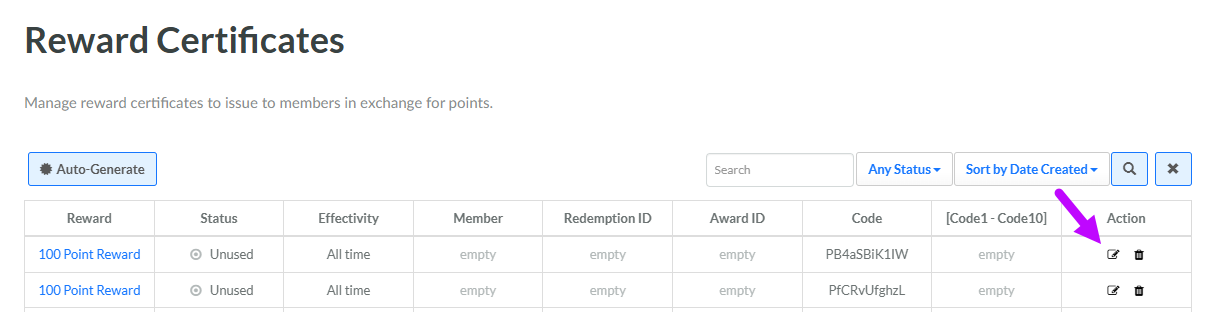
In the Action column of the desired certificate code, click the Edit icon. The Edit Reward Certificates pop-up window is displayed.
-
Optionally enter a new certificate code value in the Code field.
-
Each certificate code can optionally have up to ten "secondary codes." For example, you could use the Code field for the primary discount code, then use a secondary code for a free shipping code. Optionally enter or edit the secondary Codes.
-
Optionally edit the certificate code's effectivity period. The effectivity period designates the time frame during which Members can redeem this certificate code:
-
Always: This certificate code doesn't expire.
-
Schedule: Enter the start date / time and the end date / time, and pick the time zone.
-
Note: Instead of editing each code's effectivity period, you can choose to have all new codes "inherit" the effectivity period from the Reward to which they are assigned. You must enable this feature when you auto-generate certificate codes. See Auto-generate Reward Certificate Codes for more information.
-
Click Save.
