
Add a Domain Value to an Attribute
An Attribute in a Reward Class can optionally be configured with one or more valid values (referred to as a Domain) that the platform will accept in that Attribute.
Note: In addition to entering Domain values through the platform interface as described below, you can also import a file of Domain values. See Import Reward Class Domain Values for more information.
This articles assumes that you have already added at least one Attribute to the Reward Class (see Add an Attribute to a Reward Class for more information).
To add a Domain value to an Attribute:
-
Select Rewards from the top navigation bar, then select Settings > Reward Classes from the side navigation menu. The Reward Classes screen is displayed.
-
Search for and select the desired Reward Class (see Search for a Reward Class for more information on the available search options). The Reward Class Details screen is displayed, with the Attributes tab selected by default.
-
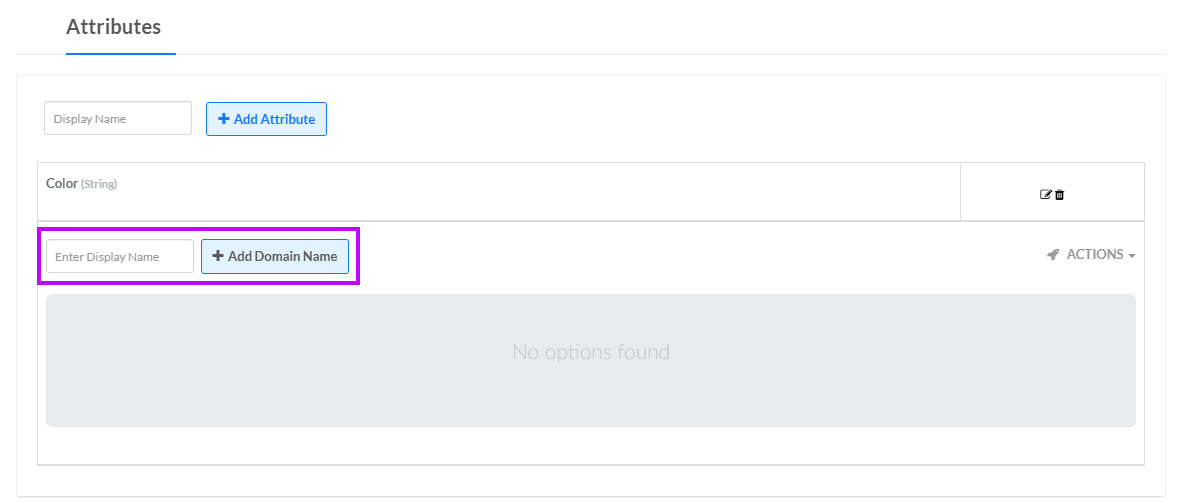
Beneath the desired Attribute, in the Display Name field, enter the Domain value.
-
Click Add Domain Name. The Edit <Domain Name> pop-up window is displayed.
-
The Display Name field is populated with the value you entered above; optionally edit this value.
-
Optionally, in the Code field, enter a code for this Domain value.
-
The Internal Name is automatically populated based on the Display Name value. This field is not editable by default. To edit the Internal Name, check Edit Internal Name. A confirmation dialog box is displayed; click Ok. Edit the Internal Name value.
-
To make this value the default value within the Attribute's Domain, check Default.
-
Optionally, in the Hint field, enter a note or a description of this Domain value. The Hint value is displayed on the Reward Class Details screen next to the Domain value.
-
Click Save. The platform adds this Domain value to the list of values beneath the selected Attribute.
-
Repeat the above steps as needed to define additional Domain values.
