Approve or Reject a Redemption
When a Member redeems a Reward, the platform creates a new asset called a Redemption (sometimes referred to as a Reward Response). The Redemption contains the details and metadata of the Reward, its current status, and expiration (if it has one).
Redemptions can optionally move through an approval workflow. The possible approval status values are:
-
Submitted: The Member has submitted the Redemption, but it is not yet accepted or rejected.
-
Approved: The Redemption has been approved.
-
Rejected: The Redemption has been manually rejected and the Member is ineligible to receive the prize associated with the Reward.
-
Returned: The Redemption has been rejected, but the Member has the opportunity to re-submit a response.
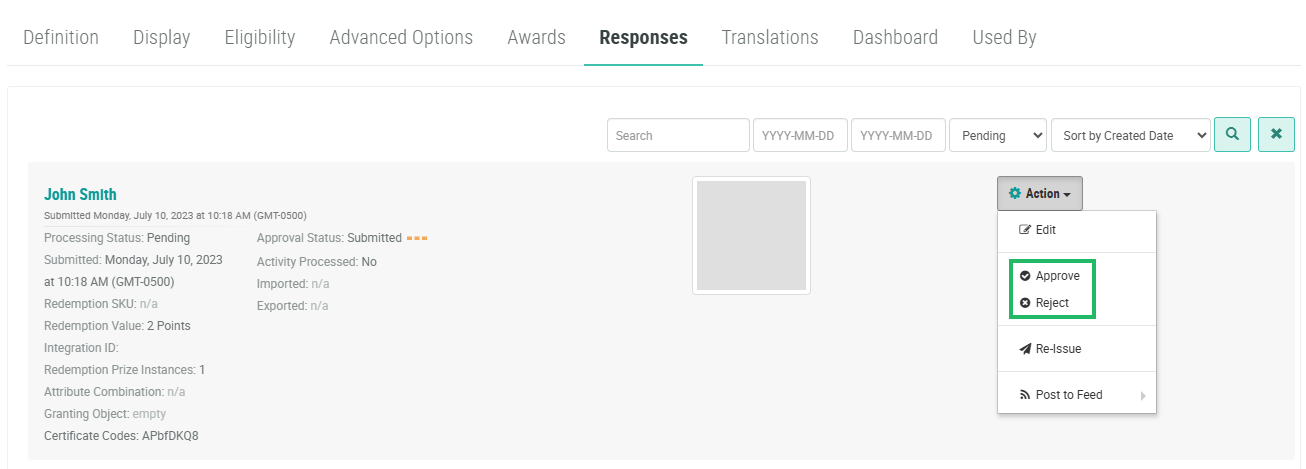
If a Redemption's approval status is still Submitted, you can manually approve or reject the Redemption directly from the Responses tab of the Reward Details screen.
To approve or reject a Redemption:
-
Select Rewards from the top navigation bar, then select Rewards > Rewards from the side navigation menu. The Rewards screen is displayed.
-
Search for and select the desired Reward (see
-
Select the Responses tab.
-
Optionally search for the desired Redemption (see View Redemptions for more information on the available search options).
-
Next to the desired Redemption, from the Action drop-down menu, select either:
-
Approve: The Redemption approval status changes to Approved.
-
Reject: The Reject Form pop-up window is displayed. In the Comment to Member field, enter an explanation for why the Redemption was rejected. In the Ask to Re-Enter field, enter the details of how the Member can re-submit their Redemption. Click Save. The Redemption approval status changes to Rejected.
-