
Create an Earn Rule Group Combination
To create an Earn Rule Group Combination:
-
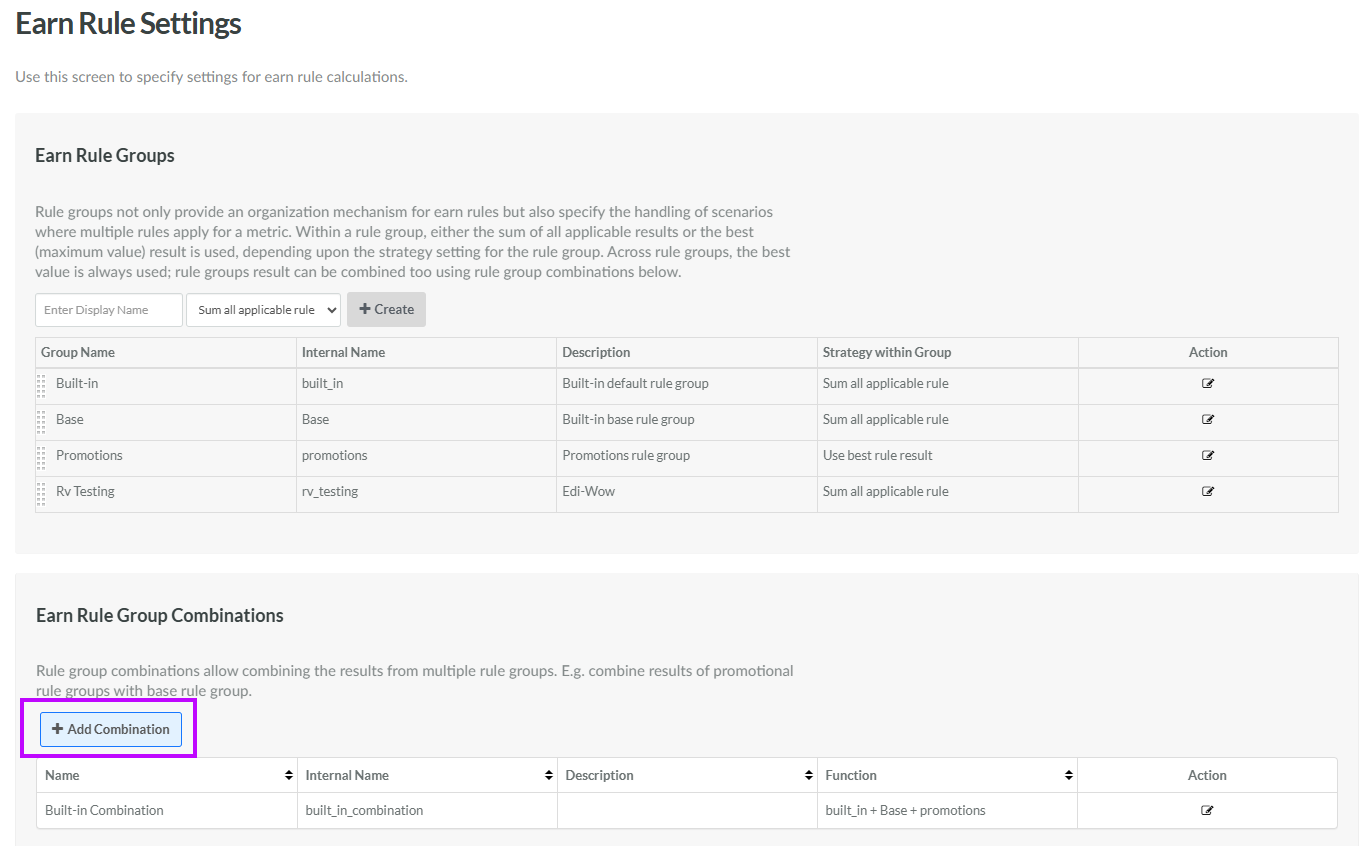
Select Rules from the top navigation bar, then select Settings > Earn Rule Settings from the side navigation menu. The Earn Rule Settings screen is displayed.
-
Within the Earn Rule Group Combinations section of the screen, click Add Combination. The Rule Group Combination Created pop-up window is displayed.
-
The Display Name field is populated with the value you entered above; optionally edit this value.
-
The Internal Name is automatically populated based on the Display Name value. This field is not editable by default. To edit the Internal Name, check Edit Internal Name. A confirmation dialog box is displayed; click Ok. Edit the Internal Name value.
-
Optionally, in the Description field, enter a description of this item.
-
Next to Type, select either:
-
Sum: Click into the Select Rule Groups to Sum field, and select one or more Earn Rule Groups that you want to sum together.
-
Expression: In the Expression field, enter a Groovy expression.
-
-
Click Save.
