
Configure Earn Rule Condition
When a Member performs the Activity Type specified for an Earn Rule, the platform checks the Condition, which is represented as a logical expression. The Earn Rule is applied only if this Condition is satisfied.
Note: The use of Conditions in an Earn Rule is optional. If a Condition is not defined, the Earn Rule is assumed to always apply whenever a Member performs the assigned Activity Type.
A Condition consists of one or more logical statements (called Rules) joined with logical operators (AND / OR). An Earn Rule can optionally include multiple Conditions.
To define the Earn Rule Condition:
-
Select Rules from the top navigation bar, then select Earn Rules from the side navigation menu. The Earn Rules screen is displayed.
-
Optionally, search for the desired Earn Rule (see
-
Optionally, expand an Earn Rule Group by clicking the Expand icon next to its name.
-
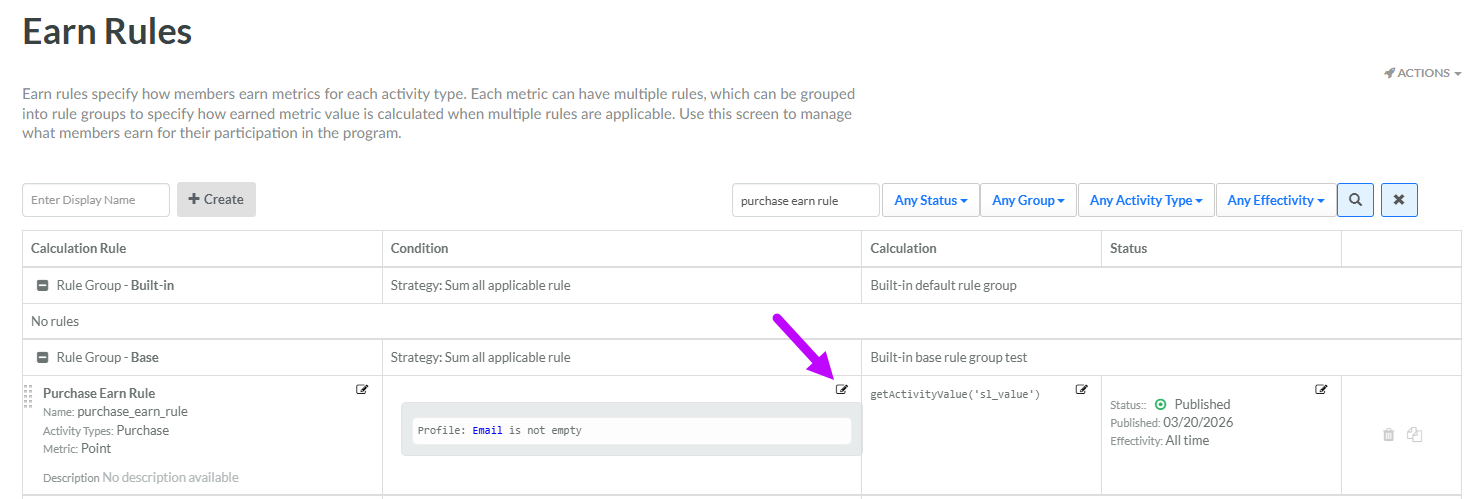
Within the Condition column of the desired Earn Rule, click the Edit icon. The Conditions pop-up window is displayed.
-
Click the Add icon, then select Add Rule. The platform adds a new blank row.
-
The first drop-down menu is populated with all of the different object types in Loyalty that are available for use. From this drop-down menu, select one of the following object types to expand it and see the available options:
 Attributes
This option allows you to define a logical statement based on a value in a Member Attribute.
-
From the menu, select the desired Member Attribute.
-
Select a mathematical operator; the available operators will vary based on the Data Type of the item you selected above.
-
Enter or select a value.
Preferences
This option allows you to define a logical statement based on a value in a Member Preference.
-
From the menu, select the desired Member Preference.
-
Select a mathematical operator.
-
Enter or select a value.
Activities
This option allows you to define a logical statement by performing a mathematical calculation on a selected Activity Type.
-
From the menu, select the desired calculation method: Aggregate, Count, or Recency.
-
From the second drop-down menu, select the desired Activity Type.
-
Select a mathematical operator.
-
Enter or select a value.
-
Based on the selected calculation method, the platform provides the option to enter additional criteria:
-
Count: Define a time period, such as "Is In Last 3 Months." The use of a time period is optional, but recommended to improve system performance.
-
Aggregate: Select how to perform the aggregation: either by picking an Attribute on which to aggregate, or by entering a Groovy expression. Select the Aggregate Function: Sum, Minimum, or Maximum. Define a time period, such as "Is In Last 3 Months." The use of a time period is optional, but recommended to improve system performance.
-
Metrics
This option allows you to define a logical statement using a Member's history of Metric usage.
-
From the menu, select the desired usage type: Balance, Earn, Expire, or Redeem.
-
From the second drop-down menu, select the desired Metric.
-
Select a mathematical operator.
-
Enter or select a value.
-
For the Earn, Expire, and Redeem Metric usage types, define a time period, such as "Is In Last 3 Months." The use of a time period is optional, but recommended to improve system performance.
Helpers
This option allows you to define a logical statement by referencing either a Lookup table or a Member Function.
-
From the menu, select either Lookup or Function.
-
From the second drop-down menu, select the desired Lookup table or Member Function.
-
Select a mathematical operator.
-
Enter or select a value.
-
If you selected a Lookup table and it has Parameters defined, select the Attribute on which to match.
-
If you selected a Member Function and it has Arguments defined, select the Attribute on which to match.
Expression
This option allows you to define a logical statement using a Groovy expression.
-
From the menu, select Advanced Expression.
-
In the code editor field, enter the desired Groovy expression.
Custom Objects
This option allows you to define a logical statement by referencing a Custom Object.
-
From the menu, select either the desired Custom Object.
-
Select a mathematical operator.
-
Enter or select a value.
-
Optionally, define a Condition that limits what records from the Custom Object are included.
-
Repeat the above steps as needed to define more Rules. Optionally, to delete a Rule, click the Delete icon next to it.
-
Once you define more than one Rule, select the logical operator from the Include customers that meet drop-down menu:
-
All of the following: Use an 'AND' operator such that all Rules must be true for a record to be selected.
-
Some of the following: Use an 'OR' operator such that at least one of the Rules must be true for a record to be selected.
-
-
Optionally, you can also organize Rules into Rule Groups. A Rule Group allows you to build more complex selection criteria. To create a Rule Group, click the Add icon, then select Add Rule Group. The platform creates a Group, which is represented visually as a nested box with its own operator and Add icon. Within this Group box, click the Add icon to define the Rule (or Rules) using the same process as described above. Use the toggle within the Group box to define the logical operator for the Rules within the Group. To delete an entire Rule Group, click the Delete icon just above the nested box representing the Group.
-
As you define Rules through the user interface, the platform builds a Groovy expression. To see this Groovy Expression, click Show Expression. The Show Expression pop-up window is displayed. When finished, click Close.
-
Optionally, to delete a condition, click Remove Condition.
-
Optionally, to define another condition, click Add Condition and repeat the above steps. Multiple conditions are always joined with an AND operator.
-
Click Save. The Condition logic is displayed within the Condition column for this Earn Rule.
Note: By clicking the Group button inside the Group box, you can create "nested" groups.
