
Define Earn Rule Effectivity Period
The Effectivity Period for an Earn Rule controls when that Earn Rule is considered "active" and in-use. The default setting is Always, but you can instead define a fixed time range, or a recurring time range.
To define the Effectivity Period for an Earn Rule:
-
Select Rules from the top navigation bar, then select Earn Rules from the side navigation menu. The Earn Rules screen is displayed.
-
Optionally, search for the desired Earn Rule (see
-
Optionally, expand an Earn Rule Group by clicking the Expand icon next to its name.
-
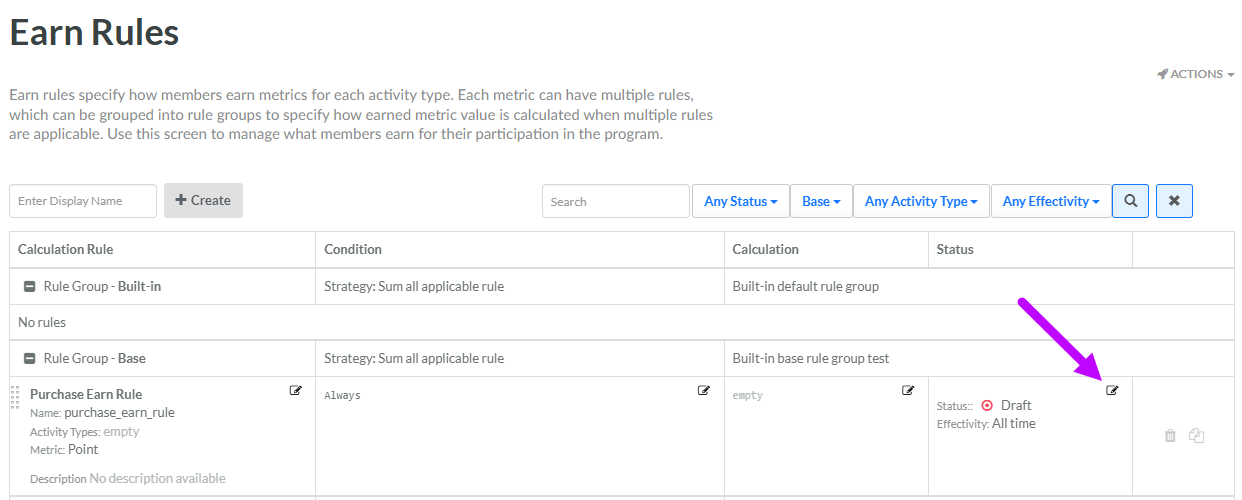
Within the Status column of the desired Earn Rule, click the Edit icon. The Edit Earn Rule pop-up window is displayed.
-
Next to Effectivity, select either:
-
Always: This Earn Rule doesn't expire.
-
Scheduled: Enter a start date and end date, and select a time zone. Optionally, check Recurring to use a recurring schedule. Select the desired schedule from the Recurring Schedule drop-down menu, or define a new recurring schedule (see below for details on that process).
-
Recurring Schedule
To define a new recurring schedule:
-
From the Recurring Schedule drop down menu, select Enter Schedule. The Repeat pop-up window is displayed.
-
From the Count drop-down menu, select a recurrence frequency of either Weekly or Monthly.
-
In the text field, enter the interval. Enter 1 if you want the schedule to run every week, or every month.
-
For a Weekly frequency, select one or more days of the week. For example, Tuesdays and Thursdays.
-
For a Monthly frequency, choose one of the following options:
-
Day of month: Select one or more days of the month. For example, the 15th and the 30th.
-
Day of week: Select one or more days of the week, for each of the four weeks within a month. For example, the second Wednesday of the month.
-
-
Click Confirm. The system adds the new schedule to the Recurring Schedule drop-down menu.
