
Search for an Earn Rule
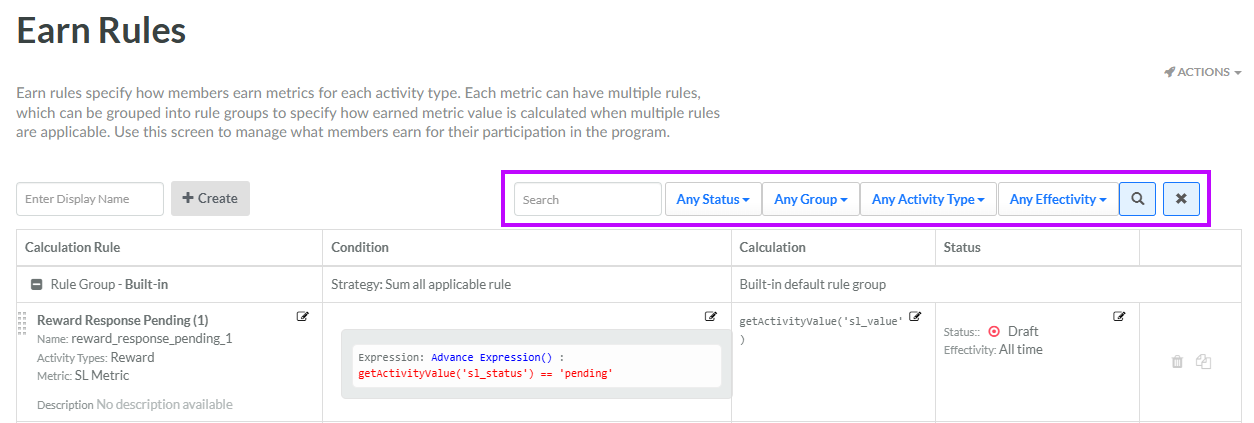
The search feature on the Earn Rules screen allows you to search for a specified text string anywhere within the Display Name and Internal Name. You can also filter the Earn Rules screen based on an Earn Rule's status, assigned Earn Rule Group, Activity Type, and / or status.
To search for an Earn Rule:
-
Select Rules from the top navigation bar, then select Earn Rules from the side navigation menu. The Earn Rules screen is displayed.
-
Optionally, in the Search field, enter the desired text string.
-
Optionally, from the Status drop-down menu, select a status value: Archived, Draft, or Published. The default is Any Status.
-
Optionally, from the Group drop-down menu, select an Earn Rule Group. The default is Any Group.
-
Optionally, from the Activity Type drop-down menu, select an Activity Type. The default is Any Activity Type.
-
Optionally, from the Effectivity drop-down menu, select an effectivity range: Always effective, Effective in the future, or Effective now. The default is Any effectivity.
-
Click the Search icon. The screen is refreshed to show only the Earn Rules that meet your search criteria. If you entered multiple search criteria, the Earn Rule must meet ALL criteria.
-
Within the Earn Rules screen, all Earn Rules are displayed beneath a sub-heading that indicates the Earn Rule Group to which they are assigned. Optionally, you can expand / collapse an Earn Rule Group by clicking the Expand or Collapse icon next to the Earn Rule Group name.
-
Optionally, to remove all search criteria and revert to the default criteria, click the Clear icon.
The Earn Rules screen is presented as a spreadsheet-style grid, where each row represents an Earn Rule. For more information, see
Note: Loyalty includes several "system" Earn Rules that are part of every Loyalty instance. System rules are identified by the suffix "(system)" appended to the Earn Rule name. System Earn Rules can't be deleted.
