View an Earn Rule

To view or edit the configuration details of an existing Earn Rule:

  1. Select Rules from the top navigation bar, then select Earn Rules from the side navigation menu. The Earn Rules screen is displayed.

  2. Optionally, search for the desired Earn Rule (see Search for an Earn Rule for more information on the available search options).

The Earn Rules screen is presented as a spreadsheet-style grid, where each row represents an Earn Rule. 

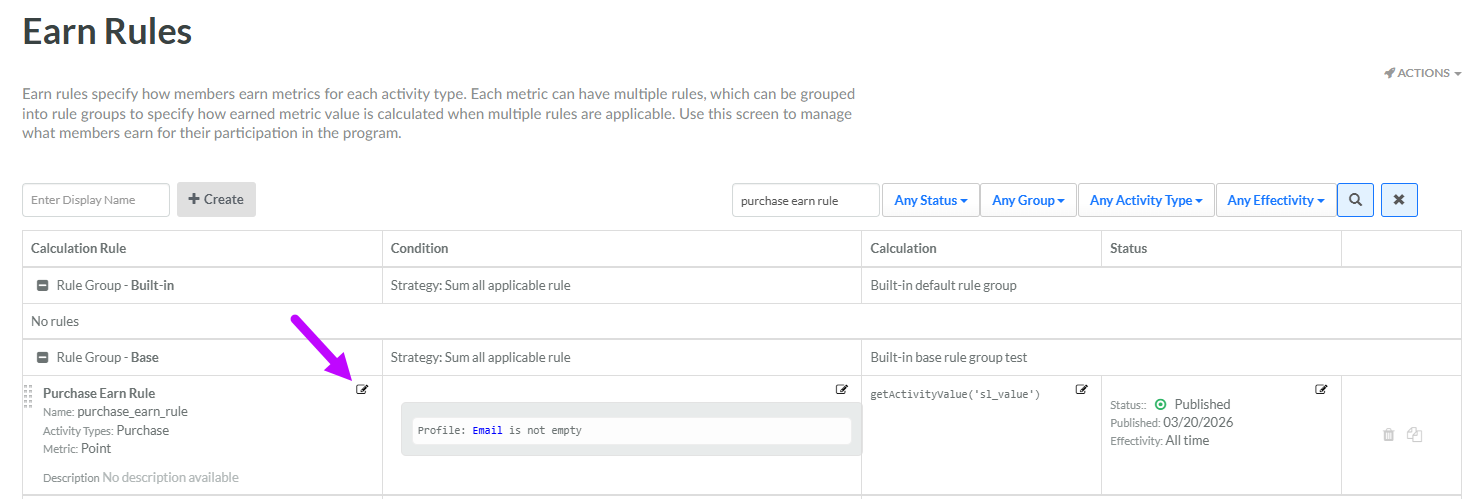
The first column (Calculation Rule) displays the high-level properties of the Earn Rule, such as its name, Activity Type, Metric, and description. To edit the high-level properties of an Earn Rule, click the Edit icon within the Calculation Rule column. The Edit Earn Rule pop-up window is displayed. For more information on these properties, see Create an Earn Rule.
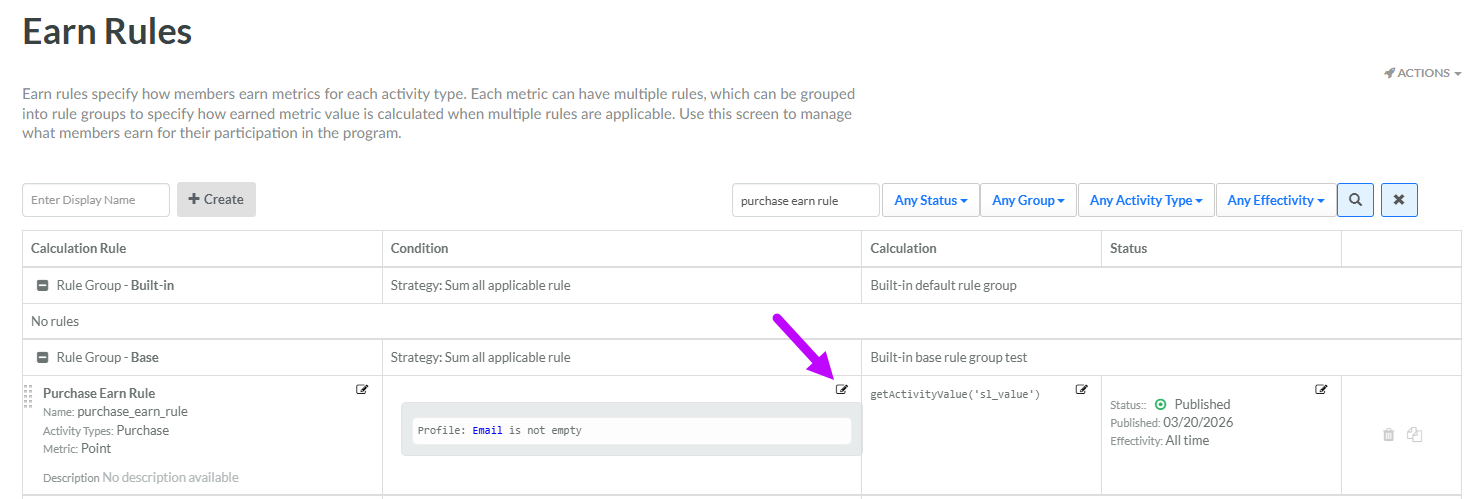
The second column (Condition) displays the Condition for this Earn Rule, if one has been defined. To edit the Conditions defined for this Earn Rule, click the Edit icon within the Condition column. The Conditions pop-up window is displayed. For more information, see Configure Earn Rule Condition.
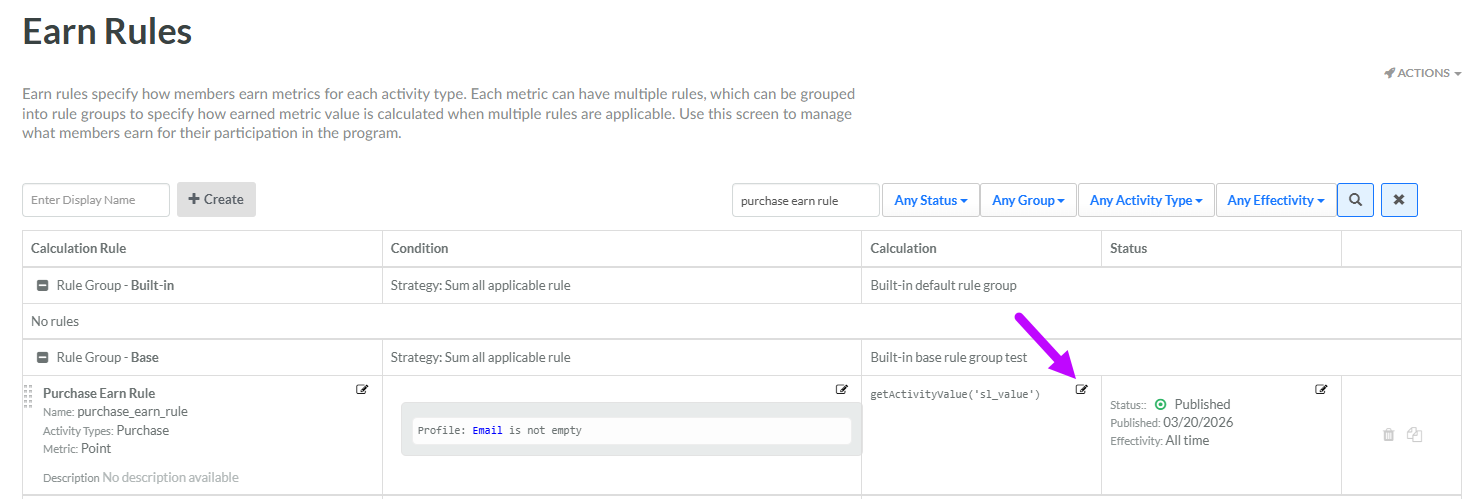
The third column (Calculation) displays the Groovy expression used to calculate the Metric adjustment. To edit the Calculation defined for this Earn Rule, click the Edit icon within the Calculation column. The Edit Earn Rule pop-up window is displayed. For more information, see Configure Earn Rule Calculation.
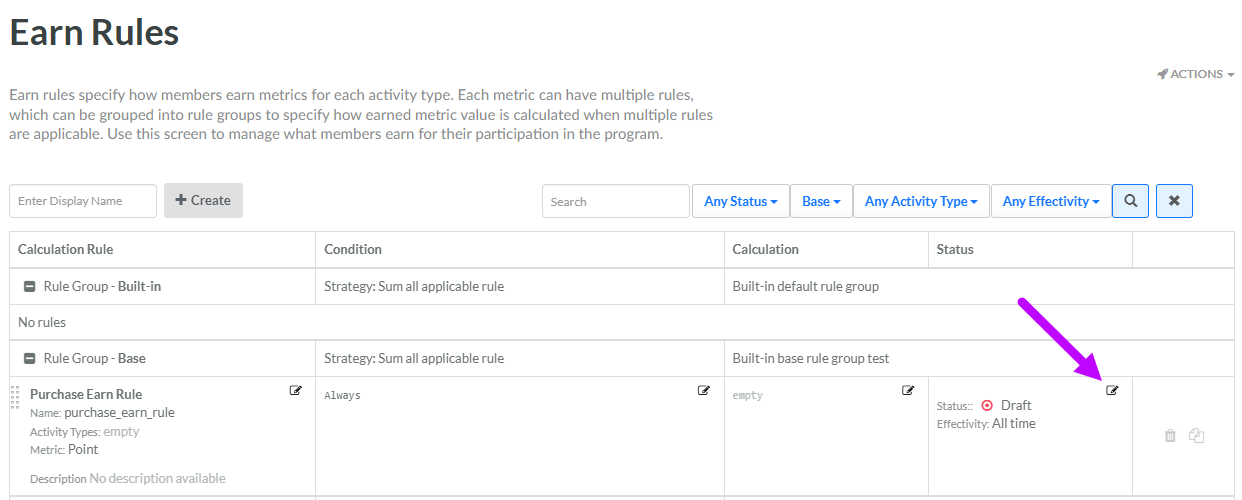
The fourth column (Status) displays the Earn Rule status, Effectivity Period, and Published Date (for published Earn Rules). To edit these configuration details, click the Edit icon within the Status column. The Edit Earn Rule pop-up window is displayed. For more information, see Define Earn Rule Effectivity Period, Publish an Earn Rule, or Archive an Earn Rule.
The final column displays icons for copying and deleting the Earn Rule (the Delete icon is not displayed for "System" Earn Rules). For more information, see Create an Earn Rule or Delete an Earn Rule.