
Create a Parameter Column
A Lookup always has one or more key columns. A key represents the information that is provided to the platform (i.e., the "input"), and is what the platform will "lookup." Within the Loyalty platform, a key column within a Lookup is referred to as a Parameter column.
When you create a Parameter column as described below, you are simply defining the name of that column. To actually populate the Parameter column with data, you must import a file that contains that data. See Import Lookup Data for more information on that process.
To create a Parameter column:
-
Select Rules from the top navigation bar, then select Lookups from the side navigation menu. The Lookups screen is displayed.
-
Search for and select the desired Lookup (see Search for a Lookup for more information on the available search options). The Lookup Details screen is displayed.
-
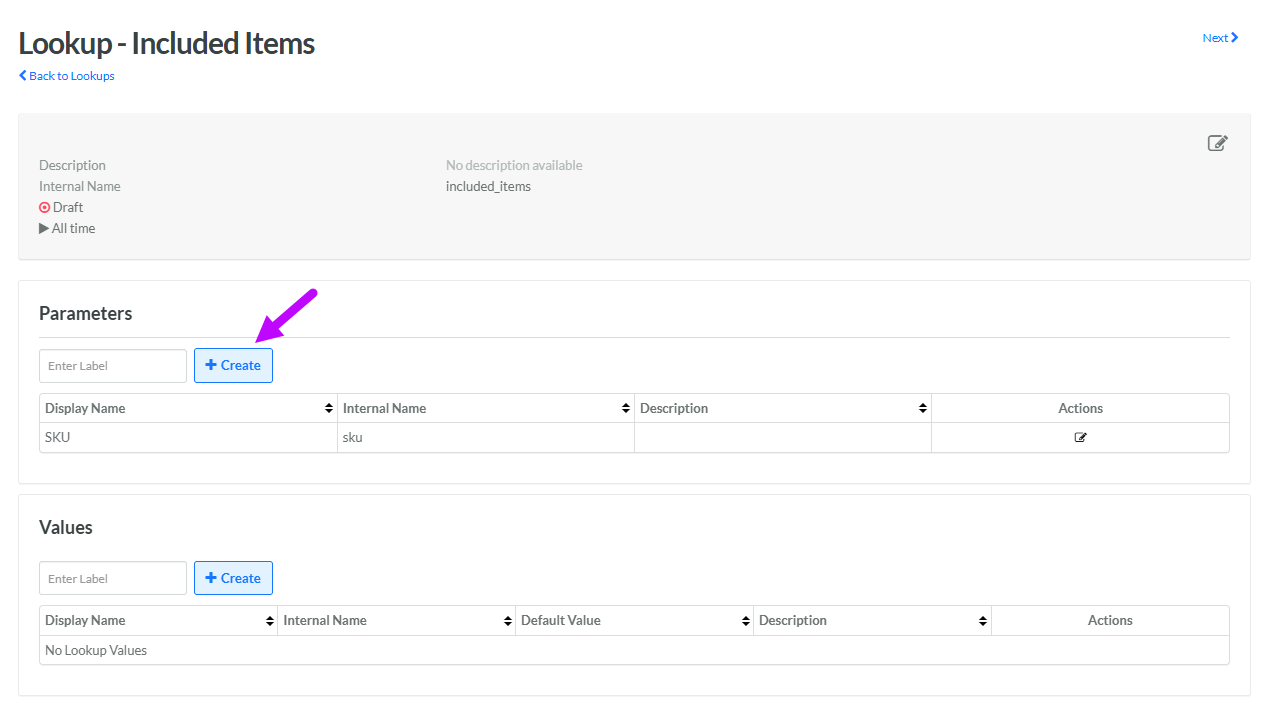
Within the Parameters section, in the Label field, enter a name for the new Parameter column.
-
Click Create. The Edit Lookup Parameter pop-up window is displayed.
-
The Display Name field is populated with the value you entered above; optionally edit this value.
-
The Internal Name is automatically populated based on the Display Name value. This field is not editable by default. To edit the Internal Name, check Edit Internal Name. A confirmation dialog box is displayed; click Ok. Edit the Internal Name value.
-
Optionally, in the Description field, enter a description of this item.
-
Optionally, you can store an image within a Parameter column by providing the URL to the stored image. If you want the Lookup Details screen to display the image rather than the URL, check Display as Image.
-
Click Save. The platform adds the new Parameter column to the Parameters section of the screen.
-
Repeat the above steps as needed to define additional Parameter columns.
