
Define a Base Earn Rule
A Base Earn Rule represents the standard formula for Members to earn Metrics from making purchases.
To define the Base Earn Rule for an Order Rule:
-
Select Rules from the top navigation bar, then select Order Rules from the side navigation menu. The Order Rules screen is displayed.
-
Search for and select the desired Order Rule (see
-
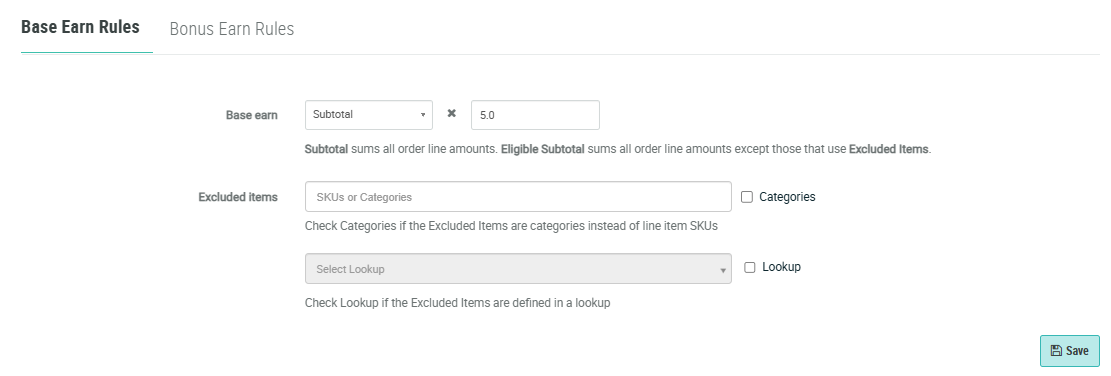
From the Base Earn drop-down menu, select either:
-
Sub-total: Sum all order line amounts for all items.
-
Eligible Sub-total: Sum order line amounts, and omit excluded items (defined below).
-
-
In the Multiplier field, enter the multiplier to be used to calculate the Metrics earned by a Member when they make a purchase. For example, a Member purchasing $100, with a multiplier of .05, would earn a value of 5 Metrics.
-
Optionally you can exclude certain items or products from the Order Rule. If a Member purchases one of these excluded items, the cost of that item is excluded from the Base Earn Rule calculation. You can define excluded items using one of the following methods:
-
Product SKU: This option allows you to enter the Stock Keeping Unit (SKU) numbers for items that should be excluded from the Metric calculation. In the Excluded Items field, enter one or more SKUs for items to be excluded.
-
Product Category: This option allows you to enter entire product categories that should be excluded from the Metric calculation. To exclude all of the items in a Product Category, check Categories. Then enter one or more Product Categories in the Excluded Items field.
-
Lookup: This option allows you to store information about excluded items within a Lookup table. When Loyalty receives the order information from the POS API, the platform checks if the items in the order exist in the selected Lookup table, and if so, excludes them from the Metric calculation. To use a Lookup Table to define excluded items, check Lookup. Then select the desired Lookup table from the drop-down menu.
-
-
Click Save.
