
Roles and Base Permissions
This document serves as a reference for the initial setup of the level permission given to Customer Service Representatives (CSR). In addition, set up and default permission are included in this document.
Overview
Access for CSR users is for reviewing Member information, including offers, orders, and messages sent to the member. The CSR user roles do not have the permission level to create, update, or delete program configuration. This includes, but is not limited to, offers, campaigns, rules, triggered actions, and scheduled jobs.
Different permissions are available between products, Loyalty and Cheetah Digital.
The Permissions mentioned below are related to the program setup by default. Permissions for Loyalty can be modified by admin-level users. Contact the Zeta Global Account team for permission management for the Cheetah Digital platform.
Roles
Loyalty comes pre-defined with the roles designed to get the program going by default. The Roles below are related to the program setup out of the box. Roles for Loyalty can be modified by admin-level users. Contact the Zeta Global Account team for permission management for the Cheetah Digital platform.
-
Admin: System-wide read, write, and execute permissions. Able to perform any function available.
-
CSR: Designed to be used by Customer Service Representatives servicing members.
-
Author: Designed to manage content and campaigns.
-
Analyst: Designed to perform queries and lookups for the program.
Admin
Admin accounts are able to perform all functions without restrictions.
CSR
CSR accounts are able to manage the following parts of the program by default. Where not defined, the role does not have any access.
| Resource | Read | Write | Admin |
|---|---|---|---|
| Members | 
|

|
|
Author
Author accounts are able to manage the following parts of the program by default. Where not defined, the role does not have any access.
| Resource | Read | Write | Admin |
|---|---|---|---|
| Challenges |
|
|
|
|
Offers |
|
|
|
| Rewards |
|
|
|
| Events |
|
|
|
| Codes |
|
|
|
| Static Files |
|
|
|
| Placements |
|
|
|
| Contents |
|
|
|
| Content Blocks |
|
|
|
|
Content Pages |
|
|
|
| Content Tokens |
|
|
|
| Template Sets |
|
|
|
| Template Set Versions |
|
|
|
Analyst
Analyst accounts are able to manage the following parts of the program by default. Where not defined, the role does not have any access.
| Resources | Read | Write | Admin |
|---|---|---|---|
| Dashboards |
|
|
|
| Big Data Queries |
|
|
|
Setup
You can change the resource capabilities from the default permissions.
To select a resource and change the permissions to Read, Write, or Admin:
- Click Admin on the Main Menu.
- Click Roles on the Subcategories Menu.
- Select the role.
- Click the Select Resource drop down and select a resource.
- Click the Read drop down and select Read, Write, or Admin.
- Click +Create
You can also edit or delete permissions for each role.
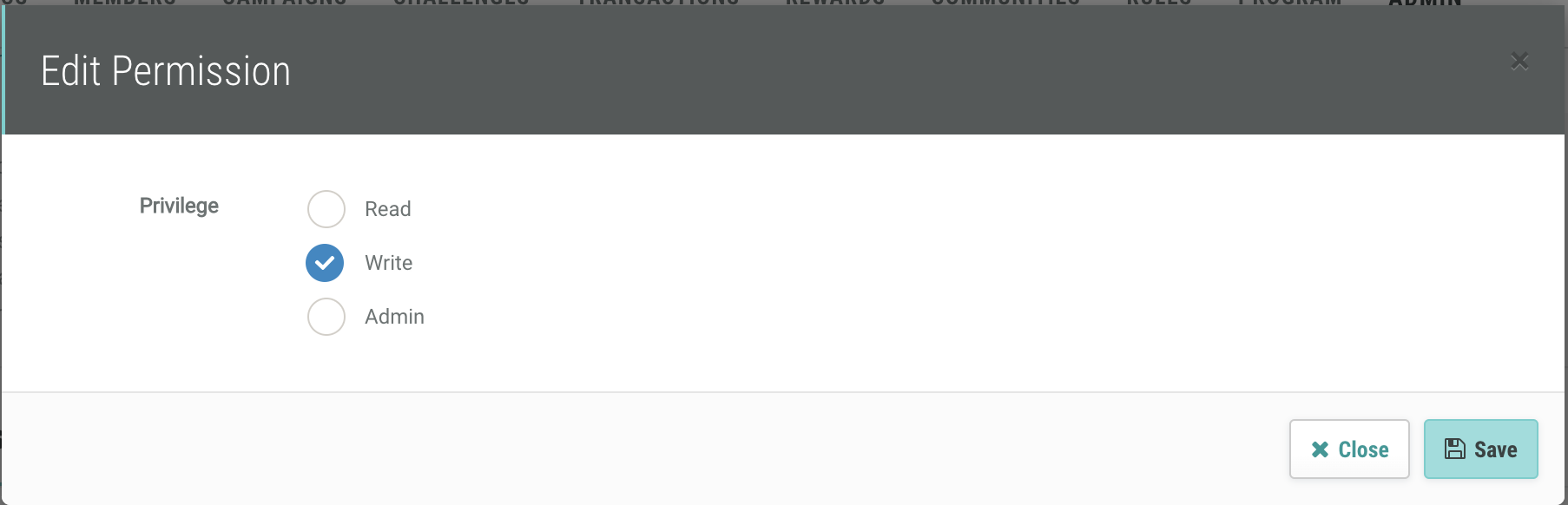
Edit Permissions
-
Click the Edit icon under Options. A pop-up is displayed.

-
Select Read, Write, or Admin.
-
Click Save.
Delete Permissions
-
Click the Trash Icon under Options. A pop-up is displayed.

-
Click Confirm.
